
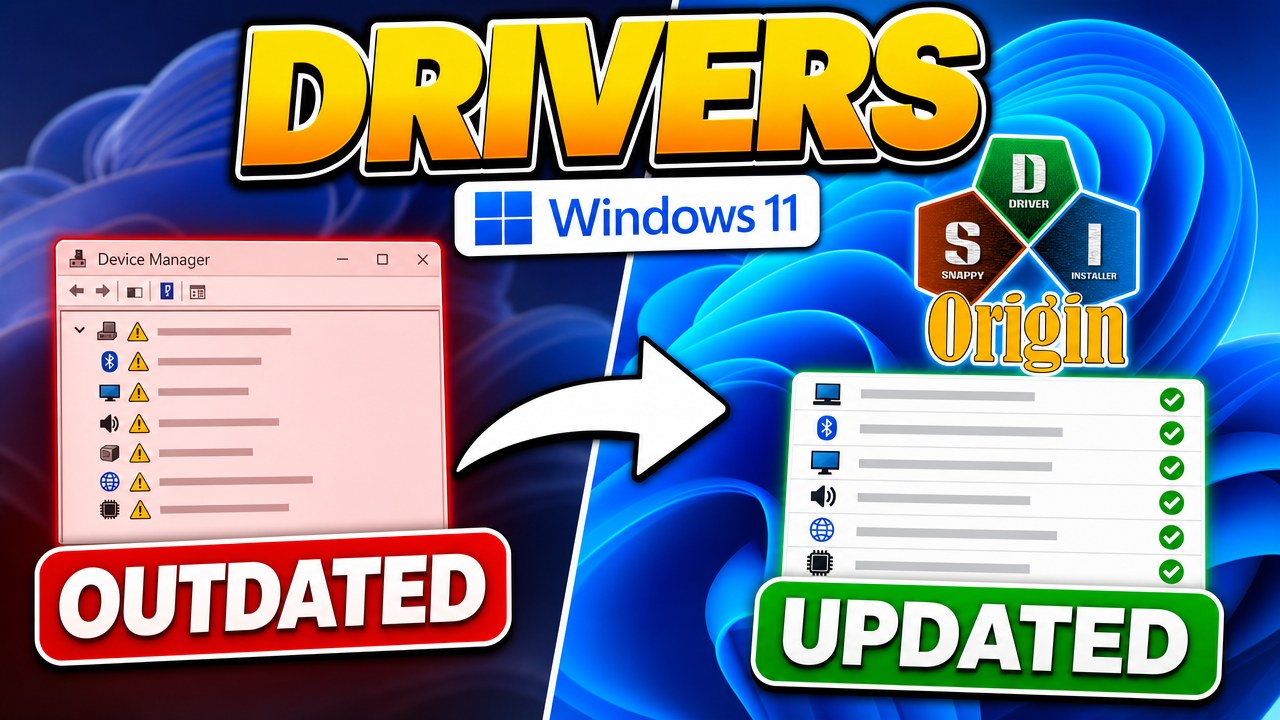
To install missing drivers on Windows 10 or 11, download Snappy Driver Installer Origin (SDIO) from Glenn Delahoy’s website, extract the zip, and run the 64-bit executable. On the welcome screen choose Download Indexes Only, let it scan, then install the drivers marked as missing. Leave working devices alone. Updating a driver that already works is the most common way people break a healthy PC.
Applies to: Windows 10 (22H2) and Windows 11 (23H2, 24H2, 25H2) | Last updated: September 4, 2026
Key Takeaways
- If a device is working, leave its driver alone. The developer of SDIO says the same thing in his own manual: newer is not always better. Use this tool to fill in what is missing after a reinstall, or to fix something that is actually broken.
- Download Snappy Driver Installer Origin, not the similarly named “Snappy Driver Installer”. They are two separate projects. Origin is the one that is actively developed, and it comes from glenn.delahoy.com.
- Pick Download Indexes Only for a normal home PC. The indexes are a small catalog that lets SDIO work out what you need. The full driver packs are tens of gigabytes and almost nobody needs them.
- No network driver after a reinstall means no internet, which means SDIO cannot download anything. Run SDIO on a working PC, choose Download Network Drivers Only (well under 2 GB), copy the folder to a USB stick, and run it from there on the offline machine.
- On a laptop, get the touchpad, hotkey, power management and graphics switching drivers from the manufacturer’s support page first. A generic newer driver can replace a customized one and take features with it.
Quick Steps
- Download the SDIO zip (around 11 MB) from glenn.delahoy.com. There is no installer.
- Right-click the zip, choose Extract All, and pick a folder on your drive.
- Run the 64-bit executable (the file with 64 in the name). Ignore the two files with XP in the name unless you are working on a very old system.
- Accept the licence terms. On the welcome screen choose Download Indexes Only, or Download Network Drivers Only if you are building a USB rescue stick for a machine with no internet.
- Turn on the restore point option in the app before you install anything.
- Tick the drivers marked as not installed and the ones flagged as a better match. Uncheck anything that is only a newer version of a driver that already works.
- Click Install, then restart when SDIO tells you to.
Do You Actually Need to Update Your Drivers?
Probably not. If your computer is working properly, you do not need to be updating drivers at all. That is not me being overly careful. It is what the developer of SDIO says in his own documentation, and after ten years of repair work I agree with him completely.
The right way to think about this tool is that it fills in what is missing after a Windows reinstall, or fixes something that is genuinely broken. It is not for chasing version numbers on a machine that already runs fine.
I get comments on every driver video from people who updated everything on a healthy machine and then lost their Wi-Fi or their audio. One person could not boot the PC at all afterwards. So be far more careful about replacing a driver that already works than you are about filling in one that is missing.
Snappy Driver Installer vs Snappy Driver Installer Origin
There are two separate projects with almost the same name, and this catches out a lot of people. There is Snappy Driver Installer, and there is Snappy Driver Installer Origin. Origin is the one you want.
Back in 2016 the person who wrote the original project was looking for someone to take it over, and Glenn Delahoy started producing the official builds. A few months later the project was handed to someone else, and the builds on that site were reported to have started bundling other software. Glenn forked the project into Origin to keep it clean, and that is the version most people moved to.
Note: The bundling reports date from 2017 and I have not tested what is inside the other project today. What I can say is that Origin is the actively developed version, it is the one I use, and it is the one this guide covers. Download it from glenn.delahoy.com.
How to Download and Run SDIO
Go to Glenn Delahoy’s SDIO page and download the application zip. It is tiny, around 11 MB, because the drivers themselves are not inside it yet. There is no installer with this tool at all. The current release at the time of writing is version 2.0.3, which downloads as SDIO_2.0.3.886.zip.
Right-click the downloaded zip, choose Extract All, and extract it to a folder on your drive. Open that folder and look at the file names, because there are now four executables in there rather than two:
- The 64-bit build, which has 64 in the file name. This is what you want on any modern PC.
- The plain build with no suffix, which is the 32-bit version for older installations of Windows.
- The two files with XP in the name are special builds for genuinely ancient systems. Unless you are working on Windows XP, ignore them.
Double-click the 64-bit file and accept the licence terms. Because the app is portable and installs nothing, you can also run it straight off a USB stick, which matters for the offline scenario further down this guide.
Which Download Option Should You Choose?
The first time you run SDIO you get a welcome screen offering three choices, and this is where most people go wrong. The wording is not obvious, so here is what each one actually does.

Download Indexes Only (best for most people)
The indexes are basically a catalog. It is a small download that takes a few minutes at most, and it lets SDIO scan your computer and work out which drivers you need. Once it knows, it fetches each driver pack individually as it goes. On a home PC with a working internet connection, this is the option to pick.
Download Network Drivers Only (for a PC with no internet)
This grabs only the LAN, wireless and Wi-Fi driver packs, which comes to well under 2 GB. It exists for the situation the indexes option cannot solve: a machine that has just been reinstalled, has no network driver, and therefore has no internet to download anything with.
Download All Driver Packs (for technicians)
This is the full offline collection, and it runs to tens of gigabytes. If you fix machines for a living and you regularly meet PCs with no internet at all, this is the one you want. Be ready for it though, because the download can take anywhere from an hour to most of a day.
Tip: If you do not see the welcome screen when you launch SDIO, you have not broken anything. It lives in the system menu in the top-left corner of the window, along with the other tools.
How to Install Drivers on a PC With No Internet
This is easily the most common problem I get asked about. You reinstall Windows, the network adapter has no driver, and now nothing that needs a download can help you. Here is the fix, and it takes one working computer and a USB stick.
- On a computer that does have internet, download and extract SDIO as described above.
- Run it and choose Download Network Drivers Only. Let it finish.
- Copy the whole SDIO folder, including the downloaded packs, onto a USB stick.
- Carry the stick to the offline machine and run the 64-bit executable straight off the USB drive. No installation is needed.
- Install the network driver, restart, and the machine is online. From there SDIO can fetch everything else on its own.
If you would rather not deal with this at all on your next rebuild, WIMUtil can inject your drivers directly into a Windows ISO before you install. Everything is then present from first boot. I cover that approach in my guide to building a custom Windows ISO with your programs already installed.
What the BitTorrent Download and Antivirus Warnings Mean
The driver packs come down over BitTorrent, and SDIO has its own torrent client built in, so you do not need to install anything separately. The trade-off is that speed depends on how many people are sharing that pack at the time.
It can also sit there looking like it is doing nothing while it connects. If the download is very slow or stuck on 0%, that is usually what is happening. It is worth checking that your firewall is not blocking it.
If your antivirus starts throwing warnings during the download, look carefully at what it is actually complaining about. More often than not it is blocking the addresses the torrent client connects to, not the application itself. That is a very different thing from your antivirus saying the program is unsafe, and it is worth knowing the difference before you panic and delete everything.
How to Read the Driver List (The Part That Matters Most)
Once SDIO has scanned your machine you get a list of drivers, and those entries are not all the same kind of thing. Reading them correctly is what separates a clean driver install from a broken PC.
- Not installed: a device with no driver at all. These are the ones you came here for, and they are safe to install.
- Better match: SDIO reckons it has a closer match for your hardware than the generic driver Windows supplied. Usually worth installing.
- Newer version: a more recent build of a driver you already have and that already works. This is the category to be cautious with.
- Older or worse match: genuinely a downgrade from what is on the machine now. Leave these alone.

By default SDIO shows you the missing drivers and the better matches, and for most people that is exactly where you should stay. If you want to be cautious, uncheck the newer ones so you are only installing what is missing and what is a genuinely better match.
See where a driver comes from before you install it
Hold the Ctrl key while hovering over an entry and SDIO shows you the details of that driver: the signature, the provider, the version, the date and the hardware ID. You are never installing something blind, you just have to know the shortcut exists.
Hold the spacebar instead and it shows the alternative drivers available for that same device. That also answers the other question I get a lot, which is why the same driver appears to be listed several times over. Those are different candidates for one device, not duplicates.
If you want more than the two default categories, tick Expert mode to open the filter options and decide exactly what gets shown.
Before You Click Install
Make a restore point first. There is an option for it right inside SDIO, so turn that on before you go any further and do not assume it is handled for you. If a driver does break something, that restore point is what gets you back to a working machine.
Warning: Do not tick everything and walk away. The developer’s own advice is not to install too many drivers at once. Most of the time you will be fine, and then there is the one time you are not, and you have to roll back every single driver to work out which one caused it.
Two small gotchas are worth knowing before you start the install:
- USB 3 drivers go together as a set. Install them in one go rather than one at a time, and do not run SDIO from a USB port while you are updating them.
- Network drivers cut off what you are standing on. Do not update them while you are running SDIO over a network share.
With that done, click Install. SDIO downloads whatever it does not already have, installs it, and then tells you the installation is complete and that you need to restart.
When a Driver Update Breaks Something
A driver update genuinely can break things, so it is better to hear this from me than to find out the hard way. Here are the three situations that account for almost everything that goes wrong.
Laptops need their manufacturer’s drivers
This one is big. Laptop manufacturers ship customized drivers for the touchpad, the hotkeys, the power management and the graphics switching. A generic newer driver will happily replace one of those and take the extra features with it.
On a laptop, get what you can from the manufacturer’s own support page first, then use SDIO to fill in whatever is left over.
Graphics drivers come from NVIDIA, AMD or Intel
Get graphics drivers directly from the vendor on any machine, not through SDIO. Their own package gives you the control panel and the full feature set that a bare driver on its own does not include. I have a step-by-step guide to installing and updating graphics drivers, plus a dedicated NVIDIA driver installation guide.
Rolling back a bad driver
Open Device Manager, right-click the device, go to Properties, then the Driver tab, and click Roll Back Driver. That puts the previous version back. Windows only keeps one previous version, so you cannot keep stepping backwards.
If Windows quietly puts the old driver back a day or two later, you are not doing anything wrong. That is Windows Update reinstalling it, and I cover how to stop it in my guide to updating drivers on Windows 11 the right way.
What to Do When SDIO Cannot Find a Driver
If a device still says it needs a driver and nothing turned up in the driver packs, that is not a failure of the app. It just means this collection does not include that particular driver. The fix is to identify the device yourself and search for it directly.
- In Device Manager, right-click the unknown device and choose Properties.
- Open the Details tab.
- In the Property drop-down, change it to Hardware Ids.
- Right-click the top entry in the list and copy it. That string identifies the exact device.
- Search for that hardware ID to find the correct driver for the part you actually have.
My full walkthrough of the hardware ID method, along with the driver updates hiding under Optional Updates, is in How to Update Drivers on Windows 11 (The Right Way, Not Device Manager).

After the Drivers Are Sorted
Once Device Manager is clean and nothing has a yellow triangle next to it, the machine is in a good state to set up properly. If you have just reinstalled Windows, this is the point where I run Winhance to strip the bloatware, turn off telemetry and get the settings the way I want them.
If you find yourself doing this rebuild often, it is worth setting the whole thing up once and reusing it. My guide on how to configure Windows once and deploy it to every PC covers that, and reinstalling Windows without losing your data is worth a read before your next clean install.
Frequently Asked Questions
Should I click Select All and install every driver SDIO finds?
No. That is what I did in my older video and it is not what I recommend now. Installing everything at once means that if one driver breaks something, you have to roll back every driver you installed to find the culprit. Install what is missing and what is flagged as a better match, and leave working devices alone.
What is the difference between Snappy Driver Installer and Snappy Driver Installer Origin?
They are two separate projects with almost identical names. Snappy Driver Installer Origin is the fork Glenn Delahoy created in 2017 and still develops today, and it is the one covered in this guide. Download it from glenn.delahoy.com so you know you have the right one.
Do I need an internet connection to use SDIO?
You need one for the initial download, but not on the machine you are fixing. Run SDIO on a working PC, choose Download Network Drivers Only, copy the folder to a USB stick, and run it from that stick on the offline machine. Once the network driver is in, the machine can fetch the rest itself.
Why is the driver download stuck on 0%?
The driver packs come down over BitTorrent, and the download can sit at 0% while the built-in client finds peers. Give it a few minutes. If it never moves, check that your firewall is not blocking SDIO, since the torrent connections are the first thing a firewall tends to stop.
Is Snappy Driver Installer Origin safe to use on a laptop?
Yes, with one caveat. Get the touchpad, hotkey, power management and graphics switching drivers from your laptop manufacturer’s support page first, because those are customized and a generic replacement can remove features. Use SDIO for whatever the manufacturer does not provide.
It works Great!!
the website appears to not be working, can you give me a workaround pleasE?
i meant the glenn delahoy website, it says cant be reached.. i cant download the program. please HELP
Hi there, I just tested it, the website is working and I can download Snappy Driver Installer Origin without any issues.