Skip to content
Memory Logo Mark
  • Home
  • GuidesExpand
    • Windows Customization
    • Windows Install & Setup
    • Windows Troubleshooting
    • Windows Optimization
    • Software & Apps
    • Hardware & Diagnostics
  • ProjectsExpand
    • Winhance
    • UnattendedWinstall
  • About
  • Contact
Get Winhance

Memory Logo Mark
Memory's Tech Tips
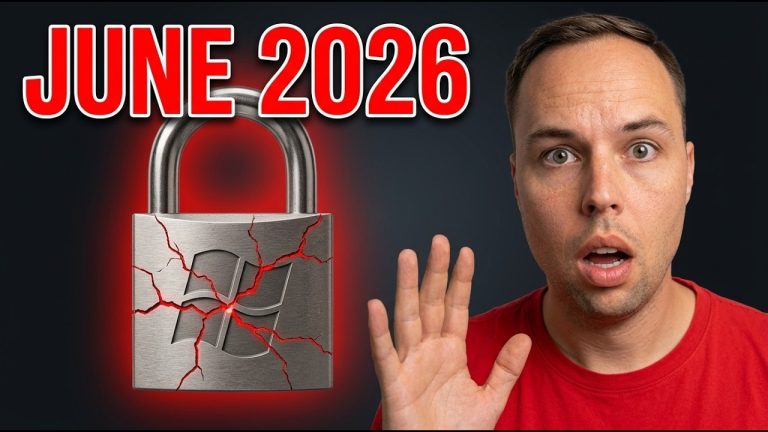
  • Windows Secure Boot certificates expiring June 2026 security warning tutorial
    Windows Install & Setup Security & Privacy

    Windows Secure Boot Certificates Expire in June 2026 – What to Do

    Secure Boot certificates on Windows 10 and Windows 11 that were issued in 2011 are expiring in June 2026. Your PC will not stop booting — existing software keeps running…

    Read More Windows Secure Boot Certificates Expire in June 2026 – What to DoContinue

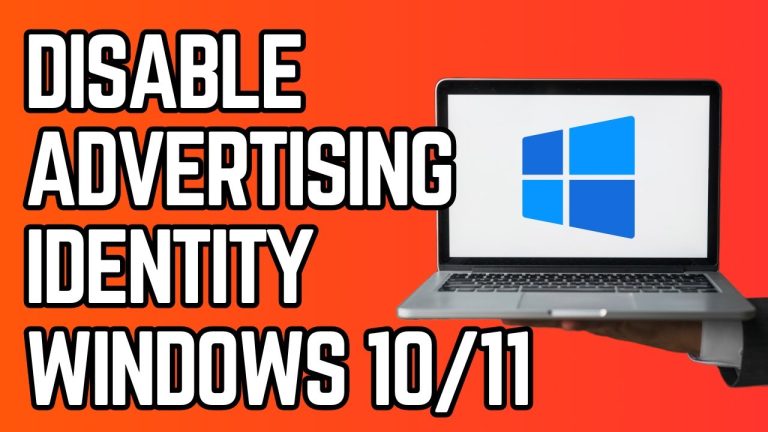
  • Tutorial on how to disable Advertising ID in Windows 11 and 10 using Registry Editor
    Windows Customization Security & Privacy Tutorials (How to)

    How to Disable Advertising ID Windows 11 & 10 (Regedit)

    To disable the Advertising ID in Windows 10 and 11 using Registry Editor, press Windows + R, type regedit, and navigate to HKEY_CURRENT_USER\SOFTWARE\Microsoft\Windows\CurrentVersion\AdvertisingInfo. Create a new DWORD (32-bit) value named…

    Read More How to Disable Advertising ID Windows 11 & 10 (Regedit)Continue

  • Disable Remote Assistance Windows 11 10 tutorial using Registry Editor for enhanced PC security
    Windows Customization Security & Privacy Tutorials (How to)

    How to Disable Remote Assistance Windows 11 & 10 (Regedit)

    To disable remote assistance in Windows 10 and 11, open Registry Editor by pressing Win + R, typing regedit, and pressing Enter. Navigate to HKEY_LOCAL_MACHINE\SYSTEM\CurrentControlSet\Control\Remote Assistance, then double-click the fAllowToGetHelp…

    Read More How to Disable Remote Assistance Windows 11 & 10 (Regedit)Continue

  • Disable WiFi Sense Windows 10 11 registry editor tutorial security privacy settings
    Windows Customization Security & Privacy Tutorials (How to)

    How to Disable WiFi Sense Windows 10 & 11 (Regedit)

    To disable WiFi Sense in Windows 10 and 11, open Registry Editor by pressing Windows + R, typing regedit, then navigate to HKEY_LOCAL_MACHINE\SOFTWARE\Microsoft\WcmSvc\wifinetworkmanager\config and create a DWORD value called AutoConnectAllowedOEM…

    Read More How to Disable WiFi Sense Windows 10 & 11 (Regedit)Continue

  • Windows 10 and 11 tutorial for disabling location services using Registry Editor regedit privacy settings
    Windows Customization Security & Privacy Tutorials (How to)

    How to Disable Location Services on Windows 10/11 (Registry)

    To disable location services on Windows 10 or Windows 11 via the registry, open Terminal as administrator and run three reg add commands that set the ConsentStore location value to…

    Read More How to Disable Location Services on Windows 10/11 (Registry)Continue

  • Tutorial for disabling automatic feedback sampling in Windows 10 and 11 using Registry Editor
    Tutorials (How to) Security & Privacy Windows Customization Windows Optimization

    How to Disable Automatic Feedback Sampling Windows 10 & 11 (Regedit)

    To disable automatic feedback sampling in Windows 10 and 11, open Registry Editor by pressing Windows + R, typing regedit, and navigating to HKEY_LOCAL_MACHINE\SOFTWARE\Policies\Microsoft\Windows\DataCollection. Create two DWORD values named DoNotShowFeedbackNotifications…

    Read More How to Disable Automatic Feedback Sampling Windows 10 & 11 (Regedit)Continue

  • Windows 10 ESU Cover Image
    Security & Privacy

    How to Enable Free Windows 10 Extended Security Updates (ESU)

    To enable Windows 10 Extended Security Updates (ESU) for free, create a Microsoft account user on your PC, add two registry values under a new ConsumerESU key, then enroll through…

    Read More How to Enable Free Windows 10 Extended Security Updates (ESU)Continue

  • How to Disable Forced BitLocker Encryption in Windows 11 24H2: A Simple Guide
    Security & Privacy

    How to Disable Forced BitLocker Encryption on Windows 11 24H2

    To prevent forced BitLocker encryption during a Windows 11 24H2 clean install, press Shift + F10 during the out-of-box setup to open Command Prompt, then run this command to add…

    Read More How to Disable Forced BitLocker Encryption on Windows 11 24H2Continue

  • Best Free VPN for Windows 10 and 11: How to Install ProtonVPN
    VPN & Network Security Security & Privacy

    How to Install ProtonVPN on Windows 10/11 (Best Free VPN)

    ProtonVPN is the best free VPN for Windows 10 and 11. It offers unlimited data with no caps, strong encryption, and a strict no-logs policy. Download the app from protonvpn.com,…

    Read More How to Install ProtonVPN on Windows 10/11 (Best Free VPN)Continue

  • How to Remove Malware and Viruses from Windows 10 & 11
    Security & Privacy

    How to Remove Malware and Viruses from Windows 10/11 (4-Step Process)

    To remove malware and viruses from Windows 10 or Windows 11, run three free scanners in sequence: Norton Power Eraser for stubborn rootkits, Malwarebytes AdwCleaner for adware and browser hijackers,…

    Read More How to Remove Malware and Viruses from Windows 10/11 (4-Step Process)Continue

Page navigation

1 2 Next PageNext

memstechtips

Windows tutorials, tools, and honest reviews from a decade of PC repair and end-user support.

Site

Home Blog About Contact Privacy Policy Disclaimer

Projects

Winhance UnattendedWinstall GitHub Support on Ko-fi
YouTube Discord Github X Facebook Instagram TikTok

© 2026 Memory's Tech Tips - WordPress Theme by Kadence WP

  • Home
  • Guides
    • Windows Customization
    • Windows Install & Setup
    • Windows Troubleshooting
    • Windows Optimization
    • Software & Apps
    • Hardware & Diagnostics
  • Projects
    • Winhance
    • UnattendedWinstall
  • About
  • Contact
Search