Winhance lets you configure Windows one time and reuse that exact setup on any machine. Apply your changes to a live PC in normal mode, save them as a config file to import onto another running Windows install, or bake them into a custom autounattend ISO so a fresh installation arrives already configured. One setup, every machine.
Applies to: Windows 10 (22H2) and Windows 11 (23H2, 24H2, 25H2) | Last updated: June 18, 2026
Key Takeaways
- One configuration, three deployment paths — Winhance applies the same setup to a live PC (normal mode), to another running Windows install (config file), or to a fresh install (autounattend ISO).
- Normal mode applies changes instantly — app installs and removals, optimizations, and customizations take effect immediately on the PC you are using.
- Builder mode creates a config file — a portable snapshot of your settings and app choices that you can import and apply to any other Windows machine in minutes.
- The Windows Installation Media Utility (WIMUtil) bakes your setup into a custom Windows ISO using an autounattend.xml file, so the PC is configured the moment it reaches the desktop.
- Config review mode is optional — inspect every change a config file will make before applying it, or skip the review and apply immediately if you authored the config yourself.
Quick Steps:
- Open Winhance in normal mode and configure your apps, optimizations, and customizations on a live PC.
- To reuse that setup, enter builder mode, select the apps to include, and save a config file.
- On another running PC, open config review mode, import the config file, and apply it — review first, or skip the review if you authored it.
- For machines that need a fresh Windows install, open Advanced Tools > Windows Installation Media Utility.
- Select your Windows ISO, extract it, then generate and add a Winhance XML (or add an XML you built in builder mode).
- Optionally extract and add drivers, download the oscdimage package, then create your custom ISO.
- Install Windows with that ISO — it boots to the desktop already configured.
The Winhance Ecosystem: One Setup for Every Machine
The idea behind Winhance that I do not think gets explained enough is this: you configure Windows the way you like it once, and then you apply that same setup wherever you need it. Everything starts from a live system — the PC in front of you — and from there it splits into the routes that fit your situation.
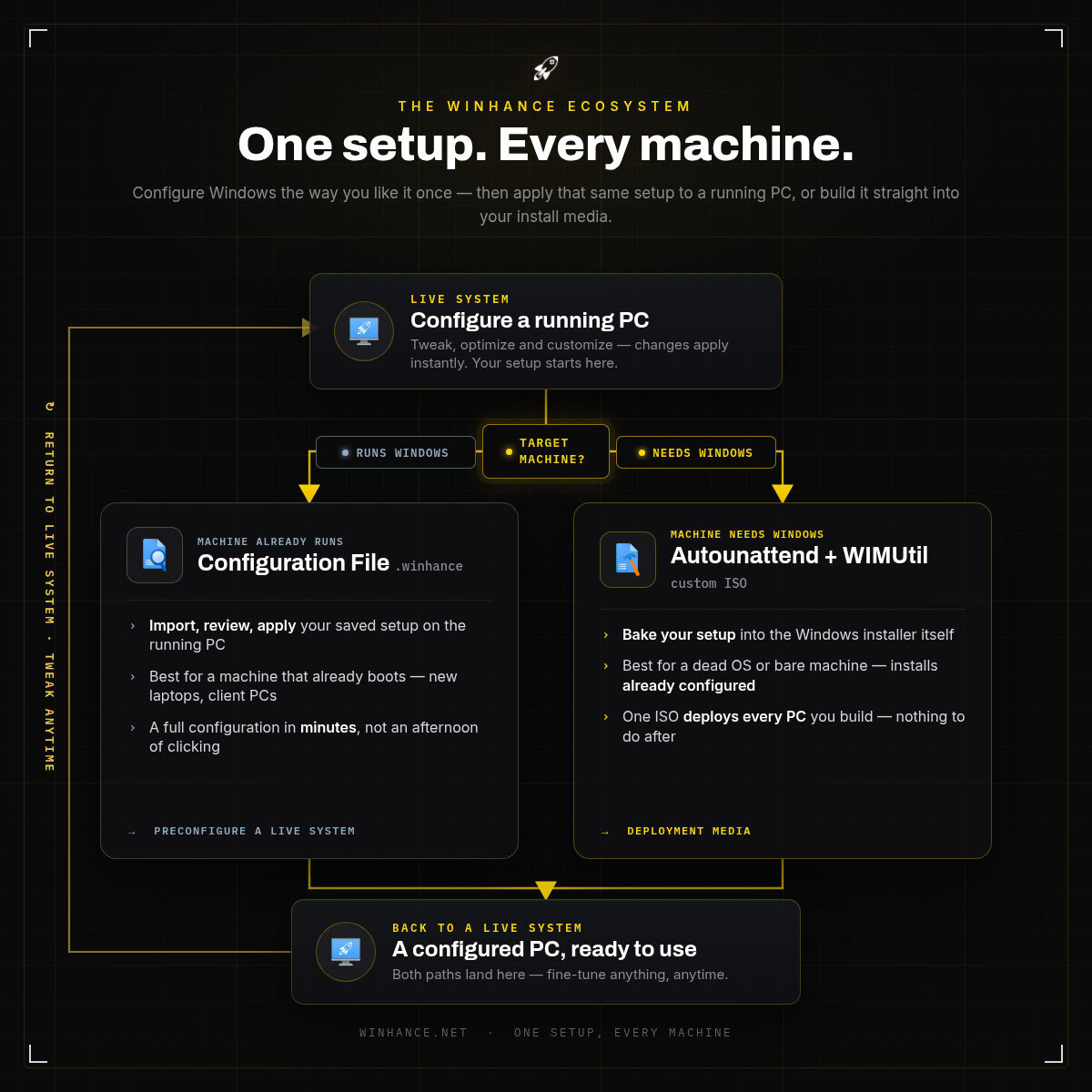
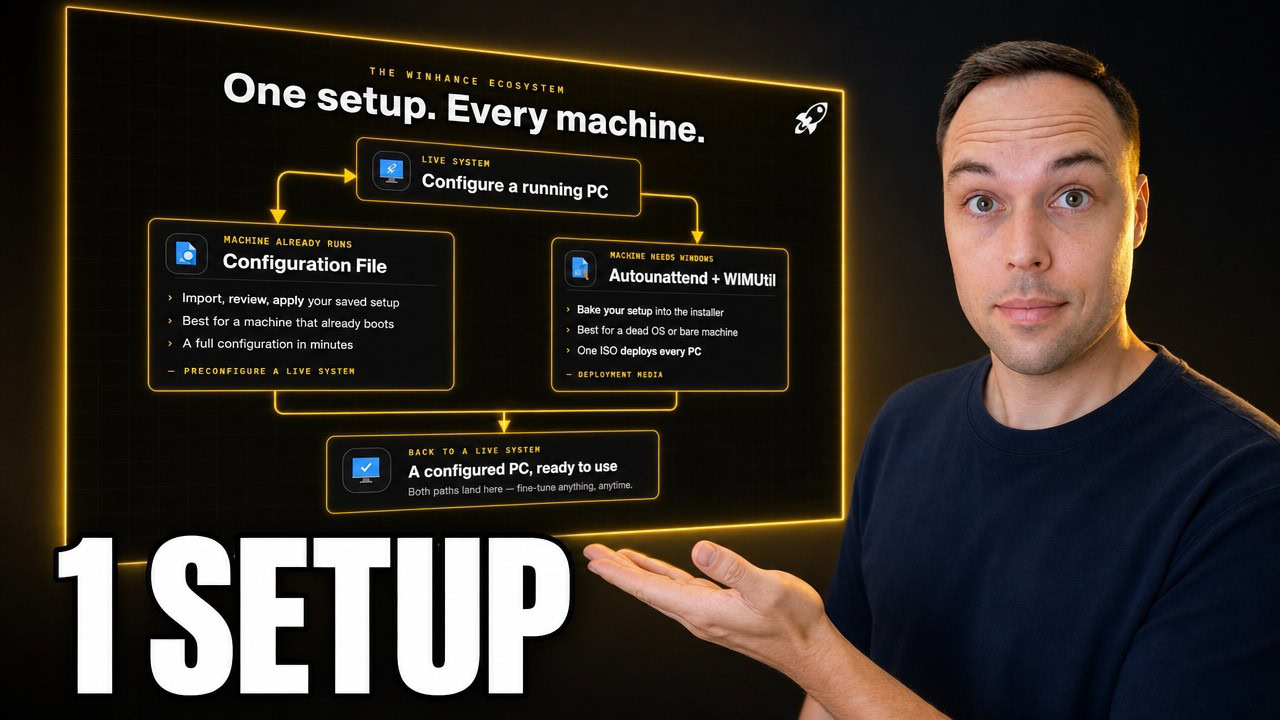
There are three ways to apply a configuration. You can change a running PC directly, you can save your setup to a config file and apply it to another machine that already boots Windows, or you can bake your setup into a custom Windows ISO for a machine that still needs Windows installed. Watch the full walkthrough above, or follow each method below.
Support Winhance’s Development
Winhance is free and always will be. If the ecosystem saves you time setting up machines, the best way to give back is on the store — you can support its development directly, or grab the Supporter Pack below and get a set of premium wallpapers along with it.

Winhance Supporter Pack
Winhance is free, forever. The Supporter Pack is a way to back its development and get something in return — 6 premium Winhance wallpapers, the latest installer, and a personal thank-you from me. It is a digital product, delivered instantly.
Method 1: Configure a Running PC in Normal Mode
Normal mode is where it all starts, and it applies your changes to the current PC immediately. This is the standard way to use Winhance: open the app on a running system and start making changes that take effect right away.
In this mode you can uninstall the Windows apps you do not want, install external software that you do want, and work through the optimize and customize sections to set each feature to the state you prefer. Every change you make here applies to your live system as you make it. If configuring the PC in front of you is your only goal, you can stop right there — but Winhance can do much more.
Method 2: Save Your Setup as a Config File (Builder Mode)
A Winhance config file is a snapshot of all your settings and app choices that you can apply to another running Windows machine in minutes. Instead of spending an afternoon clicking through everything manually, you import the file and apply it. You create config files in builder mode, which was introduced in Winhance Release 27.
When you enter builder mode, the optimize and customize sections are already populated with the current states of the system you are on. If your computer already detects dark mode or specific transparency settings, Winhance reflects that automatically. What is not selected yet are the items in the software and apps section — that is where you choose which apps to save into the config file.
For example, you might choose to remove Bing Search and Microsoft News and to install a browser of your choice for your clients. You select those items so they are saved to the config file, and any setting changes you make in builder mode do not touch your live system. Once you are happy, give the config a name and save it to a location of your choice.
Config Review Mode vs. Skip and Apply
Config review mode exists so you can inspect every change a config file wants to make before it touches your computer. You import the config, and the optimize and customize sections show as complete while the software and apps section lists the items waiting on your decision — install or uninstall. Reviewing does not run anything yet; it only shows you what will happen.
This is useful when someone else hands you a config file, or when you want to see exactly what the Winhance recommended config will change before applying it. But if you work in IT and authored the config yourself, you already know what it does — so you can choose the import-my-own-config option, skip the review, and apply it immediately.
Tip: When you apply a config that removes apps, Winhance can save a removal script for continuous removal. If a removed app is ever reinstalled by Windows Update or another process, it will be uninstalled again the next time the computer starts up.
This method is best for a machine that already boots Windows — a new laptop a client brings into your shop, a pre-installed PC you just bought, or a second home computer you want set up exactly like the first. You can almost treat the config file like a deployment file for any already-running Windows system.
Method 3: Bake Your Setup into a Custom Windows ISO (Autounattend)
If you have a bare machine with no Windows installed yet — or a PC that crashed and needs a clean reinstall — you can bake your setup straight into the Windows installer. This is the autounattend route, and you do it with the Windows Installation Media Utility (WIMUtil for short), found under Advanced Tools in Winhance.
Select a Windows 11 ISO, then extract its files so Winhance can modify them. Extracting unlocks the rest of the steps in the utility. From here you have two ways to add your configuration as an autounattend.xml file, and you can only add one XML at a time.
- Generate and add a Winhance XML — this snapshots your current selections in Winhance. Whatever you have set in optimize and customize right now (for example, User Account Control set to “Never notify”) gets baked into the new install, and you choose which Windows apps to remove.
- Select an XML file you built in builder mode — author an autounattend file with different settings than your own system, save it, then add it to the ISO. This is how you set, say, “Always notify” for your clients while keeping “Never notify” on your own PC.
The utility can also extract and add drivers from your current operating system, which is handy if you always install Windows on the same hardware. If you plan to install on machines with different hardware, skip the driver extraction so mismatched drivers do not clash. To finish, download the official Microsoft oscdimage package with one click, choose where to save your ISO, and create it.
Install Windows with that custom ISO and everything is configured the moment you reach the desktop — one ISO file for every PC you build, with nothing to do afterward except maybe install a little extra software. If you hit a Windows edition prompt during setup, I have covered the edition selection autounattend fix separately, and here is how to create a Windows installation USB from your finished ISO.
Which Method Should You Use?
Pick the method based on where the machine is starting from. Each path leads to the same result: a Windows PC configured exactly the way you want it.
- Configuring the PC in front of you — use normal mode and apply changes instantly.
- A machine that already boots Windows and needs to match your setup — save a config file and import it.
- A bare machine or one that needs a fresh install — build a custom autounattend ISO with the Windows Installation Media Utility.
If you set up multiple Windows machines the same way — in a business, a repair shop, or any IT role — config files and autounattend ISOs save a real amount of time. For even deeper control over answer files, my UnattendedWinstall project goes further than the built-in generator.
Closing the Loop: Back to a Live System
Once Windows is installed from your custom ISO, you are back to a live system — a configured PC that is ready to use. And the loop closes here, because you can run Winhance again on that running PC in normal mode whenever you want to change a setting, install software, or uninstall something.
That is the whole idea behind the Winhance ecosystem. No matter where you are starting from — a live system, a machine that needs Windows installed, or a second PC you want configured like the first — all of these scenarios are already covered by what is available in Winhance today.
Frequently Asked Questions
Can I use the same Winhance config file on multiple computers?
Yes. A config file is a portable snapshot of your settings and app choices, so you can import and apply it to as many running Windows machines as you like. This is what makes it useful for IT work or for setting up a second home PC exactly like the first.
What is the difference between a Winhance config file and an autounattend ISO?
A config file applies your setup to a machine that already has Windows installed and running. An autounattend ISO bakes your setup into the Windows installer itself, so a fresh installation arrives already configured. Use a config file for booting machines and an autounattend ISO for bare machines or clean reinstalls.
Do I have to review a config file every time before applying it?
No. Config review mode is optional. It lets you inspect every change before it happens, which is helpful for a config someone else gave you. If you authored the config yourself, you can choose the import-my-own-config option, skip the review, and apply it immediately.
Does Winhance work on both Windows 10 and Windows 11?
Yes. Winhance supports Windows 10 (22H2) and Windows 11 (23H2, 24H2, 25H2). The normal mode, config file, and autounattend ISO workflows all apply across these versions.
Will removed apps come back after a Windows update?
They can, since Windows Update sometimes reinstalls apps. When you apply a config, Winhance gives you the option to save a removal script for continuous removal. With that enabled, any app that gets reinstalled is uninstalled again automatically the next time the computer starts up.