To turn off OneDrive on Windows 11, click the OneDrive cloud icon in the system tray, open the gear menu, and choose Quit OneDrive. Then open Task Manager, go to the Startup apps tab, and disable Microsoft OneDrive so it stops loading at boot. To remove it completely, open Settings > Apps > Installed apps, find Microsoft OneDrive, and uninstall it.
Applies to: Windows 11 (23H2, 24H2, 25H2) and Windows 10 (22H2) | Last updated: May 15, 2026
Key Takeaways
- OneDrive is pre-installed and auto-starts on every fresh Windows 11 install, and signing in with a Microsoft account will silently move your Desktop, Documents, and Pictures folders into the cloud.
- Quitting OneDrive only stops it for the current session. Disabling it under Task Manager > Startup apps is what stops it from launching at boot.
- Uninstalling OneDrive is safe. It is not a critical Windows component, your local files stay in place, and Windows runs normally without it.
- Files in
C:\Users\YourUsername\OneDriveremain on your PC after disabling or uninstalling. Only files marked “online-only” need to be downloaded first before you sign out. - Winhance can disable and uninstall OneDrive in one click, and UnattendedWinstall can strip it out of the install itself so it never appears on a new system.
Quick Steps:
- Click the OneDrive cloud icon in the system tray.
- Open the gear menu and select Quit OneDrive, then confirm.
- Press
Ctrl + Shift + Escto open Task Manager, go to Startup apps, and disable Microsoft OneDrive. - (Optional) Open Settings > Apps > Installed apps, find Microsoft OneDrive, click the three-dot menu, and choose Uninstall.
- (Optional) Run Winhance and toggle Disable OneDrive to handle all of the above in one step.
Why Turn Off OneDrive on Windows 11?
During my years running a computer repair business, OneDrive came up almost every week. The biggest complaint was that OneDrive silently moved people’s Desktop and Documents folders into the cloud the moment they signed into Windows with a Microsoft account. That breaks shortcuts, breaks file paths for installed programs, and confuses anyone who expects their files to be exactly where they left them.
OneDrive also starts up automatically with Windows and keeps running in the background even if you never use it. If you do not need cloud storage, or you prefer a different service, that is just wasted RAM and a wasted startup slot. On older laptops it noticeably slows down boot times.
I do not use OneDrive at all on my personal systems. I prefer keeping my files local and choosing when cloud storage is involved. That is exactly why “Disable OneDrive” is one of the default toggles in my Winhance Windows enhancement utility — most people want it gone, and it should not take three different menus to do it.
How to Quit OneDrive on Windows 11
The first step is to stop OneDrive from running right now. Look at your system tray near the clock — if you see a small cloud icon, OneDrive is active. If you do not see the icon, click the small upward arrow to expand the hidden tray icons. If it is still not there, OneDrive is not running and you can jump straight to disabling it at startup.
Click the cloud icon to open the OneDrive panel, click the gear icon in the top-right corner, and select Quit OneDrive. Windows will ask you to confirm — click Quit OneDrive again. The cloud icon will disappear from the tray.
Note: Quitting OneDrive only stops the current session. It will start again the next time you sign in to Windows unless you also disable it at startup in the next step.
How to Disable OneDrive from Starting Automatically
The Startup apps list in Task Manager controls every program that launches when you sign in. Removing OneDrive from that list is what keeps it turned off long-term.
Press Ctrl + Shift + Esc to open Task Manager (or right-click the taskbar and choose Task Manager). Click Startup apps in the left sidebar. Find Microsoft OneDrive in the list, select it, and click Disable at the top. The status column will change from Enabled to Disabled.
From this point on, OneDrive will not start when you boot or sign in. It is still installed on the system — it just is not running.
How to Uninstall OneDrive Completely
If you want OneDrive gone entirely, right-click the Start button and choose Installed apps (or go to Settings > Apps > Installed apps). Search for “OneDrive”, click the three-dot menu next to Microsoft OneDrive, and choose Uninstall. Windows confirms once and then removes it. The whole thing takes about 10 seconds.
If the uninstall option is grayed out, make sure OneDrive is fully quit first using the system tray method above. Windows will not let you uninstall a running app.
You can also uninstall OneDrive from an admin Terminal in a single command, which is useful when you are scripting setup for multiple machines:
winget uninstall Microsoft.OneDriveThis works on Windows 11 23H2 and newer where WinGet is installed by default.
How to Stop OneDrive From Hijacking Your Folders
Even after disabling OneDrive, the “Backup” feature can re-enable folder redirection the next time a Microsoft account signs in — moving Desktop, Documents, and Pictures back into the OneDrive folder. To stop this, open OneDrive (if it is still installed), go to the gear menu, choose Settings > Sync and backup > Manage backup, and turn off backup for every folder. If you want to lock this down system-wide, I have a separate guide on how to disable OneDrive automatic backups via the registry — useful when you are setting up multiple PCs and do not want OneDrive folder backup re-enabling itself.
What Happens to Your Files After Turning Off OneDrive?
Your files stay where they are. Anything that was syncing to OneDrive remains on your PC in C:\Users\YourUsername\OneDrive after you quit or uninstall the app. Turning off OneDrive does not delete local copies.
The one exception is “online-only” files — files with a cloud icon next to them in File Explorer have no local copy on your drive. If you plan to uninstall OneDrive, open File Explorer, right-click the OneDrive folder, and choose Always keep on this device to force every file to download first. Once they show a green check, you can uninstall safely.
If OneDrive moved your Desktop or Documents folders into the OneDrive directory, those folders stay in that location after you turn off OneDrive. You can move them back manually, or use the Stop backup option in OneDrive settings before uninstalling, which restores them to their original locations.
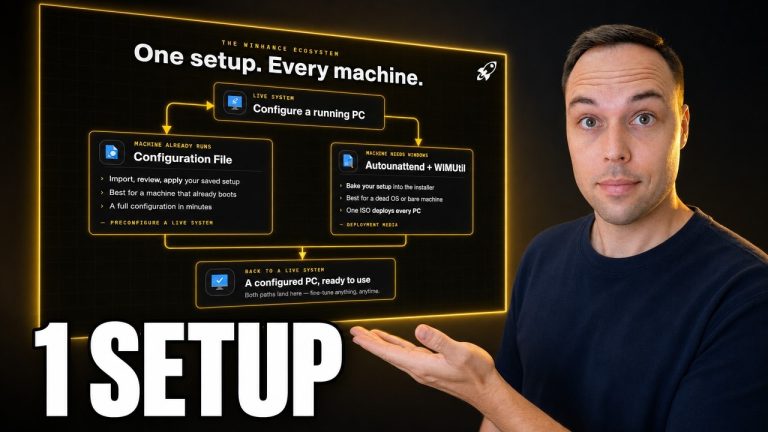
Remove OneDrive Permanently With Winhance or UnattendedWinstall
If you set up Windows machines often, doing this manually every time gets old. I built two tools that handle it for you.
On an existing install, Winhance has a single toggle that disables OneDrive, removes it from startup, and uninstalls it cleanly. It also handles a long list of other Windows 11 bloatware removal in the same step, so you do not have to chase down each app individually.
For a fresh install, UnattendedWinstall lets you build a custom Windows ISO that never installs OneDrive in the first place. Combined with a local account setup, you reach a clean desktop with no Microsoft account prompt, no OneDrive folder redirection, and no cloud nagging.
Common Issues & Solutions
Problem: OneDrive icon does not appear in the system tray.
Solution: Click the small upward-pointing arrow to expand the hidden tray icons. If the cloud icon is still not there, OneDrive is not running — you can jump straight to disabling it under Task Manager > Startup apps. To check if it is installed, search “OneDrive” in Settings > Apps > Installed apps.
Problem: OneDrive keeps coming back after Windows updates.
Solution: Large feature updates sometimes reinstall OneDrive or re-enable it at startup. After every major update (like the 24H2 or 25H2 update), check Task Manager’s Startup apps tab and disable it again. If this becomes a recurring problem, Winhance applies the same fix in one click and is easy to re-run after updates.
Problem: Cannot uninstall OneDrive — the option is grayed out.
Solution: OneDrive is still running. Quit it from the system tray first (gear icon > Quit OneDrive), then try uninstalling again. If that does not work, restart your computer and uninstall it before OneDrive has a chance to launch.
Problem: Files appear to be missing after turning off OneDrive.
Solution: They are almost certainly still on your PC. Open File Explorer and navigate to C:\Users\YourUsername\OneDrive. If files were stored only in the cloud (online-only), sign into onedrive.com in a browser to download them.
Frequently Asked Questions
Will turning off OneDrive delete my files?
No. Turning off or uninstalling OneDrive does not delete any files from your computer. Anything that was synced stays in the C:\Users\YourUsername\OneDrive folder on your local drive. Only files marked as online-only (with a cloud icon in File Explorer) would need to be downloaded first.
Can I turn OneDrive back on later?
Yes. If you only disabled it from startup, re-enable it in Task Manager’s Startup apps tab and launch it from the Start menu. If you uninstalled it, reinstall OneDrive from microsoft.com/onedrive or the Microsoft Store and sign back in. Your cloud files remain available the moment you sign in.
Is it safe to uninstall OneDrive on Windows 11?
Yes. OneDrive is not a critical Windows component. Windows 11 boots, runs, and updates normally without it. I have uninstalled OneDrive from hundreds of customer PCs in the repair shop without ever causing a system issue.
Does OneDrive slow down my computer?
OneDrive uses RAM and disk activity while it runs in the background, and noticeably more while it is actively syncing. On older laptops or low-RAM systems, disabling startup apps like OneDrive measurably improves boot time and reduces background disk usage. The impact depends on your hardware and how much OneDrive was syncing.
What is the difference between quitting and uninstalling OneDrive?
Quitting stops OneDrive for the current session but leaves it installed, and it will launch again at next sign-in unless you also disable it at startup. Uninstalling removes the app from the system entirely. Most people only need to quit OneDrive and disable it at startup — uninstalling is the cleanup step if you want it gone for good.
How do I stop OneDrive from being installed on a new Windows PC?
Use UnattendedWinstall to build a custom Windows ISO with OneDrive removed from setup. Combined with the local account bypass on Windows 11 25H2, you can reach the desktop on a fresh install without ever seeing OneDrive or a Microsoft account prompt.