Download the Windows 11 25H2 ISO directly from Microsoft’s Windows 11 download page, install it via the Update Assistant for in-place upgrade or via clean install from USB, then enable the redesigned Start menu by toggling it under Settings > Personalization > Start on builds where it has rolled out, or by enabling experimental flags with ViVeTool on older builds. The 25H2 release shipped in September 2025 and shares the same servicing branch as 24H2.
Applies to: Windows 11 (24H2, 25H2) | Last updated: May 4, 2026
Key Takeaways
- Windows 11 25H2 is generally available from the official Microsoft Software Downloads page as a 5-6GB ISO, plus through Windows Update on eligible 24H2 systems
- 25H2 and 24H2 share the same code base — the differences are which feature flags Microsoft has flipped on, not new kernel work
- The local-account bypass still works on 25H2 Home — at OOBE, press Shift+F10 and run
start ms-cxh:localonly - The redesigned Start menu rolled out gradually through 2025-2026 — on current builds it appears under Settings > Personalization > Start; on older builds you still need ViVeTool to enable it
- Test in a VM first before upgrading your daily driver — VMware Workstation Pro is now free for personal use and is what I use for OS testing
Quick Steps
- Visit Microsoft’s Windows 11 download page and grab the 25H2 ISO
- Choose your install path: in-place upgrade (mount ISO, run setup.exe) or clean install from USB
- At OOBE, press Shift+F10 and run
start ms-cxh:localonlyto skip the Microsoft account requirement - After login, install all pending Windows Updates
- Open Settings > Personalization > Start and enable the new Start menu layout if your build has it
- If the toggle is missing, use ViVeTool with feature IDs 57048226 and 47205210 to force-enable it
In This Guide
- What’s Actually New in 25H2
- Method 1: Download the Official 25H2 ISO from Microsoft
- Method 2: In-Place Upgrade From 24H2
- Method 3: Clean Install From USB
- Method 4: Roll Back From Insider Beta to Stable 25H2
- Enable the Redesigned Start Menu
- Force-Enable Hidden Features With ViVeTool
- Frequently Asked Questions
What’s Actually New in Windows 11 25H2
Microsoft shipped 25H2 in September 2025 as an “enablement package” sitting on top of the same servicing branch as 24H2. That means the kernel, driver model, and core OS code are unchanged — what’s different is which feature flags ship in the on-position. If you are already running 24H2 with the latest cumulative updates, you have most of the new code on your system already; it just isn’t lit up.
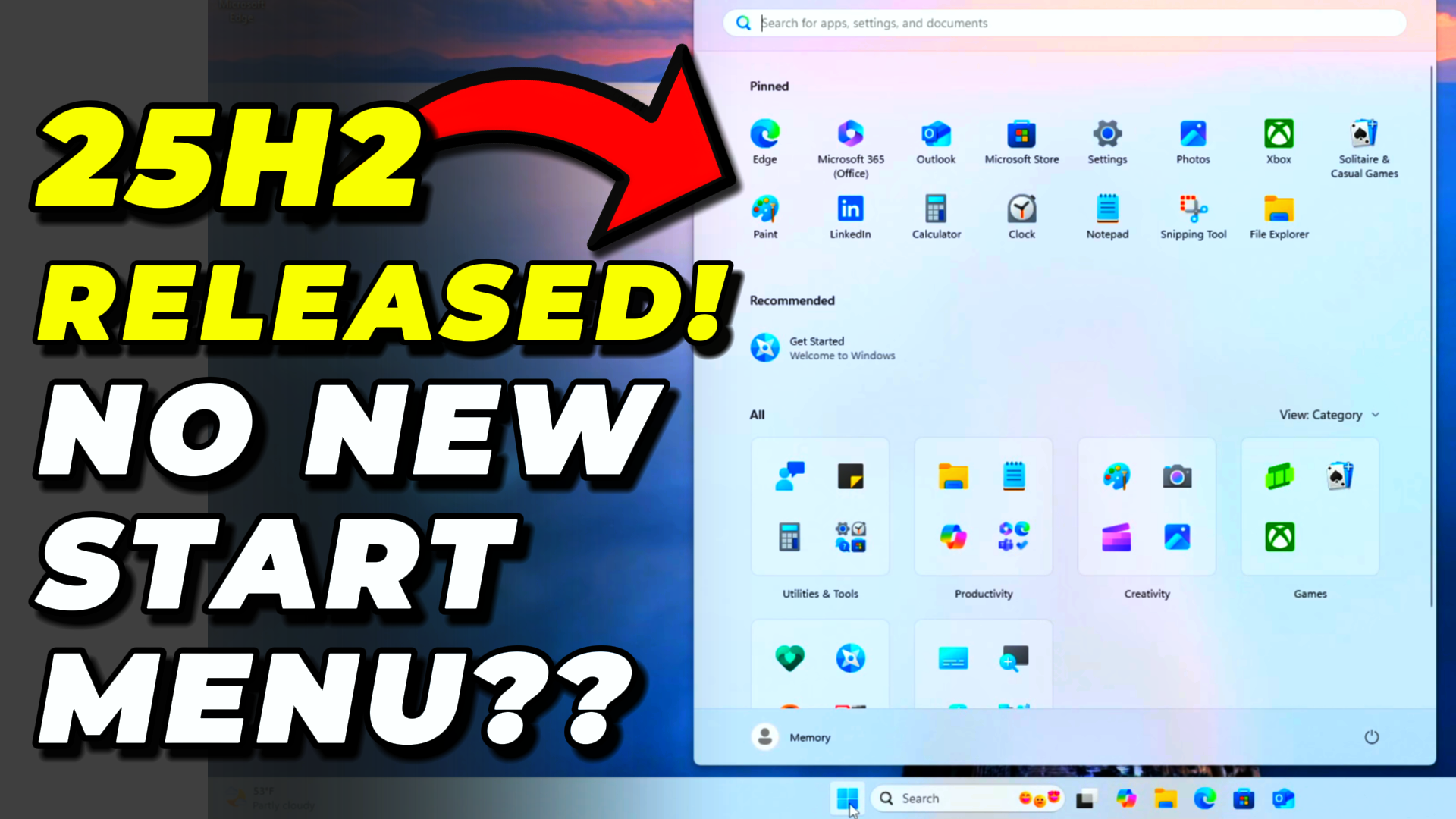
The headline changes are the redesigned Start menu (larger grid, customizable, list-view option), smaller taskbar buttons in Settings > Personalization > Taskbar, more visible AI integration via Copilot, and a number of File Explorer refinements. For a fuller breakdown, see my walkthrough of what’s new in Windows 11 25H2.
Method 1: Download the Official 25H2 ISO from Microsoft
The ISO is the canonical artifact — same bits Microsoft ships to OEMs, around 5-6GB. Use it for clean installs, virtual machines, or to mount inside a running Windows for an in-place upgrade.
- Open microsoft.com/software-download/windows11
- Scroll to Download Windows 11 Disk Image (ISO) for x64 devices
- Pick your product language and click the 64-bit Download button
- The download link is valid for 24 hours — save the ISO somewhere stable like
C:\ISO\
If you are on ARM hardware (Snapdragon X, Surface Pro 11, etc.), grab the ARM64 image from my Windows 11 ARM ISO guide instead — the page above only serves x64.
Method 2: In-Place Upgrade From 24H2 to 25H2
The in-place upgrade keeps your apps, files, and settings while replacing the OS files. It is the safest route from 24H2 if you want 25H2 without setting up a fresh install.
- Right-click the downloaded ISO in File Explorer and choose Mount. A virtual drive appears (typically D: or E:)
- Open the mounted drive and double-click
setup.exe - When prompted, choose Not right now for downloading updates — speeds the process up
- Accept the license terms, then on the “Ready to install” screen confirm Keep personal files and apps
- Click Install and wait — the upgrade takes 30-90 minutes and reboots multiple times
For a deeper walkthrough including how to repair installs without losing data, see how to perform an in-place upgrade.
Method 3: Clean Install From USB
A clean install gives you the fastest, leanest 25H2 experience, but it wipes the target drive. Back up your files first.
- Use Rufus or Microsoft’s Media Creation Tool to write the ISO to an 8GB+ USB drive
- Boot from the USB (typically F10, F12, or Esc on power-on, depending on your motherboard)
- At OOBE, press Shift+F10 to open Command Prompt and run
start ms-cxh:localonlyto skip the Microsoft account requirement - Create your local username, leave the password blank if you want auto-login, and finish setup
If you want a debloated install from the start — no Copilot, no Cortana, no preinstalled bloat — build a custom answer file with UnattendedWinstall. The OS arrives at the desktop already configured how you would have configured it manually.
Method 4: Roll Back From Insider Beta to Stable 25H2
If you are stuck on the Insider Beta channel and want to drop back to the stable 25H2 release, the cleanest path is a clean install from the official ISO. The Insider rollback option in Settings > Windows Update > Windows Insider Program only stops future Insider builds — it doesn’t roll the build number back. So if you have already advanced past 25H2, only a fresh install from the ISO above will restore the stable release.
Enable the Redesigned Start Menu
On current 25H2 builds, the redesigned Start menu is rolling out as a server-side feature flag. To check whether it is available on your machine, open Settings > Personalization > Start. If you see options for Layout (with grid, list, or category views), Show recommendations, and Show recently added apps as separate toggles, you have it. Pick the layout you prefer and the new Start menu activates without a restart.
If those toggles are missing — Microsoft is staging the rollout, so plenty of installs still don’t see them — skip to the ViVeTool method below.
Force-Enable Hidden Features With ViVeTool
ViVeTool is a community utility that flips the Windows feature staging flags Microsoft uses internally. It lets you turn on features that are present in your build but disabled by default. Use it on a VM or spare machine — these features can be unstable.
- Download the latest ViVeTool release from the ViVeTool GitHub releases page
- Extract the zip into
C:\ViVeTool - Right-click Start, choose Terminal (Admin), and navigate to the folder:
cd C:\ViVeToolThen enable the new Start menu feature IDs:
vivetool /enable /id:57048226,47205210Restart the machine. After reboot, the new Start menu and customization options appear under Settings > Personalization > Start. To revert, swap /enable for /disable with the same IDs and reboot again.
Warning: Force-enabled features sometimes have bugs Microsoft is still working through — animation glitches, Start menu icon overlaps, and the occasional explorer.exe restart. Don’t run ViVeTool on a daily-driver machine.
Should You Upgrade to 25H2?
If you are already on 24H2, there is no urgent reason to jump to 25H2. The two share a code base, and most “new” features arrive on 24H2 through cumulative updates anyway. I tested 25H2 because Winhance needs to support it and UnattendedWinstall needs an updated answer-file profile, but for the average user, sticking with whatever you have until next year’s enablement package is fine.
Frequently Asked Questions
Is Windows 11 25H2 a major update or just a minor release?
It’s an enablement package on top of the 24H2 servicing branch. The kernel and driver model are the same as 24H2 — what’s different is which feature flags ship in the enabled position. Calling it “minor” undersells the rollout, but technically it is a feature-toggle release rather than a new code base.
Can I still create a local account on Windows 11 25H2 Home?
Yes. At OOBE, press Shift+F10 to open Command Prompt and run start ms-cxh:localonly. This still works on the official stable 25H2 release. If Microsoft removes it in a future update, see my 25H2 Microsoft account bypass guide for fallback methods.
Will enabling experimental features with ViVeTool damage my computer?
No, it won’t damage hardware — ViVeTool only flips internal feature flags and is fully reversible. But the features it exposes can be buggy or unfinished, which is exactly why Microsoft hasn’t enabled them yet. Use it on a VM or spare machine.
Why doesn’t the new Start menu appear after installing 25H2?
Microsoft is rolling the redesigned Start menu out as a server-side feature flag, so two identical 25H2 installs can show different UIs. If you don’t see the layout toggles in Settings > Personalization > Start, your account hasn’t been flagged yet. Wait or use ViVeTool to force-enable it.
Should I upgrade from 24H2 to 25H2 right now?
If you have a working 24H2 install, there is no compelling reason to rush. 25H2 doesn’t change the kernel and most user-visible features arrive on 24H2 through Windows Update anyway. Upgrade if you specifically want the new Start menu, or if a tool you depend on requires 25H2.