Windows 11 25H2 is an enablement package update that shares the same code base as 24H2. Key changes include a redesigned Start menu with category views, smaller taskbar buttons, Phone Link integration in Start, and Windows Recall disabled by default. If you are upgrading from 24H2, the process requires only a restart to enable the new features.
Applies to: Windows 11 (25H2) | Last updated: April 16, 2026
Key Takeaways
- Quick upgrade from 24H2: Because 25H2 shares the same servicing branch as 24H2, upgrading is an enablement package that activates with a single restart.
- Redesigned Start menu: The Start menu now supports category, grid, and list views, and you can completely remove the Recommended section.
- Recall remains disabled: In the public 25H2 release, Windows Recall is disabled with payload removed by default — no action needed to keep it off.
- Smaller taskbar buttons: You can shrink taskbar icons, though the taskbar height itself stays the same.
Quick Steps: Upgrade to Windows 11 25H2
- Open Settings → Windows Update.
- Check for updates — 25H2 appears as an enablement package if you are on 24H2.
- Download and install the update.
- Restart your PC to activate the new features.
- If you are on 23H2 or older, use the Windows 11 25H2 download and install guide for a full upgrade.
In This Guide
- Start menu redesign: new layout and views
- Smaller taskbar buttons
- Phone Link in Start menu
- Windows Recall: default state
- My recommended setup after upgrading
Requirements
- A PC running Windows 11 (ideally 24H2 for the quickest path to 25H2)
- Windows Update enabled with enough disk space for enablement or full upgrade
- Optional: Admin rights if you plan to toggle features or try Insider builds

Why upgrade to Windows 11 25H2?
Because 25H2 shares the same underlying code as 24H2, the upgrade has proven to be smoother than the 23H2 to 24H2 jump. You also get a refreshed support lifecycle: Home/Pro are supported for two years from release, while Enterprise/Education/IoT Enterprise get three years. If you are still on an older version, moving to 25H2 keeps you current and supported.
For a step-by-step walkthrough of the download and installation process, see my Windows 11 25H2 official download and install guide.
Note: If you are on 24H2, the 25H2 update is a restart-to-enable experience. From older versions, it is a full upgrade.
What’s new in Windows 11 25H2
Start menu redesign: new layout and views
The redesigned Start menu includes a search bar at the top, pinned apps, and a “Recommended” area. You can switch views between category, grid, and list. At launch, you could not create custom categories or drag items between them. Personally, I prefer a clean list view because it is quick to scan — very similar to the simpler Windows 10 experience.
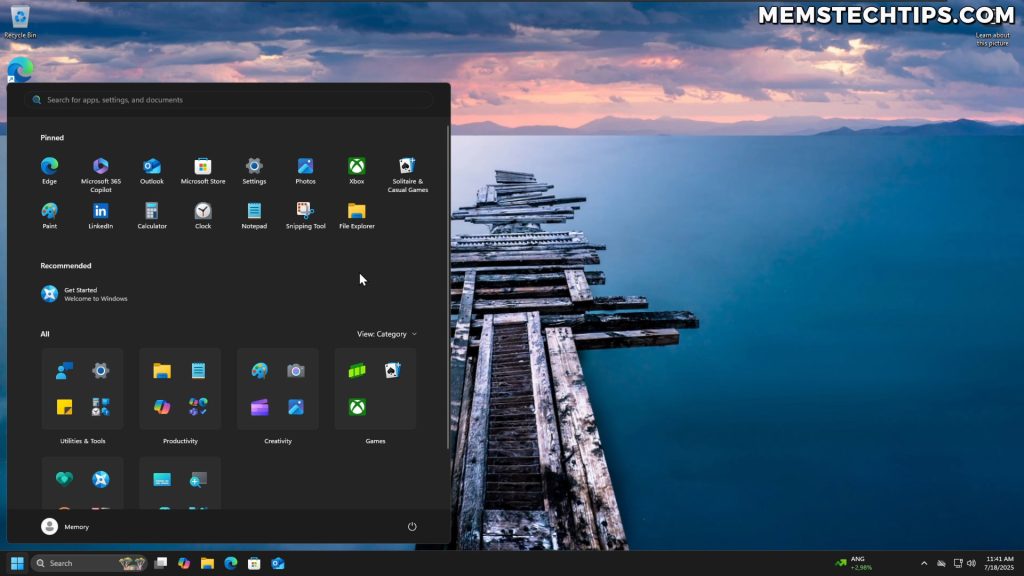
One change I really like is that you can remove the Recommended section completely by toggling Start settings. If you prefer a distraction-free launcher, this makes a big difference.
For even more control, I often use StartAllBack to customize Windows 11. It lets me place the taskbar at the top, keep it transparent and compact, and keep my workflow efficient. Another great option is Windhawk, which offers deep customization through community-made mods.
Smaller taskbar buttons (but not a smaller taskbar)
You can now set taskbar buttons to “Smaller” (always or when the taskbar is full). On my system, the icons shrink — but the taskbar height does not change. I would still love a true compact taskbar option and the ability to move the taskbar natively, which is why StartAllBack stays in my toolkit.

Phone Link in Start menu
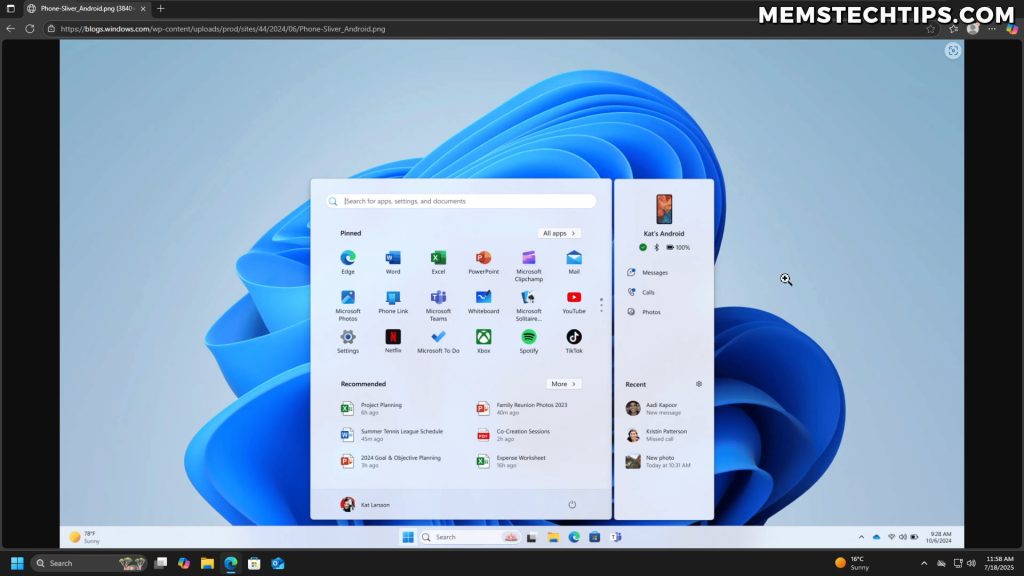
Microsoft added Phone Link right inside Start. The feature shows your connected phone, battery level, messages, calls, and photos directly in the Start menu. Personally, I keep my phone face down while I work to avoid distractions, so I do not use this daily — but I can see the appeal for users who want quick access to their phone without opening a separate app.
Windows Recall: default state
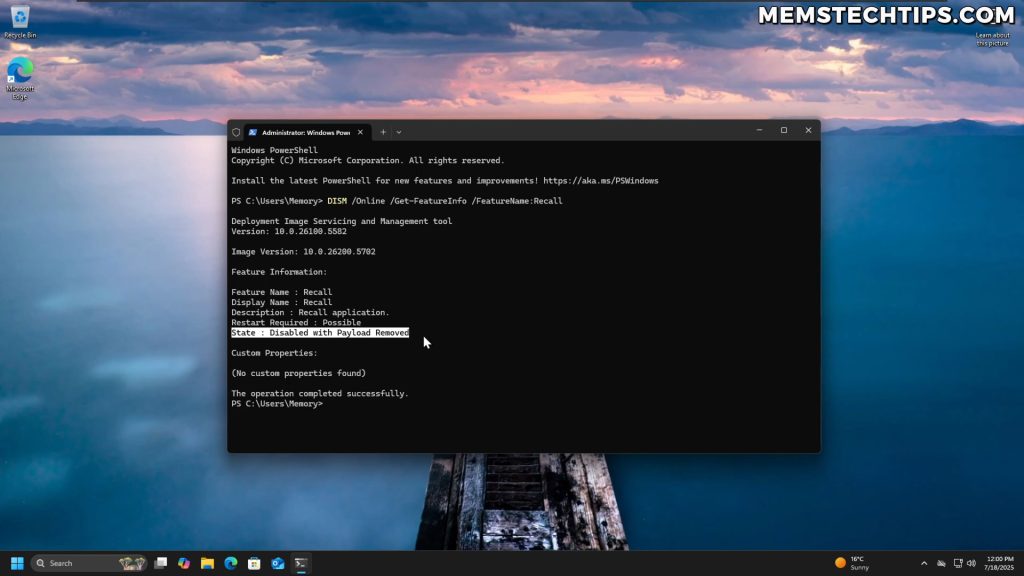
In the public 25H2 release, Recall reports “disabled with payload removed” by default. This means the feature is not active and the required components are not installed unless you explicitly opt in. If you want to keep Recall off, no action is needed on your part.
My recommended setup after upgrading
- Clean up preinstalled apps you don’t use. I shared my no-tools-needed method here: remove Windows bloatware without third-party software.
- For ongoing optimization and debloating on Windows 11, try my utility: Winhance — Windows 11 Enhancement Utility.
- Customize the Start menu and taskbar for productivity: StartAllBack setup guide.
Is Windows 11 25H2 Worth Upgrading To?
Windows 11 25H2 is not a dramatic overhaul, and that is a good thing. In my experience, sharing the 24H2 code base has meant fewer surprises and a smoother upgrade. The Start menu cleanups and smaller taskbar buttons are steps in the right direction, Phone Link in Start is handy for some users, and Recall’s default state remains conservative. If you are already on 24H2, upgrading to 25H2 takes just a restart to enable.
Frequently Asked Questions (FAQ)
When did Windows 11 25H2 release?
Windows 11 25H2 began rolling out publicly in late 2025. It is now available to all eligible PCs through Windows Update.
Is upgrading from 24H2 to 25H2 a full install?
No. It is an enablement package — most components are already present in 24H2 and get activated with a restart.
What happens if I’m on 23H2 (or older)?
You will go through a full upgrade to reach 25H2, not just a quick restart. See the 25H2 download and install guide for the full process.
Can I truly remove the Start menu’s Recommended section?
Yes. In 25H2 you can toggle settings to remove it entirely, which keeps the Start menu clean.
Are smaller taskbar buttons worth using?
If you keep many apps open or use a smaller display, the smaller icons can help. I still prefer a genuinely compact taskbar, which I achieve with StartAllBack.