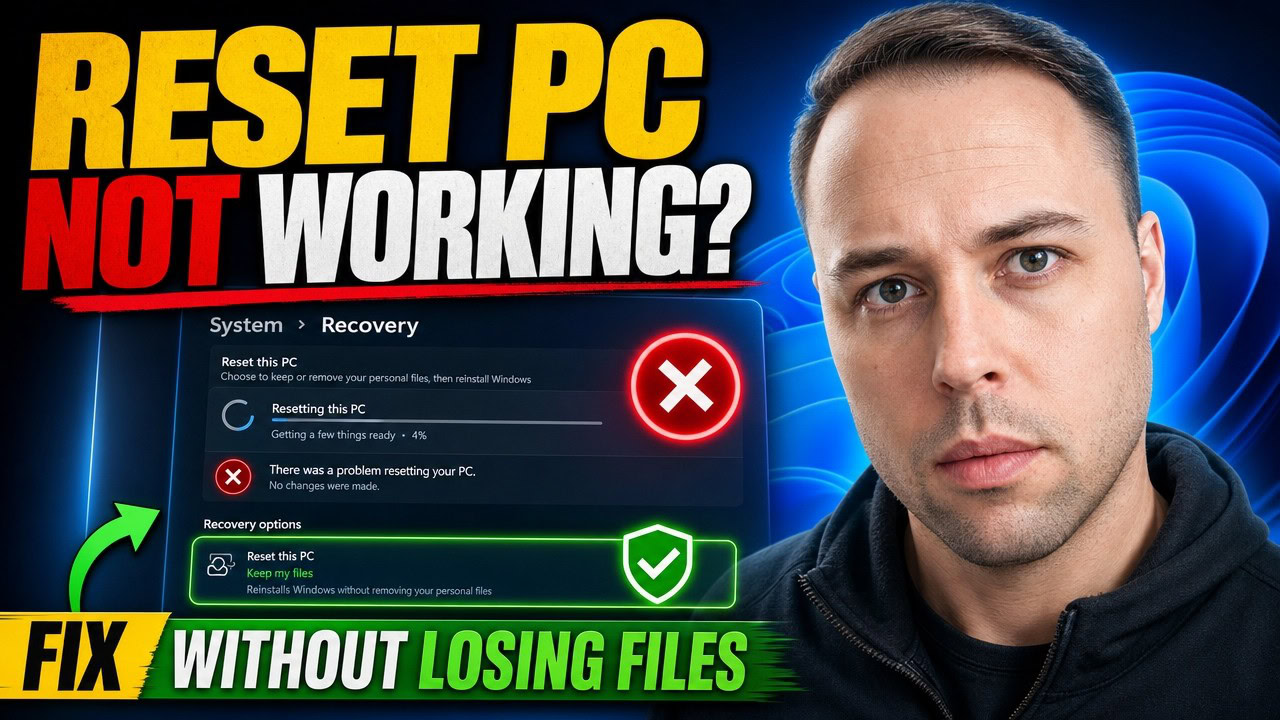
When Reset this PC fails on Windows 11, start with the fix that wipes nothing: open Settings > System > Recovery and click Reinstall now next to Fix problems using Windows Update. It reinstalls Windows over itself and keeps your apps, files and settings. If you still want a full reset, pick Cloud download instead of Local reinstall. If Windows says it can’t find the recovery environment, run reagentc /enable.
Key Takeaways
- Settings > System > Recovery > Fix problems using Windows Update > Reinstall now repairs Windows without wiping anything, and it often fixes whatever was blocking the reset.
- When you do reset, choose Cloud download. Local reinstall rebuilds Windows from the files already on your PC, and if those files are damaged the reset fails again.
- If you get “could not find the recovery environment”, run
reagentc /infoin an admin Command Prompt, thenreagentc /enableif it shows Disabled. - Run
DISM /online /cleanup-image /restorehealthfirst, thensfc /scannow, to repair a corrupt system image before you reset. - Once a reset is running, never force a restart, even if the screen stays black for 15 minutes or more. Have your BitLocker recovery key ready before you start.
Quick Steps
- Go to Settings > System > Recovery and click Reinstall now next to Fix problems using Windows Update.
- If you still need a reset, click Reset PC on the same page and choose Cloud download.
- Recovery environment missing? Run
reagentc /info, thenreagentc /enable, in an admin Command Prompt. - Repair system files with
DISM /online /cleanup-image /restorehealth, thensfc /scannow, then try the reset again. - Can’t get into Windows? Hold Shift, click Restart on the sign-in screen, then go to Troubleshoot > Reset this PC.
- Still failing? Do an in-place upgrade from the Windows 11 ISO, or a clean install from USB as the last resort.
Fix 1: Reinstall Windows with Fix problems using Windows Update
This is the method in the video above, and it’s the one hardly anyone knows about. Before you do a full reset at all, try this one. It usually sorts the problem out.
- Open Settings.
- Go to System > Recovery.
- Find Fix problems using Windows Update and click the Reinstall now button next to it.
This quietly reinstalls the current version of Windows over the top of itself and leaves your apps, files and settings where they are. It repairs whatever was broken, including whatever was stopping your reset, without wiping anything. Nine times out of ten, this is the one I’d try first.
It downloads Windows through Windows Update, so you need a working internet connection and enough free space. If Windows Update itself throws an error here, work through how to fix a Windows 11 update error first, or skip to the in-place upgrade in Fix 6, which does the same job from an ISO.
Tip: Once this finishes, a lot of people find they no longer need to reset at all. Check whether the problem that made you want to reset is still there before you go further.
Fix 2: Reset with Cloud download instead of Local reinstall
If you still want to reset the PC properly, this is the choice that matters most. It’s shown in the video.
- Go back to Settings > System > Recovery.
- Next to Reset this PC, click Reset PC.
- Choose Keep my files or Remove everything. That part is up to you.
- When it asks how you’d like to reinstall Windows, choose Cloud download.
- Follow the remaining prompts and start the reset.
Here’s why it matters. Local reinstall rebuilds Windows from the files already on your machine. When a reset keeps failing, those files are usually the damaged part, so a local reinstall just fails again. Cloud download pulls a fresh, clean copy of Windows from Microsoft, and that’s what gets you past the error.
Cloud download needs an internet connection and several gigabytes of free space on your system drive. If the reset complains about space, clear some room first.
Fix 3: Turn the recovery environment back on with reagentc
If the message says Windows couldn’t find the recovery environment, that’s a different problem, and an easy one to fix. This is the method in the video above.
- Open the Start menu, type cmd, right-click Command Prompt and choose Run as administrator.
- Check whether the recovery environment is on:
reagentc /info- Look at the Windows RE status line. If it says Disabled, turn it back on:
reagentc /enable- Run
reagentc /infoagain to confirm it now says Enabled, then try the reset.
The reset now has somewhere to run from. If reagentc /enable fails because the recovery image itself is missing, don’t go hunting for the file by hand. Fix 1 or the in-place upgrade in Fix 6 is the easier way to get a working Windows back.
Fix 4: Repair system files with DISM and SFC
If Windows feels broken underneath all of this, repair the system files before you reset. A corrupt system image is another reason a reset dies halfway. The video walks through this too.
In the same admin Command Prompt, run DISM first:
DISM /online /cleanup-image /restorehealthLet it finish completely. It fetches the healthy files it needs, and it can sit at one percentage for a while. Then run the System File Checker:
sfc /scannowSFC repairs anything that was damaged, using the files DISM just restored. The order matters, which is why DISM goes first. I explain the reason in more detail in SFC scannow not working? Run DISM first.
Restart once both have finished, then try the reset again. After these two, it usually completes cleanly.
If you’d rather not sit and wait for each command, right-click Start and choose Terminal (Admin), which opens PowerShell. In PowerShell you can chain DISM, SFC and the restart with semicolons so they run back to back, unattended:
DISM /Online /Cleanup-Image /RestoreHealth; sfc /scannow; shutdown /r /t 30The shutdown /r /t 30 on the end gives you a 30-second warning before it reboots. This one-command version comes from SFC scannow not working? Run DISM first.
Fix 5: Reset from the recovery environment when Windows won’t start
If you can’t get into Windows to do any of this, don’t worry. This is the route shown in the video.
- Automatic: after a couple of failed boots, Windows drops you into the recovery screen on its own.
- Forced: on the sign-in screen, hold Shift, click the power icon and choose Restart. Keep holding Shift until the blue recovery menu appears.
From the recovery menu:
- Choose Troubleshoot.
- Choose Reset this PC.
- Pick Keep my files or Remove everything, then Cloud download if your PC can get online, for the same reason as in Fix 2.
On Windows 11 it won’t make you dig up an admin password like older versions did. It goes straight in.
Fix 6: Do an in-place upgrade from the Windows 11 ISO
If Reinstall now fails or can’t download, an in-place upgrade does the same job from installation media. It replaces Windows with a fresh copy and keeps your files and apps, and it also rebuilds a damaged recovery setup along the way.
- Download the Windows 11 ISO from Microsoft’s Download Windows 11 page.
- Double-click the ISO file in File Explorer to mount it as a drive.
- Open the new drive and run setup.exe.
- When setup asks what to keep, make sure Keep personal files and apps is selected.
- Let setup finish and restart as many times as it needs.
The ISO must match the language and edition you have installed, or the keep-everything option won’t be offered. If Windows won’t boot far enough to run setup.exe, how to reinstall Windows without losing data covers a related repair from a USB drive. That one keeps your files in a Windows.old folder but not your apps.
Fix 7: Clean install from a USB drive
This is the one that always works, because it doesn’t depend on anything already on your PC. It also erases the system drive, so back up anything you need first, from inside Windows if you can.
- Create a Windows 11 bootable USB drive with the Media Creation Tool or Rufus.
- Boot the PC from the USB drive.
- Choose Custom install, delete the old Windows partitions and install onto the unallocated space.
If you want a debloated, pre-configured install while you’re at it, follow how to clean install Windows 11 with WIMUtil and UnattendedWinstall.
Before you reset: BitLocker key and the long black screen
These two points come from the end of the video and will save you a lot of panic.
The black screen is normal. While a reset is running, the screen can go black for a long time, sometimes 15 minutes or more, and it looks completely frozen. Don’t force a restart. Interrupting it is what actually breaks the reset and leaves you worse off than when you started. Just let it run.
Get your BitLocker key first. If your drive is encrypted, Windows asks for your BitLocker recovery key before it will do any of this. Windows 11 often turns on device encryption by itself, and the key is saved to your Microsoft account. Look it up on your phone before you start. Here’s how to find your BitLocker recovery key in every place it might be saved.
The quickest place to look, from that guide:
- On a phone or another computer, go to account.microsoft.com/devices and sign in.
- Find the PC in the list and click Show details.
- Under BitLocker data protection, click Manage recovery keys.
- Write down or print the 48-digit key. If nothing is listed, repeat with every Microsoft account you have ever used on that PC. For a work or school laptop, check myaccount.microsoft.com/device-list or ask IT.
Warning: Don’t start a reset on a laptop running on battery. Plug it in first, because a reset that loses power halfway is the same as forcing a restart.
Frequently Asked Questions
Why does it say there was a problem resetting your PC and no changes were made?
That message usually means the files Windows uses to rebuild itself are damaged, or the recovery environment is off. Try Reinstall now under Fix problems using Windows Update first. If you still need a reset, choose Cloud download, and run reagentc /enable if the recovery environment is disabled.
Will Fix problems using Windows Update delete my files?
No. It reinstalls the current version of Windows over itself and keeps your apps, files and settings. You should still keep a backup of anything important before any repair, but this option doesn’t wipe the PC.
Is Cloud download better than Local reinstall?
When a reset keeps failing, yes. Local reinstall uses the files already on your PC, which are often the damaged part. Cloud download gets a clean copy from Microsoft. It needs an internet connection and a few gigabytes of free space.
My reset has been on a black screen for ages. Should I restart it?
No. A black screen for 15 minutes or more during a reset is normal. Forcing a restart is what breaks the reset. Leave it running, and keep a laptop plugged in.
Does this work on Windows 10?
Cloud download, reagentc, DISM and SFC and the Shift + Restart route all work on Windows 10 as well. Fix problems using Windows Update is a newer Windows 11 option, so on Windows 10 use the in-place upgrade from an ISO instead.