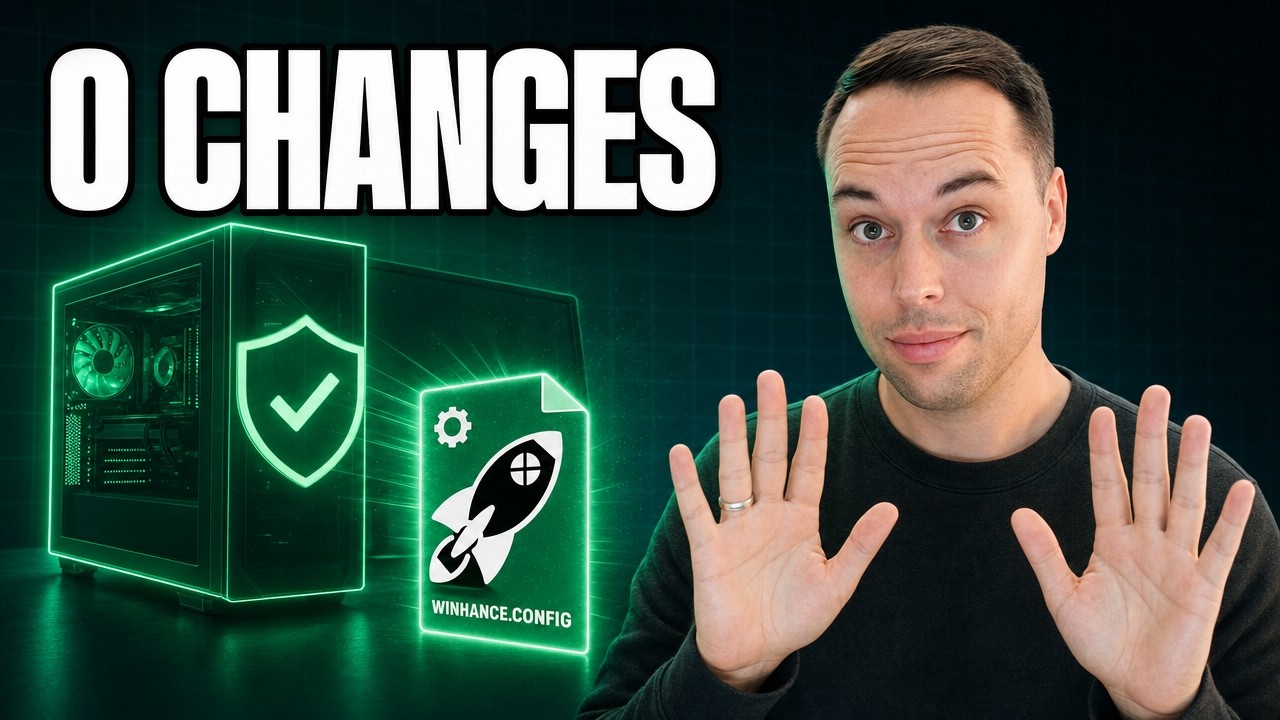
Winhance Release 27 adds a new Builder Mode that lets you create a Winhance config file or an autounattend.xml from the app’s interface without changing anything on the PC you are using. The same release adds a Sponsors & Supporters page, a Change History file that records every change Winhance makes, and a fix for startup crashes on older Windows builds. You can download Winhance Release 27 free from winhance.net.
Applies to: Winhance Release 27 (v26.06.12) on Windows 10 (22H2) and Windows 11 (23H2, 24H2, 25H2) | Last updated: June 12, 2026
Key Takeaways
- Builder Mode creates Winhance config files and autounattend.xml files from the settings in the UI without applying anything to your live system.
- A startup crash that mostly hit older Windows builds like Windows 10 LTSC — a window that never appears, a fail fast exception, or a KERNELBASE.dll error in Event Viewer — is worked around in Release 27.
- The new Sponsors & Supporters page replaces the old exit donation dialog and shows business sponsors and individual supporters, fetched live from the Winhance GitHub repo.
- A new ChangeHistory.txt file (More > Change History) records every change Winhance makes on your computer from Release 27 onward.
- App icons now come from a single GitHub repository instead of multiple Microsoft servers, and the status icons are colored Fluent UI icons that are much easier to read.
Quick Steps: Build a Config Without Touching Your PC
- Download and run Winhance Release 27 from winhance.net.
- Click the Builder button at the top of the main window and read the explainer dialog.
- Pick Config or Autounattend with the radio buttons in the Builder Mode ribbon.
- Change any settings in Optimize and Customize, and tick the checkboxes for the apps you want included — nothing is applied to the PC you are on.
- Click Save Config (or Save Autounattend) and use the file on any other computer or Windows image.
Winhance Would Not Launch for You Before? Try Release 27
Before getting into the new features, this one matters if Winhance simply did not work for you in the past. Some users would start the app and nothing would appear, or Event Viewer showed a fail fast exception or a KERNELBASE.dll error. That was a Windows bug, and Release 27 ships a workaround for it.
The crash mostly hit older Windows builds, like LTSC installations that have not received recent updates. If that was your experience, give Winhance another go — the affected systems should launch normally on Release 27.
Winhance Now Has Modes: Normal, Builder, and Config Review
Release 27 introduces a mode switcher at the top of the main window with three modes. Normal mode is how Winhance has always worked — changes apply to the PC you are working on immediately. Builder Mode and Config Review Mode are where it gets interesting.
With these mode buttons in place, the old Save Config and Import Config buttons next to the Windows version filter are gone. The Builder and Config Review buttons replace them.
How Builder Mode Works
Builder Mode lets you create a Winhance config or an autounattend file from the settings in the UI without changing anything on the PC you are using. When you enter Builder Mode, a dialog explains the feature, and a ribbon confirms the app is in Builder Mode with two radio buttons: Config and Autounattend.
Your current Optimize and Customize settings are pre-filled with the state of the PC you are on. From there, anything you change only changes the file you are building. For example, if I switch the Windows theme from dark mode to light mode in Builder Mode, my PC stays in dark mode — but the saved config will apply light mode wherever it is imported.
Apps are not included automatically. In Config mode, you tick the checkboxes for the apps you want in the file under Windows Apps & Features and External Software, and you decide whether to install or uninstall them at import time. The normal app actions are turned off while Builder Mode is active, so you cannot accidentally modify the system you are sitting at.
Note: Builder Mode was requested by a user on GitHub a long time ago. If you deploy or service multiple Windows machines, this is the feature that turns Winhance from a tweak session into a deployment tool.
Why Config and Autounattend Are Separate
In Autounattend mode, selected apps can only be removed from the Windows image during installation — you cannot install apps that way, which is why the choice does not exist there. The External Software tab is locked in Autounattend mode for now; including external apps in an autounattend file is a planned feature that has not shipped yet.
The split also leaves room for what is coming. Some options only make sense for unattended installs — settings from the Windows onboarding phase, or automating partition creation and deletion during setup. Those do not fit the Optimize and Customize catalog, so a dedicated autounattend page with more generation options is planned for a future release.
Once you save your autounattend.xml, exit Builder Mode and open Advanced Tools > Windows Installation Media Utility to add the XML to a Windows ISO, so it runs during Windows installation. If you want to go deeper into unattended installs, my UnattendedWinstall answer files cover the same territory with pre-built configurations.
Config Review Mode
Config Review Mode is not new, but it now has its own button at the top of the main window. It shows the import window where you select a config file, then walks you through every change that config wants to make before anything is applied. That review matters when someone shared a config with you, or when you want to inspect what the recommended Winhance config does.
For config files you created yourself, skip the review and apply immediately — you still choose what happens with software and apps (install, uninstall, or just select them in the UI), whether the theme’s default wallpaper is applied, and whether to clean the taskbar and Start menu.
The New Sponsors & Supporters Page
Winhance is free, and I want it to stay free — no paywalls, no locked features. What keeps it that way is the people and businesses that support the project, and Release 27 finally gives them proper recognition. Clicking the Support Winhance button opens a dedicated Sponsors & Supporters page inside the app, which also replaces the old exit donation dialog.
Businesses and individual supporters are shown separately. Business sponsors have tiers with different perks — company logo and name in the app, contact details, and an outbound link to their website on the higher tiers. Individual supporters who give $5 or more and tick the supporters box at checkout get listed on the supporters wall. The data is fetched live from the Winhance GitHub repo when there is an internet connection, with an offline fallback bundled into each release.
The Support Winhance button takes you to the Winhance sponsors page on my new store. It is a ladder that starts with individual supporters and moves up through business tiers, with a PDF invoice on every payment — for businesses, sponsorship is typically tax-deductible as a marketing expense, which was never possible with the old Ko-fi donations. Business sponsor cards also appear in a new section on the winhance.net download page.
Support unlocks nothing. Winhance stays identical for everyone — recognition is the only perk.
The Winhance Supporter Pack
Separate from the supporter and business tiers, there is a new Winhance Supporter Pack on the store. It does not change the application at all — you get the latest Winhance installer, a personally signed thank-you PDF from me, and the real value: a six-design Winhance wallpaper pack in 4K and ultrawide.
The designs range from the Winhance rocket on a grid to a white logo with a gold halo, and my personal favorite — the WINHANCE wordmark with the A replaced by the rocket icon. These wallpapers are exclusive to the pack and are not available anywhere else. It is a one-time purchase that directly helps the development of Winhance.
Change History: A Record of Everything Winhance Does
Click the More button at the bottom of the window and you will find a new Change History option. It opens a text file saved on your computer that records every change Winhance has made on that machine since Release 27 — every setting change and every app install or removal.
If you ran Winhance before Release 27, history starts now — earlier changes were not recorded. This was another GitHub user request: an easy way to keep track of exactly what you have done with Winhance on a specific computer.
Faster App Icons and Clearer Status Indicators
All the app icons for Windows optional features and external software now come from a single package-icons GitHub repository. Winhance no longer contacts the Microsoft Store or individual app websites to fetch icons — it reads them from your system or downloads them from that one repo, so it only contacts one server. Windows capabilities and optional features that have real icons, like legacy Notepad, Windows Media Player, and legacy Paint, now show them too.
The status icons got a rework as well, after a user reported it was hard to tell whether an app was installed. They are now colored Fluent UI icons: a green check mark for installed, a red cross for not installed, a blue-green check for items that can be reinstalled after removal, and a red flag for removals that are permanent. The feature icons in the sidebar — Software & Apps, Optimize, Customize, Advanced Tools, and the More menu — are colored now too.
If you want the full story on how the icons system started, the Release 26 post covers the card view and the first round of app icons.
Quality-of-Life Changes in Release 27
- UI zoom — hold Ctrl and scroll, or press Ctrl and + / – on the main keyboard (not the numpad), to zoom the Winhance UI like a browser.
- Explorer customizations — new settings for showing desktop icons, icon cache size, automatic thumbnail cache cleanup, and showing folders like Documents and Downloads inside This PC (the Windows 10 default that Windows 11 removed).
- Start menu — a new setting for the Windows 11 Start menu’s All apps view: list, grid, or category.
- New external apps — additions in the Gaming section, PowerShell 7 under Development, and the Helium browser in Browsers, all by user request.
- Alphabetical sort — a new sort dropdown in Software & Apps lets you sort items alphabetically regardless of installation status.
There are more changes than these — the complete changelog is in the Winhance Release 27 release notes on GitHub. The two biggest by far are the new modes and the sponsor and supporter recognition. To everyone who has supported Winhance and my work so far, and everyone who uses the app and shares it — thank you. More updates are coming.
Frequently Asked Questions
Is Winhance still free?
Yes. Winhance is free with no paywalls and no locked features, and supporting the project unlocks nothing extra — the app is identical for everyone. Sponsorships and the Supporter Pack exist to fund development, not to gate features.
Does Builder Mode change anything on my PC?
No. In Builder Mode, every change you make is recorded into the config or autounattend file you are building, and the normal app actions are disabled. Your live system is only modified if you later import and apply that config on it.
Winhance never launched on my PC — will Release 27 fix it?
If the window never appeared, or Event Viewer showed a fail fast exception or a KERNELBASE.dll error, then very likely yes. Release 27 works around the Windows bug behind those crashes, which mostly affected older builds like Windows 10 LTSC. Download the new version and try again.
How do I get listed on the supporters wall?
Support Winhance with $5 or more on the store and tick the supporters box at checkout. Your name appears on the supporters wall, which the app fetches live from the Winhance GitHub repo. Listing is opt-in only and amounts are never shown.
Can I use my autounattend file from Builder Mode on a Windows ISO?
Yes. Save the autounattend.xml in Builder Mode, then open Advanced Tools > Windows Installation Media Utility and add the XML to your Windows ISO. The file then runs automatically during Windows installation, removing the apps you selected from the image.