
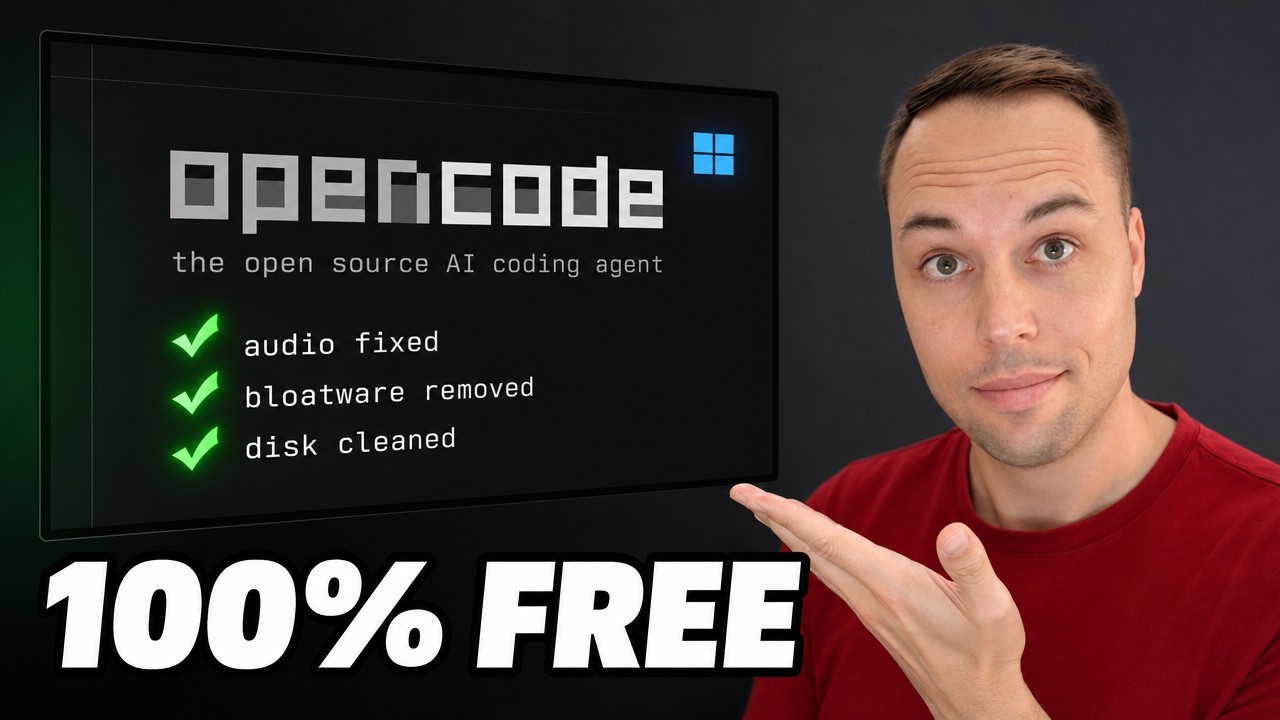
You can give a free, open-source AI agent full control of a Windows PC by installing opencode and letting it run PowerShell commands for you. It can check Event Viewer for crashes, clean up disk space, remove bloatware, fix a broken audio device, and optimize startup services — all from plain-English prompts. Because the free models train on your data, run this inside a virtual machine, not on your main computer.
Applies to: Windows 10 (22H2) and Windows 11 (23H2, 24H2, 25H2) | Last updated: June 4, 2026
Key Takeaways
- opencode is a free, open-source AI coding agent that runs in your terminal and can execute PowerShell commands on Windows from natural-language prompts
- It works with a completely free model (opencode zen) with no account or payment required — you do not need a Claude or ChatGPT subscription to start
- Install it with Node.js and one npm command:
npm i -g opencode-ai, then launch it by typingopencode - It handled real maintenance tasks in seconds — Event Viewer crash analysis in 36 seconds, full disk cleanup that freed 1.38 GB, removing 26 bloatware packages, and re-enabling a disabled audio device
- The free models train on whatever you type, so do this in a virtual machine with no personal data — never on your main PC
Quick Steps:
- Set up a clean virtual machine running Windows 11 for testing
- Install Node.js and tick the box to install the additional tools during setup
- Open Terminal as admin and run
npm i -g opencode-ai - If scripts are blocked, run
Set-ExecutionPolicy RemoteSigned, then install again - Launch it by typing
opencodeand confirm the free opencode zen model is selected - Type a plain-English task and let it write and run the PowerShell commands
What Is opencode, and Why Use It Instead of Claude Code?
opencode is an open-source AI coding agent that runs in your terminal. It is built for agentic coding — creating and editing software projects — but because it operates from the command line, you can also point it at your Windows system and have it write and run PowerShell scripts for you. That is exactly what makes it useful for PC maintenance and optimization.
I previously did the same kind of experiment with Claude Code, where I gave it full access to a fresh Windows 11 install and let it set the machine up from a task list. It nailed the job, but Claude Code is a paid tool, which puts it out of reach for some people. opencode solves that problem. Everything in this guide was done with a free model, so the method is accessible to anyone. You can read the original write-up and grab the exact prompt I used in my Claude Code Windows 11 debloat and setup guide.
Note: This is not a “you should do this” tutorial. It is a demonstration of what becomes possible when you give a large language model control of a terminal. If you want a safe, purpose-built tool to debloat and optimize Windows without handing control to an AI, use my own app, Winhance, instead.
Run This in a Virtual Machine, Not Your Main PC
The free models in opencode are trained on the data you put into them. Whatever you type into the chat is most likely going to be used to train the next version of the model. That is the trade-off for free access, and almost every AI provider does the same thing in some form.
For that reason, I run everything inside a virtual machine that is completely separate from my main computer and contains no personal data. A VM also means that if the AI runs a command that breaks something, the damage is contained to a disposable test environment. Giving any AI free rein over a terminal carries real risk — a virtual machine is the sensible place to experiment with it.
How to Install opencode on Windows
opencode installs through npm, so you need Node.js first. Download it from the official Node.js website and run the Windows installer. During setup, tick the checkbox that automatically installs the additional tools needed to run Node.js apps — this saves you trouble later.
Once Node.js is installed, open Terminal as an administrator and run the install command from the opencode website:
npm i -g opencode-aiYou may hit an error saying that running scripts is disabled on this system. This is a default PowerShell security setting. To fix it, run the following command, which requires any PowerShell script to be signed with a certificate (the npm and Node scripts are signed, so they will run):
Set-ExecutionPolicy RemoteSignedPress Enter, then run the install command again. Once it finishes, launch the agent by typing opencode in the terminal and pressing Enter.
Choosing a Free Model in opencode
When opencode opens, it starts in Build mode, meaning it expects to create apps. For PC tasks you do not need to change anything — it will simply write PowerShell scripts and run them instead of building a project.
Next to the mode you will see the model, served through opencode zen. This is a completely free model, and you do not even need to sign in to use it. To see the full list, type /models and press Enter. You will find other free options as well as paid providers — you can plug in a ChatGPT subscription, an Anthropic API key, Google, and more. For this guide I stuck with the free model so the method stays accessible to everyone.
Tip: To add a second task on a new line without sending the prompt, press Ctrl + J. This lets you queue several instructions in one message before pressing Enter.
Real Windows Tasks the Free AI Handled
Once opencode is running, you talk to it in plain English and it works out the PowerShell commands. Here are the actual tasks I gave it, with the results. Every one of these ran on the free model.
Checking Event Viewer for crashes
I asked it to go through the Event Viewer logs and flag any crashes that needed my attention. It immediately ran PowerShell commands to pull and filter the most recent events, and in 36 seconds it reported three blue screen crashes with their bug-check codes, listed some minor issues, and gave a recommendation on what to investigate. Manually digging through Event Viewer for the same information usually takes 5 to 10 minutes.
Emptying the Recycle Bin and running Disk Cleanup
Next I asked it to empty the Recycle Bin, which it did with a single PowerShell command. Then I asked it to run Disk Cleanup non-interactively on the C drive. It ran the cleanup, then suggested a more thorough pass with every category enabled — temp files, Recycle Bin, and delivery optimization files. I told it to go ahead, and the full cleanup freed about 1.38 GB in roughly 31 seconds. If you would rather clear space manually, I have a full walkthrough on how to clean your C drive in Windows 10 and 11.
Troubleshooting a broken audio device
To test its diagnostic ability, I disabled the High Definition Audio device in Device Manager, then told opencode that my audio had suddenly stopped working and asked it to check. It ran a series of PowerShell commands, found that the audio device was disabled, re-enabled it, and verified that it was working again — exactly the fix a technician would apply.
Removing Windows bloatware
I asked it to uninstall all of the AppX packages except Calculator and Notepad while keeping the system essentials — effectively a “remove the Windows 11 bloatware” command. It listed the installed packages, built a removal script, and stripped out 26 of them in one minute and 21 seconds, with only one package failing to remove. If you prefer to do this yourself with no AI involved, see my guide on removing Windows bloatware without third-party software.
Disabling startup apps and unnecessary services
I asked it to make the PC run as fast as possible without breaking Windows by disabling startup apps and background services that do not need to run constantly. It disabled the OneDrive setup startup entry and set services like SuperFetch, the search indexer, and the telemetry service to Manual rather than disabling them outright. That way they still start if something genuinely needs them, but they do not launch automatically on every boot.
Researching error codes online
I did not know whether the free model had internet access, so I asked it to research the specific error codes we found in Event Viewer. It confirmed it has web-search capability, looked up the codes, and gave advice tailored to this exact machine — it correctly identified that this is a VMware virtual machine and that the hardware errors were coming through the virtual hardware layer, rather than handing me generic “reseat your RAM” advice.
It also set a high-performance power plan, created a new standard user account, ran a deeper temp-file clean (covering the WinSxS folder, the driver cache, and delivery optimization files), and produced a performance baseline report. Throughout, it was clear how much of this comes down to knowing the right PowerShell command — which is exactly where an AI agent that knows the entire command set has the edge. If you want to build that knowledge yourself, start with my list of PowerShell commands every Windows user should know.
Giving opencode the Full Windows Setup Prompt
To finish, I gave opencode the exact same prompt I had given Claude Code in my previous experiment — a complete debloat-and-setup task list for a fresh Windows install. You can copy that prompt from my Claude Code Windows 11 setup guide and try it yourself.
It built its own task list and worked through everything in 6 minutes and 15 seconds. It completed every item, then added a few extras on its own — setting DNS to Cloudflare and disabling Sticky Keys, which is actually more than Claude Code did the first time. It even saved the script file to the desktop as I asked, so the same setup can be rerun on another machine later. For a specific prompt like this, the free model genuinely felt on par with the paid tool.
When you are done, type /exit to close the session, and use /sessions the next time you launch opencode to jump back into a previous chat.
opencode vs Claude Code: Which Should You Use?
I have used Claude Code for more than a year, and for actually developing and running software it is still the clear winner. It is also expensive. For the kind of PowerShell-driven PC tasks shown here, the free models inside opencode completely held their own, which was a genuinely pleasant surprise.
Two things are worth remembering, though. Both opencode and Claude Code are built for agentic coding, not system administration — using them this way is creative, not their intended purpose. And these models run in the cloud, so your data is not private. That is the whole reason this belongs in a virtual machine. My next project may be a local, offline, portable version of this idea, so the same automation can run without sending anything to the cloud.
Frequently Asked Questions
Is opencode really free?
Yes. opencode is open-source, and it ships with a free model served through opencode zen that requires no account and no payment. You can optionally connect paid providers such as a ChatGPT subscription, an Anthropic API key, or Google, but you do not need any of them to get started.
Is it safe to let an AI run commands on my PC?
Not on your main computer. An AI agent with terminal access can run any command, including destructive ones, and the free models train on whatever you type. Run it inside a virtual machine that holds no personal data so any mistakes stay contained. For safe, predictable Windows optimization without an AI, use a purpose-built tool like Winhance instead.
Do I need to know how to code to use opencode?
No. You give it instructions in plain English and it works out the PowerShell commands itself. opencode is designed as a coding agent, but for the maintenance tasks shown here you only need to describe what you want, such as “empty the Recycle Bin” or “remove the bloatware.”
How do I install opencode on Windows?
Install Node.js from the official website, open Terminal as administrator, and run npm i -g opencode-ai. If you get a script-execution error, run Set-ExecutionPolicy RemoteSigned first, then install again. Launch it by typing opencode.
Will the free model send my data somewhere?
Yes. The free models are trained on the data you put into them, and they run in the cloud, so anything you type may be used to improve the next model. This is why you should only use a test environment with no sensitive information when experimenting with the free tier.


I am going to assume all this is in vm, because i did’t hear it clearley its my age.
Thank you now i have an understanding of agentic, still havent figured out the virtual setup with virtualbox, i mean i can set a vm, but do not now what req. to use like how much ammounts memory / video / cpu.
Using ram 32gb, intel i9 13900H, 1TB after installation i use winhance
Allso what do you recomend powershell current installed or updated to 7
Hey there!
I personally haven’t started using PowerShell 7 – Just using 5.1 that’s part of Windows.
As for the VM I used in this video, it was a simple dual core, 8GB RAM Virtual Machine with about 60GB of Drive space, nothing big.