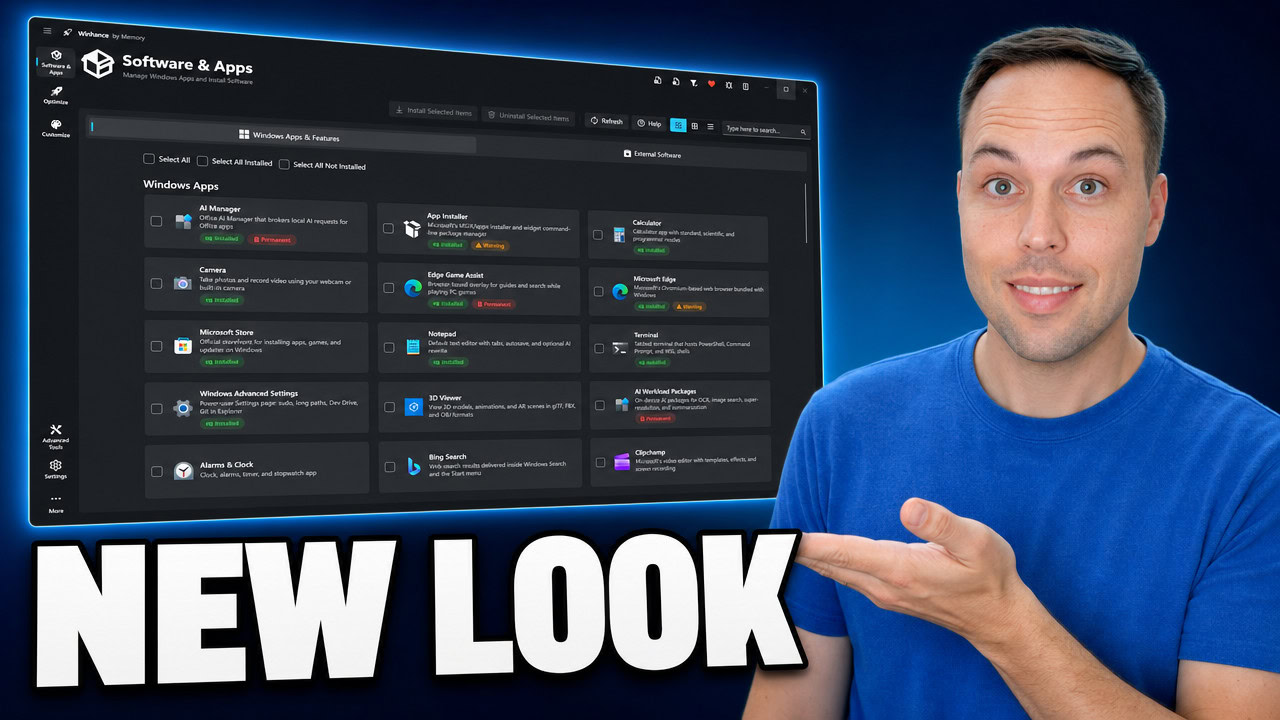
Winhance Release 26 rebuilds the Software & Apps section around a new card view that gives every app a real icon, so you can see exactly what you are removing at a glance. This release also adds system instability warnings for risky removals, a system restore point toggle, an App Installer entry for updating WinGet, and a fix for the refresh button that used to hang.
Applies to: Windows 10 (22H2) and Windows 11 (23H2, 24H2, 25H2) | Last updated: May 22, 2026
Key Takeaways
- The Software & Apps section now has three view modes — card, table, and compact — and the new card view is the default in Release 26.
- Every app now shows its real icon, sourced from your installed apps, the Microsoft Store, or the app’s official site, and cached to disk after a one-time download.
- Microsoft Edge and the App Installer now show an instability warning before removal, because a small number of systems can become unstable without them.
- A new system restore point toggle in the Optimize section lets Windows create automatic restore points for the C drive, so you can roll back changes if something goes wrong.
- The refresh button bug is fixed — it no longer hangs indefinitely on “refreshing installation status.”
Quick Steps — Get Release 26:
- Download the latest installer from winhance.net, or run the install command below in PowerShell.
- Run
Winhance.Installer.exeand pick the Installable or Portable version during setup. - Open the Software & Apps section to see the new card view.
- Switch between card, table, and compact views at any time using the view buttons.
- Check the GitHub release page for the complete list of fixes.
The New Card View: Three Ways to See Your Apps
Release 26 adds a card view to both the Windows Apps & Features list and the External Software list in Winhance, my free Windows enhancement utility. The Software & Apps section now has three layouts in total: card view, table view, and compact view. The card view is the default going forward.
If you have used Winhance before, you will recognize the compact view — the dense text-row layout from earlier releases. That layout is still available, so nothing is taken away from you. If you prefer the compact rows or the table, switch to them with the view buttons and Winhance will keep showing them.
The reason for the change is readability. The compact view identified each item by name only, which made it harder to tell at a glance what you were about to remove. The card view gives each app room for an icon, a short description, and its status badges, so the whole list is easier to scan. Whichever view you pick, every item shows the same information — the choice is purely personal preference.
App Icons: A Real Picture for Every App
Every app in the Software & Apps section now shows its real icon. This applies to both the Windows Apps & Features list and the External Software list. A visual cue like the actual app icon makes it much faster to recognize what an item is, instead of reading down a column of names.
Winhance gets these icons from a few different sources depending on the app:
- Installed apps — the icon is read from the app already installed on your PC. These items also show an Installed badge.
- Apps that are not installed — for items like the 3D Viewer or Copilot that are not present on your system, the icon is downloaded once from the Microsoft Store, which stores that information.
- External software — icons come from Wikimedia or from the app’s own website or distribution platform.
These downloads only ever happen once. After the first fetch, each icon is saved to disk as part of the Winhance program data. The next time you launch Winhance, it loads the icons straight from your disk instead of downloading them again.
The App Installer Entry: Update WinGet From Inside Winhance
Release 26 adds a new App Installer item to the Windows Apps & Features list. The App Installer is Microsoft’s MSIX/AppX installer, and WinGet — the Windows package manager — is part of it. Adding it to Winhance gives you a way to install or update the App Installer package on both Windows 10 and Windows 11.
If you ever need to update WinGet itself, you can now do that through Winhance. Select the App Installer item and choose to install it. In most cases you would not want to uninstall the App Installer, but it remains possible to do so if you have a specific reason.
Instability Warnings and the New “Permanent” Badge
Some packages are riskier to remove than others. In Release 26, the App Installer and Microsoft Edge both display a warning label stating that removing the package may cause system instability. This was requested by people in the community.
To be clear about what the warning means: the majority of people will not see any instability after removing Microsoft Edge. But it is true that some systems do experience problems, so the warning exists to let you make that decision with the full picture before you click. Most other apps in the list do not need a warning, because they can simply be reinstalled if you change your mind.
Warning: If you remove Microsoft Edge or the App Installer, do it knowing that a small number of systems can become unstable. If you are setting up a machine for someone else, weigh that risk before you ship it.
Some items genuinely cannot be brought back. Those now carry a Permanent badge. In earlier releases this badge said “not reinstallable,” but that wording did not fit on a badge, so it is now a single word. If an item has the Permanent removal badge, you cannot reinstall it once it has been uninstalled — the only way to get it back is a clean install of Windows.
Updated Status Indicators Across Every View
The installation status indicator has changed. The old green ellipse is now a desktop tower icon — green when an item is installed, and grayed out when it is not. The warning icon and the installable-versus-permanent indicators also appear in the table view and the compact view, not just the card view.
The point of that consistency is simple: it does not matter which view you use. Card, table, or compact, you get the same information for every item — whether it is installed, whether it carries a warning, and whether removal is permanent.
Optimize and Customize: Restore Points, Graphics, DNS, and AutoPlay
Release 26 also brings several changes to the Optimize and Customize sections, and most of them came directly from requests on GitHub.
System Restore Point Toggle
The Gaming and Performance area of the Optimize section now has a system protection toggle for restore points. When enabled, it allows Windows to automatically create restore points for the C drive, which makes it possible to undo system changes if something goes wrong. The toggle applies to the C drive specifically, and all it does is enable or disable system restore on that drive.
Tip: Turn this toggle on before you make a batch of system changes. If a tweak causes a problem, a restore point gives you a clean way back.
MPO and Hardware Overlay Settings Split
In the Graphics part of the Optimize section, the Multi-Plane Overlay (MPO) and hardware overlay settings used to share combined registry entries. Release 26 splits them into two separate settings so you have more granular control over each one. These settings are the ones people often disable when they run into flickering or black-screen issues on certain multi-monitor setups, and separating them means you can target the exact one you need.
DNS over HTTPS Entries
The DNS server selection setting in the Network section now includes DNS over HTTPS entries. These were missing in earlier releases, so if you want an encrypted DNS option, you can now select it directly in Winhance.
AutoPlay Toggle
Over in the Customize section, under Explorer and the Devices and Peripherals area, there is a new AutoPlay toggle. AutoPlay is the Windows feature that opens a dialog or runs programs automatically when you insert a USB drive, DVD, or SD card. It is on by default in Windows, and I recommend leaving it on for most people.
Someone requested a way to turn it off, usually for security reasons — disabling AutoPlay stops a program from running automatically off an untrusted USB drive. If that is you, you can now disable AutoPlay from inside Winhance.
Bug Fixes in Release 26
A few visible bugs are fixed in this release. In the Windows Apps & Features section, the refresh button used to hang indefinitely — it would get stuck on “refreshing installation status” and never finish. In my testing, that is fixed, and the refresh now completes the task properly.
There were also fixes behind the scenes. One bug affected external software: some items were not detected as installed even though they were. This happened specifically when you installed an item from the Microsoft Store and then launched Winhance — it would not show as installed. That is fixed, along with a number of smaller inconsistencies.
If you want the exact, complete list of what changed, the Winhance GitHub releases page has the full changelog for every release. For context on how the project has grown, you can also look back at the previous Winhance update and the Release 24 settings update.
How to Update to Winhance Release 26
Winhance is free, and updating is the same as installing it. Download the latest Winhance.Installer.exe from winhance.net, or paste this command into PowerShell to download and run the installer automatically:
irm "https://get.winhance.net" | iexThe installer lets you choose between an Installable version and a Portable version during setup. Once it is done, open the Software & Apps section and you will land straight in the new card view. Watch the full walkthrough above to see every change in action.
Almost every change in Release 26 came from a GitHub request or a bug report — the warnings, the restore point toggle, the DNS over HTTPS entries, and the AutoPlay toggle were all community asks. If there is something you would like to see in Winhance, reporting a bug or suggesting a feature on GitHub is the way it gets onto the list.
Frequently Asked Questions
Is Winhance free?
Yes. Winhance is completely free to download and use. You can get it from winhance.net or install it through the PowerShell command above. If you find it useful, there is an optional support dialog inside the app, but nothing is locked behind it.
How do I update to Winhance Release 26?
Updating Winhance means running the latest installer. Download Winhance.Installer.exe from winhance.net, or run irm "https://get.winhance.net" | iex in PowerShell. There is no separate update step — installing the new version replaces the old one.
Can I still use the old compact view?
Yes. The compact view and the table view are both still available in Release 26. The card view is the new default, but you can switch back to either of the other layouts at any time using the view buttons, and Winhance will keep your choice.
Is it safe to remove Microsoft Edge with Winhance?
For most systems, removing Microsoft Edge causes no problems. A small number of systems can experience instability without it, which is why Release 26 adds a warning label on Edge before you remove it. If you are unsure, leave Edge in place — and remember that Edge can be reinstalled, unlike items that carry the Permanent badge.
Does Winhance work on Windows 10?
Yes. Winhance works on both Windows 10 and Windows 11. The new App Installer entry in Release 26 also lets you install or update the App Installer package and WinGet on either version of Windows.