Winhance Release 24 adds over 50 new settings across Optimizations and Customize, makes system restore optional on first launch, and introduces a new badge system so you can see at a glance which settings are recommended, at Windows defaults, or customized. Major additions include dedicated controls for Windows AI, Microsoft Edge AI, Microsoft Office AI, expanded taskbar behaviors, and new File Explorer context menu tools for SFC, DISM, and Check Disk.
Applies to: Windows 10 (22H2) and Windows 11 (23H2, 24H2, 25H2) | Last updated: April 17, 2026
Key Takeaways
- System restore is now optional on first launch — a prompt lets you skip it, and you can still create a restore point later from the Settings page
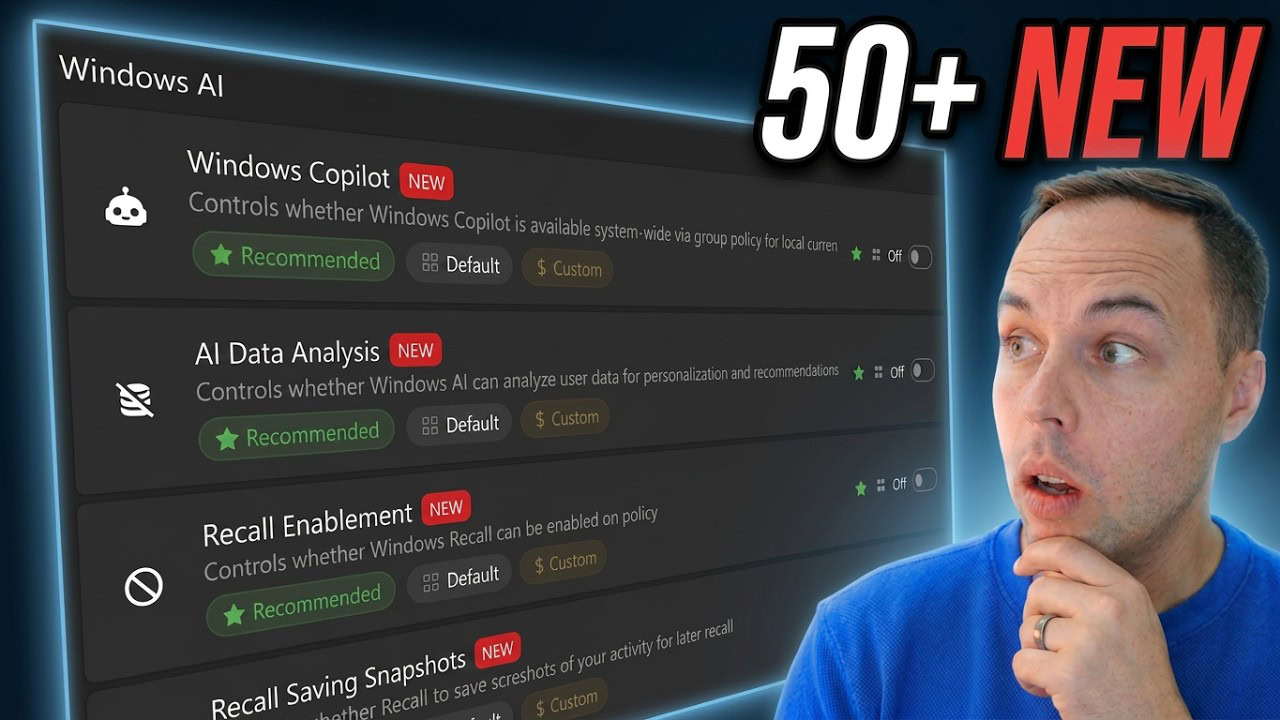
- A new badge system shows whether each setting is at its Recommended, Default, Custom, or Personal Preference value, and a NEW badge highlights settings added in this release
- Privacy & Security gained 45 new settings, including dedicated Windows AI, Microsoft Edge AI, and Microsoft Office AI subgroups for controlling Copilot, Recall, Click to Do, and more
- File Explorer gained 21 new settings, including context menu entries for SFC, DISM, and Check Disk, plus a legacy Notepad file association toggle and expanded navigation pane controls
- Release 24 is available now at winhance.net, and the full changelog lives on the Winhance Release 24 GitHub page
Quick Summary of What’s New:
- System restore point creation is now optional on first launch
- New Quick Actions menu for applying all recommended or default values per page
- New View menu to toggle technical details, info badges, and NEW badges
- 45 new settings in Privacy & Security (with three AI subgroups)
- 13 new settings in Gaming & Performance (DNS, VBS, MPO, SVCHost split threshold, and more)
- 1 new setting in Windows Update (block driver co-installers)
- 15 new settings in Taskbar customization
- 21 new settings in File Explorer (context menu tools, file associations, navigation pane)
- Quality of life improvements to Config Review Mode
System Restore Points Are Now Optional on First Launch
In earlier releases, Winhance would automatically enable System Restore and create a restore point the first time you launched the app. A lot of people gave me feedback asking for this to be optional rather than forced, so from Release 24 onward, you now get a prompt on first launch asking whether you want to create a system restore point or skip it.
Winhance still automatically creates a backup config file with all of your current Winhance settings the first time you run it, so you can use that as a backup and restore function regardless of whether you create a system restore point.
If you skip the restore point on first launch, you can create one later by navigating to Settings inside Winhance. That said, I still recommend creating a restore point the first time you use Winhance — it gives you a known-good rollback point before any changes are applied to your system.
The New Badge System, Quick Actions, and View Menu
The Optimize and Customize pages now have two new buttons at the top: Quick Actions and View. Quick Actions lets you apply all recommended settings — or reset everything to Windows defaults — for the page you are currently on. The View menu lets you toggle technical details, info badges, and the new badges added in Release 24.
Every setting card now shows up to four info badges so you can see its current state at a glance:
- Recommended — the setting is at the value Winhance recommends
- Default — the setting is at its Windows factory value
- Custom — the setting has been changed to something other than Recommended or Default
- Personal Preference — Winhance may suggest a value, but there is no objectively correct answer for this setting
There is overlap between Recommended and Default, because some Windows defaults are also what Winhance recommends. In those cases, both badges are lit up at the same time. A good example of a Personal Preference setting is User Account Control — I recommend Never Notify because I do not want a UAC prompt every time I run an application, but that is a personal call, and the setting makes that clear.
Each setting card also has individual Recommended and Default buttons next to it, so you can apply either value to just that one setting without affecting the whole page. If the badge clutter is too much, open the View menu and toggle the info badges and NEW badges off — the UI returns to a cleaner layout with just the settings themselves.
Tip: The NEW badges are how you can quickly find every setting added in Release 24. Open the View menu, make sure NEW badges are on, and scan each feature for the red NEW markers — the landing page of every feature also shows a count of how many new settings are in that section.
45 New Settings in Privacy, Security, and AI Controls
Privacy & Security received the largest expansion in Release 24, with 45 new settings. The first batch covers core Windows security toggles: Smart App Control, Developer Mode (allows app installation from any source), and a PowerShell Execution Policy setting that lets you pick any of the standard Windows execution policies.
Windows AI Subgroup
A new Windows AI subgroup consolidates every AI feature baked into Windows into one place. This includes Windows Copilot toggles, AI data analysis, Recall enablement, Recall saving snapshots, Click to Do, and more. Most of these are only relevant if you are running a Copilot+ PC or a system where Recall can be enabled, but the toggles work for Copilot, Bing Chat, and generative AI access regardless of hardware.
The Windows AI subgroup also covers AI features baked into Microsoft Paint — the AI image creator, co-creator, and generative fill — so you can disable those from Winhance without opening Paint. Microsoft appears to be rolling out native controls for these in a future Windows update, but at the time of this writing they are not available in stable Windows.
Microsoft Edge AI and Microsoft Office AI Subgroups
There is a dedicated Microsoft Edge AI subgroup for all of the AI integrated into the Edge browser, and a Microsoft Office AI subgroup for Copilot and AI features baked into the Microsoft Office suite. If you do not use Edge or Office, you can ignore these subgroups — they only apply when those applications are installed.
13 New Gaming and Performance Tweaks
Gaming & Performance picked up 13 new settings, covering input responsiveness, background process management, networking, and security-performance trade-offs. The most notable additions:
- Mouse Hover Time — controls how long you must hover over a UI element before it activates. Setting this to 1 millisecond makes tooltips, menus, and hover effects appear faster. Requires a restart.
- Background App Permissions — previously a simple toggle, now a three-option combo box: User in Control, Force Allow, or Force Deny. Force Deny removes background permissions from Windows Settings entirely, which also disables background activity for apps that depend on it (Teams, Zoom, WhatsApp, etc.). Set it back to User in Control if you need those apps to run normally.
- WebView 2 in Windows Search — disables Windows Search using WebView 2 or Edge for rendering results. This removes Edge processes spawned by SearchHost.exe and reduces resource usage, but it uses an undocumented Windows feature management override that may change in future updates.
- SVCHost Split Threshold — sets the memory threshold Windows uses to decide when to split services into separate SVCHost.exe processes. Match this to your system RAM for the safest result (check Task Manager > Performance > Memory to confirm how much RAM you have). The setting also allows values above your physical RAM by request, but use that with caution.
- Multi-Plane Overlay (MPO) — composites display layers in hardware using the GPU. Recommended on, but disabling it can fix screen flickering, black screens, and stuttering on multi-monitor setups.
- MPO Minimum Frame Rate Requirement — related to MPO. Disabling this can resolve stuttering in browsers and Discord without fully disabling MPO itself.
- DNS Server — previously not configurable from Winhance. You can now pick Automatic (DHCP) or presets for Cloudflare, Cloudflare Malware Blocking, Google, Quad9, or OpenDNS. The setting applies to every network adapter on the system — Wi-Fi and Ethernet both.
Security Subgroup for Gaming Performance
A Security subgroup was added inside Gaming & Performance because these specific security features have a direct impact on gaming performance on some systems. This subgroup lets you toggle Virtualization-Based Security (VBS) and Memory Integrity.
The recommended values here are off, because the context is gaming performance — not security. Disabling VBS and Memory Integrity has been known to improve gaming frame rates on some systems, but it does reduce overall system security. If you do not play games on the machine and you are security-conscious, leave these enabled.
Services and Input Management
The Connected Devices Platform Service can now be disabled or set to manual from Winhance, which reduces background activity and device interaction logging. The Touch Keyboard and Handwriting Panel Service setting was also updated — this service handles the Windows Input Experience, including the touch keyboard, pen and stylus input, handwriting panel, and the emoji panel.
On a normal Windows 11 desktop, opening the emoji panel (Windows key + period) spawns a background process that can use up to 20% of the CPU briefly and 80 MB of RAM, and that process stays running even after you close the panel. Disabling this service kills the process for good, and the emoji panel stops working — but the on-screen keyboard continues to function. If you never use the emoji panel or a touch input method, this is safe to disable.
One New Setting in Windows Update: Block Driver Co-Installers
The Windows Update section picked up one new setting: Block Driver Co-Installers. When this is on (the default behavior), Windows allows hardware vendors to install companion software alongside device drivers — things like Razer Synapse, printer utilities, and other bundled vendor applications.
Disabling this prevents that bloatware from installing automatically when you plug in a peripheral. Your hardware continues to work normally with the standard drivers — you just do not get the extra vendor software pushed in through Windows Update.
15 New Taskbar Settings and 21 New File Explorer Settings
Over in Customize, the Taskbar feature gained 15 new settings and File Explorer gained 21. Many of these were requested directly through issues on the Winhance GitHub page, and the goal is the same as always — let you pre-configure every setting in Winhance, then deploy it to new systems using a Winhance config file or an autounattend XML.
Taskbar: Copilot Pins, Behaviors, and System Tray
The Taskbar section now includes controls for the Copilot companion button, Copilot WPA pin, and Recall pin (most relevant on Copilot+ PCs). Toggling these off removes the associated pins from the taskbar. On a regular Windows 11 Pro installation, the Copilot button may still appear — to fully remove it from the taskbar on those systems, you have to uninstall Copilot itself from Apps & Features.
Every Windows taskbar behavior is now mirrored in Winhance: auto-hide, taskbar auto-hover delay, show badges, show on all displays, end task in taskbar, show all system tray icons, and more. This makes it possible to pre-configure the exact taskbar behavior you want in a config file or autounattend XML, so the setting is already in the right state on a fresh install. If you are new to deploying Windows with an answer file, I have a full guide on how to create an unattended answer file for Windows 10 and 11.
File Explorer: Shortcut Arrows and Context Menu Tools
The File Explorer section starts with a setting many of you requested: Remove Shortcut Arrow Icon. Turning this on writes a transparent icon file to Windows and hides the arrow overlay on every desktop shortcut, which makes the desktop look cleaner without changing the underlying shortcut behavior.
The bigger addition is a context menu subgroup with the following new entries:
- SFC Scan Now — adds a right-click option to run
sfc /scannowin an elevated terminal - DISM (Repair Windows Image) — adds a right-click option to run
DISM /Online /Cleanup-Image /RestoreHealth - Check Disk — adds a right-click option with three variants: scan only, fix errors, or locate bad sectors. Prompts for a drive letter when you run it.
- Edit or Run with PS1 — adds right-click options on PowerShell files for opening with Windows PowerShell, PowerShell 7, PowerShell ISE, or Notepad. Each target must be installed on the system for that menu entry to work.
- Compressed To — adds right-click compression options for any file or folder (ZIP, 7Z, and other formats). This one is based on ThioJoe’s Compressed To tweak — full credit to him for the original script.
These context menu entries only appear in the classic Windows context menu, not the Windows 11 default menu. If you have not already switched, see how to enable the classic context menu in Windows 11 — Winhance can also make that change for you.
Note: I originally considered adding SFC, DISM, and Check Disk as action buttons inside the Optimizations feature, but that does not fit my vision for the app. Winhance is an enhancement and deployment tool, not a system repair utility. Adding the same commands as context menu entries keeps them accessible to IT professionals without turning Winhance into something it is not.
File Associations, Navigation Pane, and Regional Settings
A new Use Legacy Notepad for Text Files setting changes the default handler for .txt files from the new Windows 11 Notepad to the legacy Notepad. This requires the Notepad Legacy optional feature to be installed on the system (it still ships by default on Windows 11 at the time of writing, but Microsoft may remove it in a future release).
The Navigation Pane settings expand on the existing Show All Folders toggle — you can now individually control which folders appear in the navigation pane (Desktop, Documents, Downloads, Music, Pictures, Videos), hide libraries, and disable the duplicate removable drives behavior that shows each USB drive twice in This PC.
There is also a Show Auto Login Option in User Accounts setting that restores the classic “Users must enter a username and password to use this computer” checkbox in netplwiz. Windows removed this by default, so enabling this setting is the only way to get that checkbox back without manual registry edits.
Finally, a Regional Settings group lets you pre-configure date format, first day of the week, number format, currency symbol, and measurement system. These have no recommended values — they are entirely preference or locale-based — but they are very useful in deployment scenarios. I used to spend real time in my repair shop setting these manually on every client machine, and having them in Winhance means you can bake them into a config file and never touch them again.
Config Review Mode — Quality of Life Improvements
Config Review Mode is not new — it is what Winhance enters when you import a config file, so you can review each setting change before applying it. Release 24 makes two clarifications that were requested by users who ran into confusion here:
- The Advanced Tools section is now fully disabled during Config Review Mode. You cannot build a custom ISO or toggle settings from scratch while reviewing a config — Config Review Mode is specifically for reviewing and accepting or rejecting changes, not for normal editing. The disabled state makes this explicit.
- Quick Actions in Config Review Mode now offers Accept All Changes and Reject All Changes on the current page, and the View menu gains a Show Only Changes toggle so you do not have to scroll through settings the config is not touching.
Once you accept or reject every change, the final Apply Config button pushes the reviewed changes to your live system. If you decide not to continue, Cancel exits Config Review Mode without applying anything.
How to Get Winhance Release 24
Release 24 is available now. The fastest way to install or update is the PowerShell one-liner on the Winhance website:
irm "https://get.winhance.net" | iexRun that in an elevated PowerShell window and it handles the install or update automatically. You can also download installable or portable builds directly from the Winhance Release 24 GitHub page, which is also where the complete changelog lives — I did not cover every single change in this walkthrough, so check the release notes for the full list.
If you are brand new to Winhance, start with the main Winhance guide — it walks through the full app, what each feature does, and the recommended workflow. And if your end goal is a clean, pre-configured Windows install rather than tweaking an existing system, UnattendedWinstall and the Winhance WIMUtil both let you bake these settings into a bootable ISO from the start.
Coming next: I have more updates planned for the Autounattend feature, plus a Config Creation Mode and Autounattend Creation Mode — modes where you can configure settings in the Winhance UI without applying them to your live system, so you can build a config or answer file cleanly. No release date yet, but it is on the list.
Frequently Asked Questions
Is Winhance still free?
Yes. Winhance is completely free and open source, and I rely on community support to keep building it. If you have found it useful, sharing it or supporting development helps a lot. The download counter is sitting at nearly 1 million downloads at the time of Release 24.
Will my existing Winhance config file still work in Release 24?
Yes. Existing config files continue to work — the new settings simply will not be present in an older config, so they will stay at their current values on your system. If you want to include the new settings, open the config in Release 24, configure the new options, and export a fresh config file.
Do I need a Copilot+ PC to use the Windows AI settings?
No. Many of the Windows AI toggles — Copilot, Bing Chat, generative AI access, Paint AI — apply to any Windows 11 system where those features are installed. Recall and Click to Do are primarily aimed at Copilot+ PCs, but the settings in Winhance still work safely on non-Copilot+ systems; they just have no effect if the feature is not available on that hardware.
Why are some security settings inside the Gaming & Performance section?
Because disabling features like Virtualization-Based Security and Memory Integrity has been shown to improve gaming performance on some systems. They live in Gaming & Performance with a recommended off value for that reason. If you do not game on the machine, it is safer to leave both enabled — they are there for users who have prioritized frame rate over the small security cost.
What is the difference between Winhance and the autounattend XML?
Winhance configures settings on a live, already-installed Windows system. An autounattend XML is an answer file that configures settings during the Windows installation process — before you even reach the desktop. Winhance’s WIMUtil can generate an autounattend XML based on your current selections, so you can use the same settings both ways: on existing installs through the app, and on fresh installs through a custom ISO. See my unattended answer file guide for the full walkthrough of that workflow.