Windows 11 version 25H2 has officially landed on the Microsoft Software Downloads page, and I wanted to test it out right away. In this guide, I’m going to walk you through how to download the Windows 11 25H2 ISO file directly from Microsoft, install it in a virtual machine, and test whether you can still create a local account during setup. I’ll also show you how to enable the experimental new start menu features that aren’t available out of the box.
Before we dive in, I want to be clear: this is primarily for testing purposes. I’m not suggesting you rush to upgrade your main computer to 25H2 just yet. That’s why I’m using a virtual machine for this demo—it’s the safest way to explore what’s new without risking your daily driver.
Key Takeaways
- Windows 11 25H2 is now available for official download from the Microsoft Software Downloads page, allowing you to download the ISO file directly
- The local account bypass method still works on Windows 11 25H2 Home edition using the
ms-cxh:localonlycommand during setup - The new start menu features are experimental and must be manually enabled using ViVeTool—they’re not available by default even after installing all updates
Requirements
To follow along with this guide, you’ll need:
- A computer with virtualization software (I’m using VMware Workstation Pro, but VirtualBox works too)
- At least 8GB of RAM to allocate to the virtual machine (16GB total recommended on your host system)
- Around 25GB of free disk space for the virtual machine
- An internet connection to download the Windows 11 25H2 ISO file (approximately 5-6GB)
- ViVeTool if you want to enable experimental features (optional)
Why Download and Test Windows 11 25H2?
You might be wondering why you should bother testing Windows 11 25H2, especially if you’re already running 24H2. Here’s the thing: 25H2 and 24H2 are fundamentally the same under the hood. The main difference is that 25H2 includes additional features that are typically enabled through Windows Updates.
Testing the official 25H2 release lets you see what Microsoft has actually made available in the stable version versus what’s still locked away as experimental. It’s also important if you develop Windows utilities or need to ensure compatibility with the latest version. For me personally, I need to make sure it works with Winhance, my Windows enhancement utility, and I’m working on updates for UnattendedWinStall that need to be compatible with 25H2.
How to Download Windows 11 25H2 ISO from Microsoft
Downloading the official Windows 11 25H2 ISO is straightforward now that it’s available on the Microsoft Software Downloads page.
Step 1: Navigate to the Windows 11 Downloads Page
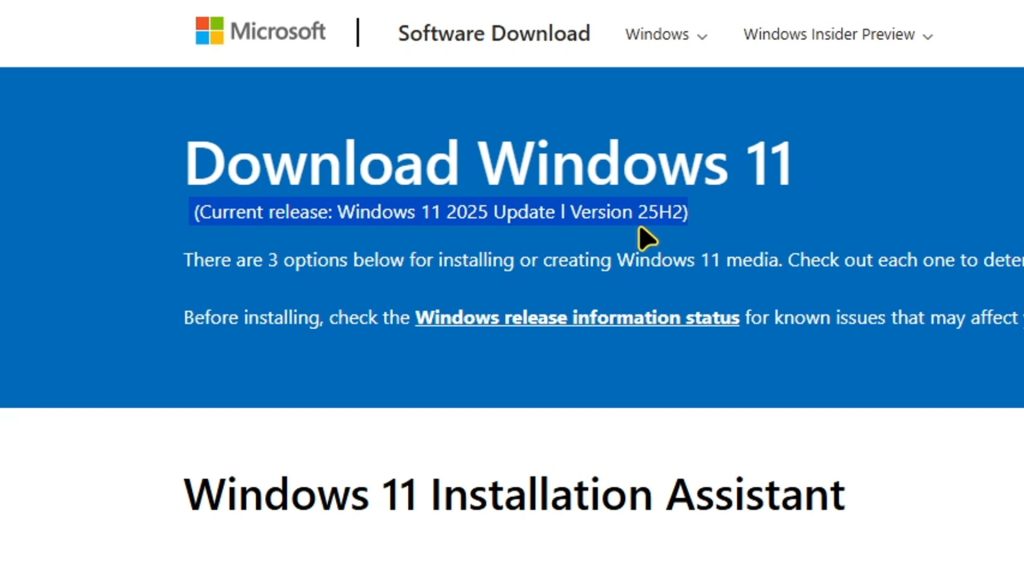
Head over to the official Windows 11 Downloads page on Microsoft’s website. You’ll see that the current release is now listed as Windows 11 version 25H2.
Step 2: Select the Download Windows 11 ISO Option
Scroll down on the page until you find the section for downloading the Windows 11 Disk Image (ISO). Click on the dropdown menu to select your product.
Step 3: Choose Your Product Language
After selecting the Windows 11 ISO option, you’ll need to choose your product language. I typically select “English (United States)” but you can choose whichever language you prefer.
Step 4: Download the 64-bit ISO File
Once you confirm your language selection, you’ll get the download link. Click on the “64-bit Download” button to start downloading the Windows 11 25H2 ISO file to your computer.
Note: The ISO file is quite large (around 5-6GB), so make sure you have a stable internet connection and enough storage space before starting the download.
Setting Up a Virtual Machine for Windows 11 25H2
Now that you’ve downloaded the ISO, it’s time to create a virtual machine. I’m using VMware Workstation Pro, but the general process is similar in other virtualization software like VirtualBox or Hyper-V.
Creating a New Virtual Machine
Open your virtualization software and create a new virtual machine. I’m naming mine “Windows 11 25H2” to keep things organized.
Customizing Virtual Machine Hardware
Before finalizing the VM creation, you’ll want to customize the hardware settings:
- RAM: Allocate at least 8GB of RAM to ensure smooth performance
- CPU Cores: Increase the number of CPU cores (I typically use 4 cores)
- ISO File: Point to the Windows 11 25H2 ISO file you just downloaded from Microsoft
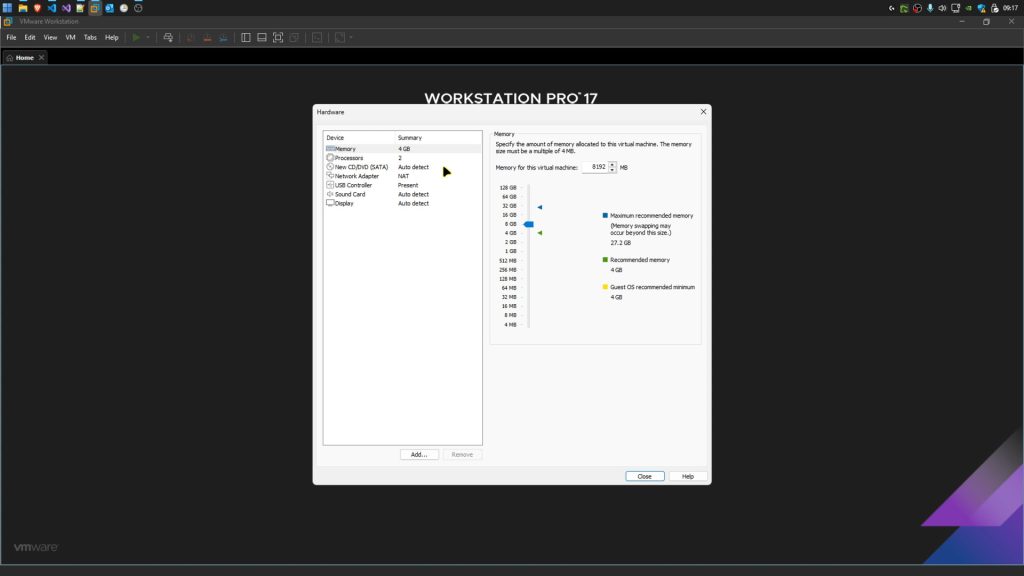
Once you’ve configured these settings, close the hardware customization window, finish creating the virtual machine, and power it on to start the installation.
Installing Windows 11 25H2 in Your Virtual Machine
The Windows 11 25H2 installation process hasn’t changed much from previous versions. When you boot from the ISO, you’ll go through the familiar setup screens.
Initial Setup Screens
Leave the default language settings selected, confirm your keyboard layout, and click “Install Now” to begin the installation process.
Selecting Windows 11 Edition
During setup, you’ll have the option to choose between different Windows 11 editions. For this test, I’m installing Windows 11 Home because I specifically want to test the local account creation process on this edition, which typically requires a Microsoft account.
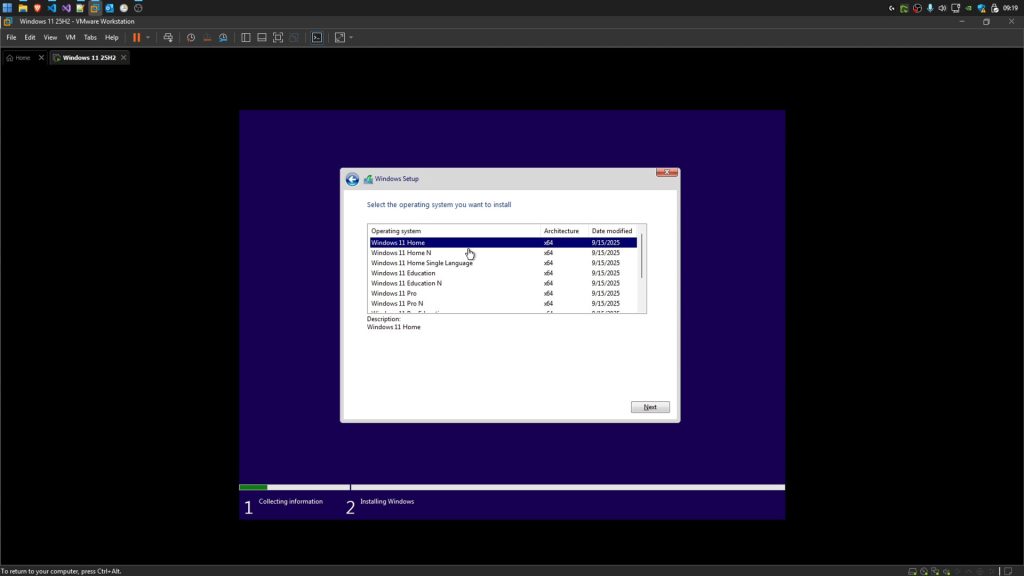
Accepting License Terms and Selecting Installation Drive
Accept the license terms, choose “Install Windows only” for a clean installation, and select your virtual machine drive. Click next, and Windows 11 25H2 will begin installing.
Tip: Since this is a virtual machine, you don’t need to worry about data loss. The installation will format the virtual drive, but it won’t affect your actual computer.
How to Create a Local Account on Windows 11 25H2 Home
One of the biggest questions I had was whether the local account bypass still works on the official Windows 11 25H2 release. I’m happy to report that it does! If you want the detailed step-by-step process, I’ve created a comprehensive guide on bypassing the Microsoft account requirement, but here’s the quick version.
Opening Command Prompt During Setup
Once Windows 11 finishes installing and you reach the initial setup screens, press Shift + F10 to open Command Prompt. If you’re on a laptop, you might need to press Shift + Fn + F10 instead.
Important: If this key combination doesn’t work, your Windows installation might be in S mode, which is a security mode that restricts access to Command Prompt during setup. I’m working on finding a solution for that scenario and will update my channel when I do.
Verifying Your Windows Version
Before proceeding, type winver in the Command Prompt window to verify you’re running Windows 11 version 25H2 Home edition.
Running the Local Account Command
Now for the magic command that bypasses the Microsoft account requirement. Type the following command exactly as shown:
start ms-cxh:localonly
Press Enter, and you’ll immediately see a new screen asking you to create a local account for this PC.
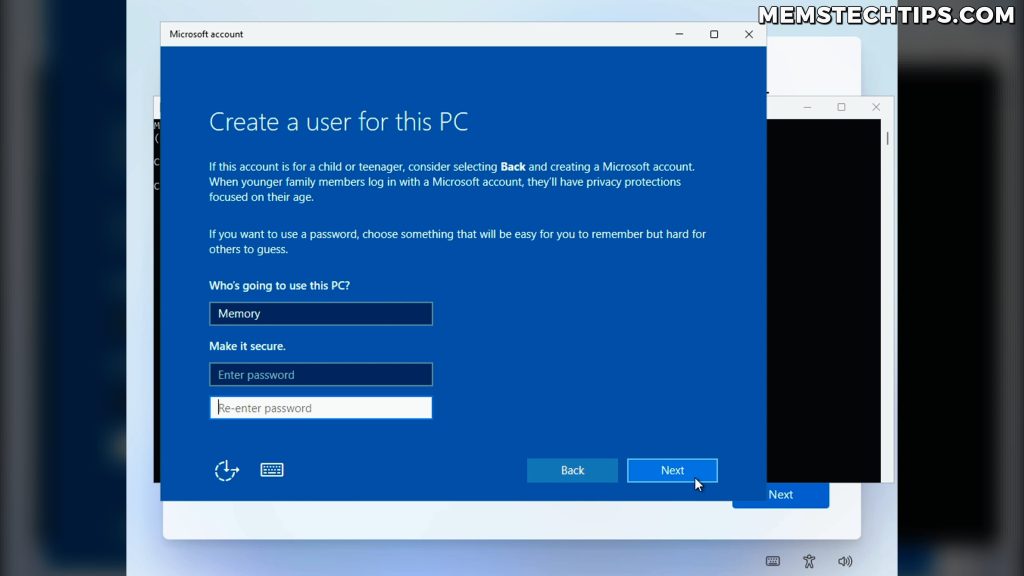
Creating Your Local User Account
Enter your desired username (I’m using “Memory” for this test). You can leave the password fields blank if you don’t want to set a password, then click Next.
The beautiful thing about this method is that you skip all the additional setup screens—you don’t have to choose language preferences again, select keyboard layouts, or answer privacy questions at this stage. You load directly into a local account.
Success: It’s great to see that this local account creation method still works perfectly on the official stable version of Windows 11 25H2!
Configuring Privacy Settings
You will still need to configure your privacy settings. I typically uncheck all the telemetry options, but you can choose according to your preferences. After that, Windows 11 25H2 will finish loading.
What’s New in Windows 11 25H2 Out of the Box
After installing the virtual machine drivers to get a proper screen resolution, I immediately checked what new features are available in the base 25H2 installation.
Checking the Start Menu
When I opened the Start Menu, I was greeted by the same old Windows 11 24H2 start menu. None of the new start menu features that Microsoft has been working on for 25H2 were present.
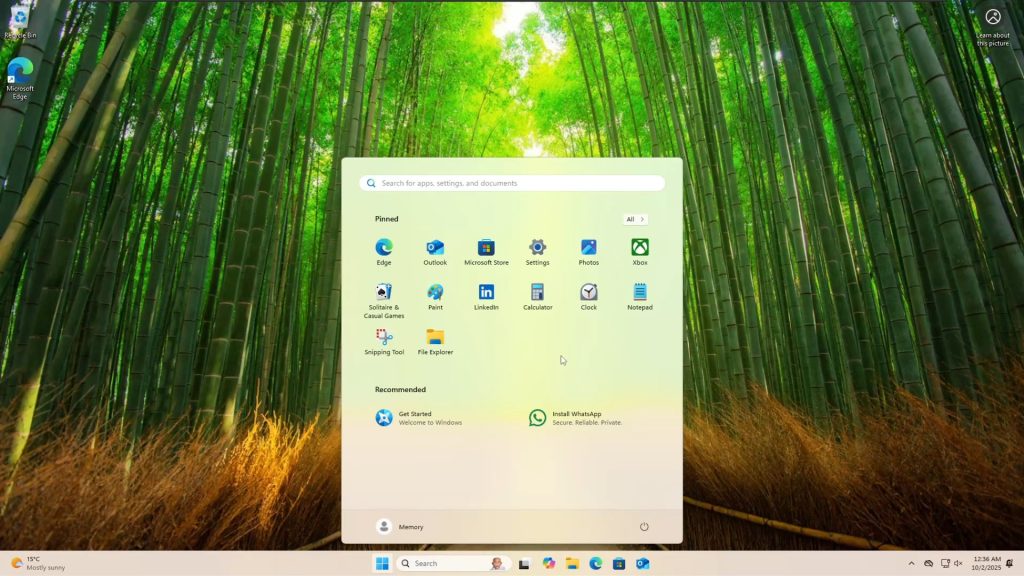
Taskbar Settings Updates
In the taskbar settings under “Taskbar behaviors,” there is a new option to show smaller taskbar buttons. You can set this to “always” to make the icons on the taskbar smaller.
However—and this is something I complained about in my previous video covering what’s new in Windows 11 25H2—this option only makes the icons smaller, not the taskbar itself. The taskbar remains the same height, which is disappointing.
Is Recall Enabled by Default?
Another thing I wanted to check was whether Recall is enabled by default in Windows 11 25H2. After running the appropriate PowerShell command to check Recall status, I found that Recall is disabled with payload removed.
This means Recall is not enabled by default, at least not on this virtual machine. The base installation of Windows 11 25H2 from the ISO doesn’t look significantly different compared to 24H2.
Installing Windows Updates on 25H2
I suspected that some of the new features might be enabled through Windows Updates rather than being present in the base ISO. So I went ahead and installed all available updates for version 25H2.
Even after installing all the latest updates, the start menu still hadn’t changed. After doing some research online, I discovered that the start menu changes were not implemented in the stable 25H2 release yet. The new start menu is still an experimental feature, which is why we’re still seeing the old start menu on this fresh Windows 11 25H2 installation.
Note: Windows 11 versions 24H2 and 25H2 share the same underlying code. The experimental features exist in 24H2 as well; they’re just in a disabled state. Version 25H2 simply has more features that can potentially be enabled through updates.
How to Enable the Experimental Start Menu on Windows 11 25H2
While the new start menu features aren’t available by default, you can still enable them using a tool called ViVeTool. Since I’m using a virtual machine for testing purposes, I’m going to enable these experimental features. However, I don’t recommend doing this on your main computer as these features can be buggy and unstable.
If you want to experiment with the new start menu, use a virtual machine like I’m doing in this guide, or use a spare computer that you don’t rely on for critical everyday tasks.
Downloading ViVeTool from GitHub
First, you need to download ViVeTool from GitHub. A simple Google search for “ViVeTool GitHub” will take you to the correct page. I’ll also include the link in my written guide on my website.
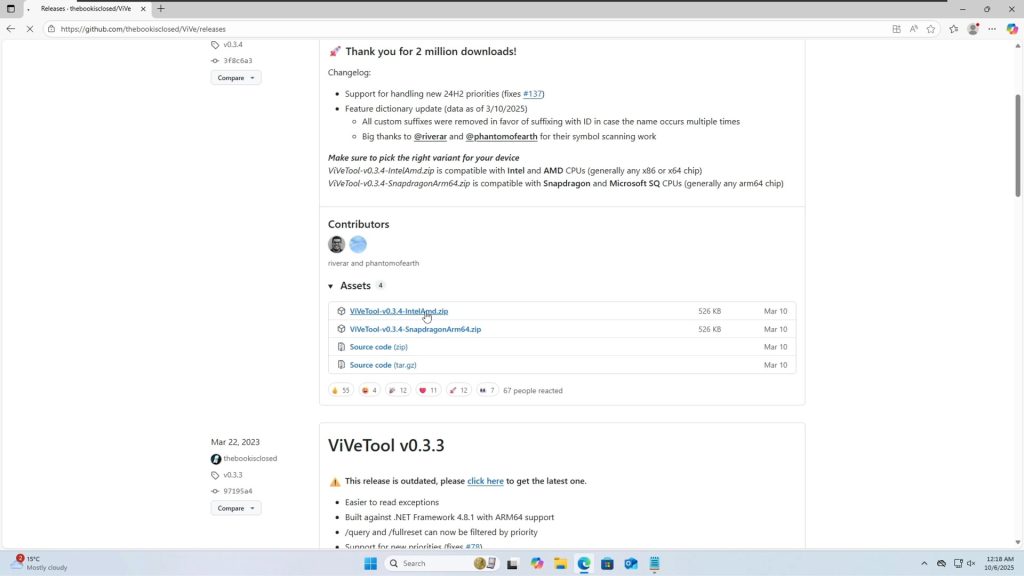
Download the ViVeTool zip file. Make sure to get the version for Intel and AMD processors (unless you’re on ARM architecture).
Extracting ViVeTool Files
After downloading, open the folder containing the zip file and extract it. I recommend extracting it to a simple location like the C drive to make it easier to navigate to later.
Create a new folder on your C drive called “ViVeTool” and extract the files there. So your path should be C:\ViVeTool.
Opening Command Prompt as Administrator
Press the Windows key and search for “CMD” or “Command Prompt.” Right-click on Command Prompt and select “Run as administrator.” Accept the User Account Control prompt when it appears.

Navigating to the ViVeTool Directory
Now you need to navigate Command Prompt to the directory where you extracted ViVeTool. Here’s how:
- Open the ViVeTool folder in File Explorer (
C:\ViVeTool) - Click inside the address bar at the top of the window
- Right-click and copy the file path
- In the Command Prompt window, type
cd(change directory) followed by a space - Type a quotation mark
" - Press Ctrl + V to paste the directory path
- Type another quotation mark
"to close - Press Enter
Your command should look like this: cd "C:\ViVeTool"
You’re now inside the ViVeTool folder and ready to run the commands needed to enable the experimental features.
Running ViVeTool Commands to Enable New Start Menu
Now comes the actual command to enable the experimental start menu features. The specific command will depend on which features you want to enable, but for the new start menu, you’ll run the ViVeTool command with the appropriate feature IDs below.
vivetool /enable /id:57048226,47205210
Copy the command above, then press Ctrl + V to paste it into the Command Prompt window, and press Enter to execute it.
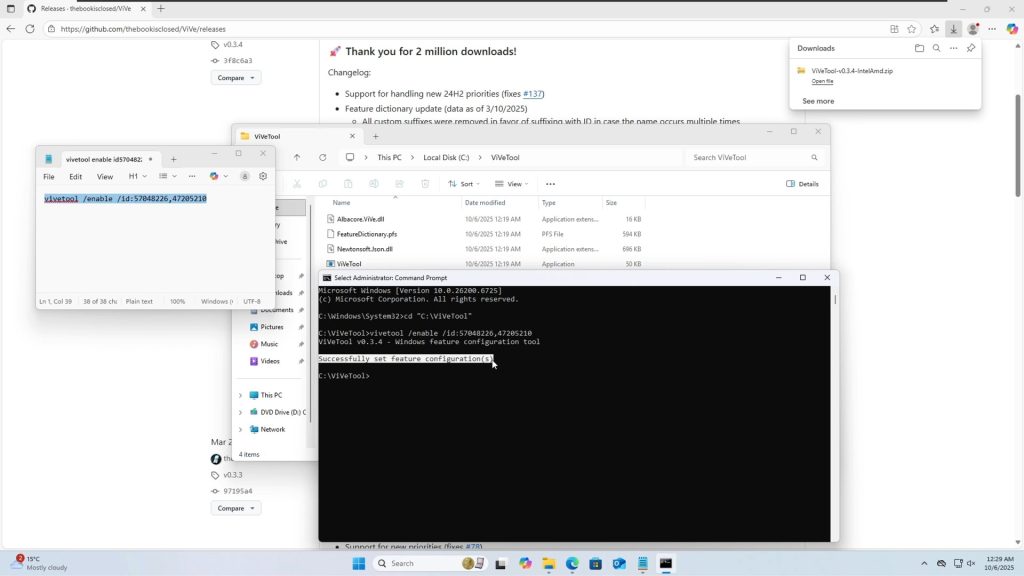
You should see a message confirming that ViVeTool has successfully set the feature configurations.
Restarting Your Computer
After running the ViVeTool commands, you need to perform a complete restart of your computer (or virtual machine in this case). The changes won’t take effect until after the restart.
Once your system boots back up, you should now have the new experimental start menu enabled on Windows 11 25H2.
Exploring the New Windows 11 25H2 Start Menu Features
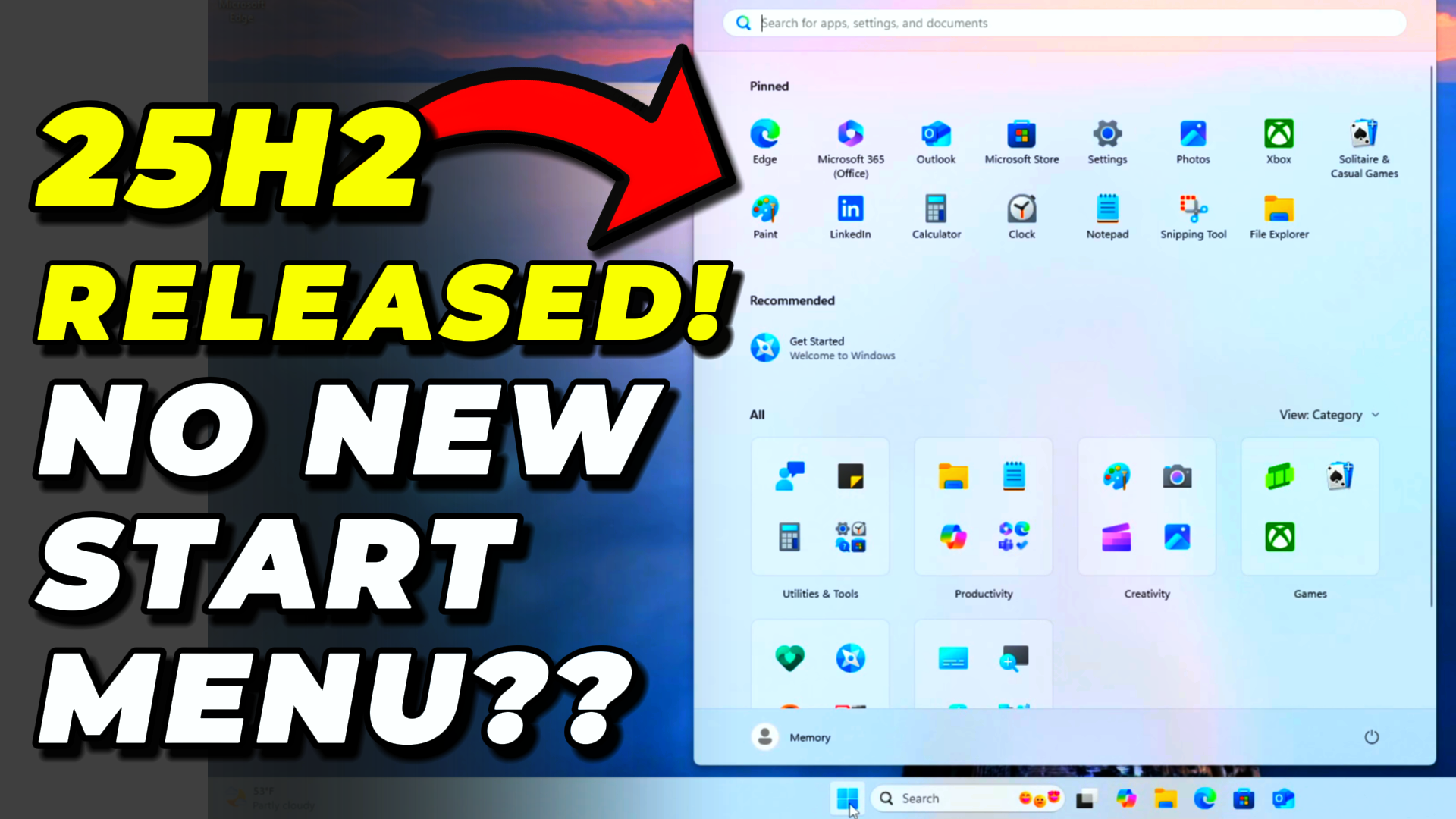
After restarting, I clicked on the Start button, and sure enough, the experimental start menu is now enabled! Remember, this is still experimental, which means it may have bugs and stability issues, but at least now you know how to enable it if you want to test it yourself.

Customization Options in the New Start Menu
Here’s what I like about the new start menu so far:
Removing the Recommended Section
You can completely remove the “Recommended” section that normally shows recent files and suggested apps. This gives you more space for your actual application list.
Changing View Modes
You can change the view mode from the default grid view to a list view, which displays all your applications in a clean, alphabetized list—very similar to the classic Windows 7/10 start menu.
Unpinning All Items
You can actually unpin all of the pre-pinned items from the start menu. As I was unpinning items during my test, I did notice a bug where the icons would display over one another—clear evidence that this start menu is still experimental and not quite ready for production use.
Warning: The experimental start menu definitely has bugs and visual glitches. This is probably not something you want running on your daily driver computer, but it’s fun to experiment with in a controlled environment.
My Preferred Start Menu Configuration
After cleaning up the experimental start menu, I ended up with a nice, clean interface with no pinned items and all applications neatly arranged in list view. You can also change this to grid view if you prefer, or switch to category view, which is basically the default arrangement.
Personally, I prefer the list view—it’s how I would set up my start menu if I were using the default Windows 11 start menu. However, I currently use a program called StartAllBack to get a classic Windows start menu experience. I’ve created a detailed video about that tool if you’re interested.
Should You Upgrade to Windows 11 25H2?
Here’s my honest take: at the time of this recording, whether you’re running Windows 11 24H2 or 25H2, the underlying code is essentially the same. It’s really just about which features have been enabled.
The features that are “new” in 25H2 actually already exist in the 24H2 system—they’re just in a disabled state. Microsoft enables them gradually through updates or keeps them experimental until they’re stable enough for general release.
I don’t personally see any urgent need to upgrade from 24H2 to 25H2 right now. The reason I’m making these videos and testing the new version is because:
- I need to ensure compatibility with Winhance, my Windows enhancement utility
- I’m working on a new update for UnattendedWinstall that needs to support version 25H2
- I want to share what’s actually available in the official release versus what’s still experimental
If you do decide to install Windows 11 25H2, I recommend waiting a bit longer for Microsoft to iron out potential bugs, or testing it in a virtual machine first like I demonstrated in this guide.
Conclusion
Windows 11 25H2 is now officially available for download, but it doesn’t bring significant changes out of the box compared to 24H2. The most anticipated features, like the redesigned start menu, remain experimental and require manual enablement through tools like ViVeTool.
The good news is that the local account creation method still works flawlessly on Windows 11 25H2 Home edition, giving you the freedom to skip the Microsoft account requirement during setup. If you want to experiment with the new features, I strongly recommend using a virtual machine rather than your main computer to avoid potential stability issues.
Frequently Asked Questions (FAQ)
Is Windows 11 25H2 a major update or just a minor release?
Windows 11 25H2 is more of an incremental update rather than a major overhaul. The underlying code is essentially the same as 24H2, with the main differences being additional features that Microsoft enables through updates. Many of these features already exist in 24H2 but remain disabled until they’re stable enough for wider release.
Can I still create a local account on Windows 11 25H2 Home edition?
Yes! The local account bypass method using the start ms-cxh:localonly command still works perfectly on Windows 11 25H2 Home edition. You can use this during the initial setup by pressing Shift + F10 to open Command Prompt and running the command to bypass the Microsoft account requirement.
Will enabling experimental features with ViVeTool harm my computer?
Enabling experimental features carries some risk. These features are not fully tested and may cause instability, bugs, or visual glitches. I strongly recommend only enabling experimental features on a virtual machine or a spare computer that you don’t use for critical work. Never enable experimental features on your primary work computer or daily driver.
Why doesn’t the new start menu appear after installing Windows 11 25H2?
The redesigned start menu is still an experimental feature that Microsoft hasn’t rolled out to the stable release yet. Even after installing all available Windows Updates on 25H2, the new start menu won’t appear unless you manually enable it using ViVeTool. Microsoft typically keeps new features in experimental status until they’re confident in their stability.
Should I upgrade from Windows 11 24H2 to 25H2 right now?
There’s no urgent need to upgrade from 24H2 to 25H2 at this time. The two versions share the same underlying codebase, and most “new” features in 25H2 are either experimental or will eventually come to 24H2 through Windows Update. Unless you have a specific compatibility requirement or want to test the latest version, it’s perfectly fine to stay on 24H2 for now.