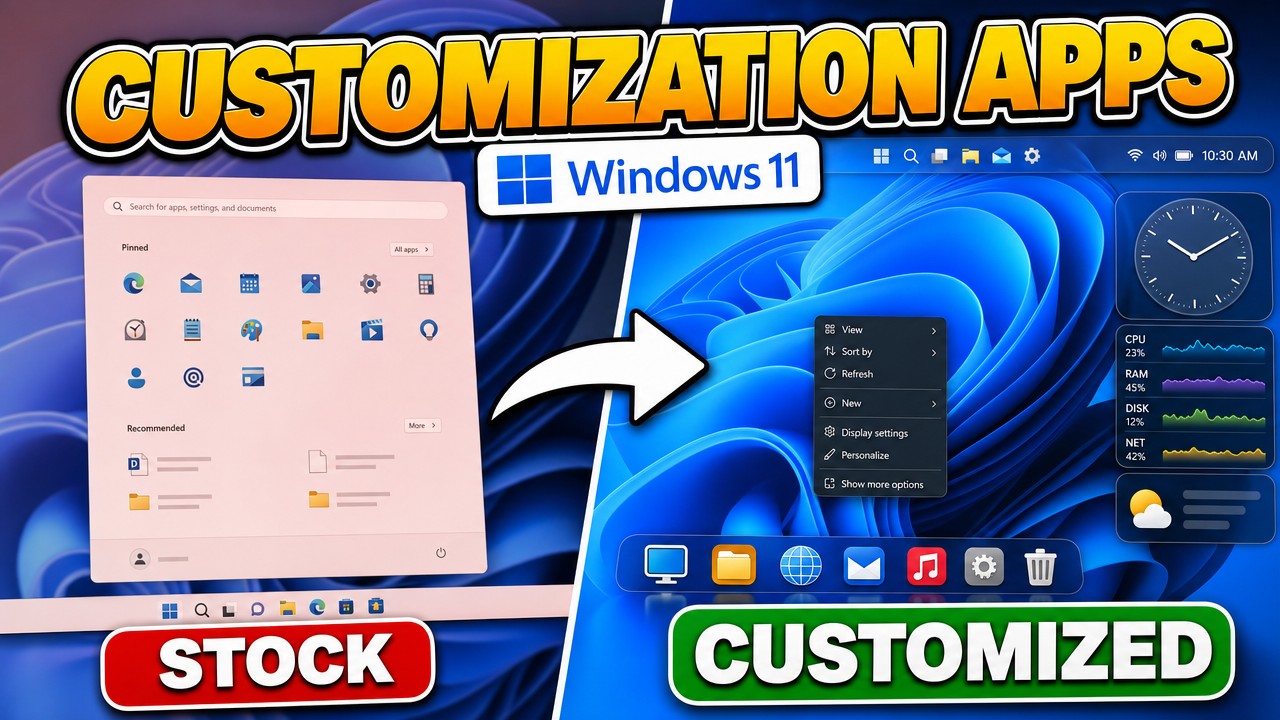
The best Windows 11 customization apps are Windhawk for lightweight taskbar and Start menu mods, StartAllBack or ExplorerPatcher for a full shell replacement, Nilesoft Shell for the right-click menu, TranslucentTB for a see-through taskbar, Rainmeter for desktop widgets, Lively Wallpaper or Sucrose for animated wallpapers, Seelen UI for a completely different desktop, the PowerToys Command Palette dock, and Winhance for setting all of it up in one pass. Almost every one of them is free and open source.
Applies to: Windows 11 (23H2, 24H2, 25H2) | Last updated: September 4, 2026
Key Takeaways
- Windhawk costs you almost nothing. It was using under 3 MB of RAM in Task Manager when I checked, and its mods work in memory instead of editing system files or the registry, so removing it leaves nothing behind.
- StartAllBack is the shell replacement I actually run. It moves the taskbar to the top of the screen and gives it dynamic transparency. It costs about $5 for one PC. ExplorerPatcher does the same job for free and goes further, with the Windows 10 taskbar, Start menu, Alt+Tab switcher and right-click menu.
- Rainmeter is structurally the safest app here and the easiest one to hurt yourself with. The engine never touches explorer.exe, but skins can run their own code, and a desktop covered in constantly updating widgets is the one setup on this list that can genuinely cost you performance.
- Animated wallpapers are cheaper than they look. Lively Wallpaper used about 90 to 100 MB of RAM and almost no CPU once its window was closed. Sucrose used around 120 MB.
- Winhance does not replace your shell. It puts the customization settings in one place and adds a handful Windows does not offer: the classic right-click menu, smaller taskbar buttons, no shortcut arrows on desktop icons, removing the Recommended section from the Start menu, and turning off Bing results in Start menu search.
Quick Picks
- A smaller taskbar with labels and a Start menu with no Recommended section: Windhawk
- The taskbar at the top of the screen with a see-through look: StartAllBack (paid) or TranslucentTB (free, transparency only)
- The Windows 10 taskbar, Start menu and Alt+Tab back, for free: ExplorerPatcher
- A right-click menu that shows everything and matches dark mode: Nilesoft Shell
- Clocks, system monitors and music widgets on the wallpaper: Rainmeter
- Video or interactive wallpapers: Lively Wallpaper to start, Sucrose if you want a built-in store
- A completely different desktop with a status bar and a dock: Seelen UI
- An app bar with CPU, memory and GPU readouts on any edge of the screen: PowerToys Command Palette dock
- Setting a fresh machine up in one pass, plus debloating, privacy and performance: Winhance
Three Things Before the List
A completely stock install of Windows 11 is fine for a lot of people. If you have followed my work for a while, you know I do not leave it like that, and judging by the comments, neither do a lot of you. Before I get into the apps, I want to be upfront about three things, because I have had comments about them before and they are fair.
Performance. A lot of you know me as the guy building Winhance to make Windows lighter and cleaner, and here I am showing you apps that add things on top of Windows. I get that. Some of these genuinely cost you performance, and some cost you almost nothing, so I will tell you which is which as I go. Where I measured it myself, I give you the real number.
None of this is an ad. I have not been paid by any of these developers, there are no affiliate links for any of them, and almost everything here is a free and open source tool anyway.
I am not telling you to install any of this. This guide exists so you know what is out there and what it does, in case you want to use any of it. If you look through the list and decide you are happy with stock Windows 11, that is completely fair. Your computer is your computer.
Windhawk: Taskbar and Start Menu Mods That Cost Nothing
Windhawk is a modding interface for Windows. You install Windhawk itself, then browse a collection of mods and enable the ones you want. The mods most people come for are the taskbar mods: you can set the taskbar height and icon size to get a small taskbar again, and you can put the labels back next to your open apps.
Then there is the Start Menu Styler. The theme I liked most was the side-by-side minimal layout, with all of your apps on the left, only your pinned apps on the right, and no Recommended section at all.
I do not run Windhawk myself, but it is first on this list for a reason. When I checked Task Manager, it was not even using 3 MB of RAM. The mods do their work in memory instead of changing system files or writing entries into the registry, so if you take Windhawk off, it is genuinely gone. My full Windhawk guide walks through the install and the mods I would start with.
Written guide: How to Customize Windows 11 With Windhawk
StartAllBack: The Shell Replacement I Use
StartAllBack replaces the Windows 11 UI and lets you customize the Start menu, the taskbar, the tray icons and File Explorer. It also replaces the right-click menu. There are two reasons it is the shell replacement I run: I can move the taskbar to any edge of the screen, and mine always goes to the top, and it has dynamic transparency, so the taskbar goes completely see-through while you can still make out what is behind it.
Both of those were things Microsoft took away in Windows 11, although the ability to move the taskbar has now come back in recent updates. StartAllBack is not free. It is about $5 for one PC, and there is a free trial, so check the site for the current trial length before you install it.
I will be honest about where I am at with it. Microsoft has been adding a lot of this natively, and I covered what changed in my look at the taskbar, Start menu and search fixes Microsoft is shipping. If you want the full setup, my StartAllBack guide covers every option.
Written guide: Customise Windows 11 Start Menu and Taskbar with StartAllBack
ExplorerPatcher: The Free Way to Get Windows 10 Back
If you want the same idea without paying for it, the free option is ExplorerPatcher, and it goes even further. It gives you the actual Windows 10 taskbar, the Windows 10 Start menu, the old Alt+Tab switcher and the Windows 10 right-click menu.
ExplorerPatcher is free and open source, and it is tested against more Windows builds than anything else on this list. I have a step-by-step guide on turning Windows 11 into Windows 10 with ExplorerPatcher if that is the look you are after.
Written guide: How to Turn Windows 11 into Windows 10 with ExplorerPatcher
Nilesoft Shell: Fix the Right-Click Menu
Nilesoft Shell only does one job. It is a free and open source context menu manager, so it rebuilds the right-click menu. The reason people want that is that Windows 11 replaced half of the options with icons and hid the rest behind Show more options, which annoys me every time.
With Shell you can add your own items, theme the menu so it actually matches dark mode, and set it to compact so it takes up less of the screen. My favourite thing in there is the All Control Panel Items shortcut, which drops you straight into the list of every utility and setting in Windows.
StartAllBack already gives you the classic right-click menu back, but you can run StartAllBack and Nilesoft Shell together for these extra context menu entries. The full setup is in my Nilesoft Shell guide.
Written guide: How to Customize the Context Menu in Windows 11 with Nilesoft Shell
TranslucentTB: The Best Transparent Taskbar on Windows 11
TranslucentTB also does a single job, and it does it very well. It makes your taskbar transparent, and it is the best app on Windows 11 for a completely see-through taskbar. I mean properly clear: you can drag a window behind the taskbar and still see what is inside it.
What makes it good is that you can set a different look for each situation. It can be fully clear normally, then go solid the moment you maximize a window. TranslucentTB is free and open source, it is on the Microsoft Store, and it is still getting updates. I do not use it myself, only because StartAllBack already handles my transparency. If you want it on its own, here is how to make the taskbar transparent on Windows 11.
Written guide: How to Make the Taskbar Transparent on Windows 11
Rainmeter: Widgets on Your Wallpaper
Rainmeter is what is behind almost every one of those desktop setups you have seen with clocks, system monitors and music widgets all over the wallpaper. Rainmeter itself is just the engine, and it is completely free. You install skins on top of it, and the skins are what you actually see.
Structurally, this is the safest thing on the list. Unlike almost everything else here, it does not touch explorer.exe. It just draws on your desktop, so it cannot break your taskbar or take your Start menu down with it.
Warning: The catch is the skins, because skins can run their own code. The risk is not Rainmeter, it is whatever you download into it. This is also the entry where you can genuinely hurt your performance, because those setups people show off are running a lot of widgets at once, all updating constantly.
I have to be upfront that Rainmeter is not part of my own setup. It is, by a mile, the biggest visual change on this list.
Lively Wallpaper and Sucrose: Animated Wallpapers
I am putting two apps together here because they do the same job. Lively Wallpaper and Sucrose Wallpaper Engine are both free and both open source, and both let you set videos, web pages and interactive wallpapers as your desktop background.
Lively is the one I would start most people on. It is the smaller download, it has a screensaver mode, and it is the more polished of the two. When I tested it, it was using about 90 to 100 MB of RAM and basically no CPU once the window was closed. My Lively Wallpaper guide covers the setup.
Written guide: Lively Wallpaper: Animated Desktop Wallpapers on Windows 10 and 11
Sucrose is a lot like Lively, but what sets it apart is that the store inside the app actually works. You can browse wallpapers other people have made and set them right there. When I tested it, it was around 120 MB, so a little more, but that is really not a lot. I have a separate Sucrose Wallpaper Engine guide as well.
Written guide: Sucrose Wallpaper Engine: Best Free Animated Wallpaper App for Windows
Seelen UI: Replace the Whole Desktop
Seelen UI is different from everything else on this list because it does not change one part of Windows. It replaces the whole desktop. You get a status bar across the top, a dock along the bottom, its own app menu on the Windows key, and it even takes over your volume and brightness pop-ups. There is a tiling window manager built into it as well, although that one stays off until you go and enable it yourself.
Seelen UI is free and open source. There is an optional subscription for cloud sync and some extra themes, but you never have to touch it to use the app.
Note: Two things before you install it. It needs Microsoft Edge and the WebView2 runtime to work, so if you have debloated your Windows and taken Edge out, get the setup-fixed installer instead, because that one brings its own runtime with it. It also hides the Windows taskbar. If Seelen UI breaks, it puts your taskbar back for you, but if you uninstall it while it is still running, your taskbar can come back stuck on auto-hide.
That auto-hide problem is one toggle to put right: go to Settings > Personalization > Taskbar > Taskbar behaviors and turn off Automatically hide the taskbar. And if the Windows key stops responding, Ctrl+Esc still opens Start.
PowerToys Command Palette Dock: The Newest Thing Here
The Command Palette dock in Microsoft PowerToys is a bar that sits on the edge of your screen with your most used apps and commands on it. You can put it at the top, the bottom or either side, and it also shows your CPU, memory and GPU usage right there on the bar.
It is a proper feature now instead of a preview, and you can make it transparent, which is the part I liked. It is turned off by default, so you enable it inside the Command Palette settings, not in the main PowerToys list. I go through the setup in my PowerToys Command Palette dock guide, and if you are new to PowerToys, start with the five PowerToys every Windows user should know about.
Written guide: PowerToys Command Palette Dock: A Free Windows 11 Taskbar Replacement
Winhance: Where It Fits Next to These
Winhance is the app I build myself, and I want to be honest about where it fits, because it is not the same kind of tool as the rest of these. Winhance does not replace your shell. It will not move your taskbar to the top or make it transparent, and it will not give you the Windows 10 Start menu back. If that is what you came for, one of the tools above is what you want.
What the customization side of Winhance does is put the settings in one place. A good chunk of those you can already find in Windows Settings: dark mode, taskbar alignment, auto-hide, which icons you see in your tray. It is in there so you can set a machine up in one pass instead of hunting around five different settings pages.
There is also a handful of settings in there that Windows genuinely does not give you: the classic right-click menu, smaller taskbar buttons, getting rid of the shortcut arrow on your desktop icons, actually removing the Recommended section from the Start menu instead of just emptying it, and turning off the Bing results in Start menu search.
The rest of Winhance is really the other side of this guide: the debloating, and the privacy and performance settings, which is where most of the work has gone. If you have never used it, the Winhance overview is the place to start, and my full Windows 11 personalization guide covers the built-in settings side of customizing Windows.
The customization section starts at 34:17, and you can jump straight to that chapter. Winhance’s interface has been redesigned since I recorded that walkthrough, so the screens look different today, but it shows what the customization side does.
The Same Tools in My Big Utilities Roundup
Five of these apps also get a full segment in my 22 free Windows utilities roundup, if you want to see them next to the rest of my everyday toolkit: StartAllBack at 58:59, Nilesoft Shell at 1:08:57, Windhawk at 1:20:49, TranslucentTB at 1:34:52 and ExplorerPatcher at 1:42:03.
Customise Windows 11 With No Apps at All
A lot of what people install these apps for is already in Windows, and two of the popular ones are a single registry value. Do these first and you may find you do not need anything above.
Taskbar
Right-click the taskbar and choose Taskbar settings, or open Settings > Personalization > Taskbar.
- Taskbar items: turn Search, Task view and Widgets on or off.
- Taskbar behaviors > Taskbar alignment: set it to Left to move the icons out of the centre.
- Taskbar behaviors > Automatically hide the taskbar.
- Taskbar behaviors > Combine taskbar buttons and hide labels: set it to Never to get text labels back next to your open apps, the way Windows 10 did it.
Windows still has no setting to move the taskbar to another edge of the screen. That needs StartAllBack or ExplorerPatcher.
Start menu
Settings > Personalization > Start.
- Layout: More pins gives you a bigger app grid and a smaller recommended area.
- Turn off Show recently added apps, Show most used apps and Show recommended files to empty the recommended section. The section itself stays, just empty.
- Folders: put Settings, File Explorer, Downloads and others next to the power button.
Dark mode, accent colours and transparency
Settings > Personalization > Colors.
- Choose your mode: Dark.
- Transparency effects gives the taskbar and menus a blur. It is not the properly see-through look TranslucentTB does, but it is built in.
- Show accent color on Start and taskbar, which only becomes available in dark mode with a custom accent colour.
Wallpaper and slideshow settings are in Settings > Personalization > Background.
Bring back the classic right-click menu
One registry value gets you the full Windows 10 context menu with no app at all. Open Terminal and run:
reg add "HKCU\Software\Classes\CLSID\{86ca1aa0-34aa-4e8b-a509-50c905bae2a2}\InprocServer32" /f /ve
taskkill /f /im explorer.exe
start explorer.exe
To undo it:
reg delete "HKCU\Software\Classes\CLSID\{86ca1aa0-34aa-4e8b-a509-50c905bae2a2}" /f
taskkill /f /im explorer.exe
start explorer.exe
Winhance has this as a toggle if you would rather not touch the registry yourself.
Turn off Bing results in Start menu search
reg add "HKCU\Software\Policies\Microsoft\Windows\Explorer" /v DisableSearchBoxSuggestions /t REG_DWORD /d 1 /fRestart Explorer or sign out and back in for it to take effect. Set the value to 0 to undo it.
Remove the shortcut arrow from desktop icons
This one needs an administrator Terminal, because it writes to HKLM:
reg add "HKLM\SOFTWARE\Microsoft\Windows\CurrentVersion\Explorer\Shell Icons" /v 29 /t REG_SZ /d "%windir%\System32\imageres.dll,197" /f
taskkill /f /im explorer.exe
start explorer.exe
Delete the 29 value to put the arrow back.
Reach every Control Panel item from one folder
Create a new folder anywhere and rename it to exactly this:
All Settings.{ED7BA470-8E54-465E-825C-99712043E01C}It turns into a single folder listing every Control Panel task on the machine. This is the same list Nilesoft Shell puts in your right-click menu.
Apps That Fight Each Other
- StartAllBack and Nilesoft Shell both replace the right-click menu. Run one, not both.
- ExplorerPatcher and TranslucentTB do not work together, because the classic taskbar does not support what TranslucentTB needs.
- StartAllBack and ExplorerPatcher both replace the shell. Never run both at once.
- Seelen UI hides the Windows taskbar, so anything that customises that taskbar has nothing left to work on.
- Wallpaper apps have blocked Windows feature updates before. If an update refuses to install, uninstall the wallpaper app, update, then reinstall it.
If Your Taskbar or Start Menu Breaks
- Ctrl+Shift+Esc opens Task Manager even with no taskbar. Ctrl+Esc opens Start when the Windows key has been captured.
- In Task Manager, go to File > Run new task, type explorer.exe and run it to get your desktop back.
- From that same Run new task box, appwiz.cpl opens the uninstall list so you can remove the app that caused it.
- If the taskbar came back stuck on auto-hide, open Settings > Personalization > Taskbar > Taskbar behaviors and untick Automatically hide the taskbar.
- If Windows will not get to a usable desktop at all, Safe Mode does not load any of these apps, and you can uninstall from there.
Frequently Asked Questions
Do I need to install all of these apps?
No. Pick the one that does the job you want. You only need one shell replacement, so choose StartAllBack or ExplorerPatcher, not both, and if StartAllBack is doing your transparency you do not need TranslucentTB. Nilesoft Shell runs happily alongside StartAllBack, and Winhance sits underneath all of them.
Will these customization apps slow down my PC?
Most of them cost almost nothing. Windhawk used under 3 MB of RAM on my machine, Lively Wallpaper used about 90 to 100 MB with basically no CPU once its window was closed, and Sucrose used around 120 MB. The one place you can genuinely hurt performance is Rainmeter, if you run a lot of widgets that all update constantly.
Can I remove them without leaving anything behind?
Windhawk is the cleanest, because its mods work in memory and never touch system files or the registry, so uninstalling it leaves nothing. Rainmeter only draws on the desktop and never touches explorer.exe. The one to be careful with is Seelen UI: uninstall it while it is running and your taskbar can come back stuck on auto-hide, which you fix in Settings > Personalization > Taskbar > Taskbar behaviors.
Is StartAllBack free?
No. StartAllBack costs about $5 for one PC, and there is a free trial, so check the site for the current trial length before you install it. If you want the same idea for free, ExplorerPatcher gives you the Windows 10 taskbar, Start menu, Alt+Tab and right-click menu at no cost.
Does Winhance move the taskbar or bring back the Windows 10 Start menu?
No. Winhance does not replace the shell, so it cannot move the taskbar, make it transparent or restore the Windows 10 Start menu. It collects the customization settings in one place and adds a few Windows does not offer, like the classic right-click menu, smaller taskbar buttons and removing the Recommended section from the Start menu. For the taskbar and Start menu changes, use Windhawk, StartAllBack or ExplorerPatcher.