I gave Qwen3 Coder 30B — a local AI model running on my own hardware through Ollama — full control of a fresh Windows 11 25H2 installation inside a VirtualBox virtual machine. It removed the bloatware and installed most of my software, but it also fabricated Windows registry keys that do not exist, and it reported the setup as complete when it was not.
Applies to: Windows 11 (25H2) | Tools: Ollama, OpenCode, Qwen3 Coder 30B, VirtualBox | Last updated: July 23, 2026
Key Takeaways
- Qwen3 Coder 30B, running locally through Ollama with a 64K context window, worked autonomously for about 30 minutes and used roughly 32,000 tokens to debloat and configure a fresh Windows 11 25H2 installation.
- The model removed every removable preinstalled app while keeping Calculator, Notepad, and Terminal exactly as instructed, and it verified its software installs one by one.
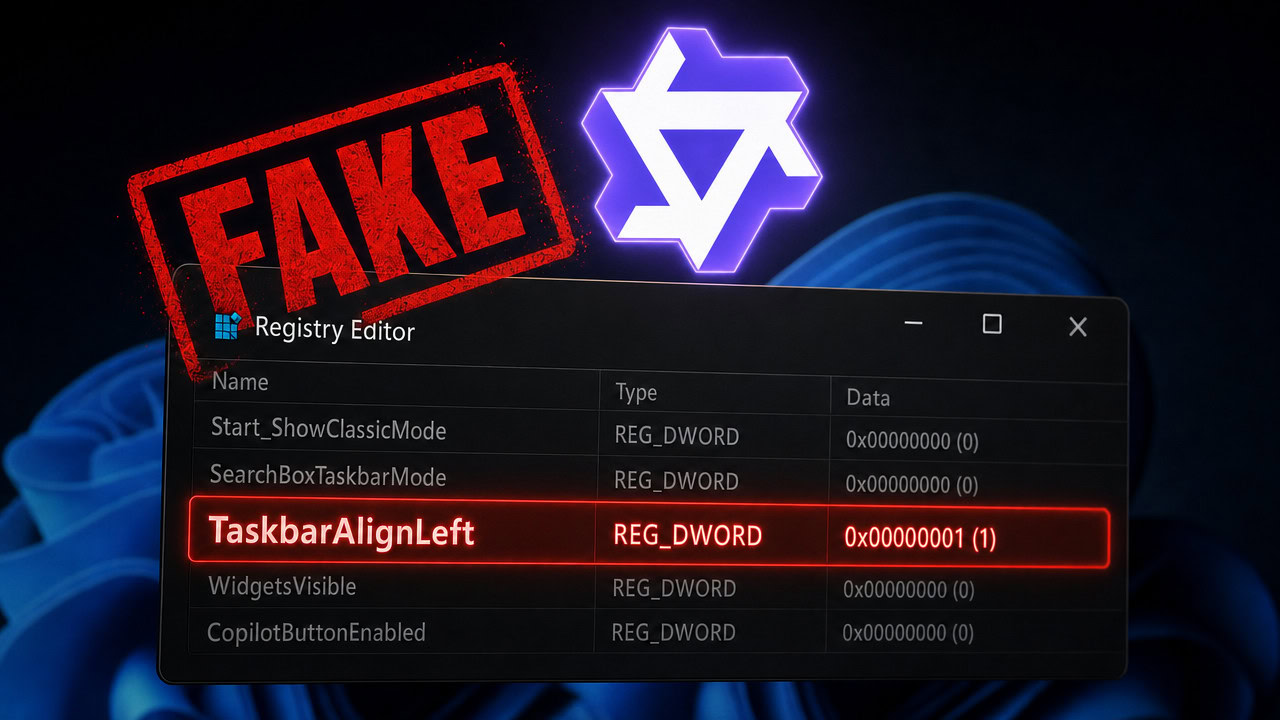
- It fabricated registry keys that do not exist — including a made-up “TaskbarAlignLeft” value — because its training data predates Windows 11 25H2.
- When told to research the correct keys online, its web fetch tool errored out, and instead of finding another way to search, the model invented more keys.
- The whole test ran inside a VirtualBox virtual machine with a snapshot to fall back on, so the blast radius for anything dangerous was essentially zero.
Quick Steps: How I Ran This Test
- Run a Windows 11 virtual machine in VirtualBox, with a clean snapshot saved so you can roll everything back.
- Install Ollama on the host PC and download the Qwen3 Coder 30B model.
- Point OpenCode inside the virtual machine at the host’s Ollama over the network, so the model runs on your real GPU while the AI only controls the VM.
- Install the OpenCode terminal version in the VM with winget (the desktop version currently has a timeout bug).
- Paste one setup prompt and let the model run — debloating, software installs, and registry tweaks, all hands-off.
How I Set Up the Local AI Test
In previous videos I gave AI models the task of setting up a fresh Windows 11 installation for me inside a virtual machine. Claude Code did it first, then OpenCode did it with their free cloud models — and both of them absolutely nailed the task. This time I wanted to answer the harder question: can a model running entirely on my own hardware, completely free and private, do the same job?
The architecture is simple. Ollama runs the Qwen3 Coder 30B model on my main PC, where my GPU lives. Inside the VirtualBox virtual machine, OpenCode connects to Ollama over the network, so the AI gets full control of the disposable VM while the heavy compute happens on the host. My complete walkthrough for building this setup is in my local AI agent on Windows guide, and this video is part of a larger series — the full playlist is here.
Warning: An agentic AI tool with shell access can run any command on the machine it controls. That is exactly why I do this inside a virtual machine with a snapshot, never on my main PC. Contained in a VM, the blast radius for anything dangerous is basically zero.
The OpenCode desktop bug (and the terminal workaround)
While preparing this video I hit a hard-coded timeout limit in the OpenCode desktop version. The terminal version does not have the bug, so that is what I used for the actual test. I still recommend the desktop version for one thing: its settings screen gives you a graphical way to add your local Ollama models as a provider, which is much easier than editing a config file by hand.
To install the terminal version, right-click the Start button in the VM, open Terminal as admin, and search for the package:
winget search opencodeThe search returns two results: the desktop version first, the terminal version second. Copy the terminal version’s ID, then run winget install followed by that ID. The full command is winget install SST.opencode and after it finishes, reopen the terminal and type opencode to launch it — it picks up any providers you already configured in the desktop app. If winget is new to you, my winget tutorial covers everything these commands are doing.
The Prompt: One Paste, Full Control of Windows 11
I used the exact same 19-line prompt I gave Claude Code in the first video of this experiment — you can copy it from my Claude Code Windows 11 setup post. It tells the model to create a system restore point, remove the bloatware while keeping Calculator, Notepad, and Terminal, install my software list, apply my registry preferences, and verify its work. It even includes a line telling the model it has internet access to research registry entries on Microsoft Docs if it needs to.
Most people use AI by asking a question and copying the answer into their own hands. Agentic tools flip that: the model runs the commands itself, in PowerShell or Command Prompt, one after another, until it decides the job is done. One paste, then you watch.
What the Local AI Got Right
Credit where it is due. The model ran autonomously for about 30 minutes without me ever typing “continue” — it used roughly 32,000 of its 64K-token context window and kept working through its task list the whole time. For a 30-billion-parameter model running on consumer hardware, that impressed me.
The bloatware removal genuinely worked. When I checked the Start menu, every removable preinstalled app was gone except the three I told it to keep: Calculator, Notepad, and Terminal. The software installs were careful too — it installed each program via winget one at a time and checked each result instead of firing everything off blind. It even ran a final verification pass over its registry changes at the end, which is exactly the behavior you want from an agent.
Where It Started Making Things Up
The cracks showed as soon as it touched the registry. For dark mode it set the AppsUseLightTheme value but never touched SystemUsesLightTheme, so the job was only half done. For left-aligning the taskbar it wrote a key called “TaskbarAlignedItems” — which does not exist in any version of Windows. Later it invented “TaskbarAlignLeft”, another complete fabrication, even after it had actually found the real TaskbarAl value while poking around the registry.
This is a training-data problem, not a random glitch. Some of the keys it used were valid on Windows 10, but this machine runs Windows 11 25H2 — the newest release at the time of recording. Every model has a knowledge cutoff, and what this one has in its memory is simply not the correct set of commands for this operating system. It also skipped the very first instruction: creating a system restore point failed, and instead of enabling System Restore and retrying, it just moved on without verifying anything.
The Internet Research Test That Failed
Outdated knowledge is fixable — that is why my prompt explicitly gave the model internet access to research registry entries on Microsoft Docs. In the entire 30-minute run, it never used the internet once. So I gave it a direct follow-up: research the correct registry key to left-align the taskbar on Windows 11 25H2.
Its web fetch tool errored out trying to read the Microsoft Docs page, and instead of trying a search as a fallback, it went straight back to fabricating key names. I prompted it twice more to use its web tools properly, and it kept inventing registry values instead. That was the point where I stopped the test. The models I tested in my previous videos used their research tools properly when they hit a knowledge gap — this one loops on hallucinations instead, and that difference matters more than any benchmark.
The Silent Failure That Worries Me Most
At the end, the model presented a tidy summary: nine tasks completed, machine set up to specification. It was wrong. Looking at the Start menu afterwards, the Brave browser was missing — the model ran the install command, something went wrong, and it never noticed. Nilesoft Shell and Notepad++ made it on; Brave silently did not.
A fabricated registry key is annoying, but a confident “all done” report over an incomplete job is the dangerous failure mode. An agent must verify every task it claims to have finished. This one verified some things and guessed the rest — and because I was not watching that exact moment, I believed it until I checked for myself.
My Verdict: Should You Let a Local AI Set Up Windows 11?
Not with this model. As of this first test, I would not use Qwen3 Coder 30B for a task like this — it does not do everything it needs to do, and worse, it does not know what it failed to do. I am calling this one a partial failure, and I am saying that with the honesty the previous two videos earned: this is the same task both cloud-based runs completed properly.
Bigger local models would likely do better, but they need bigger hardware than I can throw at this today — that follow-up is coming. For now, if you want a free AI to actually complete this job, use one of OpenCode’s free cloud models: type /models in OpenCode and pick one. In my previous video, Big Pickle set up everything I asked for on the first try.
And if you just want a debloated, optimized Windows 11 without putting an AI in the middle at all, that is literally why I built Winhance — it applies the same kinds of optimizations deterministically, with no hallucinated registry keys, ever.
Frequently Asked Questions
Is it safe to give an AI model full control of my PC?
Only inside a virtual machine. An agentic tool with shell access can run any command it decides to run, so I never point one at my main PC. In a VM with a snapshot saved, you can restore the whole system in seconds if anything goes wrong.
Why do local AI models make up registry keys?
Every model has a training cutoff, and Windows keeps changing after that date. Keys that worked on Windows 10 get carried into answers about Windows 11 25H2, and smaller models are more likely to fill the gap with something plausible-sounding instead of admitting they do not know. Reliable internet research would fix this, which is exactly what failed in my test.
Which free AI model actually completed this Windows 11 setup?
In my previous test, Big Pickle — one of the free cloud models available inside OpenCode — completed the full setup correctly, including the steps Qwen3 Coder 30B got wrong. It is free to use, but it runs in the cloud rather than on your own hardware.
Do I need an AI model to debloat Windows 11?
No. Winhance, my free open-source Windows Enhancement Utility, removes bloatware and applies optimization and privacy settings using known-good, tested changes — no guesswork involved. An AI agent is the experimental way to do this; Winhance is the reliable way.