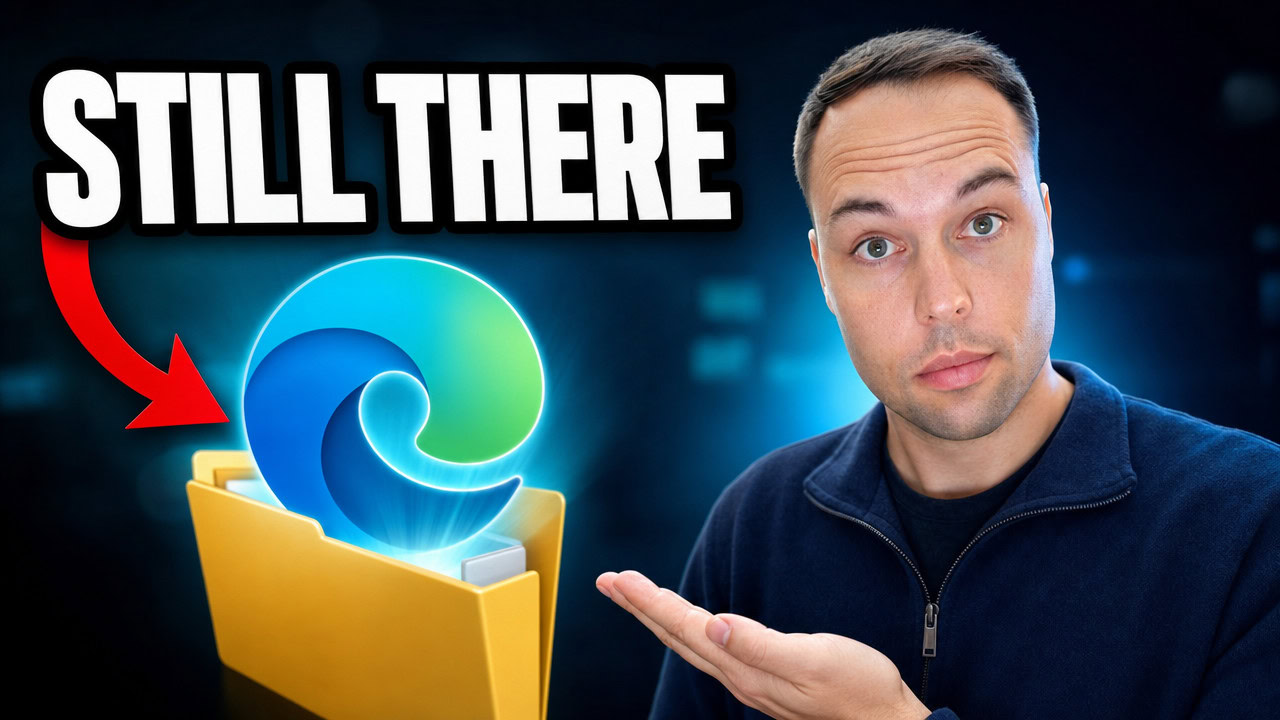
When you uninstall Microsoft Edge using the EU Settings method that the Digital Markets Act requires, Windows removes the visible Edge browser but leaves the EdgeCore folder behind in C:\Program Files (x86)\Microsoft\. That folder still holds a fully working copy of msedge.exe that opens the Edge browser. To remove these leftover components, use Winhance, which clears EdgeCore, EdgeUpdate, and the related registry entries while preserving the WebView2 runtime.
Applies to: Windows 11 (23H2, 24H2, 25H2) — the Settings-based Edge uninstall shown here is available only in the EU under the Digital Markets Act | Last updated: June 24, 2026
Key Takeaways
- Uninstalling Microsoft Edge through Windows 11 Settings (an option available only in the EU under the Digital Markets Act) removes the visible browser but leaves the Edge Core components in
C:\Program Files (x86)\Microsoft\. - The leftover EdgeCore folder contains a fully working
msedge.exethat still opens Edge, even though the browser no longer appears in the Start menu, on the taskbar, or in your installed apps list. - Microsoft keeps these components — especially the Edge WebView2 runtime — because Windows Widgets, the new Outlook, and Copilot all depend on them.
- The EdgeCore folder alone uses around 1.5 GB of disk space, and the EdgeUpdate folder and its scheduled tasks can silently reinstall Edge later.
- Winhance removes every leftover Edge component while keeping WebView2, and can save a removal script that re-removes Edge if a Windows update brings it back.
Quick Steps
- Confirm Edge is gone from Settings > Apps > Installed apps after the EU uninstall.
- Open File Explorer and go to
C:\Program Files (x86)\Microsoft\. - Look for the leftover
EdgeCore,EdgeUpdate, andEdgeWebViewfolders. - Open Winhance and find the Microsoft Edge app card (it still shows as installed).
- Select Microsoft Edge and click Uninstall Selected Items, then confirm.
- Optionally save a removal script so Edge stays removed after Windows updates.
- To reverse it, select Microsoft Edge in Winhance and click Install Selected Items.
Why Microsoft Edge is still on your PC after you uninstall it
Microsoft was forced to make Edge uninstallable in the European Union as part of the Digital Markets Act. When you remove Edge through Settings > Apps > Installed apps in the EU, Windows uninstalls the Edge browser and the standard Edge folder disappears. The Edge Core components, however, stay behind.
This is the part most people miss. Edge vanishes from the installed apps list, the Start menu, and the taskbar, so it looks completely gone. Beneath the surface, a working copy is still sitting in your Program Files folder.
If you live anywhere outside the EU, the Digital Markets Act does not apply to you, so the Settings app does not offer an uninstall option for Edge at all. In that case, you need a tool to remove it — and I cover the full process in my guide on how to fully uninstall Microsoft Edge on Windows 10 and 11.
Where Windows hides the leftover Edge files
After the EU uninstall, open File Explorer and navigate to the Microsoft folder under Program Files (x86). This is where every Edge component lives.
C:\Program Files (x86)\Microsoft\On a default Windows 11 install with Edge present, this folder normally contains an Edge folder, an EdgeCore folder, EdgeUpdate, EdgeWebView, and a Temp folder. In some cases you may also see a Copilot folder. After you uninstall Edge the EU way, the Edge folder disappears — but EdgeCore, EdgeUpdate, and EdgeWebView are all still there.
What the leftover EdgeCore folder actually contains
Open the EdgeCore folder, then the latest version folder inside it. The files there look exactly like a full Microsoft Edge installation, including msedge.exe and even Microsoft Copilot. Double-clicking the MS Edge application launches a fully working Edge browser — the same browser you thought you removed.
So Microsoft does uninstall the Edge browser from your system, but it leaves the Edge Core components in place. The result is a fully working Edge browser that you simply cannot see on the surface. It is not in the Start menu, it is not on the taskbar, and it is not in your installed apps — but it still runs.
Why Microsoft leaves these components behind
According to Microsoft, the Edge Core components are needed — especially the Edge WebView2 runtime. WebView2 is what renders web content inside other apps, and several built-in Windows features rely on it.
If you remove the WebView2 component, those features break. Widgets stop working, the new Outlook app for Windows stops working, and Copilot stops working too. That dependency is the whole reason Microsoft keeps the Edge Core files on disk even after you uninstall the browser.
Are the leftover components safe to remove?
For a lot of people, none of those Edge-dependent features matter. If you do not use Widgets, the new Outlook, or Copilot, it is usually safe to remove the remaining Edge Core components as well. The EdgeUpdate folder is worth removing in particular, because its scheduled tasks keep all of the Edge components updated and are also responsible for getting Edge reinstalled on your system later.
There are two catches. First, you cannot easily delete these folders from the Windows interface. Second, some Microsoft desktop apps still depend on WebView2, so removing everything blindly can cause problems.
Warning: Removing the Edge Core components can cause system instability if you rely on Widgets, the new Outlook, Copilot, or other apps that use WebView2. I am not saying you must do this — I am showing what I do on my own PC. Proceed with caution.
One more reason to clean these up: space. The EdgeCore folder alone uses roughly 1.5 GB. If you uninstalled Edge the EU way, that folder is just sitting in the background using that space for a browser you cannot even see.
How to remove the leftover Edge components with Winhance
The cleanest way to clear the leftovers is Winhance, my free Windows enhancement utility. It removes all of the Edge components except Edge WebView2, so the apps that depend on WebView2 keep working. I have spent a lot of time fine-tuning these scripts so they strip out the unnecessary components but still leave your computer in a working state.
In the Winhance interface, find the Microsoft Edge app card. Even though you already uninstalled Edge the EU way, it still shows as installed, because the Edge Core components are still on the system. Hovering over the card shows a warning that removing the item may cause system instability — that warning exists because of the WebView2 dependency described above.
- Open Winhance and select the Microsoft Edge application.
- Click Uninstall Selected Items and confirm the removal.
- Optionally choose to save removal scripts for continuous removal — if Edge is ever reinstalled by a Windows update, it will be uninstalled automatically.
The terminal output window shows exactly what is happening. Winhance uninstalls all of the Microsoft Edge components, including the old legacy Microsoft Edge that shipped with Windows 10 and is still present in Windows 11, and it does a thorough cleanup of the related registry entries. It takes a few minutes to finish.
When it is done, the Edge card no longer shows an installed badge. Checking the Microsoft folder again, only the EdgeWebView folder remains — about 800 MB. The files that were inside EdgeCore are now gone, and double-clicking the leftover MS Edge application no longer does anything. The hidden fallback browser is finally dead.
Tip: Winhance tries to keep the WebView2 components intact so dependent apps keep working, but a few users have reported issues even so. If something breaks, you can reinstall Edge to restore those components.
As a bonus, uninstalling Edge with Winhance also enables an open-web-search redirect. Any links that used to force-open in Microsoft Edge will instead open in whatever default browser you have set. If you want to keep going, you can use the same approach to remove other built-in Windows bloatware too.
How to reinstall Microsoft Edge if you change your mind
Removing Edge this way is reversible. The safest way to bring it back is Winhance: select Microsoft Edge and click Install Selected Items, then confirm the installation. Winhance downloads Edge via WinGet from the Microsoft Store and reinstalls it.
Once it finishes, Winhance detects Edge as installed again, and all of the folders return to their original state in the Microsoft folder — Edge, EdgeCore, EdgeUpdate, EdgeWebView, and Temp. You have a working Microsoft Edge browser again. You can also reinstall Edge from the web, but Winhance is the safer route because it restores the components cleanly.
Frequently Asked Questions
Does uninstalling Edge in the EU remove it completely?
No. The EU Settings uninstall removes the visible Edge browser and the main Edge folder, but it leaves the EdgeCore, EdgeUpdate, and EdgeWebView components behind. The EdgeCore folder still contains a fully working copy of Edge that you can launch directly from File Explorer.
Is it safe to delete the leftover EdgeCore folder?
It is usually safe if you do not use Widgets, the new Outlook, or Copilot, which depend on the WebView2 runtime. The safest approach is to let Winhance remove the components, because it keeps WebView2 in place by default and cleans up the registry entries instead of leaving them orphaned.
How much disk space do the leftover Edge files use?
The EdgeCore folder uses around 1.5 GB on its own. After removing Edge with Winhance, only the EdgeWebView folder remains, which is about 800 MB and keeps WebView2-dependent apps working.
Will removing Edge break Windows Widgets or the new Outlook?
It can if you remove the Edge WebView2 runtime, because Widgets, the new Outlook, and Copilot all rely on it. Winhance keeps WebView2 by default to avoid this, although a small number of users have still reported issues. If a dependent app breaks, reinstall Edge to restore the components.
Can I get Microsoft Edge back after removing it?
Yes. Open Winhance, select Microsoft Edge, and click Install Selected Items. Winhance downloads and reinstalls Edge via WinGet from the Microsoft Store, and all of the original Edge folders return. You can also reinstall Edge from the web, but Winhance restores the components more cleanly.