If you’ve been following my YouTube channel throughout 2025, you know I’ve covered some absolutely game-changing free Windows utilities this year. From tools that debloat Windows during installation to apps that completely transform how your desktop looks, I’ve explored utilities that genuinely make Windows better.
I recently put together a compilation video showcasing my top 12 free Windows utilities from this year. These aren’t just random tools I found online. Each one solves real problems, and I’ve personally tested every single one of them.
Whether you’re looking to optimize Windows performance, customize your desktop environment, or simply make your PC more efficient, this collection has something for everyone.
Key Takeaways
- Complete Windows Enhancement Suite: Learn about 12 powerful free utilities that cover everything from system optimization and debloating to desktop customization and wallpaper engines.
- Installation to Customization: Discover tools that work at every stage – from customizing Windows during the initial installation process to fine-tuning an already-installed system with advanced tweaks.
- Community-Driven Solutions: All these utilities are either open-source or free, developed by talented creators who understand what Windows users actually need, not what Microsoft thinks they want.
Requirements
To use these free Windows utilities, you’ll need:
- A computer running Windows 10 or Windows 11 (most tools support both)
- Administrator access to install and configure the utilities
- Basic understanding of Windows settings and system preferences
- Internet connection to download the utilities
- Willingness to explore and customize your Windows experience
Why Should You Use These Free Windows Utilities?
Let me be honest with you – Windows 10 and 11 are decent operating systems, but they’re far from perfect. Microsoft includes a lot of bloatware, questionable privacy settings, and limitations that frustrate power users and casual users alike.
That’s where these free utilities come in. They give you back control over your own computer. Instead of accepting Windows as Microsoft delivers it, you can optimize performance, remove unnecessary features, customize the interface to match your preferences, and add functionality that should have been built-in from the start.
I’ve spent countless hours testing Windows optimization tools, customization apps, and enhancement utilities. The 12 tools I’m sharing today represent the absolute best free options available right now. Some of them literally transform how Windows works, while others add those small touches that make your daily computing experience so much better.
1. Effortlessly Enhance Your Windows 10/11 Experience with Winhance
Let me start with one of my own creations. Winhance is a Windows enhancement utility I developed because I got tired of manually debloating and optimizing Windows every single time I installed it.
Winhance tackles multiple aspects of Windows optimization in one convenient package. It removes bloatware, applies privacy tweaks, optimizes system settings, and most importantly, it keeps Windows debloated and optimized over time. Unlike tools that only work once, Winhance maintains your optimizations.
The utility works on both Windows 10 and 11, though it’s primarily designed for Windows 11. You get a clean, efficient system without spending hours manually tweaking settings or running multiple tools.

I created Winhance because I wanted something that would handle Windows optimization comprehensively. If you want a cleaner, faster Windows experience, check out my detailed Winhance guide.
2. Debloat, Optimize & Customize Windows During Installation with UnattendedWinstall
Here’s something most Windows utilities can’t do – UnattendedWinstall lets you debloat and optimize Windows during the installation process itself, not after.
This tool generates customized autounattend.xml answer files that automate the entire Windows setup. You can remove bloatware, apply registry tweaks, configure privacy settings, and install your preferred applications – all automatically during Windows installation.
Think about how much time you spend setting up Windows after a fresh install. You remove bloat apps, adjust settings, install software, configure preferences. UnattendedWinstall does all of this automatically. You just boot the Windows installer with the answer file, and when installation completes, your system is already optimized exactly how you want it.

This is especially valuable if you install Windows frequently or manage multiple computers. My UnattendedWinstall tutorial walks you through the entire process of creating and using custom answer files.
3. Upgrade Windows 10 to Windows 11 Easily with FlyBy11 and FlyOOBE
Microsoft’s hardware requirements for Windows 11 are frustrating. Perfectly capable computers get blocked from upgrading because of arbitrary restrictions. That’s where FlyBy11/FlyOOBE become essential.
FlyBy11 bypasses those Windows 11 hardware requirement checks, letting you upgrade or install Windows 11 on unsupported hardware. FlyOOBE then helps you skip the annoying out-of-box experience (OOBE) setup screens, including the requirement for a Microsoft account.
These tools work together seamlessly. FlyBy11 gets Windows 11 installed on your system, then FlyOOBE streamlines the setup process. You end up with Windows 11 running on “unsupported” hardware with a local account instead of being forced into Microsoft’s ecosystem.

I’ve used FlyBy11 on several older computers, and they run Windows 11 perfectly fine. Read my complete FlyBy11 guide to learn how to upgrade your unsupported PC to Windows 11.
4. Create Custom Windows ISO Files with Powerful Tools
Sometimes you want to create your own customized Windows ISO file with modifications baked in. Tools like NTLite, MSMG Toolkit, Tiny11Builder and ET Optimizer make this possible.
These utilities let you modify Windows ISO files before installation. You can remove components, integrate updates, add drivers, pre-configure settings, and create a truly custom Windows installation image. It’s like having your own personalized version of Windows.
NTLite is probably the most user-friendly option with a great GUI. MSMG Toolkit offers incredibly deep customization but uses a command-line interface. ET Optimizer sits somewhere in between. Each tool has its strengths depending on your needs and technical comfort level.

Creating custom ISOs takes some learning, but the payoff is huge if you install Windows regularly. My comprehensive guide to custom Windows ISO tools compares the best options and explains how to use them.
5. Optimize and Customize Windows with Wintoys
Wintoys is one of those utilities that feels like it should be built into Windows. It provides a clean, modern interface for accessing Windows optimization features, customization options, and system tools that are normally scattered across multiple locations.
The app organizes everything into logical categories – apps, health, boost, tweaks, and services. You can manage startup programs, uninstall bloatware, apply performance tweaks, and configure Windows features without digging through countless menus and settings pages.
What I really appreciate about Wintoys is how it presents advanced Windows features in an accessible way. Power users get quick access to settings they frequently change, while beginners can safely optimize their systems without worrying about breaking anything.

It’s available in the Microsoft Store, which means updates are automatic and installation is straightforward. Check out my Wintoys tutorial to see all the features this utility offers.
6. Enhance Productivity with Microsoft PowerToys
Microsoft actually got something right with PowerToys. This is an official Microsoft utility that adds genuinely useful features to Windows.
PowerToys includes a collection of power-user tools: FancyZones for advanced window management, PowerToys Run as an improved launcher, File Explorer add-ons, keyboard manager, color picker, image resizer, and more. These are features that should honestly be included in Windows by default.
My favorite PowerToys modules are FancyZones (for creating custom window layouts), PowerToys Run (a much better alternative to Windows Search), and the Image Resizer (for quickly batch-resizing images right from File Explorer). Each module solves a specific problem elegantly.

Since it’s official Microsoft software, PowerToys is stable, regularly updated, and well-supported. My PowerToys guide covers the essential modules every Windows user should enable.
7. Manage Software Installations with UniGetUI
Installing and updating software on Windows is traditionally a pain. You visit websites, download installers, click through setup wizards, then manually check for updates later. UniGetUI changes this completely.
UniGetUI is a package manager for Windows that provides a unified interface for multiple package managers – Winget, Scoop, Chocolatey, and more. You can search for software, install applications with one click, and update everything from a single interface.
Think of it like an app store, but better. You get access to thousands of free applications, automatic updates, and the ability to manage all your installed software in one place. No more visiting individual websites or dealing with bundled bloatware in installers.

I use UniGetUI on every Windows system I set up now. It’s just so much more efficient than traditional software installation methods. My UniGetUI tutorial explains how to set it up and use it effectively.
8. Customize Windows 10/11 Deeply with Windhawk
Windhawk is for people who want to customize Windows beyond what normal tools allow. It’s a modding platform that uses community-created mods to modify Windows behavior and appearance.
With Windhawk, you can customize the taskbar, File Explorer, Start menu, system tray, and other Windows components in ways that aren’t normally possible. The mods are created by developers who understand Windows internals and can make changes that regular customization tools can’t achieve.
The beauty of Windhawk is its mod system. You browse available mods, install the ones you want, and configure them to your preferences. If a Windows update breaks something, the mod developers usually fix it quickly. You get deep customization without manually patching system files.

I’ve been using Windhawk mods to restore features Microsoft removed and add functionality that should exist by default. My Windhawk guide introduces the essential mods worth installing.
9. Restore Classic Windows Functionality with StartAllBack
Windows 11’s redesigned interface isn’t for everyone. If you miss how Windows 10 (or even Windows 7) worked, StartAllBack brings back the classic Windows experience.
StartAllBack restores the old taskbar, Start menu, File Explorer, and context menus. It’s not just aesthetic either – it brings back functionality that Microsoft removed in Windows 11. You get features like uncombining taskbar icons, moving the taskbar to different screen edges, and the full right-click context menu.
Now, I should mention that StartAllBack isn’t free – it costs about $5. But it’s the only tool in this list that isn’t free, and I included it because it’s honestly that good. For five bucks, you get a dramatically better Windows 11 experience if you prefer the classic interface.
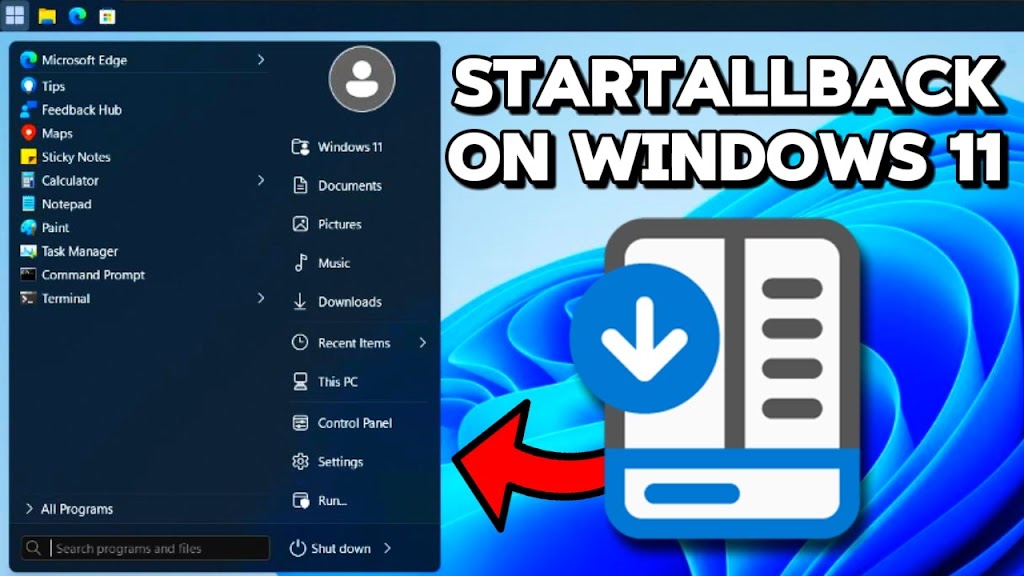
I personally use StartAllBack on my main Windows 11 machine. It just makes Windows feel more functional and less frustrating. Read my StartAllBack review and tutorial to see everything it offers.
10. Upgrade Your Mouse Cursor with Bibata Custom Cursors
This might seem minor, but your mouse cursor is something you look at constantly. The default Windows cursors are honestly pretty boring. Bibata custom mouse cursors are a simple way to make your desktop feel more polished.
Bibata cursors are modern, clean, and available in multiple colors and sizes. They’re designed to look good on both light and dark themes, and they’re much easier to see than the default Windows cursors, especially on high-resolution displays.
Installing custom cursors on Windows is straightforward. You download the cursor pack, install it through Windows settings, and select your preferred style. It’s a small change that makes your whole desktop feel more customized.
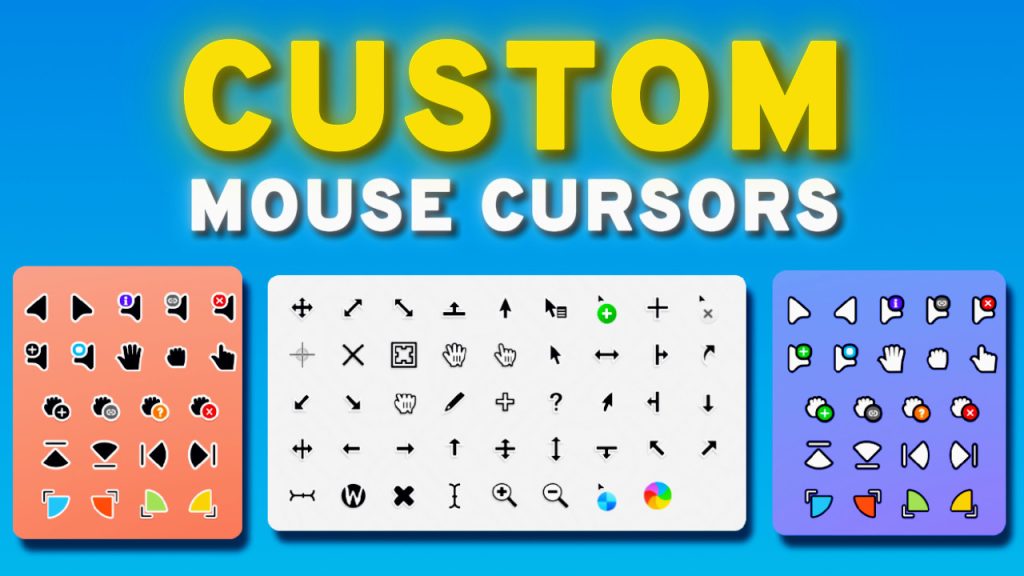
I’ve been using Bibata cursors for a while now, and I honestly can’t go back to the default Windows cursors. My Bibata cursor guide shows you how to install and configure them.
11. Animate Your Desktop with Lively Wallpaper
Static wallpapers are fine, but animated wallpapers make your desktop feel alive. Lively Wallpaper is a free, open-source alternative to Wallpaper Engine that brings animated and interactive wallpapers to Windows.
Lively supports video wallpapers, GIFs, webpages as wallpapers, and even shader-based animated wallpapers. You can use wallpapers from the built-in library, import your own videos, or browse community-created wallpapers.
The performance impact is surprisingly minimal. Lively pauses wallpaper animations when you’re running fullscreen applications, so you don’t lose gaming performance or battery life. When you’re just working on your desktop, the animations run smoothly in the background.
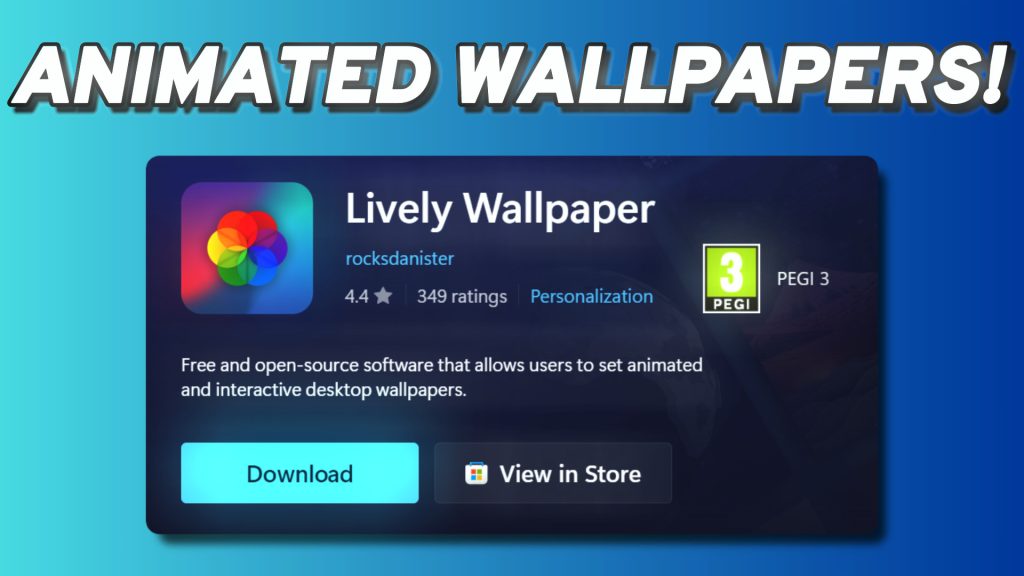
It’s available in the Microsoft Store for easy installation and updates. My Lively Wallpaper tutorial covers everything from installation to creating your own custom wallpapers.
12. Another Free Wallpaper Engine Alternative: Sucrose Wallpaper Engine
Speaking of animated wallpapers, Sucrose Wallpaper Engine is another excellent free alternative to Wallpaper Engine with its own unique features.
Sucrose focuses on web-based wallpapers and has a different approach compared to Lively. It excels at running HTML/CSS/JavaScript-based wallpapers and interactive web content as your desktop background. If you’re into coding, you can even create your own custom animated wallpapers using web technologies.
Both Lively and Sucrose are great options. Lively might be slightly more user-friendly for beginners, while Sucrose offers more flexibility for technically-inclined users who want to customize or create wallpapers using web development skills.
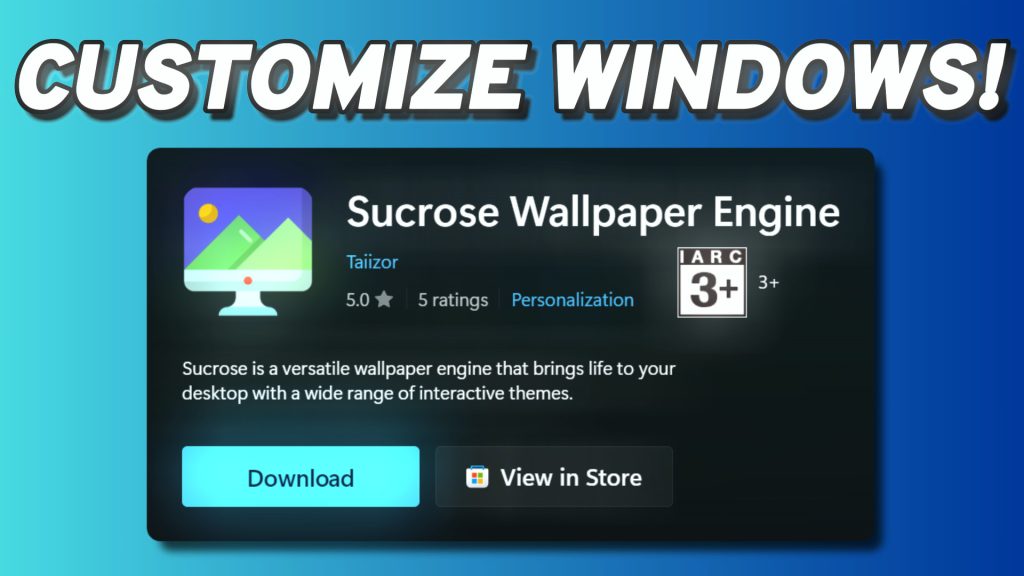
Having two free Wallpaper Engine alternatives means you can try both and see which one fits your needs better. Check out my Sucrose Wallpaper Engine guide for installation and usage instructions.
Conclusion
These 12 free Windows utilities represent some of the best tools I’ve covered so far. Each one solves specific problems and improves your Windows experience in meaningful ways.
You don’t need to install all of them. Start with the utilities that address your biggest frustrations with Windows. If bloatware and performance bother you, try Winhance or UnattendedWinstall. If you want better customization, look at Wintoys, Windhawk, or StartAllBack. If you’re tired of manual software management, UniGetUI will change your life.
The beauty of these tools is that they’re created by developers who actually use Windows daily and understand its limitations. They’re not corporate software with questionable motives – they’re genuine solutions to real problems.
I’ve personally tested every single utility on this list. Some of them I use daily, others I recommend for specific use cases. All of them are worth knowing about if you use Windows 10 or 11.
If you’re interested in an even longer list, check out 22 FREE Windows Utilities EVERY User MUST Know About!
Frequently Asked Questions (FAQ)
Are these free Windows utilities safe to use?
Yes, all the utilities I’ve covered are safe to use. Most of them are open-source, which means their code is publicly available for review. I’ve personally tested each one on multiple systems. That said, always download these utilities from their official sources or repositories to avoid fake or modified versions. The links in this article go to my detailed guides, which include official download links for each tool.
Will these Windows utilities work on both Windows 10 and Windows 11?
Most of these utilities support both Windows 10 and Windows 11. Some, like Winhance and UnattendedWinstall, are primarily designed for Windows 11 but include Windows 10 support. FlyBy11 is specifically for installing Windows 11 on unsupported hardware. StartAllBack is Windows 11-only since it restores features Microsoft removed in that version. I specify compatibility in each individual guide linked in this article.
Do I need technical knowledge to use these Windows optimization tools?
It depends on the tool. Utilities like Wintoys, PowerToys, and UniGetUI are beginner-friendly with intuitive interfaces. Tools like UnattendedWinstall and custom ISO creation utilities require more technical understanding. Windhawk sits in the middle – it’s easy to use but offers advanced customization for those who want it. I’ve created detailed tutorials for each utility that walk you through the process regardless of your technical skill level.
Can I use multiple Windows customization utilities at the same time?
Yes, most of these utilities work well together since they modify different aspects of Windows. For example, you can use Winhance for debloating, PowerToys for productivity features, and Lively Wallpaper for animated backgrounds without conflicts. However, be cautious with utilities that modify the same Windows components – for instance, using both Windhawk and StartAllBack to customize the taskbar might cause conflicts. My guides explain any potential compatibility issues.
How do these free utilities compare to paid Windows optimization software?
Honestly, these free utilities often surpass paid alternatives in functionality and transparency. Many paid “Windows optimizers” are bloated, include unnecessary features, or use aggressive marketing tactics. The free, open-source tools I’ve covered are created by passionate developers who focus on solving real problems. StartAllBack is the only paid tool in this list (about $5), and I included it because it genuinely delivers value. For everything else, you don’t need to spend money to significantly improve your Windows experience.