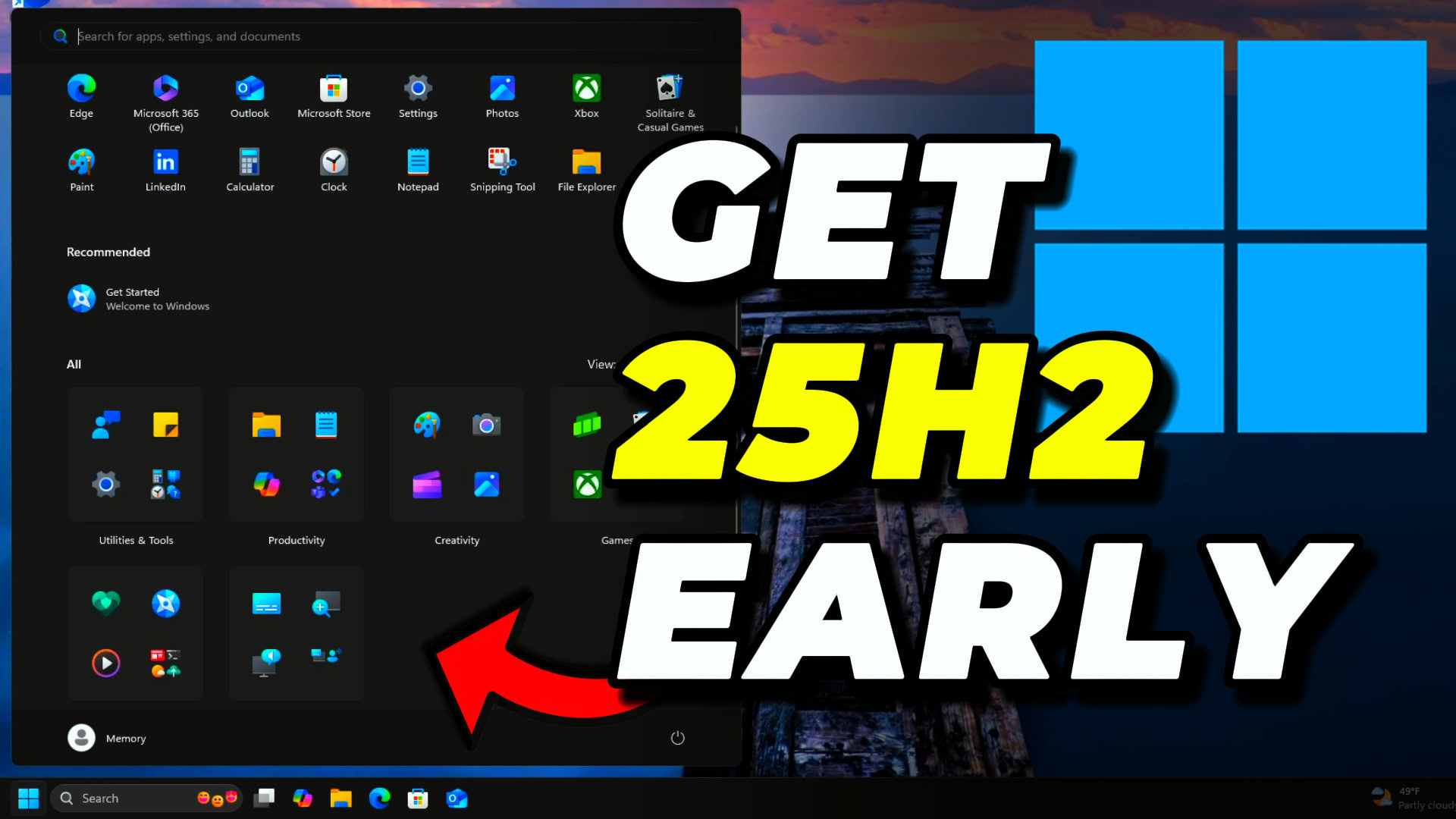
UUP Dump lets you download a Windows 11 25H2 ISO built directly from Microsoft’s official update servers. This is useful for creating offline installation media, grabbing specific builds, testing Insider preview versions, or setting up clean installs on virtual machines and test hardware.
Applies to: Windows 11 (25H2 and Insider builds) | Last updated: April 16, 2026
This method is completely legitimate — UUP Dump downloads the same official files that come through Windows Update, just packaged into a convenient ISO format. Whether you need a specific build number, want to test Insider previews, or prefer building your own ISO for offline installs, this guide walks you through every step.
Key Takeaways
- UUP Dump downloads official Microsoft files directly from Windows Update servers and packages them into a bootable ISO
- You can grab stable 25H2 builds, Insider preview builds, or specific build numbers that may not be available through the official Microsoft download page
- The tool has been trusted by the Windows community for years and does not modify any Microsoft files
- Insider and pre-release builds should only be tested on virtual machines or dedicated test hardware, not your daily driver
Quick Steps
- Go to uupdump.net and select the Windows 11 build you want
- Choose your architecture (x64 for most PCs) and select “Windows 11 Insider Preview”
- Pick your language and editions (Home/Pro), then click “Create download package”
- Extract the downloaded ZIP to a path with no spaces (e.g.,
C:\UUPdump) - Run
uup_download_windows.cmdand wait for the ISO to build (30+ minutes) - Use the ISO to install in a VM or create a bootable USB with Rufus
Requirements
Before you start, make sure you have:
- A stable internet connection (the download can take 30+ minutes)
- At least 8GB of free disk space for the ISO file
- A test computer or virtual machine software (VMware, VirtualBox, or Hyper-V)
- Basic knowledge of Windows installation processes
Why Use UUP Dump for Windows 11 25H2?
While you can download Windows 11 ISOs directly from Microsoft, UUP Dump gives you access to builds that are not always available on the official download page. There are several reasons this is useful.
If you are a software developer or content creator like me, you need to test your applications with specific Windows builds. I use this method to test my tools like Winhance and UnattendedWinstall to make sure they work properly with the latest Windows releases and Insider builds.
UUP Dump also lets you build ISOs for Insider preview builds from the Dev, Beta, or Release Preview channels. This is helpful if you want to explore what’s new in Windows 11 25H2 or test upcoming features before they roll out broadly.
Finally, having an offline ISO is useful for clean installs, creating bootable USB drives, or deploying Windows in environments where downloading during setup is not practical.
Important: Never install Insider or pre-release builds of Windows on computers you use every day. Always use test machines or virtual environments.
Understanding UUP Dump for Windows 11 Downloads
UUP Dump is a community-created website that accesses Microsoft’s official Windows Update servers to download update files. These are the exact same files that Windows Update delivers to Insider participants and regular users, made available through a more accessible interface.
The tool has been trusted by the Windows community for years and simply packages Microsoft’s own files into convenient ISO formats. You are not downloading anything unofficial or modified — just getting official Microsoft software in a different delivery format.
Step-by-Step Windows 11 25H2 Download Process
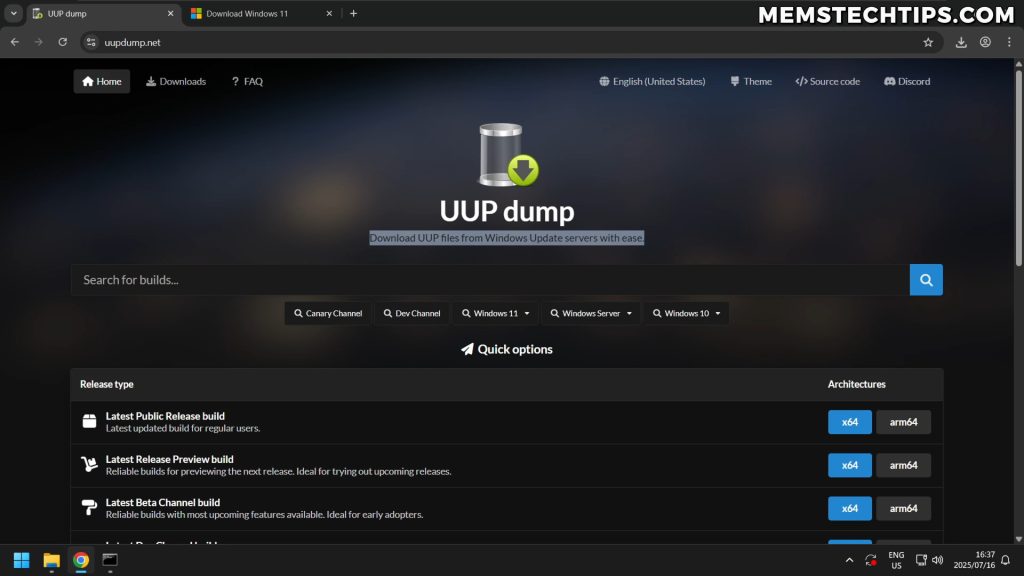
Navigate to UUP Dump Website
Start by visiting the UUP dump website. This is your gateway to accessing Windows 11 builds.
Once you are on the main page, scroll down to find the channel section that matches what you need. For the latest Insider builds, look for “Latest DevChannel” or “Latest BetaChannel”. For stable 25H2 builds, use the search function to find a specific build number.
Select Your System Architecture
You will see options for different processor architectures. For most people, select x64, which works with standard Intel and AMD processors. If you have an ARM64 processor (like some Surface devices), choose that option instead.
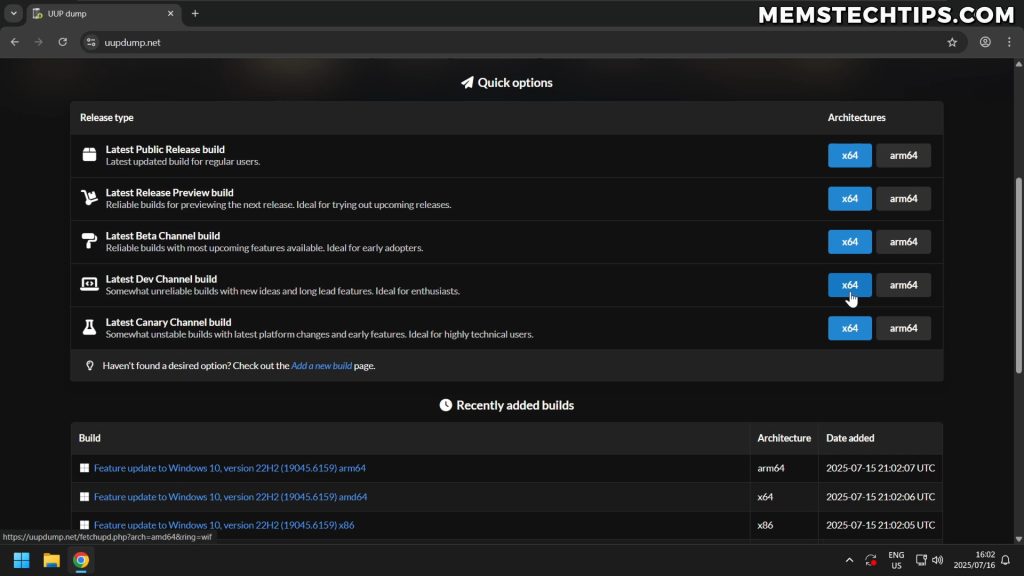
Choose Windows 11 Insider Preview
On the next page, you will see several options. Make sure to select “Windows 11 Insider Preview” — not the update stack package or any other option. This gives you the complete operating system files.
Configure Language and Edition Settings
Select your preferred language from the dropdown menu. English (United States) works for most users, but feel free to choose your local language if needed.
Next, choose which Windows editions to include in your download. By default, both Windows 11 Home and Pro are selected, which works well for most use cases. You can modify this selection based on which edition you plan to install.
Set Download and Conversion Options
Leave the default options selected on this page. The system will download the files and convert them to an ISO format, which is exactly what we need for installation. The option to include updates should also remain checked.
Scroll to the bottom and click “Create download package” to generate your UUP dump package.
Pro Tip: The download package is a compressed file containing scripts that will download the actual Windows files from Microsoft’s servers.
Extracting and Running the UUP Dump Package
Critical File Path Considerations
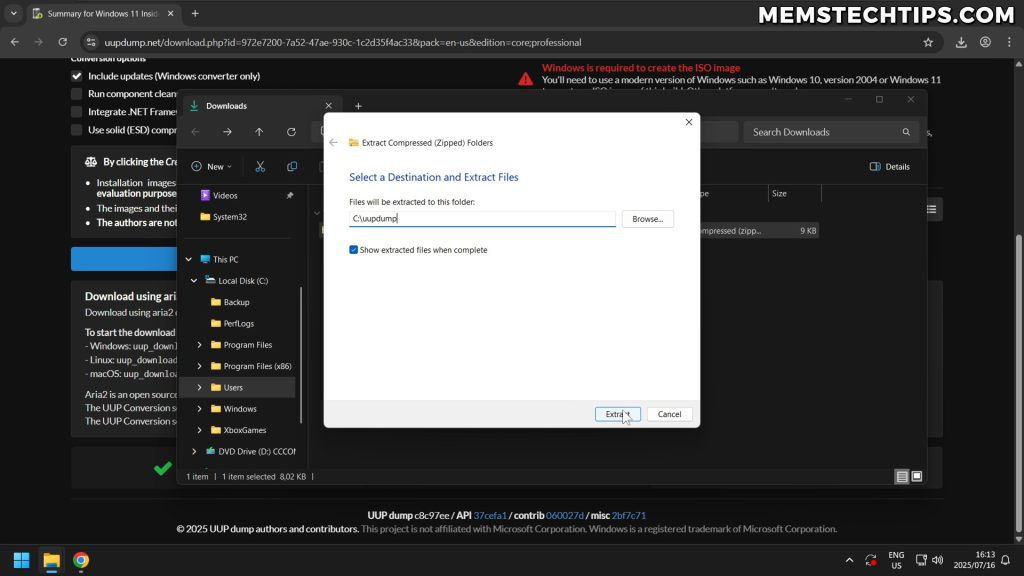
Before extracting your downloaded package, here is an important tip that will save you headaches: UUP dump does not work properly if there are spaces in the file path.
To avoid this issue, extract the package directly to your C: drive. Right-click on the downloaded ZIP file, drag it to your Local Disk (C:), and select “Extract here.” You can rename the extracted folder to something simple like “UUPdump” for easy identification.
Running the Download Script
Navigate to your extracted UUP dump folder and look for the file named uup_download_windows.cmd. Double-click this file to start the download process.
Windows SmartScreen might show a warning since this is a script file. Click “More info” and then “Run anyway” to proceed. This is normal behavior for script files downloaded from the internet.
A command prompt window will appear asking if you want to run the script. Press “R” and then Enter to confirm and begin downloading the Windows 11 25H2 files.
Download Process and Timeline
The script downloads Windows 11 files directly from Microsoft’s servers and packages them into a bootable ISO file. This process typically takes 30 minutes or more, depending on your internet speed.
You will see progress updates as the script downloads various components and creates your ISO file. Be patient — you are downloading several gigabytes of data.
Note: The download speed depends entirely on your internet connection and Microsoft’s server response times. It may take longer during peak hours.
Installing Windows 11 25H2 Safely
Virtual Machine Installation (Recommended)
I strongly recommend testing Windows 11 25H2 in a virtual machine rather than on physical hardware, especially if you are using an Insider build. This approach is safer and allows you to experiment without affecting your main system.
For virtual machines, I use VMware Workstation Pro, which is now free. You can check out my complete VMware installation guide if you need help setting this up.
Other excellent options include VirtualBox (completely free) and Hyper-V (built into Windows Pro editions). Choose whichever you are most comfortable with.
Creating a Windows 11 25H2 Virtual Machine
When creating your virtual machine:
- Select “Install operating system later” during initial setup
- Choose Windows 11 as the operating system version
- Allocate at least 4GB RAM (8GB recommended for better performance)
- Create a virtual hard drive with at least 64GB capacity
- Point the CD/DVD drive to your downloaded Windows 11 25H2 ISO file
Physical Hardware Installation
If you decide to install Windows 11 25H2 on actual hardware (only recommended for test machines), use Rufus to create your bootable USB drive. Rufus offers several advantages for Windows 11 installations.
You can follow my detailed Rufus bootable USB guide for complete instructions. Rufus can automatically bypass Windows 11 hardware requirements and simplify the Microsoft account setup process.
Testing Windows 11 25H2 Features and Bypasses
Verifying Installation Success
Once your Windows 11 25H2 installation completes, you can verify you are running the correct version by opening the Run dialog (Windows key + R) and typing winver. This shows you the exact build number and confirms you are running 25H2.
Microsoft Account Bypass Testing
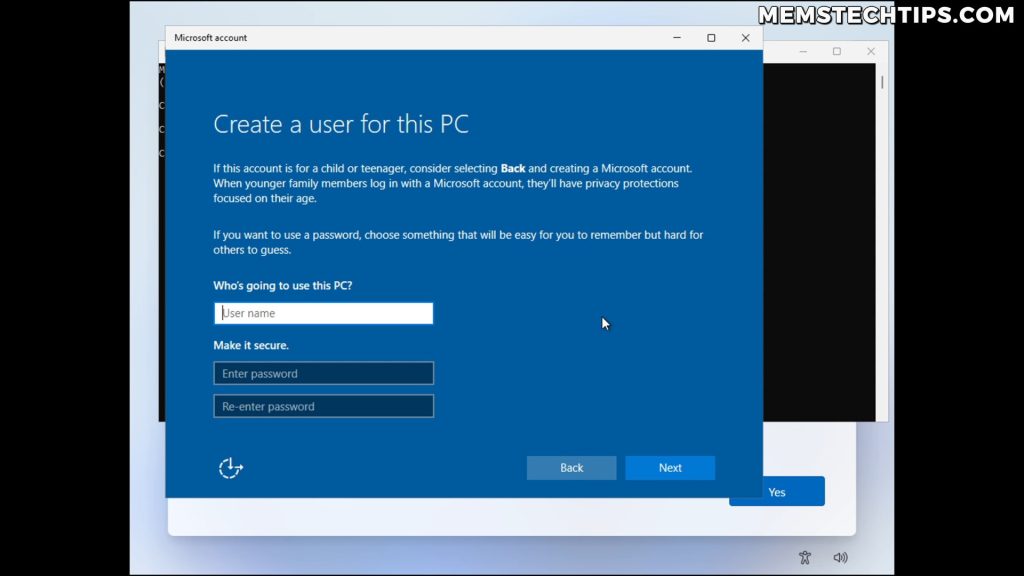
One of the first things I test with new Windows builds is whether existing Microsoft account bypass methods still work. The Shift + F10 command prompt method continues to function in Windows 11 25H2.
This means you can still create local accounts during setup without being forced to use a Microsoft account. If you need more detailed instructions on this process, check out my comprehensive Microsoft account bypass guide.
Exploring New Features
With Windows 11 25H2 installed, you can explore the new features and changes. For a full breakdown, see my Windows 11 25H2 what’s new guide. Key highlights include:
- Start Menu layout modifications and customization options
- Enhanced Phone Link functionality for better mobile integration
- New taskbar sizing options for more screen real estate
- Performance improvements and system optimization changes
- Security enhancements and privacy control updates
Important Considerations and Warnings
Insider Build Limitations
If you are downloading Insider preview builds through UUP Dump, keep in mind that these builds may have bugs, incomplete features, or stability issues. This is expected — Insider builds are pre-release software meant for testing.
Never use Insider or pre-release builds of Windows for:
- Work computers or mission-critical systems
- Computers containing important data without proper backups
- Production environments or business applications
- Systems where stability is more important than new features
Backup and Recovery Planning
Before installing any preview version of Windows, ensure you have complete backups of important data. Even in virtual machines, it is good practice to create snapshots before major changes.
Consider creating a system restore point or full system backup if you are testing on physical hardware, despite my recommendation to avoid this approach.
Remember: Preview software is inherently unstable. What works today might break tomorrow with automatic updates.
Frequently Asked Questions (FAQ)
Is downloading Windows 11 25H2 through UUP dump legal and safe?
Yes, UUP dump is completely legal and safe. It downloads official Microsoft files directly from Windows Update servers — the same files that Windows Update delivers to everyone. The tool has been trusted by the Windows community for years and does not modify or pirate any Microsoft software.
Can I install Windows 11 25H2 on my main computer for daily use?
The stable 25H2 release is fine for daily use since it has been publicly released and is fully supported. However, if you are downloading Insider preview builds through UUP Dump, I strongly advise against using those on your main computer. Insider builds may contain bugs, stability issues, or incomplete features that could disrupt your daily workflow.
Will my software and hardware work properly with Windows 11 25H2?
The stable 25H2 release has broad hardware and software compatibility. If you are testing Insider builds, some software and hardware may not function correctly. Driver compatibility, application stability, and system performance can all be affected in pre-release builds, which is why testing in isolated environments is important.
How large is the Windows 11 25H2 download and how long does it take?
The complete download typically ranges from 4-6 GB depending on the editions and languages you select. Download time varies significantly based on your internet speed and Microsoft’s server load, but expect 30 minutes to over an hour for the entire process including file conversion to ISO format.
What should I do if the UUP dump download fails or encounters errors?
If you encounter errors, first ensure your internet connection is stable and try again. Make sure you have extracted the UUP dump package to a path without spaces (like C:\UUPdump). If problems persist, check the UUP dump website for updated packages, as new builds are released regularly.