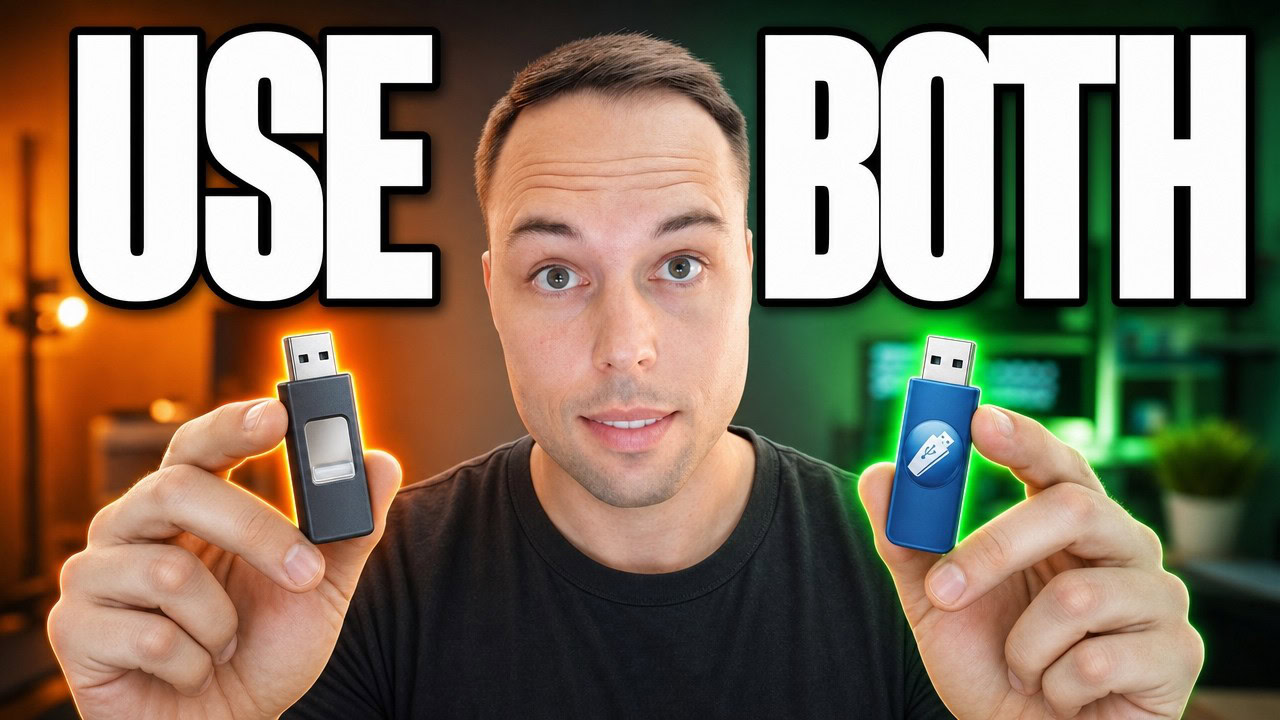
Rufus and Ventoy both create bootable USB flash drives, but they solve different problems. Use Rufus when you need a single-purpose Windows installer with a customized setup experience (skip Microsoft account, remove Copilot, automate the install). Use Ventoy when you want one USB drive that holds multiple ISOs — Windows, Linux, Hiren’s Boot CD — and boots in both UEFI and Legacy/CSM modes. The honest answer for most repair and IT work is to use both.
Applies to: Windows 10 (22H2) and Windows 11 (23H2, 24H2, 25H2) | Last updated: May 7, 2026
Key Takeaways
- Rufus is single-purpose, Ventoy is multi-purpose — Rufus flashes one ISO to one USB drive; Ventoy turns the USB into a container that holds many ISOs you can pick from at boot
- Ventoy boots both UEFI and Legacy/CSM from the same drive — Rufus forces you to pick UEFI or CSM at creation time; Ventoy shows both options at boot from a single USB
- Rufus has built-in Windows customization — version 4.14 can skip the Microsoft account, disable BitLocker auto-encryption, remove Copilot/OneDrive/Outlook, and silently wipe the disk during install
- Ventoy can match those customizations using an autounattend XML file — drop the answer file next to the ISO on the Ventoy partition and it applies during install
- Use Rufus for repeatable single-PC installs, use Ventoy as your everyday IT toolbox — most repair work needs both
Quick Steps:
- Pick Rufus if you need to install a single Windows version with custom setup options on one machine
- Pick Ventoy if you want one USB drive that boots multiple ISOs (Windows, Linux, recovery tools)
- For Rufus, select your USB drive, click Select, choose your ISO, set partition scheme (GPT for UEFI, MBR for CSM), and start
- For Ventoy, select your USB drive and click Install — it formats the drive and creates the Ventoy boot partition
- Copy any ISOs you want directly onto the Ventoy partition; pick which one to boot at startup
- To get Rufus-style customization on Ventoy, place an autounattend.xml answer file alongside your Windows ISO on the drive
What’s the Difference Between Rufus and Ventoy?
For 10 years I co-owned and ran a computer repair business, and I used Rufus and Ventoy every single day — but for completely different jobs. The two tools both create bootable USB flash drives, and that surface-level overlap is what confuses people. They are not trying to do the same thing.
Rufus takes one ISO file and burns it onto one USB drive. That drive then has exactly one purpose — boot the operating system or recovery tool you flashed onto it. If you want a different ISO on that drive, you have to wipe it and start over.
Ventoy works completely differently. It installs a small bootloader onto the USB drive, and that bootloader can boot any ISO file you copy onto the drive afterwards. You drag a Windows 11 ISO, a Linux ISO, and a Hiren’s Boot CD onto the same drive, and at boot time you pick which one to launch. The drive becomes a toolbox instead of a single-purpose installer.
Both tools are free and open source, and both have download links you can grab right now:
- Download Rufus from the official Rufus website
- Download Ventoy from the official Ventoy website or the Ventoy GitHub releases page (I find the GitHub page easier to navigate)
UEFI vs Legacy/CSM: The Boot Mode Difference That Matters
This is one of the most important differentiators between Rufus and Ventoy, and it catches a lot of people out when they are trying to install Windows on an older machine.
UEFI is the modern firmware standard your motherboard uses to boot. CSM (Compatibility Support Module), also called Legacy Boot, is the older BIOS-style boot mode. Plenty of older machines in businesses still rely on CSM, so it is far from extinct.
With Rufus, you commit to one or the other at creation time. If you set the partition scheme to GPT, the target system can only be UEFI. Switch to MBR and you unlock the BIOS or UEFI-CSM option. The tooltip in Rufus is explicit about this — selecting BIOS/UEFI-CSM means the device will only boot in BIOS emulation mode, not native UEFI. So if you make a Rufus drive for a UEFI machine and then need to install Windows on a Legacy/CSM machine, that drive will not work — you have to remake it.
Ventoy handles both from a single drive. The same Ventoy USB stick boots in UEFI mode and Legacy/CSM mode. When you select a boot device on the target machine, you will see two Ventoy entries — one for each mode. Pick whichever your target machine needs. This is huge if you service a mix of old and new hardware.
Tip: If you are not sure whether the target machine is UEFI or Legacy, Ventoy is the safer choice — it removes the guesswork because the same drive boots both ways.
Why People Love Rufus: Windows Customization Built In
Rufus’s biggest strength is what happens after you click Select on a Windows ISO. The Windows User Experience dialog gives you a checklist of customizations that get baked into the installer:
- Remove Windows 11 hardware requirements — bypass the TPM, Secure Boot, and RAM checks
- Remove the Microsoft account requirement — note: your network must be disconnected during installation for this to work, which Rufus tells you when you hover the option
- Skip the entire account creation — provide a username and Windows logs straight in after install
- Set regional options to match the machine you are creating the drive on
- Disable data collection — skips the privacy questions during the OOBE
- Disable BitLocker automatic device encryption
- Quality of life improvements (Rufus 4.14) — uninstalls Copilot, OneDrive, and Outlook and disables most of the unwanted features Microsoft pushes during setup
- Silently erase the disk and install a specific Windows version
If you want a deeper walkthrough of every option in this dialog, I covered the full Rufus 4.14 update in my previous post on the Rufus update for Windows 11 with free customizations.
Working in IT or a repair business means installing Windows on a lot of machines, and clicking through the same setup screens on 10 different computers a day will drive you insane. Rufus fixes that. The customizations save real time and stop you from making mistakes when you are tired. This is its biggest strength — for a targeted install on a single PC where rinse-and-repeat is the workflow, Rufus is hard to beat.
Why Ventoy Is My Daily-Driver USB
Ventoy installs in seconds. Select your USB drive in the Ventoy app, click Install, accept the format prompt, and the tool wipes the drive and writes its bootloader. After it finishes, your drive will have two partitions — a small Ventoy EFI partition (the boot partition for UEFI) and a larger Ventoy partition where you copy your files.
Open This PC, double-click the Ventoy drive, and copy any ISO files you want onto it — Windows 10, Windows 11, Linux distros, Hiren’s Boot CD, recovery tools, anything. The drive will hold as many ISOs as it has space for.
When you boot from the Ventoy drive, you will see two boot entries (UEFI and Legacy/CSM). Pick the one your target machine supports, and Ventoy presents a menu of every ISO on the drive. Pick the one you want and it boots straight into that installer or live environment.
The Ventoy partition is also a regular drive — you can drop installers, scripts, repair utilities, or any other files alongside the ISOs. In my repair business, I always carried a Ventoy drive when I went to clients because I had every tool I needed in one device. For a complete walkthrough on building a recovery-focused Ventoy drive, see my Ventoy USB rescue disk guide.
How to Get Rufus-Style Customization on Ventoy
Out of the box, Ventoy does not offer the customization checkbox dialog that Rufus has. But the underlying mechanism Rufus uses is the same one you can use on Ventoy — an autounattend.xml answer file. Rufus writes one for you based on the boxes you tick. With Ventoy, you write the file yourself and place it on the drive.
You have several ways to generate that answer file:
- UnattendedWinstall — my own pre-configured autounattend.xml project. Drop it on the drive and it applies a curated set of debloat and personalization tweaks during install
- Winhance WIM Utility — under Advanced Tools in Winhance, the Windows Installation Media Utility generates an autounattend file based on your current Winhance selections. The feature is basic at the time of this writing, but I am actively working on expanding it
- Schneegans Windows unattended generator — the Schneegans unattend-generator is a free web tool with the most settings of any generator I have seen. It is the most flexible option if you want fine-grained control
- An AI assistant — Claude, ChatGPT, or Gemini can write an autounattend.xml for you if you describe what you want. If you go this route, expect some back-and-forth troubleshooting; the XML schema is unforgiving
For a deep dive on the answer-file format and what every section does, read my full Windows answer file guide for debloating and optimizing your installation.
The exact procedure for placing the autounattend.xml on a Ventoy drive (and a few gotchas around file naming and folder structure) is covered in this walkthrough — the dedicated Ventoy section is in the second half:
Other approaches I have covered in dedicated tutorials on the UnattendedWinstall GitHub page include creating a customized bootable Rufus drive (see my Rufus bootable USB guide for Windows 11), building a custom ISO with AnyBurn (anyburn.com), and the Ventoy auto-install plugin.
When to Choose Rufus vs Ventoy
Use Rufus when:
- You are installing one specific Windows version on one specific machine
- You want the customization options without writing an answer file yourself
- You know which boot mode (UEFI or CSM) the target machine uses
- You are setting up a fleet of similar machines with identical settings
Use Ventoy when:
- You service a mix of hardware and want one drive that boots everything
- You need both UEFI and Legacy/CSM support from the same USB
- You want to carry multiple recovery and install tools on a single device
- You are willing to pair it with an autounattend.xml for Windows customization
For most of the work I did in the repair shop, the answer was both. Rufus came out for one-off, single-machine Windows installs where the customization checklist saved time. Ventoy lived in my pocket for everything else — house calls, mixed-hardware environments, and any job where I did not know exactly what I would need until I got there.
Frequently Asked Questions
Is Rufus or Ventoy better for installing Windows 11?
For a single Windows 11 install on a known machine, Rufus is faster because the built-in Windows User Experience options (skip Microsoft account, remove Copilot, disable BitLocker) are one-click. For a USB drive that has to install Windows 11 on multiple different machines or sit alongside Linux ISOs and recovery tools, Ventoy is better. Many repair techs use Rufus for targeted installs and Ventoy as their everyday toolbox.
Can a Ventoy USB boot in both UEFI and Legacy/CSM modes?
Yes. A single Ventoy drive supports both UEFI and Legacy/CSM boot from the same partition layout. When you bring up the boot menu on a target machine, you will see two Ventoy entries — pick whichever matches the firmware mode the machine uses. Rufus does not do this — it forces you to choose UEFI or CSM at creation time.
Can I customize Windows installation with Ventoy like Rufus does?
Yes, by adding an autounattend.xml answer file alongside your Windows ISO on the Ventoy drive. Rufus generates this file for you behind the scenes; with Ventoy you supply your own. The easiest options are UnattendedWinstall for a pre-configured file, the Winhance WIM Utility for a Winhance-flavored file, or the Schneegans unattend-generator for full control.
Will Ventoy erase everything on my USB drive?
Yes — installing Ventoy formats the entire drive and creates two new partitions (Ventoy and Ventoy EFI). Back up anything important on that USB before installing. After Ventoy is installed, copying ISOs to the drive is non-destructive — you can add and remove ISOs freely without re-running the installer.
Are Rufus and Ventoy free?
Both are free and open source. Rufus is available from rufus.ie and Ventoy from the official Ventoy site or the Ventoy GitHub releases page. Neither has a paid tier or in-app purchases.