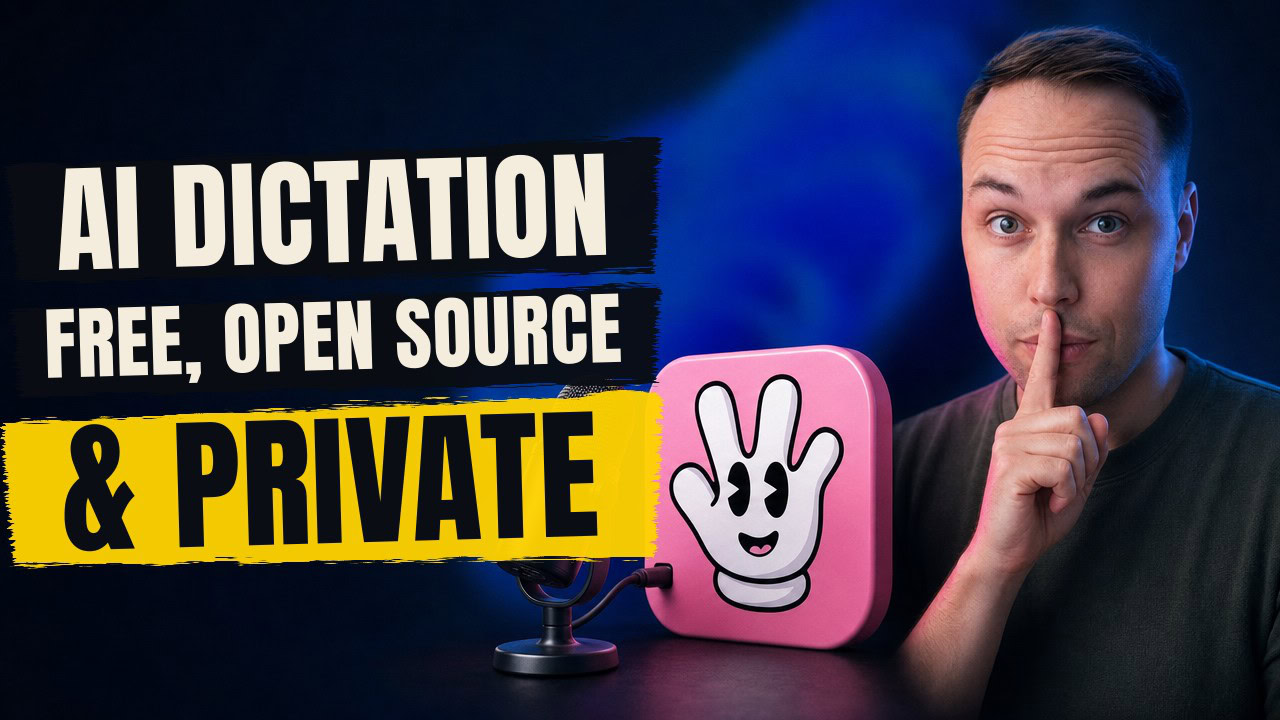
Handy is free, open source dictation software that turns your speech into text completely offline on Windows, macOS and Linux. Install it from handy.computer, download one speech model (I use Parakeet Unified EN, which is about 700 MB), then hold your transcribe shortcut and talk. When you let go, the text is pasted wherever your cursor is. Nothing you say leaves your PC, and there is no subscription.
Applies to: Windows 11 (23H2, 24H2, 25H2) x64, with Windows ARM, macOS and Linux builds too | Last updated: August 27, 2026
Key takeaways
- Handy runs the speech-to-text model on your own PC, so it keeps working with Online speech recognition switched off in Settings > Privacy & security > Speech
- One model download is all it needs. The English-only Parakeet Unified EN model I picked is about 700 MB, and there are multilingual models in the same list
- Hold the transcribe shortcut, talk, release. Mine is Ctrl + Windows key, and the text lands in whatever window is active
- Words it keeps mishearing go into the custom words dictionary in the advanced settings, and the History tab keeps every transcription if a paste ever fails
- Paid dictation apps charge a monthly subscription for this. Handy is free, open source, and I am not being paid to say so
Quick steps
- Download the Windows 64-bit installer from handy.computer and run it
- On first launch, pick a speech model and let it download (I use Parakeet Unified EN, about 700 MB)
- Check the transcribe shortcut and microphone in Handy’s settings (I use Ctrl + Windows key)
- Click into any text field, hold the shortcut, talk, then let go
- If a word keeps coming out wrong, add it to the custom words dictionary in the advanced settings
What Handy is, and why I switched to it
Handy is a free and open source speech-to-text app that works completely offline. You download it from handy.computer, and the source code is on GitHub. There are builds for Windows, macOS and Linux. I installed the Windows 64-bit version because that is what I run.
The offline part is the whole reason I am writing this. Most dictation tools, including the one built into Windows, send your voice to a server to be turned into text. Handy runs an AI model on your own machine instead, so your words never leave your PC.
I have been using it for a few weeks now for most of my typing that is longer than a sentence. Nobody is paying me to recommend it. I am sharing it because I use it every day and I think a lot of you will get the same value out of it.
How to install Handy and pick a speech model
Installation is a normal Windows installer, and there are 64-bit and ARM builds. Once it is done, the Handy window opens, and on the first run it asks which model you want to use. Handy does not ship with a model built in, so you pick one from the list and it downloads to your machine.
Tip: If you prefer installing from the command line, Handy is on WinGet too. Run
winget install cjpais.Handyin a terminal. If WinGet is new to you, my WinGet guide covers the basics.
Handy itself is small. The model you download is the big part.
Each model in the list shows a rating for accuracy, a rating for speed, and how big the download is. The one I use is Parakeet Unified EN. It is English only and was about 700 MB at the time of recording. If you dictate in another language, there are multilingual models in the same list, so choose whichever fits how you work.
Tip: Bigger models are usually more accurate but slower to respond. The ratings next to each one show you the trade-off, so start with a mid-sized model and only go bigger if the accuracy is not good enough for you.
That model is the whole engine. It is downloaded once, it lives on your disk, and every transcription from then on runs through it locally. There is no account to create and nothing to sign in to.
Why Windows speech to text sends your voice to Microsoft
Windows already has dictation built in (press Windows key + H), so why install anything? Because Microsoft’s speech to text only works when Online speech recognition is turned on. You can find the switch under Settings > Privacy & security > Speech. With it on, your words are sent to Microsoft’s servers to be turned into text.
A lot of people are not comfortable with that, and Windows is honest about the cost of switching it off. Turn the toggle off and the page tells you that you will no longer be able to use apps that rely on Microsoft’s online speech recognition technology. That includes the built-in voice typing.
So I turned it off. Handy kept working exactly as before, because it never needed that setting in the first place. Everything happens on your machine, and nothing is sent to a server anywhere.
If you use Winhance, the same switch is in the Privacy section as Online Speech Recognition, so you can turn it off along with the rest of the telemetry settings in one pass. If you would rather do it by hand, my guide to disabling Windows telemetry with the registry covers the rest of that privacy page.
Set your transcribe shortcut and microphone
Handy’s settings are short. The ones that matter are the transcribe shortcut, whether it uses push to talk, and which microphone it listens to. There are advanced options below those, but you can leave them alone until you have a reason to change them.
The default transcribe shortcut on Windows is Ctrl + Space. I changed mine to Ctrl + Windows key, which Handy shows as Ctrl + Super, and on a Windows keyboard Super is the Windows key. You can set it to any combination you like. Push to talk is on by default, so you hold the keys while you speak. Turn it off and the shortcut becomes a toggle instead, one press to start and another to stop.
Here is the whole workflow. Open an empty Notepad window, hold Ctrl + Windows key, and start talking. A small indicator appears at the bottom of the screen while Handy listens. The moment you release the keys, everything you said is pasted into Notepad as text. In my testing the accuracy was extremely high, and I am not even a native English speaker.
Fix words it gets wrong, and find text that did not paste
Every dictation tool mishears something. In my case I said “testing” and Handy wrote “tasting”. Open the History tab in the Handy window and you will see every transcription you have made, which is where I spotted it.
The fix is in the advanced settings. Scroll down to the Transcription section, find Custom Words, and add the word Handy keeps getting wrong. From then on it corrects that word to your spelling instead of making the same mistake again. If you notice one word coming out wrong every time, this is the first thing to do.
The History tab also has an open recordings folder button. Handy records what you say to a WAV file and transcribes that recording, so the audio is on your disk too. If you would rather not keep it, the history limit and auto-delete options are under Advanced > History. And if a paste ever fails because the app you are in does not accept it, the text is still in History. Copy it from there instead of dictating again.
How I use Handy with Claude Code and other AI tools
Most of my dictation goes to AI. I use Claude Code for my work, and typing out long prompts is slow. Holding the shortcut and talking straight into the terminal window did not work for me, so I keep a Notepad window open next to it. I dictate there, copy the text, paste it into Claude Code, and press Enter.
You do get dictation built into a lot of these tools already. The ChatGPT website has a microphone button, there are VS Code extensions for it, and Claude Code has its own. The last time I tried the one in Claude Code it did a poor job and sometimes did not pick up my microphone at all. That is the point where I switched to Handy, and my productivity has gone up a lot since.
There are plenty of dictation apps right now that charge a monthly subscription for the same thing. Handy does it for free, on your own hardware, with the model running locally. If you like the idea of AI that stays on your PC, my guide to running AI on your own PC for free with Ollama is the next step.
If you want to see what I actually do with Claude Code, this is the video where I let it build a custom Windows 11 ISO for me. The written guide is at I let Claude build my custom Windows 11 ISO.
A note on browsing more privately
If keeping your voice off Microsoft’s servers matters to you, your internet connection is worth a look too. The VPN I personally use is ProtonVPN’s free tier, which is rare in that it gives you unlimited bandwidth and a no-logs policy at no cost. The free version auto-connects you to the fastest available server, so if you need to pick a specific country by hand, for streaming for example, you will want ProtonVPN Plus.
The links above are affiliate links. If you sign up through them, I earn a small commission at no extra cost to you, and it helps support the channel.
Frequently asked questions
Does Handy work without an internet connection?
Yes. You only need to be online to download the app and the speech model. After that the model runs on your own PC, so you can disconnect completely and Handy still transcribes. Nothing you say is sent to a server.
Can Handy transcribe languages other than English?
Yes. The model list on first launch includes multilingual models alongside the English-only ones. The one I use, Parakeet Unified EN, is English only, because that is all I need and it keeps the download smaller. You can switch models later in the settings.
Why does Handy not paste text into my window?
Some apps do not accept the paste. Claude Code running in a terminal was the one that did not work for me. Open the History tab in Handy and copy the transcription from there, or dictate into Notepad first and paste it across yourself. The text is never lost.
Does turning off Online speech recognition break anything in Windows?
It stops Windows’ own voice typing and any app that relies on Microsoft’s online speech recognition. Handy is not affected, because it does its own transcription locally. If you ever need the Windows feature back, turn the toggle on again under Settings > Privacy & security > Speech.
Is Handy really free?
Yes. Handy is free and open source under the MIT licence, with the code published on GitHub. There is no account, no trial, and no subscription. The only thing it costs you is the disk space for the model you download.