If your internet is slow on Windows 11, test the connection on your phone over the same Wi-Fi first. If the phone is slow too, the problem is your router or your line and nothing in Windows will fix it. If only the PC is slow, open Terminal and run ipconfig, ping your default gateway, then ping 1.1.1.1 and google.com — those three results tell you whether the fault is your cable, your connection, or DNS.
Applies to: Windows 10 (22H2) and Windows 11 (23H2, 24H2, 25H2) | Last updated: August 14, 2026
Key Takeaways
- Run a speed test on your phone over the same Wi-Fi before you change anything. If the phone is slow as well, the problem is the router or the line, and no Windows setting will help.
- Three commands separate the causes: pinging your default gateway tests the cable and adapter, pinging
1.1.1.1tests the connection itself, and pinginggoogle.comadds the name lookup. If1.1.1.1is fine butgoogle.comis not, the fault is DNS. - An Ethernet link speed of 100 Mbps on a gigabit router almost always means a damaged cable with a dead pair inside it. Cat5e carries gigabit perfectly well — a Cat6 cable is not the fix.
- Resource Monitor (
resmon) shows every process with its live send and receive rates. Task Manager does not break it down this way, and this is how you catch a background download. ipconfig /flushdns, switching to a public DNS server, and setting the “reservable bandwidth” policy to zero do not increase your speed. Disabling TCP auto-tuning actively reduces it on long-distance downloads.
Quick Steps
- Run a speed test on your phone over the same Wi-Fi to rule out the router and the line.
- Right-click Start > Terminal, run
ipconfig, and note your Default Gateway. - Ping the gateway, then
1.1.1.1, thengoogle.com, and compare the three. - On Ethernet, check Settings > Network & internet > Ethernet and read the link speed.
- Search for
resmon, open the Network tab, and sort Network Activity to find what is using the connection. - On Wi-Fi, move closer to the router or let Windows use 2.4 GHz if you are a couple of rooms away.
In This Guide
- Is it your PC or your connection? — the 30-second test that decides everything else.
- Narrow it down with three commands — cable, connection, or DNS.
- Fix 1: Check your Ethernet link speed — the damaged-cable trap.
- Fix 2: Find what is using your connection — Resource Monitor, not Task Manager.
- Fix 3: Get the Wi-Fi band right — why 5 GHz is not always faster.
- The three fixes that do nothing — and the one that makes it worse.
Is It Your PC or Your Connection?
Before you type a single command, work out whether your internet is slow or whether this one PC is slow. The easiest test does not involve the PC at all: pick up your phone, put it on the same Wi-Fi, and run a speed test on it.
If the phone is slow as well, the problem is your router or the line coming into the building. Nothing you change in Windows will make that faster, and every guide that has you running commands is wasting your time. If the phone gets the speed you are paying for and the PC does not, the fault is on the PC and the rest of this guide applies.
Tip: Test the phone standing in the same spot as the PC. Wi-Fi speed changes a lot over a few metres, and testing from the sofa next to the router proves nothing about the desk in the back bedroom.
Narrow It Down With Three Commands
Right-click the Start button and click Terminal. Three commands will tell you which part of the chain is broken, and each one tests something the previous one did not.
Start by finding your router’s address:
ipconfigLook for the Default Gateway line under your active adapter — usually something like 192.168.0.1 or 192.168.1.1. Ping it:
ping 192.168.0.1This traffic never leaves your house. It is your PC talking to your router and nothing else. If you get packet loss or high times here on a wired connection, the problem is local — the cable, the port, or the network adapter — and the internet is not involved at all.
Next, ping an address out on the internet that skips the name lookup entirely:
ping 1.1.1.11.1.1.1 is Cloudflare’s public resolver, and because you are giving Windows an IP address rather than a name, no DNS lookup happens. Then run the same test with a name attached:
ping google.comHere is the useful part. If 1.1.1.1 comes back fine and google.com does not, the connection is working and the name lookup is the thing failing. That is DNS, and it is the one situation where changing your DNS servers or flushing the DNS cache genuinely is the fix. Everywhere else, it is not.
Note: Some networks and firewalls deliberately drop ping replies. If every one of the three fails identically but web pages still load, treat that as blocked ping rather than a broken connection.
Fix 1: Check Your Ethernet Link Speed
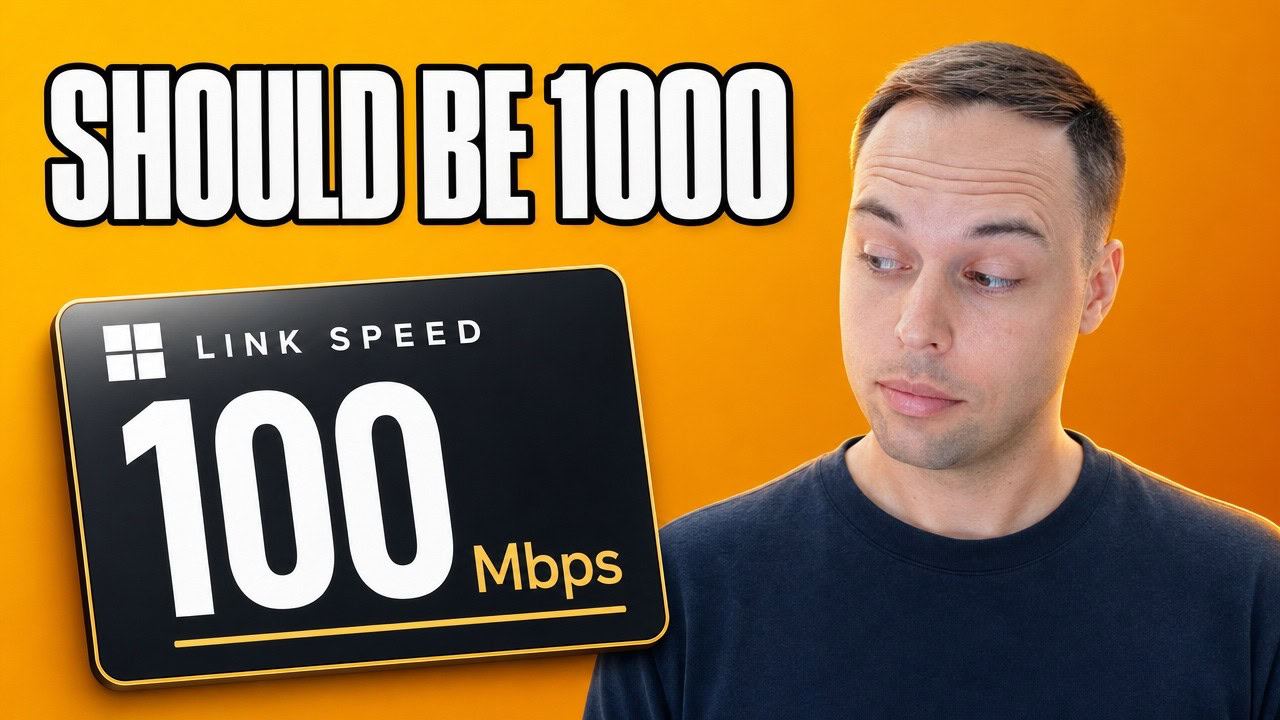
This one catches people out constantly. Go to Settings > Network & internet > Ethernet and look at the link speed. If you are plugged into a gigabit router and Windows reports 100 Mbps, you have found the problem, and no software fix exists for it.
Gigabit Ethernet needs all four pairs inside the cable. 100 Mbps only needs two. So when a cable is damaged and one pair stops working, the link quietly drops to 100 Mbps and keeps working — which is exactly why nobody notices. Swap the cable for a known-good one and check the number again.
You can also read it from Terminal, which is more reliable than the Settings page on some adapters:
Get-NetAdapter | Select-Object Name, Status, LinkSpeedDo not buy a Cat6 cable to fix this. Cat5e carries gigabit perfectly well over any run you will have in a house. The cable being Cat5e is not the fault — the cable being damaged is. If you are replacing it anyway, Cat6 costs about the same, but do not let anyone sell you the upgrade as the solution.
Microsoft also documents cases where the adapter reports an inaccurate link speed in the interface, which is why the PowerShell command above is the check I trust. If the speed still looks wrong after a new cable, try a different port on the router.
Fix 2: Find What Is Actually Using Your Connection
If the link is healthy and everything still feels slow, something on the PC is probably using the connection. Task Manager is not great for this — it gives you a single utilisation figure without telling you which process is responsible.
What you want is Resource Monitor. Search for resmon in the Start menu, open it, go to the Network tab, and look at Network Activity. That gives you every process with what it is sending and receiving right now, in bytes per second, and you can sort by either column. That is how you catch the thing quietly downloading in the background.
The usual culprits I find on other people’s machines:
- Windows Update pulling a feature update in the background. If this is a recurring problem, you can pause Windows 11 updates until a date you pick rather than letting it choose its own moment.
- Delivery Optimization uploading update files to other machines. This one uses your upload bandwidth, which is why the symptom is often laggy browsing rather than slow downloads — here is how to turn Delivery Optimization off.
- Game launchers — Steam, Epic, Battle.net — updating titles you have not opened in months.
- Cloud sync clients such as OneDrive or Dropbox working through a large folder.
- Malware, if the process name means nothing to you and the traffic never stops. Run through my malware removal guide before assuming it is a network fault.
Fix 3: Get the Wi-Fi Band Right for Where You Sit
On Wi-Fi, this is mostly about distance rather than settings. 5 GHz is faster but does not get through walls well. 2.4 GHz is slower but reaches much further. So if you are a couple of rooms away from the router, a strong 2.4 GHz connection will beat a weak 5 GHz connection every time, and the numbers on the box have nothing to do with it.
You will see people telling you to force your adapter onto 5 GHz only in the adapter’s advanced properties. Personally I would leave that alone. The moment you walk away from the router with that set, you have made things worse for yourself and Windows can no longer fall back to the band that actually reaches you. Microsoft’s own guidance on Wi-Fi and your home layout says the same thing.
Two things that are worth doing instead:
- Move the PC or the router. Getting the router off the floor and out of a cupboard does more for Wi-Fi speed than any Windows setting on this page.
- Check whether the connection is metered. Settings > Network & internet > Wi-Fi > your network > Metered connection. A metered connection does not throttle your speed, but it does hold back updates and some app traffic, which can look like a network problem when you are waiting on something to download.
The Three “Fixes” That Do Nothing
Myth 1: Flushing the DNS cache speeds up your connection
ipconfig /flushdnsAll this command does is clear the list of names your PC has already looked up. There is no mechanism by which that gives you more bandwidth. If anything the next lookup is slightly slower, because Windows now has to go and ask again instead of using the answer it already had. It is a legitimate troubleshooting step when a site resolves to the wrong address, and that is all it is. Microsoft’s own ipconfig command reference describes exactly this behaviour.
Myth 2: Changing your DNS to 1.1.1.1 or 8.8.8.8 makes your internet faster
Changing DNS servers can make pages begin loading a bit quicker the first time you visit them, and it is genuinely worth doing if your provider’s DNS is unreliable or slow to respond. But the lookup happens once, before the transfer starts. It does not change how fast the data then arrives. Your download speed is identical either way.
Myth 3: Windows reserves 20% of your bandwidth
This one has been going around since Windows XP. The setting is still there under Group Policy, and it is real, but it is a limit on what an application is allowed to reserve — not a permanent slice taken off the top. On a home PC nothing is reserving anything, so setting it to zero changes nothing at all. You already have your whole connection.
The One Command That Actually Makes It Worse
There is a command going around that disables TCP receive window auto-tuning:
netsh int tcp set global autotuninglevel=disabledDo not run that. Auto-tuning is how Windows tells the other end of a connection that it can handle a bigger receive window. Turn it off and Windows stops advertising a larger window, and on a long connection — a big file coming from a server on the other side of the world — you can end up capped at a fraction of the speed you were getting before. Microsoft explains the mechanism in their write-up on AutoTuningLevel, and lists it under TCP/IP performance known issues.
If you have already run it, put it back to the default:
netsh int tcp set global autotuninglevel=normalYou can confirm the current value with netsh int tcp show global and look for the “Receive Window Auto-Tuning Level” line. It should say normal.
If Nothing Above Applies
A few last things worth checking before you call your provider. A VPN will slow you down by design — if you have one running, disconnect it and retest, and if you need one, pick a fast provider rather than tuning Windows around a slow one (here is the free VPN I recommend). If the adapter itself is behaving strangely, Microsoft’s guide to fixing Ethernet connection problems in Windows covers the network reset, which puts every adapter back to defaults.
If the PC is generally sluggish rather than specifically slow on the network, that is a different problem. Winhance, my free Windows optimisation tool, strips out the telemetry and background services that make a stock Windows 11 install feel heavy — but be clear that it is not a bandwidth fix, and I would not sell it to you as one.
Frequently Asked Questions
Why is my internet slow on my PC but fast on my phone?
That points at the PC rather than the connection. On a wired PC, check the Ethernet link speed first — 100 Mbps on a gigabit router means a damaged cable. On Wi-Fi, the PC’s adapter and its position are usually worse than the phone’s, so compare them standing in the same spot before assuming a fault.
Does changing DNS servers increase internet speed?
No. A DNS server converts a name into an IP address before the transfer begins, so a faster resolver can shave a fraction of a second off the moment a page starts loading. Once data is flowing, the DNS server is not involved. Your download speed is unchanged.
Should I disable TCP auto-tuning to fix slow internet?
No — it is one of the few tweaks that measurably makes things worse. Auto-tuning lets Windows advertise a larger TCP receive window, which is what allows a download from a distant server to reach full speed. If you already disabled it, run netsh int tcp set global autotuninglevel=normal to restore the default.
Is 2.4 GHz or 5 GHz better for Wi-Fi?
It depends entirely on distance. 5 GHz is faster in the same room, 2.4 GHz reaches much further through walls. A strong 2.4 GHz signal beats a weak 5 GHz one, so leave Windows free to pick rather than forcing the adapter onto one band.
Why is my Ethernet only running at 100 Mbps?
Gigabit needs all four wire pairs in the cable; 100 Mbps needs only two. When one pair fails, the link drops to 100 Mbps rather than failing outright, so a damaged cable is by far the most common cause. Swap the cable and the port before you look at any driver or setting.