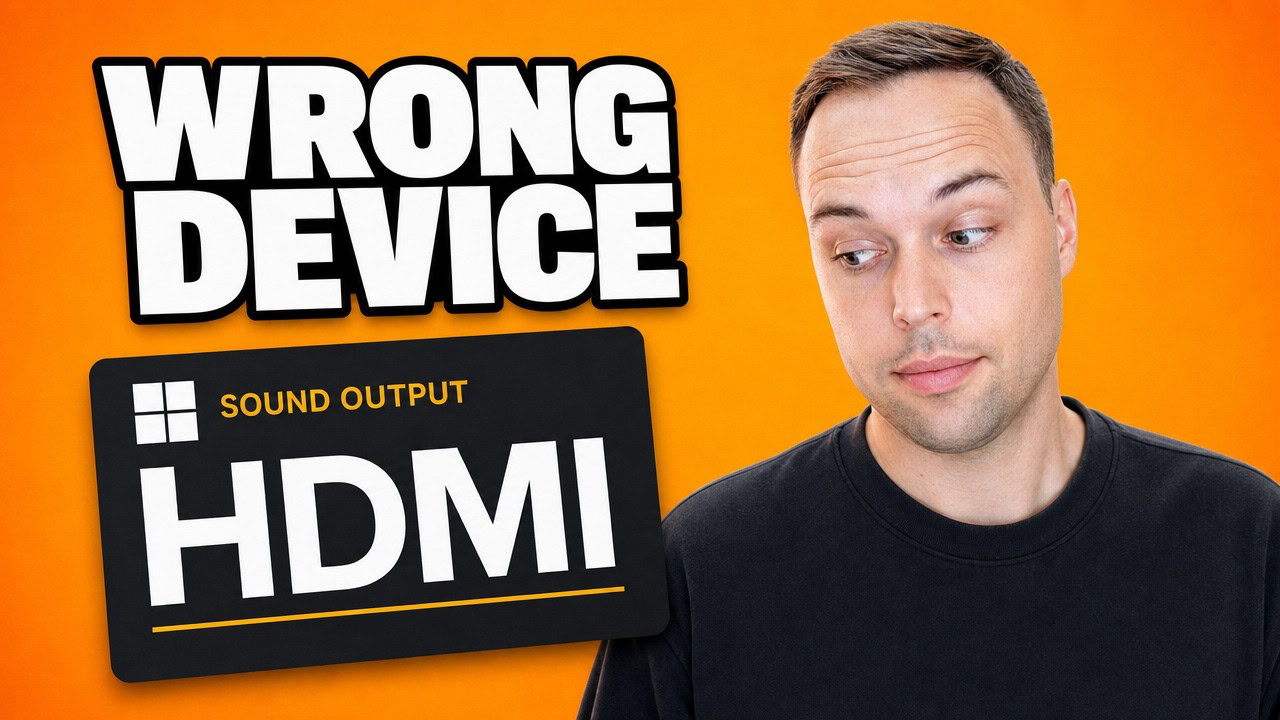
If sound has stopped working on Windows 11, the cause is usually not your drivers. Open Settings > System > Sound and check which device is selected under Output — when a monitor is connected over HDMI or DisplayPort, Windows frequently routes audio to that monitor, and if the monitor has no speakers you get complete silence while Windows reports everything as working. Selecting your actual speakers or headphones fixes the majority of cases in about thirty seconds.
Applies to: Windows 10 (22H2) and Windows 11 (23H2, 24H2, 25H2) | Last updated: August 14, 2026
Key Takeaways
- Check the output device first. Windows routinely selects an HDMI or DisplayPort monitor as the playback device, and a monitor without speakers produces total silence with no error anywhere.
- The Volume mixer (Windows key + Ctrl + V) gives every application its own volume slider and its own output device, so one app can be silent while the rest of the PC is fine.
- Uninstalling a device in Device Manager does not fetch a newer driver. Windows keeps the driver package on the PC and reinstalls the same version — what it does fix is a device that has got itself into a broken state.
- “No audio output device is installed” on a laptop is usually Intel Smart Sound Technology, which sits under System devices in Device Manager rather than under Sound. Replacing its driver with Microsoft’s High Definition Audio controller brings audio back on most machines.
- Restart is not the same as shut down and power on. Fast Startup makes a shutdown reload a saved device state, while Restart performs a genuine cold boot — so Restart is the one that clears the problem.
Quick Steps
- Settings > System > Sound > Output — pick your real speakers or headphones and test them.
- Press Windows key + Ctrl + V to open the Volume mixer and check the app that has no sound.
- Sound > Advanced > All sound devices — open the device you want and set it back to Allow if it is disabled.
- Device Manager > Sound, video and game controllers > right-click the device > Uninstall device, then restart.
- If Windows says no audio output device is installed, look under System devices for Intel Smart Sound Technology.
- Use Restart, not Shut down — Fast Startup means a shutdown does not fully reinitialise your devices.
In This Guide
Six fixes in the order I would actually run them, cheapest and most likely first:
- Fix 1: Check which output device Windows is using — the HDMI monitor trap, and most people’s answer.
- Fix 2: Check the Volume mixer — when only one app has no sound.
- Fix 3: Check All sound devices — when the device you want is not in the list.
- Fix 4: Rebuild the device in Device Manager — and what that really does.
- Fix 5: “No audio output device is installed” — the Intel Smart Sound fix nobody covers.
- Fix 6: Restart, do not shut down — why Fast Startup keeps the fault alive.
Fix 1: Check Which Output Device Windows Is Using
Start here, because this genuinely is most people. Windows is playing your sound out of the wrong device.
- Open Settings > System > Sound.
- At the top, under Output, look at the device Windows is currently using.
- Click the dropdown and select your actual speakers or headphones.
- Click Test to confirm sound is coming through.
The specific trap here is a monitor connected over HDMI or DisplayPort. Windows very often decides that monitor is your speakers, and if the monitor has no speakers in it, you get complete silence while Windows sits there reporting that everything is fine. There is no error, no yellow warning, and no indication anything is wrong — which is exactly why this one wastes so much time.
The same thing happens when you plug in a dock, a USB headset, or a TV, and it happens again every time you unplug and replug that device.
Tip: The legacy Sound control panel still exposes options the Settings page hides. Press Windows key + R and run
mmsys.cpl, then right-click your speakers on the Playback tab and choose Set as Default Device.
Fix 2: Check the Volume Mixer for the App With No Sound
If the right device is selected and you are still getting nothing, the next question is whether it is only one app. Windows 11 gives every application its own volume slider and its own output device, and both of those can be wrong independently of your system settings.
Press Windows key + Ctrl + V to jump straight to the Volume mixer, or go to Settings > System > Sound > Advanced > Volume mixer.
What you see there is every app currently making sound, each with its own slider and its own output dropdown. So it is entirely possible for the PC to be fine while your browser or your game is muted, or is quietly being sent to a device you are not listening to. Set the app’s volume up, set its output device to match your system output, and test again.
Note: An app only appears in the mixer while it is actively playing audio. If the app you are troubleshooting is not listed, start playback in it first and then open the mixer.
Fix 3: Check All Sound Devices for a Disabled Output
This is the fix for when the device you want is not even in the Output list. Windows can have a perfectly working device installed and simply not be allowed to use it.
- Go back to Settings > System > Sound.
- Scroll down to Advanced and click All sound devices.
- This page lists everything Windows knows about, including devices that have been switched off.
- Click into the device you want. If it is set to Don’t allow, that is your problem — set it back to Allow.
A disabled device is invisible everywhere else in Windows, which is why people conclude their hardware has died when it is simply switched off. Worth checking before you go anywhere near Device Manager.
Fix 4: Rebuild the Device in Device Manager

If the device genuinely is not there at all, open Device Manager. Right-click the Start button, click Device Manager, and expand Sound, video and game controllers. You should see entries like Realtek High Definition Audio, Intel Smart Sound Technology, NVIDIA High Definition Audio, or your headset name.
- Right-click your audio device and choose Uninstall device.
- Leave “Attempt to remove the driver for this device” unticked unless you have a replacement driver ready.
- Restart the PC. Windows detects the device on boot and reinstalls it.
I want to be honest about what this actually does, because the usual advice oversells it. It does not get you a newer driver. Windows keeps the driver package in its driver store, so when the device comes back it puts the same version straight back on — Microsoft documents this behaviour in how devices and driver packages are uninstalled.
What it does do is rebuild the connection between Windows and that device, and that genuinely does fix a device which has got itself into a mess. So it is still worth doing — just do not expect a version bump out of it. If you want an actually newer driver, that comes from Optional updates or your manufacturer’s support page, not from this button.
Fix 5: “No Audio Output Device Is Installed” — Intel Smart Sound
Here is the one hardly anybody covers, and if Windows is telling you that no audio output device is installed, this is very likely you.
On a lot of laptops the audio does not run over a conventional audio driver. It runs over Intel Smart Sound Technology, and it does not live under the Sound section in Device Manager — it sits under System devices. So people open Device Manager, see nothing under Sound, video and game controllers, and conclude the hardware is dead.
- In Device Manager, expand System devices.
- Look for an entry with Smart Sound in the name. The exact wording varies by machine — it may be “Intel Smart Sound Technology (Intel SST) Audio Controller” or similar.
- Right-click it and choose Update driver.
- Choose Browse my computer for drivers.
- Choose Let me pick from a list of available drivers on my computer.
- Select High Definition Audio Controller from the list and install it.
You are swapping Intel’s driver for Microsoft’s own generic one, and on a lot of machines audio comes straight back. This is the documented fix rather than a workaround — ASUS publishes the same driver swap for the identical symptom on its laptops, and it applies to the same Intel SST controller on other brands.
Note: The Microsoft driver is generic, so you may lose vendor extras like Dolby or Realtek Audio Console effects. Working audio without the effects beats no audio, and you can always reinstall the vendor package from your laptop manufacturer’s support page afterwards to see if it sticks.
Fix 6: Restart, Do Not Shut Down
This one is backwards from what you will hear everywhere else, and it matters for every fix above.
Windows 11 has Fast Startup turned on by default. When you shut down and power back on, Windows does not fully start again — it loads back a saved copy of what it had before, including the state of your devices. So if you have been shutting down and powering on again hoping it clears the problem, that is exactly the action that will not clear it.
Restart does not do that. Restart is a proper cold boot, and Microsoft states plainly that the Fast Startup setting does not apply to Restart. So after uninstalling a device or swapping a driver, use Start > Power > Restart, not Shut down followed by pressing the power button.
Bluetooth Headphones Connected but Silent
Bluetooth adds a few extra ways to end up with silence.
- Some headphones appear twice in the output list: once as a stereo device, often labelled Headphones or Stereo, and once as a Headset or Hands-Free device meant for calls. Pick the stereo one for music and video.
- If an app such as Teams or Discord uses the headphones’ microphone, Windows usually switches them into the lower-quality hands-free mode. Pick a different microphone in that app if you want full-quality sound.
- Make sure the headphones are not still connected to your phone. Many models only play audio from one device at a time.
- If they show as connected but still play nothing, pair them again. Go to Settings > Bluetooth & devices > Devices, click the three dots next to your headphones and choose Remove device. Then click Add device, choose Bluetooth and pair them again.
Check the Jack, the Port and the Headphones
- On a desktop, try the green audio jack on the back of the PC. Front-panel jacks on some cases are not connected properly inside.
- On a laptop, push the plug in firmly until it seats all the way. A half-inserted plug is a common reason for no sound.
- For a USB headset, try a different USB port, then pick the headset by its own name under Output.
- Check the volume wheel or mute switch on the headphones or their cable.
- Try the headphones on your phone or another PC. If they are silent there too, the headphones are the problem, not Windows.
If None of the Six Fixed It
Windows has no audio driver at all

If Device Manager shows an unnamed device with a yellow triangle under Other devices, there is no driver installed for your audio chip at all. That is a different problem from the six above, and the fix is to get the real driver: check Settings > Windows Update > Advanced options > Optional updates > Driver updates first, then your motherboard or laptop manufacturer’s support page. My full guide to updating drivers on Windows 11 walks through identifying it from its Hardware ID.
If the machine has no network drivers either — common right after a clean install — Snappy Driver Installer Origin is the offline driver tool I always trusted in the repair shop, because it works from a downloaded driver pack without an internet connection. For Realtek chips specifically, I have a dedicated Realtek HD Audio driver guide.
Audio enhancements are silencing the output
Some Realtek and Conexant drivers ship with enhancements that silence output entirely on certain hardware combinations. Open mmsys.cpl, right-click your default playback device, choose Properties, switch to the Enhancements tab, and tick Disable all enhancements. If there is no Enhancements tab, your driver does not expose any and this does not apply to you.
The audio service has not resumed properly
Sound that works until the PC sleeps and then stops is usually the Windows Audio service failing to come back. Restart it and the endpoint builder alongside it from an elevated PowerShell window:
Restart-Service -Name AudioEndpointBuilder, Audiosrv -ForceOr do it by hand: press Windows key + R, run services.msc, right-click Windows Audio and choose Restart, then do the same for Windows Audio Endpoint Builder. Set both to Automatic startup if they are not already.
When to Suspect Hardware Failure
If headphones work but the built-in speakers do not, the speakers themselves or the headphone jack switch are likely faulty. Most laptops use a small mechanical switch in the headphone jack that disconnects the speakers when something is plugged in — if that switch sticks, the laptop thinks headphones are always connected. Try wiggling a 3.5 mm plug in and out of the jack a few times; if the speakers come back, the switch is dirty or damaged.
For desktops, swap to a known-good pair of speakers or headphones to rule out the audio output port itself. If the front panel jacks do not work but the rear ones do, the front panel header on the motherboard is not connected — an easy fix on a tower, harder on a small form factor case.
Frequently Asked Questions
Why does Windows 11 say no audio output device is installed?
On laptops this is most often Intel Smart Sound Technology, which appears under System devices in Device Manager rather than under Sound. Replace its driver with Microsoft’s High Definition Audio Controller using Update driver > Browse my computer > Let me pick from a list, and audio usually returns immediately.
Why did my sound stop working after a Windows update?
Windows Update occasionally replaces an OEM audio driver with a generic Microsoft one that behaves differently, and it can also reset your default output device. Check the Output device first, then roll the driver back in Device Manager (Properties > Driver tab > Roll Back Driver) or reinstall the OEM driver from your manufacturer’s support page.
Does uninstalling the audio device in Device Manager give me a new driver?
No. Windows keeps the driver package in its driver store and reinstalls the same version on the next boot. It is still a useful step because it rebuilds the device’s configuration, but a genuinely newer driver has to come from Optional updates or the manufacturer.
Why can I hear sound from headphones but not laptop speakers?
Almost always a hardware issue with the headphone jack switch — the laptop still thinks headphones are plugged in. Wiggle a plug in the jack a few times; if the speakers come back, the switch is dirty. If not, the speakers may be physically damaged.
Why does shutting down and starting up again not fix my sound?
Because of Fast Startup. A shutdown on Windows 11 saves the system state and reloads it on the next power-on, device states included, so the fault comes back with it. Use Restart instead — Fast Startup does not apply to a restart, which makes it a genuine cold boot.
Will the Windows audio troubleshooter fix this automatically?
Not reliably, and it is no longer the tool it used to be — Microsoft has deprecated the legacy MSDT troubleshooters and moved the sound troubleshooter into the Get Help app. It handles simple cases like a muted volume or an obviously wrong default device. For the six fixes on this page, doing it by hand is faster.