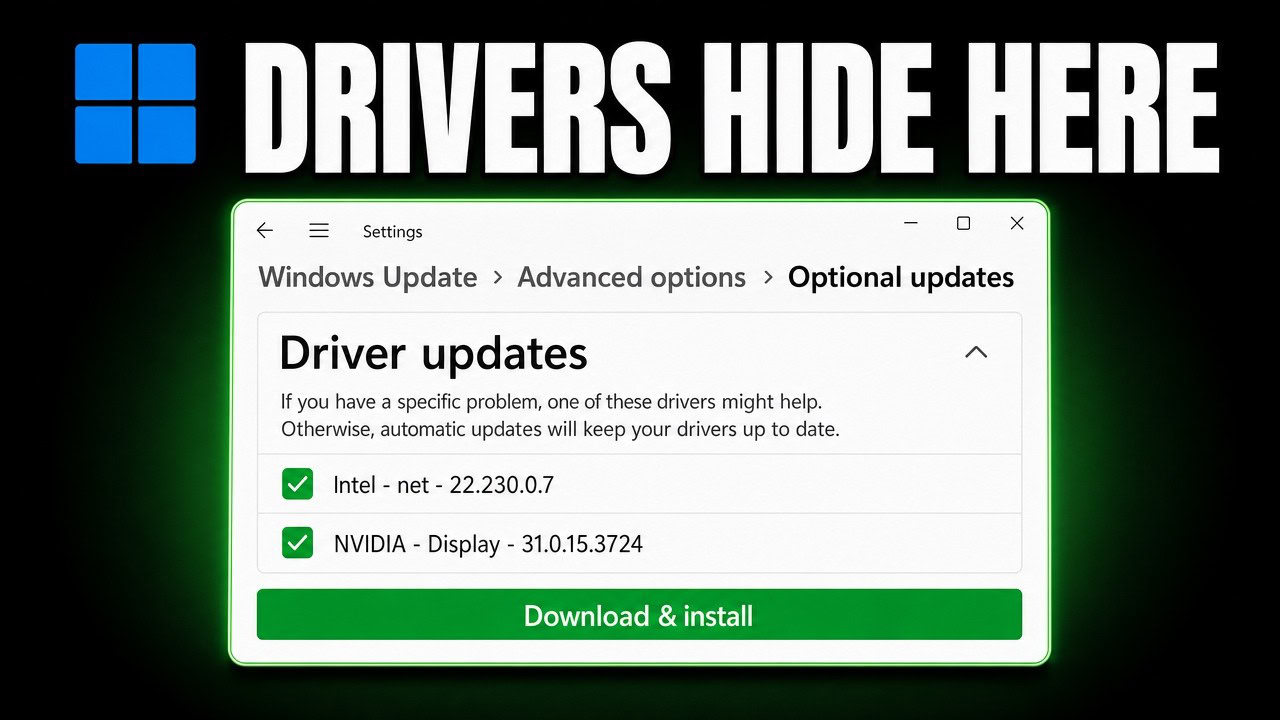
Device Manager’s Update driver > Search automatically for drivers does not search the internet. Since Windows 10 version 2004 it only checks the driver store already on your PC, which is why it reports “the best drivers for your device are already installed” while a third-party scanner insists you are eleven versions behind. The real driver updates live in Settings > Windows Update > Advanced options > Optional updates > Driver updates, and everything Microsoft does not redistribute comes from your motherboard or laptop manufacturer.
Applies to: Windows 10 (22H2) and Windows 11 (23H2, 24H2, 25H2) | Last updated: August 14, 2026
Key Takeaways
- “Search automatically for drivers” only searches your own PC. Since Windows 10 version 2004 that button checks the local driver store, not the internet, so “the best drivers are already installed” means “the best driver I already have is installed”.
- Because of that, clicking through every device in Device Manager one at a time is pointless — you get the same answer two hundred times.
- The driver updates Windows is actually holding sit under Settings > Windows Update > Advanced options > Optional updates > Driver updates, and Windows never installs them for you automatically.
- For desktops the drivers come from your motherboard manufacturer; for laptops from the laptop manufacturer using the serial number. Install the chipset driver before anything else.
- Create a restore point before installing drivers. Windows 11 ships with System Protection turned off, so no restore point is being made for you.
In This Guide
- Why Device Manager says your drivers are up to date — what that button really does.
- Method 1: Optional updates — where Windows hides the driver updates it has.
- Method 2: The manufacturer — desktop, laptop, and graphics drivers.
- Method 3: Unknown devices and the yellow triangle — identifying hardware Windows cannot name.
- Method 4: Driver folders with no installer — pointing Device Manager at an .inf file.
- When a driver update breaks something — restore points, rolling back, and Safe Mode.
Quick Steps
- Create a restore point first: search Create a restore point, turn protection on for your system drive, and click Create.
- Run Windows Update and install everything it offers.
- Go to Advanced options > Optional updates > Driver updates, tick everything, and click Download and install.
- Open System Information and note your BaseBoard Product (desktop) or System Model and serial number (laptop).
- Download the chipset driver first from that manufacturer’s support page, then the rest.
- Open Device Manager and check for anything left with a yellow triangle under Other devices.
Why Device Manager Says “The Best Drivers Are Already Installed”
This is the message that catches everybody out, and it does not mean what almost everyone thinks it means.
When you right-click a device, go to Properties > Driver > Update Driver and choose Search automatically for drivers, most people assume Windows goes off to the internet and looks for the newest version. It does not. Since Windows 10 version 2004 — released back in 2020 — that button only searches your own computer. It looks in the driver store, which is the collection of driver packages already sitting on your machine.
So when Windows tells you the best driver is already installed, what it is really saying is that the best driver it already has on this PC is installed. Your graphics card could be three or four versions behind what the manufacturer has released and you would still get that same message. That is exactly why a third-party driver scanner and Windows disagree with each other — they are not looking in the same place. Microsoft’s own documentation on driver distribution rules spells out how this works.

You will notice that when it finds nothing, Windows usually offers a link underneath to Search for updated drivers on Windows Update, and clicking that just takes you to the Windows Update page. So Windows knows there is a second place to look — it simply does not look there for you.
You do not need to click through every device. This is the question under every driver video. Because that button only checks what is already on your PC, running it on two hundred devices gives you the same answer two hundred times. Check Optional updates once instead.
Method 1: The Driver Updates Hidden Under Optional Updates
This is the place almost nobody finds, and it is where Windows quietly keeps driver updates it will never install for you automatically.
- Open Settings (Windows key + I) and go to Windows Update.
- Click Check for updates and install everything it finds, then reboot.
- Go to Advanced options and scroll down to Additional options.
- Click Optional updates, expand Driver updates, tick everything in there, and click Download and install.
- On Windows 10 the path is Settings > Update & Security > Windows Update > View optional updates.

If there is nothing waiting, the Optional updates entry may not appear at all. That is normal — if it is missing for you, you are not doing anything wrong. Microsoft describes the same path in its guide to getting recommended and updated hardware drivers.
Reboot when Windows asks, then run Windows Update once more — new optional updates sometimes appear only after the first batch installs.
Method 2: Get the Real Drivers From the Manufacturer
Windows Update will never carry chipset drivers, vendor audio suites, LAN controllers, card readers, fingerprint sensors, or utilities like Gigabyte Control Center and Lenovo Vantage. Those you install yourself, and where you get them splits depending on whether you are on a desktop or a laptop.
For desktop PCs: use your motherboard
On a desktop everything you need — audio, network, USB, chipset — comes from the motherboard.
- Press the Windows key, search for System Information, and open it.
- On the System Summary page, note two lines: BaseBoard Manufacturer and BaseBoard Product.
- Go to that manufacturer’s website and find the downloads page for that exact model.
- Pick your OS and download every category: Chipset, LAN, Audio, Wi-Fi/Bluetooth, Utilities.

Install the chipset driver before anything else. It teaches Windows about the controllers on your board — USB, storage, all of it — and a lot of the time installing the chipset package on its own makes a handful of unknown devices disappear by themselves.
For laptops: use the serial number
On a laptop you are not looking for a motherboard, you are looking for your exact model. In System Information, instead of the BaseBoard lines you want System Manufacturer and System Model. Most manufacturers also want the serial number, because that is how they know which variant of that model you have.
The old way of pulling that serial number was a wmic command, and you will still find it in guides everywhere. It does not work anymore. Microsoft disabled WMIC by default in 23H2 and 24H2, and on 25H2 it is uninstalled completely — the removal is documented here. Use this in Terminal instead:
Get-CimInstance -ClassName Win32_BIOS | Select-Object SerialNumberThat reads the serial number straight out of your BIOS. Take it to your manufacturer’s support page (dell.com/support, support.hp.com, support.lenovo.com, acer.com/support), paste it into the search box, and you get the exact driver list for your machine. If the command returns nothing or a placeholder like “To be filled by O.E.M.”, read the serial from the sticker on the bottom of the laptop instead.
Warning: Only download drivers from your motherboard manufacturer, your laptop manufacturer, or the chip maker themselves. There are a lot of sites out there that look like driver download pages and are anything but.
For graphics: use the vendor’s own app
For GPUs I do not rely on Windows Update at all — the versions Microsoft ships are always weeks or months behind. Use the vendor’s own software:
- NVIDIA — the NVIDIA App. Being specific here on purpose: GeForce Experience is the old one and has been replaced.
- AMD — AMD Software: Adrenalin Edition, or their Auto-Detect tool on the same page.
- Intel — the Intel Driver & Support Assistant. Worth knowing about because it covers far more than graphics: Wi-Fi, Bluetooth, Ethernet and chipset as well.
I have step-by-step walkthroughs for the two that cause the most trouble: installing or updating a graphics driver and a clean NVIDIA install with DDU.
Installing what you downloaded
Most drivers arrive as a ZIP. Extract it, look for setup.exe or install.exe, run it as administrator, and follow the prompts. Repeat for every driver and reboot at the end. If your manufacturer only offers Windows 10 drivers and you are on Windows 11, install them anyway — Windows 11 uses the same driver model and they almost always work.
Method 3: Unknown Devices and the Yellow Triangle
This is the one that really frustrates people, and it usually shows up right after a clean install of Windows.
When a device has no driver at all, it does not sit in its proper category. It will not be under Network adapters or Sound, video and game controllers. Windows puts it in a category called Other devices with a yellow warning triangle on it.

Show hidden devices is not what you have been told. A lot of guides tell you to turn it on under the View menu to find missing drivers. That option is for hardware that is not plugged in anymore. Your unknown devices are already visible — they are just in a category you were not looking at.
The other thing to know is that it may not literally say “Unknown device”. Very often you get something like PCI Device or Base System Device, which tells you nothing at all. So what you are looking for is the yellow triangle, not a particular name.
- Right-click the device with the yellow triangle and choose Properties.
- Open the Details tab.
- Change the Property dropdown to Hardware Ids.
- Right-click the top entry (something like
PCI\VEN_10EC&DEV_8168&SUBSYS_859510EC&REV_15) and choose Copy.

Here is where I would do it differently to most guides. They tell you to paste that ID straight into Google, and the problem is that the first page of results for a hardware ID is full of sites you really should not be downloading anything from.
Instead, take the ID to the Microsoft Update Catalog and paste it into the search box there. That tells you what the device is, and often gives you a driver package straight from Microsoft. Once you know what the thing actually is, you can go to the proper manufacturer’s site for the newest version. Microsoft’s reference on hardware IDs explains what each part of that string means.
Method 4: Installing a Driver Folder With No Installer
Some drivers — older webcams, custom monitors, industrial hardware — download as a folder of .inf and .sys files with no setup file to run. Device Manager handles these directly.
- Extract the download to a folder, for example
C:\Temp\MyDriver. - In Device Manager, right-click the device and choose Update driver.
- Choose Browse my computer for drivers and point it at that folder.
- Make absolutely sure Include subfolders is ticked — that is the one people miss.
- Click Next. Windows searches the folder for the right
.inffile and installs it.
When a Driver Update Breaks Something
A driver update can absolutely break something, and this is the part that gets skipped in every other guide on the subject.
Create a restore point first, not after
Windows 11 ships with System Protection turned off, which means there is no restore point being made for you. Search for restore point, open Create a restore point, turn protection on for your system drive, and create one manually before you start installing anything. Microsoft’s System Restore documentation covers the recovery side.
Be aware that restore points get cleaned up after roughly sixty days, so this is a short-term safety net for the install you are about to do, not a long-term backup.
Roll the driver back
If a driver has already gone bad, open Device Manager, right-click the device, go to Properties > Driver, and click Roll Back Driver. That puts the previous version back. Two things to know:
- In practice Windows only keeps the one previous version, so you cannot keep rolling backwards.
- If you have run Disk Cleanup and ticked Device driver packages, the button goes grey — you have just deleted the thing it was going to roll back to.
If the machine will not boot
Interrupt the boot three times in a row — power on, and hold the power button to cut it as soon as Windows starts loading. That drops you into the recovery options. From there go to Troubleshoot > Advanced options > Startup Settings > Restart and press 4 for Safe Mode. You can roll the driver back from in there.
Windows keeps putting the old driver back
This is the complaint I see constantly, and it is not you doing something wrong. Windows Update can reinstall an older driver over the newer one you installed by hand. Microsoft acknowledged this for graphics drivers earlier this year and is changing how those get targeted, but that change is still rolling out, so it can still happen to you right now.
On Windows Pro you can stop it at the policy level. Open Group Policy Editor, go to Computer Configuration > Administrative Templates > Windows Components > Windows Update > Manage updates offered from Windows Update, and enable Do not include drivers with Windows Updates. That keeps Windows Update out of your drivers entirely. On Home, you can add a policy editor with Policy Plus to reach the same setting.
Why You Should Avoid Third-Party Driver Updaters
Searching “best driver updater” turns up a long list of paid tools — DriverPack Solution, Driver Booster, DriverEasy. I would not install any of them. In the repair shop, the single most common cause of “my PC broke after I updated drivers” was one of these tools installing a generic or mismatched driver, breaking audio or Wi-Fi, or bundling adware alongside the driver installer.
The methods above cover everything those tools claim to do, without the risk. The one exception I trust when nothing else works is Snappy Driver Installer Origin — open-source, completely free, and genuinely useful on a machine with no network driver, because it works from a downloaded driver pack offline.
Specific Driver Guides
- How to install or update your graphics driver — covers NVIDIA, AMD, and Intel.
- NVIDIA drivers installation guide — clean install with DDU.
- Sound not working on Windows 11 — including the Intel Smart Sound driver swap that fixes “no audio output device is installed”.
- Download and update the Realtek HD Audio driver — for missing or crackling audio.
- Update your Gigabyte BIOS — sometimes the real fix is a BIOS update, not a driver.
After a clean driver install I also run Winhance on new systems to strip out the telemetry and background services that make a stock install feel heavy.
Frequently Asked Questions
Why does Windows say my drivers are up to date when they are not?
Because Device Manager’s “Search automatically for drivers” only checks the driver store on your own PC, a behaviour introduced in Windows 10 version 2004. It is reporting that the newest driver it already holds locally is installed, which says nothing about what the manufacturer has released.
Do I have to update every device in Device Manager one by one?
No. Since that button only searches locally, running it on every device returns the same result every time. Check Optional updates once, then go to your manufacturer for anything still missing.
How do I get my laptop serial number now that wmic is gone?
Run Get-CimInstance -ClassName Win32_BIOS | Select-Object SerialNumber in Terminal. WMIC was disabled by default in Windows 11 23H2 and 24H2 and is removed entirely in 25H2, so any guide still using the old wmic bios get serialnumber command will fail.
What is the yellow triangle in Device Manager?
It marks a device Windows has detected but has no working driver for. Those devices sit under the Other devices category and are often named PCI Device or Base System Device rather than anything useful. Copy the Hardware ID from Properties > Details and search it in the Microsoft Update Catalog.
Which driver should I install first?
The chipset driver. It tells Windows about the controllers on your board — USB, storage, PCIe — and installing it often resolves several unknown devices on its own, which saves you hunting for them individually.
Can I install Windows 10 drivers on Windows 11?
Yes, in almost every case. Windows 11 uses the same driver model as Windows 10, so a driver marked Windows 10 64-bit will install and run without modification. If your manufacturer only publishes Windows 10 drivers for your machine, use them.
How often should I update my drivers?
When something is broken, when you are chasing specific performance such as GPU drivers for a new game, or after a major Windows feature update. If the system is running fine there is no benefit to constant updating — the “if it ain’t broke” rule applies to drivers.