
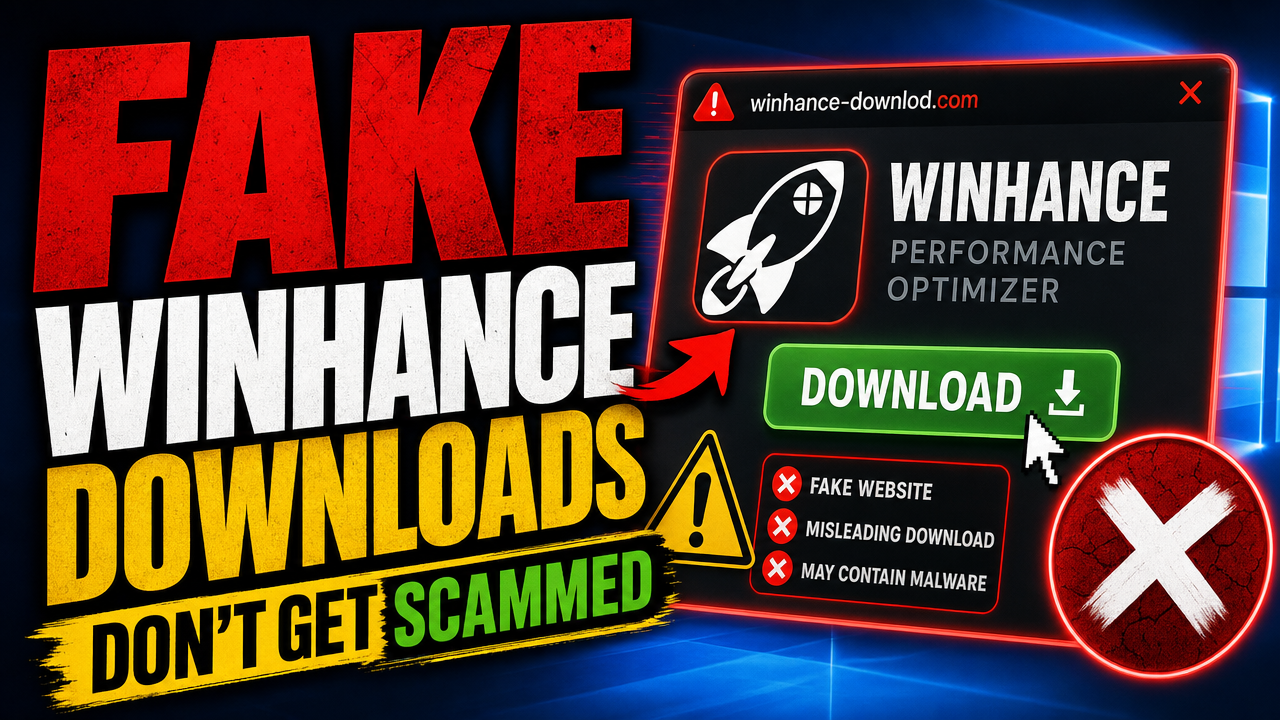
The only official Winhance site is winhance.net, and every official installer is hosted on the memstechtips/Winhance GitHub releases page. Any other site using the Winhance name, such as winhance.org, is an impersonating site, and new ones can appear at any time. To check a copy you already downloaded, right-click the installer or Winhance.exe, open Properties > Digital Signatures, and look for Open Source Developer, Marco du Plessis.
Key Takeaways
- The official Winhance domain is winhance.net. Any other Winhance site, like winhance.org, is an impersonating site that I do not own.
- Official installers come from github.com/memstechtips/Winhance releases. The winhance.net download button and the WinGet package both pull from there.
- A genuine installer or Winhance.exe shows Open Source Developer, Marco du Plessis under Properties > Digital Signatures, and as the verified publisher on the UAC prompt.
- For a stricter check, compare the installer’s SHA-256 hash with the hash on its GitHub release. They must match exactly.
- Never paste a PowerShell install command that points to a domain other than winhance.net or GitHub, such as get.winhance.org.
Quick Steps
- Download Winhance only from winhance.net, the GitHub releases page, or WinGet.
- Right-click the installer and select Properties.
- Open the Digital Signatures tab.
- Confirm the signer is Open Source Developer, Marco du Plessis.
- Optional: compare the file’s SHA-256 hash with the one on the GitHub release.
Where to download the real Winhance
A viewer called Satish emailed me after downloading Winhance from winhance.org. They later read on Reddit that winhance.net is the official site and that the .org one might be malware, so they asked whether winhance.org is, or ever was, mine. It is not. It is an impersonating site.
These are the only official places for Winhance and my other projects:
- winhance.net: the official Winhance site and download page
- github.com/memstechtips/Winhance: the official source code and releases
- memstechtips.com: my blog
- store.memstechtips.com: my store
The winhance.net download page does not host its own copy. If you hover over the Download Winhance button, the link in the bottom-left corner of your browser shows the installer coming from the memstechtips Winhance GitHub repo. The PowerShell install command on winhance.net does the same thing.
On the fake site, hovering over the download button shows no real link, and its PowerShell command has been changed to fetch from their own get.winhance.org address.
Warning: Do not paste a Winhance PowerShell command from any site other than winhance.net into PowerShell, and do not download Winhance from any site other than winhance.net or GitHub. A PowerShell one-liner runs whatever the linked server sends back, so the domain in the command is the thing to check.
Winhance is fully open source, so anyone can read the code on GitHub. The danger is not Winhance itself. It is copycat sites that put their own files behind the Winhance name. Whatever the fake domain is, the rule stays the same: winhance.net and the memstechtips GitHub are where the official installers live, and I don’t host them anywhere else. If you’re new to the app, my Winhance overview covers what it does.
Check the digital signature in file properties
This is the method in the video, and the easiest one that doesn’t need anything technical. I sign every official Winhance build with a code-signing certificate that carries my name.
Check the installer
- Find the Winhance installer you downloaded, usually in your Downloads folder.
- Right-click it and select Properties.
- Open the Digital Signatures tab.
- In the signature list, the name of the signer should read Open Source Developer, Marco du Plessis.
If there is no Digital Signatures tab at all, the file is unsigned. If the signer shows a different name, it is not an official build. Delete it either way.
Check the installed Winhance.exe
You can do the same check on a copy that is already installed:
- Right-click your Winhance shortcut and select Open file location to find where Winhance is installed.
- Right-click Winhance.exe and select Properties.
- Open Digital Signatures and confirm the signer is Open Source Developer, Marco du Plessis.
Check it from PowerShell
Windows can also read the signature from PowerShell, which helps if you prefer a text result. Replace the path with the location of your file:
Get-AuthenticodeSignature "C:\Users\YourName\Downloads\Winhance-installer.exe" | Format-ListStatus should read Valid, and the SignerCertificate line should include Marco du Plessis.
Check the publisher on the UAC prompt
If User Account Control is turned on, Windows shows the signer as soon as you run the file, so it is a quick check.
- Double-click the Winhance installer, or launch Winhance itself.
- Look at the User Account Control prompt that asks whether you want the app to make changes.
- Verified publisher should read Open Source Developer, Marco du Plessis.
If the prompt says Publisher: Unknown, click No.
Tip: You only see this prompt if UAC prompts are enabled on your PC. If you turned them off, use the Digital Signatures tab above instead.
Compare the SHA-256 hash with the GitHub release
This is the more technical method in the video. GitHub records a SHA-256 hash for every file attached to a release. If your file’s hash matches, it is byte-for-byte the file I published.
Get the published hash
- Go to github.com/memstechtips/Winhance and open Releases.
- Open the release that matches your installer. When I recorded the video, that was Release 27.
- Find the installer under Assets and copy the SHA-256 hash shown next to it.
- Paste it into Notepad so you can see the whole value.
Warning: The hash changes with every release. Compare your installer against the release it came from, not just the latest one.
Get your file’s hash with 7-Zip
In the video I used 7-Zip because it is quick:
- Right-click the installer.
- Go to 7-Zip > CRC SHA > SHA-256. On Windows 11 you may need Show more options first.
- Copy the hash from the window that opens and paste it into Notepad under the GitHub one.
The two values should be identical. If even one character is different, the file is not the official installer.
Get your file’s hash with PowerShell
If you don’t have 7-Zip, PowerShell has this built in:
Get-FileHash "C:\Users\YourName\Downloads\Winhance-installer.exe" -Algorithm SHA256Compare the Hash value with the one on GitHub. Letter case doesn’t matter; the characters do.
Install Winhance with WinGet instead
Winhance is also on WinGet, and the WinGet package downloads straight from the official GitHub release. The video shows this as well. To see the package details before you install:
winget show winhanceIn the output, Installer Url should point to github.com/memstechtips/Winhance, and Installer SHA256 should match the hash on the GitHub release. WinGet also checks that hash itself when it downloads the installer, so a tampered file would fail to install.
If WinGet is new to you, start with how to use WinGet on Windows. If the winget command isn’t recognised, see how to install or fix WinGet on Windows 10 and 11.
To check whether WinGet already works, open PowerShell and run:
winget -vIf you get a version number back, WinGet is installed. If you get a winget is not recognized error instead, the easiest fix is to install the App Installer from the Microsoft Store, which includes WinGet. The WinGet install and repair guide also covers a PowerShell repair script and a manual install from GitHub for PCs without the Store.
What to do if you already installed Winhance from a fake site
If you ran anything from the fake site, treat the PC as possibly infected. Uninstalling the app alone may not remove whatever else the installer put on the system.
- Uninstall it from Settings > Apps > Installed apps.
- Delete the installer you downloaded from the fake site.
- Open Windows Security > Virus & threat protection > Scan options, select Full scan, and click Scan now.
- When that finishes, run Microsoft Defender Offline scan from the same page. It restarts the PC and scans before Windows loads, which catches things a normal scan can miss.
- If you ran the site’s PowerShell command, change the passwords for important accounts from a different, clean device.
- Download a fresh copy from winhance.net or GitHub and check its signature before you run it.
For a fuller clean-up routine, follow my 4-step malware removal process for Windows 10 and 11. It runs three free scanners before the Windows Security full scan: Norton Power Eraser, then Malwarebytes AdwCleaner, then Malwarebytes Free, with a reboot after each one. If the malware stops those tools from launching, boot into Safe Mode with Networking first: hold Shift and click Restart from the Start menu’s power icon, choose Troubleshoot > Advanced options > Startup Settings > Restart, then press 5.
Frequently Asked Questions
Are other Winhance sites like winhance.org official?
No. winhance.net is the only official Winhance domain, and I have never owned winhance.org. Whatever fake domain shows up next, the same rule applies: official downloads come only from winhance.net, the memstechtips/Winhance GitHub releases, and WinGet, which also pulls from GitHub.
Is Winhance itself safe?
The official Winhance is open source, so anyone can read every line of the code on GitHub, and there is nothing malicious in it. The risk comes from copies downloaded from impersonating sites. More common questions are answered in Winhance questions and concerns answered.
What if the Digital Signatures tab is missing?
A missing tab means the file isn’t signed at all. Every official Winhance build is signed, so an unsigned installer or Winhance.exe did not come from me. Delete it and download again from winhance.net or GitHub.
Do I have to check the hash as well as the signature?
No. The signature check is enough for most people and takes a few seconds. The hash comparison is a stricter, more technical check that proves your file is identical to the one on a specific GitHub release.
Does this work on Windows 10?
Yes. The Digital Signatures tab, the UAC prompt, Get-FileHash, Get-AuthenticodeSignature and WinGet all work the same way on Windows 10 and Windows 11.


