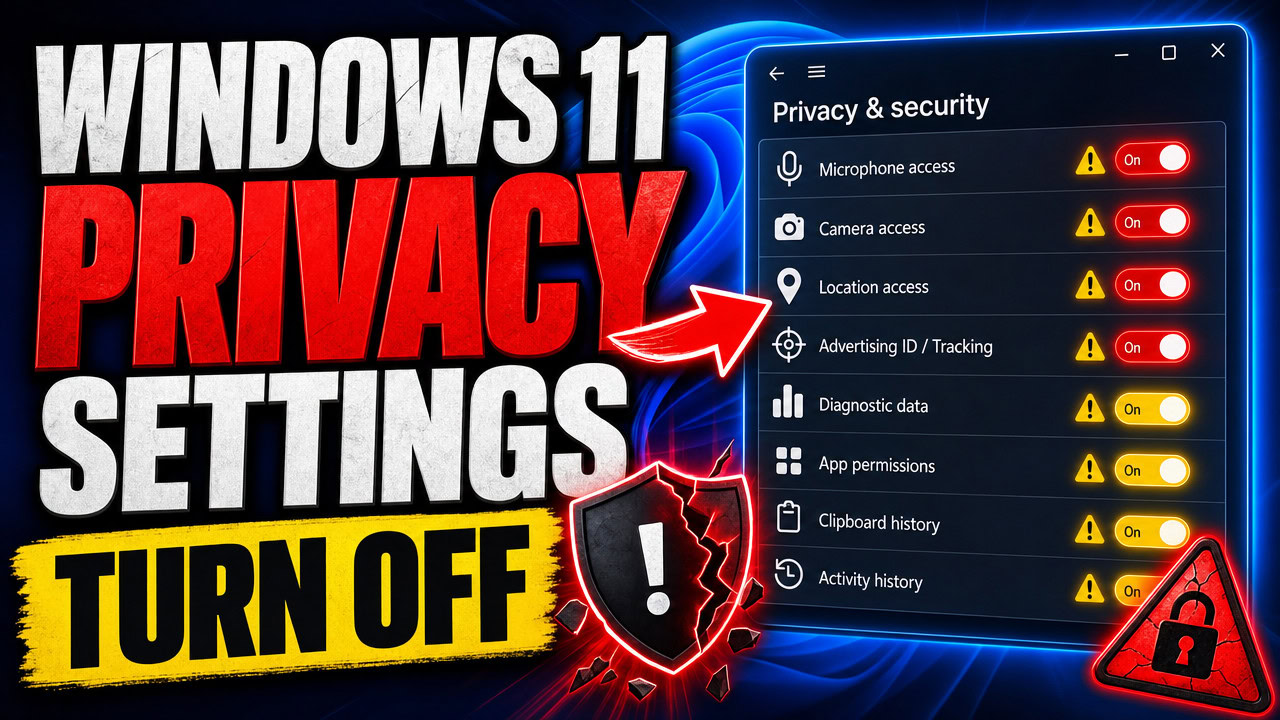
The Windows 11 privacy settings worth turning off all live in one place: right-click Start, open Settings, and go to Privacy & security. Work down Recommendations & offers, Speech, Inking & typing personalization, Diagnostics & feedback and Search permissions, switching off the advertising ID, optional diagnostic data, the custom word list and cloud content search. None of it needs the registry, and every toggle flips straight back on.
Applies to: Windows 11 (23H2, 24H2, 25H2) | Last updated: August 28, 2026
Key Takeaways
- Everything in this guide is a toggle inside Settings > Privacy & security. No registry edits, no third-party scripts, and each one can be switched back on if you change your mind.
- The advertising ID is a unique identifier Windows hands to apps so they can show you personalised ads. It is a different thing from Personalized offers, and both belong off.
- Optional diagnostic data is the big one. It includes which apps you open and for how long, and your browsing in Microsoft Edge. The required part cannot be switched off on Home or Pro, only on Enterprise and Education editions.
- Turning off the custom inking and typing word list also clears it. Turning off app launch tracking most likely empties the most-used list in your Start menu. Know that before you flip either one.
- A lot of what has already been collected sits on your Microsoft account, not your PC. Clearing it means a trip to account.microsoft.com/privacy, not a Settings toggle.
Quick Steps
- Right-click Start > Settings > Privacy & security > Recommendations & offers. Switch off Personalized offers, the language list, the two Settings-app suggestion toggles and the advertising ID.
- Open Speech and check Online speech recognition is off. Open Inking & typing personalization and switch off the custom word list if you do not rely on it.
- Open Diagnostics & feedback. Switch off optional diagnostic data, click Delete under Delete diagnostic data, and set Feedback frequency to Never.
- Open Search permissions. Switch off both Cloud content search toggles, and switch off search history on this device if you would rather nothing was saved.
- Scroll to App permissions. Open Location, Camera and Microphone and remove access from the apps that do not need it, one app at a time.
- On a Copilot+ PC, open Recall & snapshots, switch off Save snapshots and delete what is stored. Then visit account.microsoft.com/privacy and clear the activity held on your account.
In This Guide
- Before you start: why your toggles are in the state they are in.
- Recommendations & offers: ads, the language list, app launch tracking and the advertising ID.
- Speech and Inking & typing: online speech recognition and the custom word list.
- Diagnostics & feedback: the big one, and what “required” actually means.
- Search permissions: search history and cloud content search.
- App permissions and background apps: per-app, not blanket.
- Recall and your Microsoft account: the data that is not on your PC.
- Do all of it in one place with Winhance: the same toggles, plus policy backing.
- The VPN I use: for the connection side of privacy.
Before You Start: Where These Toggles Came From
The state your privacy settings are in right now was decided during Windows setup, on the screen where Windows asks about location, diagnostic data, tailored experiences and the rest. Most people click through that page with everything left on. I turn all of it off at that stage on every machine I set up, but if you did not, every one of those choices is still sitting in Settings waiting to be changed.
Two things to know before you flip anything. Everything below is reversible, so you are not committing to anything. And I am going to tell you what each toggle actually stops rather than just saying “turn it off”, because a couple of them have a side effect you might care about.
Recommendations & Offers (Formerly General)
Right-click the Start button, open Settings, and click Privacy & security in the left column. The first page you want is Recommendations & offers. On earlier Windows 11 builds this page was called General, and Microsoft’s own general privacy settings page still refers to it that way. It is a short list of toggles, and I turn every one of them off.
Personalized offers is Microsoft showing you tips and ads based on how you use Windows. Off. The next one lets websites access your language list, which means Windows tells the sites you visit which languages you have set up. Off as well. It is a small thing, but it is one more piece of information about you that a website did not need to be handed.
Then there is the toggle to improve Start and search results, which used to be called app launch tracking. This one is Windows keeping a record of which apps you open. That record is most probably what feeds the most-used list in your Start menu, so if you actually use that list, you might want to leave this one on. I switch it off, but this is the one toggle on the page where the trade-off is real.
Below that are two toggles about the Settings app itself: one shows notifications inside Settings, the other shows suggested content in Settings. Both are Microsoft advertising its own products inside the Settings window. I turn both off.
The last one is the advertising ID. It sounds like the Personalized offers toggle at the top, but it is a different thing. The advertising ID is a unique identifier Windows assigns to you (or to the machine) that apps can read and use to build a profile for personalised ads. Switch it off. Microsoft notes on the same page that turning it back on later generates a fresh ID, so there is no permanent downside to flipping it.
Speech, and Inking & Typing Personalization
Go back to Privacy & security and open Speech. The toggle here is Online speech recognition, which sends what you say to Microsoft’s servers to turn it into text. On most machines I see it is already off, so this is a check rather than a change. If it is on and you do not use cloud-based voice features, switch it off.
Next, back out and open Inking & typing personalization. This toggle lets Windows build a custom word list out of what you type and write, which it uses to improve suggestions and handwriting recognition. Switch it off if you want to stop that, but know one thing first: Microsoft documents that turning it off clears the word list. If you have spent years teaching Windows your names and jargon, that list is gone the moment the toggle goes off.
Note: Current Windows 11 builds call this a “word list”. Older guides, and Winhance’s own label, still say “dictionary”. It is the same setting.
Diagnostics & Feedback: the Big One
Back on Privacy & security, open Diagnostics & feedback. For most people this is the page that matters, so it is worth slowing down here.
Under Diagnostic data there are two parts. The required part stays on. On Pro you used to be able to switch that off as well, but Microsoft’s diagnostic data documentation now says turning it fully off is only available on Enterprise, Education and Server editions. Required data is technical: device, settings and capability information that Microsoft says it uses to keep Windows secure and up to date. As I understand it, nothing personal is in there.
Right underneath is the optional diagnostic data toggle, and that is the one to switch off. Microsoft’s own description says optional data can include the websites you browse, device activity and enhanced error reporting. In plain terms: which apps you open and for how long, and your browsing in Microsoft Edge. Off.
You will notice a toggle just below it to improve inking and typing. That setting depends on optional diagnostic data being sent, so once you set diagnostics to required only, this one switches off on its own. You do not need to touch it. On the same page you will also find Tailored experiences, which Microsoft describes as using your diagnostic data to give you more relevant tips and recommendations. It is another one I leave off.
Further down is Delete diagnostic data. Clicking Delete removes what this device has already sent to Microsoft, so it is worth doing once you have turned the optional data off. Note that the button needs a Microsoft account signed in, so it will be greyed out on a local account. And at the bottom is Feedback frequency, which controls how often Windows pops up asking you to rate your experience. I set it to Never.
Search Permissions: History and Cloud Content
Back one level and open Search permissions. The first toggle of interest is the search history for this device. Windows saves what you search for locally so it can rank results better next time. If you would rather nothing was kept at all, switch it off, then click Clear device search history to remove what is already there. Turning the toggle off on its own does not clear the existing history.
Under Cloud content search there are two toggles, one for your Microsoft account and one for a work or school account. These let Windows Search pull results from your online accounts, so your OneDrive files and email show up when you search from the taskbar. If you want search to stay local to this machine, both can go off. Microsoft lists both toggles on its Windows Search and privacy page.
Tip: If you want the web results and Bing suggestions out of the Start menu search box entirely, that is a separate setting. I cover it in customising the Windows 11 taskbar, Start menu and search.
App Permissions and Background Apps: Go Per App
Scroll down the Privacy & security page to the App permissions section. I am not going to tell you to switch Camera and Microphone off completely, because your video calls will stop working and you will be back here in a week wondering why. What I do recommend is opening Location, Camera and Microphone in turn and reading the list of apps under each one. There will almost certainly be apps in there that have no business with your location or your webcam, and you can take the permission away from each one individually.
Background apps are a different story on Windows 11. Windows 10 had a single switch to stop apps running in the background. Windows 11 does not. It is set per app, under Settings > Apps > Installed apps, then the three dots next to an app and Advanced options, where you will find the background apps permission. That is fine for one or two apps and tedious for forty.
If you want background access off for every app at once, the only way is a registry change, and that is exactly the kind of thing I built Winhance, my free Windows enhancement utility, to do for you. The setting lives in the Gaming and Performance optimizations section, and it turns off background app permissions globally with one toggle. More on Winhance below.
Recall, and the Data That Is Not on Your PC
If you are on a Copilot+ PC, there is one more page to know about: Recall & snapshots, under Privacy & security. Recall is opt-in. Microsoft’s Recall privacy page is clear that it is off by default and saves nothing unless you turned it on. If you did, that page has the Save snapshots toggle, and it is where you delete the snapshots that already exist.
Here is the part most privacy guides skip. A lot of what has already been collected about you does not sit on your PC at all. It sits on your Microsoft account. Go to account.microsoft.com/privacy in a browser, sign in, and you can see and clear things like your browsing, search and location activity. No Settings toggle on the PC touches that data, so this step is worth five minutes on its own.
If that makes you wonder whether you want a Microsoft account signed into Windows in the first place, I go through both sides of that decision in local account vs Microsoft account on Windows.
Do All of It in One Place With Winhance
That is a lot of clicking across a lot of pages, which is why all of these settings are in Winhance under its Privacy & Security section. The toggles carry the same names you just saw in Settings: the advertising ID, Send Diagnostic Data, Tailored Experiences, cloud content search and so on. Each one is a labelled Enabled or Disabled switch, so you can turn everything off in one pass and turn any of it back on later. It is reversible by design.
There is one thing Winhance does that the Settings app cannot. For a couple of these, including diagnostic data and the advertising ID, Winhance also sets the matching group policy value. It is the same setting, applied as a policy as well as the user toggle, which means a Windows update does not quietly revert it. The Settings app has no way to do that.
At the bottom of the section there is a checkbox asking whether to save the removal scripts for continuous removal. That matters for something like Recall: if a future Windows update installs or re-enables it, the saved script disables it again without you having to notice. If you have never used Winhance, the full walkthrough is on the Winhance guide, and it does a great deal more than privacy.
Note: If you would rather do the deeper changes by hand, including the policy values Winhance sets, my older guide on disabling Windows telemetry with the registry covers the manual route.
The VPN I Use for the Connection Side
Everything above is about what Windows collects. If you also want to secure the connection itself, I personally use Proton VPN. It has an actual free tier with unlimited bandwidth and no logs, which is rare, and it is perfect if you just want to browse privately or get around basic blocks. The free version connects you to the fastest available server automatically, so if you need to pick a specific country, for streaming for example, you will need the paid plan.
You can start with Proton VPN Free or go straight to Proton VPN Plus. I have a full Proton VPN installation guide for Windows if you want the setup walked through.
The Proton links above are affiliate links. If you start free and upgrade later, I earn a small commission at no extra cost to you.
Frequently Asked Questions
Can I turn off required diagnostic data on Windows 11 Home or Pro?
No. Microsoft’s documentation states that switching diagnostic data fully off is only available on Windows Enterprise, Education and Server editions. On Home and Pro the required level stays on. What you can do is switch off optional diagnostic data, which is where app usage and Edge browsing come from, and delete what has already been sent.
Will turning these privacy settings off break anything?
Two toggles have a visible side effect. Turning off the custom inking and typing word list clears the list Windows has built from your typing. Turning off app launch tracking most likely stops the most-used apps list in the Start menu from updating. Everything else, including the advertising ID and optional diagnostic data, has no effect on how Windows works day to day.
Can I undo these changes later?
Yes. Every setting in this guide is a toggle in Settings > Privacy & security, and each one switches back on the same way it was switched off. The only thing that does not come back is data you deleted, such as the custom word list, device search history, or diagnostic data you cleared. Winhance’s Privacy & Security toggles are reversible in the same way.
What about Activity history on Windows 11?
The Activity history page under Privacy & security has a toggle to store your activity history on this device and a Clear history button next to it. The older option to send activity history to Microsoft was removed in January 2024 with the KB5034204 update, according to Microsoft’s activity history page, so if you remember that toggle from older guides, it is no longer there.
Do these settings apply to Windows 10 as well?
Most of them exist on Windows 10 under Settings > Privacy, but the page names and layout differ, and Windows 10 still has the single background apps switch that Windows 11 removed. This guide was written and tested on Windows 11, so follow the labels on your own screen rather than the paths above if you are on Windows 10.