Windows 11 is adding built-in settings to move the taskbar to the top, left, or right of your screen, shrink the entire taskbar, resize and declutter the Start menu, and turn off Bing web and Microsoft Store results in search. These options currently live in Windows 11 preview builds behind feature flags, and they replace customizations that previously required third-party tools like StartAllBack or my own app, Winhance.
Applies to: Windows 11 preview builds (Insider channels) | Last updated: July 6, 2026
Key Takeaways
- The taskbar can move again — Settings > Personalization > Taskbar > Taskbar behaviors now has a position option for bottom, top, left, or right, and the Start menu and notifications finally open aligned with it
- You can shrink the whole taskbar — a new Default/Small size option makes the entire taskbar smaller, not just the icons, and folds in the old “small taskbar buttons” setting automatically
- The Start menu is fully adjustable — set its size (Small, Automatic, or Large) and toggle the All, Recent, and Pinned sections, including finally removing the Recommended section without a group policy hack
- Search can stay local — Settings > Privacy & security > Search lets you switch off web (Bing) results and Microsoft Store suggestions so search only returns your own apps, settings, and files
- This is preview-only for now — the features are hidden behind feature flags in Windows 11 preview builds (currently enabled with ViVeTool) and are not on the stable channel yet, so they may still change
Quick Steps:
- Move the taskbar: Settings > Personalization > Taskbar > Taskbar behaviors, then choose bottom, top, left, or right
- Shrink it: in the same Taskbar behaviors area, set the taskbar size to Small
- Align icons: set Taskbar alignment to Left if you prefer icons at the edge
- Resize the Start menu: Settings > Personalization > Start and set the size to Small, Automatic, or Large
- Declutter Start: turn off the Recent section and the Recommended items, and switch off Pinned if you only want an app list
- Clean up search: Settings > Privacy & security > Search and turn off web results and Microsoft Store results
What Is New in the Windows 11 Taskbar, Start Menu, and Search
Microsoft is testing a group of customization settings in Windows 11 preview builds that give you native control over three things people have complained about for years: where the taskbar sits, how the Start menu is laid out, and whether search reaches out to the web. A lot of this is the exact functionality I have asked for in older videos and even built into Winhance.
There is one important catch. At the time of writing, these features are hidden behind feature flags, so they will not appear on a normal, up-to-date Windows 11 PC yet — not even on every Insider machine. Enabling them currently requires a community tool called ViVeTool, which flips the hidden flags on. Because this is all still being tested, the exact options and labels may change before they reach the stable channel.
Note: Treat this as a preview of what is coming rather than a permanent set of features. Some options may be renamed, moved, or pulled before the final release reaches the stable channel.
I have been hard on Windows 11 plenty of times, so it is only fair to give credit where it is due. This follows the pattern I covered when Microsoft promised to fix some of Windows 11’s biggest frustrations — except this time a lot of it is actually landing.
How to Move the Windows 11 Taskbar to the Top, Left, or Right
To move the taskbar, open Settings > Personalization > Taskbar, expand Taskbar behaviors, and use the new position option to place the taskbar at the bottom, top, left, or right of your screen. The change applies instantly, so you can try each position and keep whichever one you prefer.
The important part is that Windows finally handles this correctly. When you move the taskbar to the top, the Start menu and notification popups now open at the top too, right where the taskbar is. In the early days of Windows 11 you could force the taskbar to move with a registry tweak, but the Start menu and notifications would still open down at the bottom, which made it useless. This time the whole interface follows the taskbar.
You can also change where the icons sit. In the same Taskbar behaviors section, set Taskbar alignment to Left if you would rather have your icons at the edge instead of centered. I keep my taskbar at the top with the icons on the left so they sit right next to my browser tabs, which is quicker for me to get around — but that is personal preference. The point is that you finally get to choose, which you could not do before without third-party tools.
How to Make the Windows 11 Taskbar Smaller
Windows 11 now includes a taskbar size setting with two choices: Default and Small. Set it to Small and the entire taskbar shrinks, not just the icons on it. You will find this in the same Taskbar behaviors section as the position and alignment options.
This is a real improvement over the old behavior. Microsoft previously added a “small taskbar buttons” option, but that only shrank the icons while the taskbar itself stayed the same chunky height. Now, the moment you switch to the small size, that older setting grays out and Windows tells you the smaller icons come with it automatically. It sorts the whole thing out for you.
Note: Auto-hide only works when the taskbar is at the bottom of the screen — Windows tells you this directly in the settings. If you like to move the taskbar to the top and hide it like I do, that combination is not supported right now.
The one thing still missing for me is taskbar transparency. That is the single feature I keep StartAllBack installed for, because I do not think you can make the taskbar fully transparent natively yet. It is a minor thing, though. Once these updates reach the stable channel, I will likely uninstall StartAllBack and just use the built-in Windows settings.
How to Resize and Declutter the Windows 11 Start Menu
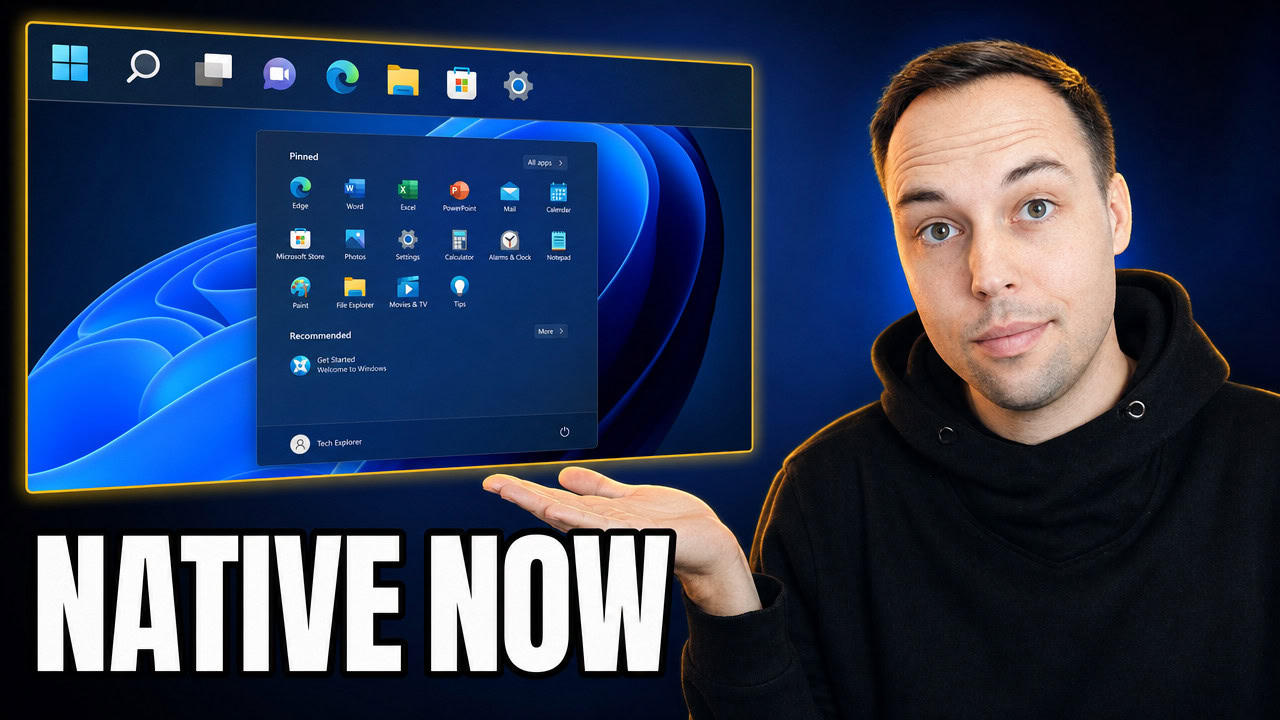
Open Settings > Personalization > Start and you can now set the Start menu size to Small, Automatic (the default), or Large. The small size is roughly what the Start menu was before the recent redesigns, while large takes up about half the screen. Pick whichever fits how you work.
Below that, Windows now splits the Start menu into sections you can switch on or off individually:
- All — your full apps list. Turn it off to hide the complete list, or leave it on to keep every app one click away.
- Recent — recently added apps, recent files, and the tips and recommendations. A single toggle turns all of it off.
- Pinned — your pinned app tiles. You can switch these off entirely if you only want a plain list of your apps.
The biggest win here is being able to remove the Recommended section completely. Until now you could not truly get rid of it. On Pro and higher editions you could hide it with a group policy key, but that interfered with other Windows settings and did not work on Home at all. The normal “hide recommendations” toggle just left the empty section sitting there staring at you. That group policy trick is the same method Winhance uses to hide the Recommended section, so having a proper built-in switch is genuinely great to see.
If you want the redesigned Start menu that these options build on, you can already get it in Windows 11 25H2. I have a separate guide on how to download, install, and enable the new Start menu.
How to Turn Off Web and Store Results in Windows Search
By default, when you search from the Start menu, Windows mixes in Bing web results and Microsoft Store suggestions alongside your own apps and files. To stop that, open Settings > Privacy & security > Search, find the new results section, and turn off the options for showing results from the web and the Microsoft Store.
With both switched off, a search only returns the apps, settings, and files on your own PC. The web toggle is the big one — this is exactly what people have been disabling with a registry tweak for years, and it is one of the tweaks built into Winhance. Being able to also turn off the Store suggestions is a nice bonus if you would rather the Store did not keep pushing apps at you. Search ends up cleaner, and it feels faster too.
While you are cleaning up search, you can also disable File Explorer’s search suggestions, which is a separate setting that clutters the search box inside File Explorer.
My Ideal Windows 11 Setup
Putting it all together, here is how I set Windows 11 up for myself once these options are available: the taskbar at the top with the icons on the left and set to small, the search box removed, and the extras I never use turned off — Task View, Widgets, and the new Resume feature.
I also unpin Copilot, Edge, and the new Outlook, which leaves me with basically just Start and File Explorer on the taskbar, plus a clean list of apps in the Start menu. That app list is usually much shorter on my machines because I have already removed the built-in bloat with Winhance. If Microsoft keeps improving Windows 11 like this, it is not impossible that you eventually will not need a tool like Winhance at all — and honestly, that would be a good thing.
Secure Your Connection with ProtonVPN
While you are cleaning up your PC, it is worth securing your internet connection too. I personally use ProtonVPN because it has a genuinely free tier with unlimited bandwidth and no logs, which is rare for a VPN provider. The free version automatically connects you to the fastest available server, so it is great for everyday private browsing or getting around basic blocks.
If you need to manually pick a specific country, for example for streaming, you will need their paid plan.
The links above are affiliate links — if you start with the free version and later decide to upgrade, I earn a small commission at no extra cost to you, and it helps support the channel.
Frequently Asked Questions
Can I move the Windows 11 taskbar to the top of the screen?
Yes. In Windows 11 preview builds, open Settings > Personalization > Taskbar > Taskbar behaviors and choose a position — bottom, top, left, or right. Unlike the old registry method, the Start menu and notifications now open aligned with the taskbar. This option is not on the stable channel yet.
Why can I not find these taskbar and Start menu options on my PC?
These settings are currently hidden behind feature flags in Windows 11 preview builds, so they do not appear on standard installs — or even on every Insider PC. Enabling them right now requires the community tool ViVeTool. Expect them to roll out more widely once Microsoft finishes testing.
How do I stop Windows search from showing web results?
Go to Settings > Privacy & security > Search and turn off the option to show results from the web, plus the Microsoft Store option if you want. Your searches will then only return apps, settings, and files on your own PC. On current stable builds, Winhance can apply the equivalent registry tweak for you.
Can I finally remove the Recommended section from the Start menu?
Yes. The new Start settings include a toggle that removes the Recommended section entirely, without the group policy workaround that previously only worked on Pro and higher editions. On current stable Windows, Winhance can hide it using that same policy method.
Do I still need StartAllBack or Winhance after these updates?
For most taskbar and Start menu layout changes, these built-in options cover what StartAllBack and Winhance were used for. The main thing still missing natively is full taskbar transparency. Winhance also does far more than layout tweaks — debloating, optimizing, and customizing Windows — so it stays useful well beyond these particular settings.