Affiliate Disclosure: This post contains affiliate links. If you make a purchase through these links, I may earn a commission at no additional cost to you. I only recommend products and services I personally use or believe will add value to my readers. Thank you for supporting my work!
If you’ve recently installed Windows 11, you might have noticed something frustrating: the out-of-box experience isn’t exactly what you’d call user-friendly. From forced updates that take hours to complete, to constant ads for Microsoft services, to bloatware apps you never asked for—stock Windows 11 comes with a lot of baggage. I’ve been setting up Windows computers for years, and I can tell you that the default Windows 11 installation has some serious issues that need addressing.
In this guide, I’m going to walk you through all the major Windows 11 problems I’ve encountered with fresh installations. More importantly, I’ll show you exactly how to fix them so you can get a clean, usable Windows 11 system without all the annoyances.
Key Takeaways
- Forced updates during OOBE: Windows 11 downloads 3-4 GB of updates during setup with no option to skip or postpone, which can take hours depending on your internet connection.
- Microsoft account requirement: The default installation forces you to sign in with a Microsoft account, which then bombards you with ads for Microsoft 365, OneDrive storage, and Xbox Game Pass.
- Bloatware and privacy concerns: Stock Windows 11 comes pre-loaded with apps most people don’t want, along with privacy settings that send telemetry data back to Microsoft and ads scattered throughout the operating system.
Requirements
To follow along with this guide and understand the Windows 11 problems I’m discussing, you’ll need:
- A Windows 11 installation (any version—Home, Pro, or Enterprise)
- Administrator access to your Windows 11 computer
- An internet connection (to see all the ads and forced features I’ll be discussing)
- Optional: Basic knowledge of Windows Settings app and registry tweaks if you want to implement fixes
Activate Windows 11 with Discounted Product Keys
Before we dive into the problems with Windows 11, let me address something important: having a properly activated copy of Windows. If you’ve got an unactivated copy of Windows or Office, or if you’re stuck on a Home Edition and want to upgrade to Pro, I’ve got a solution for you.
I personally recommend KeysFan for discounted Windows and Office product keys. They offer legitimate Windows 10 and 11 licenses, as well as Microsoft Office product keys at significantly reduced prices compared to retail.
✨Use【MEMORY62】to get 62% off Office Series:
Office 2021 Pro(34,92$): https://bit.ly/4aceE1L
✨Use【MEMORY50】to get 50% off Windows series:
WIN 11 Pro(14,99$): https://bit.ly/48jvIR6
How to Get Your Discounted Windows License
Here’s how to get started with KeysFan:
- Visit KeysFan: Check out the special affiliate links I’ve provided (when you use my links, I earn a small commission at no extra cost to you, which helps support my content creation)
- Select your product: Choose the Windows or Office version you need—for example, Windows 11 Pro
- Apply discount codes: On the checkout page, use my exclusive coupon codes:
- MEMORY50 for 50% off all Windows licenses
- MEMORY62 for 62% off all Office licenses
- Choose payment method: Select your preferred payment option like PayPal or credit card and complete the order
- Receive your key: KeysFan will email you the license key along with activation instructions
How to Activate Windows 11
Once you’ve received your product key from KeysFan, activating Windows is simple:
- Navigate to Settings > System > Activation in Windows 11
- Click on “Change Product Key”
- Enter your KeysFan product key
- Follow the prompts to complete activation
Trust me, if you’ve been running an unactivated copy of Windows or want to upgrade from Home to Pro (which gives you more control over updates and features), now is the perfect time to do so. Having Windows 11 Pro also makes it easier to bypass some of the annoyances I’ll discuss below, like the forced Microsoft account requirement.
Note: These are affiliate links, meaning I earn a small commission if you make a purchase through them. This helps support my blog and YouTube channel at no additional cost to you. I only recommend KeysFan because I believe their service provides value to my audience.
Why Are There So Many Problems with Stock Windows 11?
You might be wondering why Microsoft designed Windows 11 this way. The simple answer is: money. Microsoft is a company, and they need to generate revenue beyond just selling Windows licenses. That’s why they’ve built in multiple monetization strategies throughout the operating system—from trying to convert you to a Microsoft 365 subscriber, to pushing OneDrive cloud storage, to promoting Xbox Game Pass.
The problem is that you’ve already paid for a Windows license. Yet you’re still being treated like a free user who needs to be constantly marketed to. This disconnect between paying for software and still seeing ads is one of the biggest frustrations users have with modern Windows 11.
Understanding these issues is important because it helps you make informed decisions about whether to use a local account vs a Microsoft account, and whether you need tools to optimize your installation.
Problem #1: Forced Updates During OOBE With No User Control
The issues with Windows 11 start immediately in the OOBE phase—that’s the Out-Of-Box Experience phase that happens right after you do a clean install of Windows.
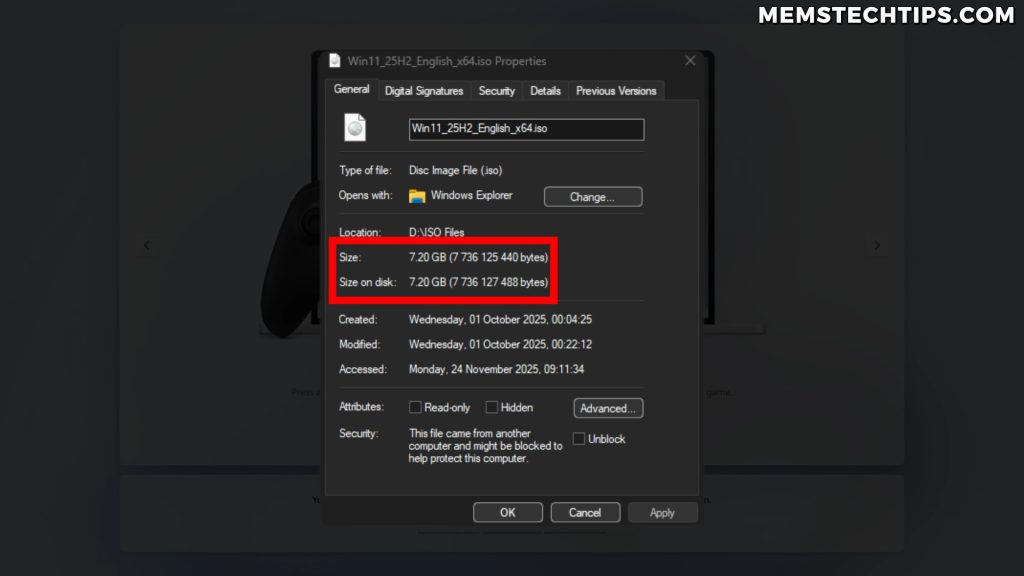
I recently downloaded the latest Windows 11 ISO, which is version 25H2, and did a clean install. Even though this is supposed to be the newest version, after the installation completes, Windows 11 still downloads a massive update that’s between 3 to 4 GB. That’s almost the size of the entire Windows ISO I just downloaded.
Why Microsoft Forces Updates During Setup
Now, I understand why Microsoft updates the operating system during the OOBE phase. It’s so that all of the features can be enabled and everything can be set up for the user once they get to the desktop. This way, Windows Update isn’t slowing down your experience while it’s running in the background.
And let’s be honest—Windows Update is one of the biggest resource hogs on Windows, not only when it comes to your computer’s performance, but also your network performance. By default, it’s literally going to take every single kilobyte of internet speed it can to get those Windows updates installed.
The Problem: No Option to Skip or Postpone
Here’s what frustrates me: there’s no option during the OOBE phase where I can choose if I want to install updates now or if I want to install them later. Microsoft just decided that if you have an internet connection, they’re installing all of the latest updates right now. They won’t give you any control over this. You’ll wait for this update to finish whether it takes an hour, two hours, or three hours. They don’t care—you have to wait for the update to finish before they give you access to your computer.
Tip: If you want to avoid forced OOBE updates, you can disconnect from the internet during installation or use tools like UnattendedWinstall to automate and customize your Windows setup process.
Problem #2: Being Forced Into a Microsoft Account
The second major issue—and probably the one people despise the most about Windows 11—is being forced into a Microsoft account.
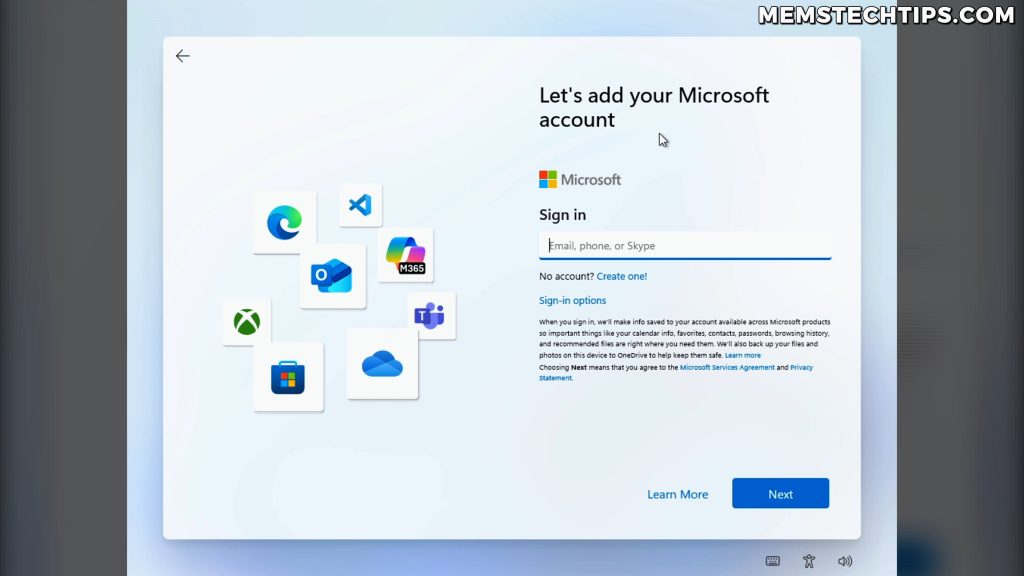
During the OOBE phase, Windows 11 prompts you to sign in with a Microsoft account. Now, I am aware that this can be bypassed by using certain registry entries. And if you’re running the Pro version of Windows 11, you can just use a domain account instead and avoid signing in with a Microsoft account altogether.
I’ve made multiple videos on this topic before, so I know exactly how to bypass this requirement. But that’s not the point. What I would have liked is an option to choose how I want to sign in—whether I want to use a local account that’s existed in Windows for decades, or if I actually want to sign in with a Microsoft account.
Windows 10 Still Offers This Choice
Windows 10 still gives you this option during the out-of-box experience phase. You get that option where you can choose to “continue with a limited experience” and then create an offline account. That’s basically all I want to see from Windows 11 as well—just an option to choose which account I want to use on this computer.
If you’re trying to decide between account types, check out my detailed comparison of Windows local accounts vs Microsoft accounts to understand the benefits and drawbacks of each option.
Note: For Windows 11 24H2 and 25H2, Microsoft has made bypassing the Microsoft account requirement more difficult. Check out my guide on bypassing the Microsoft account requirement in Windows 11 25H2 for the latest methods.
Problem #3: Multiple Ads During OOBE Setup
Here’s where it becomes clear why Microsoft wants you to sign in with a Microsoft account during the onboarding experience—so they can show you ads.
Microsoft 365 Personal Trial Offer
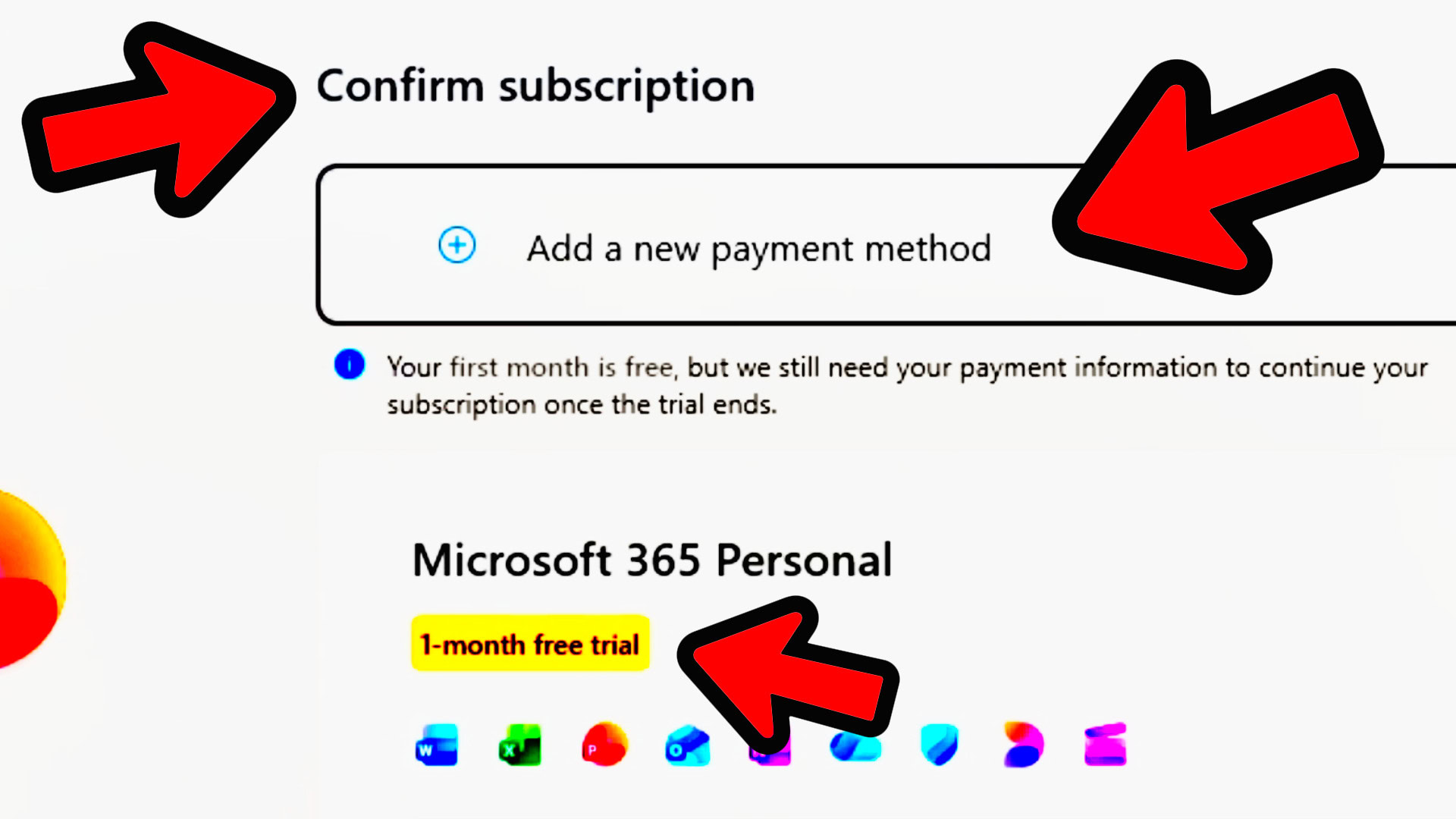
After signing in with a Microsoft account, you immediately get this message: “You’ve just landed a free trial of Microsoft 365 Personal.” They give you one month free, which looks like a great deal at first. But then you have to pay a certain amount per year after that.
If you click “Continue” and accept that offer, you then have to confirm your subscription. The first month is free, but Microsoft still needs your payment info to continue your subscription once the trial ends.

I’m telling you, most regular computer users are going to do this. They’ll think they have to do it to get access to their computer. Most regular users are also going to see that they do want Word, Excel, PowerPoint, and Outlook because those are apps they’re going to need.
This is basically just an ad and a way for Microsoft to make more money from you, even after you’ve already paid for your Windows license.
The Down-Sell: Microsoft 365 Basic
But once again, we get another ad. This is Microsoft selling you a down-sell in case the first offer was a bit too expensive. You can get Microsoft 365 Basic instead, which gives you 100 GB of cloud storage for your files on OneDrive.
What I appreciate is that you can decline these offers. Although I wouldn’t have liked to see them in the first place, I get it—they’re a company and they have to make money. At least we can decline the offer if we don’t want it.
Xbox Game Pass Advertisement
And just when you think you’re done, you get yet another ad—this time for Xbox. You can join Xbox PC Game Pass for a certain amount of money and get access to hundreds of games, exclusive benefits, and EA Play.
Like I said before, I understand that Microsoft is a company and they need to make money. That’s why they’re showing these ads in Windows, although we don’t want them. At least we have the option to skip this and not go through with it.
Important: If you install Windows without an internet connection and use registry tweaks to create a local account, you don’t see any of these ads and you don’t have to go through any of these promotional screens.
Problem #4: Bloatware Apps Pre-Installed on Windows 11
Now that we’ve finally made it to the desktop, the problems don’t stop. The first thing you’ll notice is a bunch of apps that not everyone wants on their computer.
If you click on the “All” button in the Start menu to see all the installed apps, you’ll find so many apps that a lot of people simply don’t want. It would be nice to have an option during setup to choose which apps you want to have installed.

Microsoft 365 Copilot and AI Integration
You’ve also got Microsoft 365 Copilot pre-installed, which a lot of people don’t want. But AI is the future, and it’s just going to be integrated more and more into Windows as time goes by. Hopefully, we’ll continue to have options for removing it or uninstalling it.
Most Apps Can Be Uninstalled (But Not All)
The good news is that you can go and uninstall most of these apps by right-clicking on them and clicking “Uninstall.” It will actually just remove them from the computer. So at least there is a way of uninstalling most of these apps.
However, some apps can’t be uninstalled in certain parts of the world—like Microsoft Edge, for example. I can’t uninstall Edge where I live. It’s basically only in Europe where you can easily uninstall it due to regulations, although there are some other methods to remove it elsewhere.
Tip: If you want to remove bloatware quickly and efficiently, consider using Winhance, which can debloat Windows 11 in just a minute or two.
Problem #5: OneDrive Auto-Enabled With Limited Free Storage
Another major issue is that OneDrive is automatically enabled when you sign in with a Microsoft account. If you don’t purchase any of the Microsoft 365 plans, you’re left with just 5 GB of free storage.
That’s not a lot of storage for people who save documents, pictures, videos, and that type of thing to their computer. You’re going to run out of storage very fast if you only have 5 GB.
The OneDrive Storage Trap
If you use OneDrive on a personal account—which is what Microsoft gives you when you sign into Windows—it’s only going to be a matter of time before you have to purchase a subscription of some sort to get more storage on that OneDrive account.
Even with the Microsoft 365 Basic plan, you only get 100 GB of storage, which isn’t that much. This is clearly designed to push users into paying for more storage over time.
Problem #6: Ads in Settings, Widgets, and Search
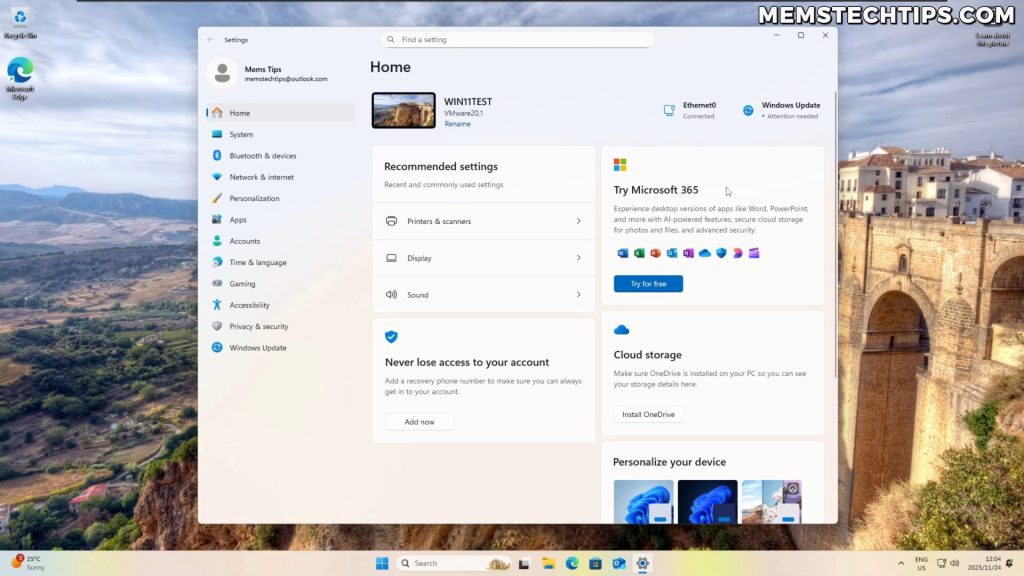
If you navigate to the Windows 11 Settings app, you’ll see basically the same ads you encountered during OOBE. You can try Microsoft 365 by buying a subscription, or get access to OneDrive cloud storage—but once again, you have to pay for the storage you use.
Widgets App Full of News and Product Placement
If you click on the Widgets button in the taskbar, you get a whole bunch of stuff—Microsoft News, and in between some of these items, you’re also going to see ads where products are being sold to you or at least suggested. That’s just the way life works these days.
Search Bar Filled With Suggestions and Ads
The search bar is even worse. You’ll see online results, games suggested for you, trending stories, recipes, and sometimes products will also be suggested to you.
Basically, what I’m trying to get at is there’s a lot of product placement and a lot of tactics used by Microsoft to get consumers to spend more money. And that’s on top of a licensed Windows installation where you already paid to use the software.
Note: The thing is, it’s still Microsoft’s operating system. You just paid to use it. So at the end of the day, if you choose to use the stock standard version of Windows 11 as it comes out of the box, you’re going to have to put up with these annoyances.
Problem #7: Privacy Settings and Telemetry Data Collection
When it comes to system settings like notifications, Windows 11 bombards you with a lot of notifications by default. Some people want to see notifications, but I don’t like them. Although Windows does provide a “Do Not Disturb” option, which will send notifications to the notification center instead of displaying them on screen.
Privacy and Security Settings
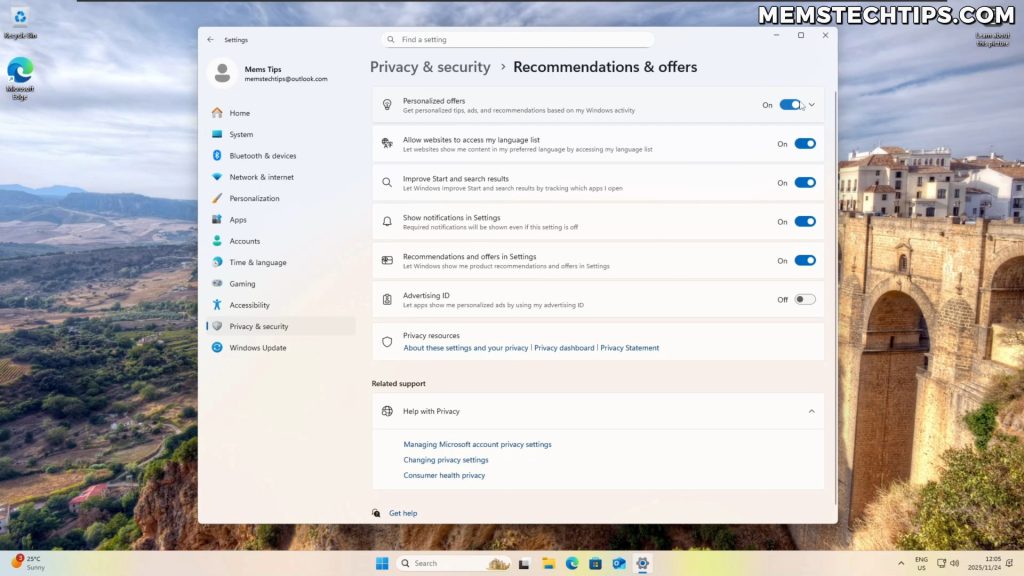
If you go to Privacy and Security in Settings, you’ve got a lot of Windows permissions related to recommendations and offers. You can control settings like:
- Do you want to see personalized offers?
- Do you want to allow websites to access your language list?
- Various other telemetry-based settings
You Can Disable Most Settings (But Not All)
Like I mentioned during the onboarding phase, Microsoft does give you an option to turn off all of these privacy settings. I just decided not to do it initially so I could show you the default experience and where you can find these settings in Windows.
You can disable all of these settings in Windows itself. But in my opinion, there will probably still be some sort of data collection happening even after all of that has been turned off. Some information is still going to be collected and sent back to Microsoft.
Required Diagnostic Data
One example is diagnostic data that’s used to “help make Windows better.” Here you only have the option of sending optional diagnostic data or not. You do have to send the required diagnostic data.
When it comes to Windows Update, Windows will automatically update and install the latest patches. This is obviously for security reasons, but at the time of recording this, there are a lot of bad Windows updates being released that are actually breaking Windows installations. Some people have had to completely reinstall Windows to fix issues caused by these updates.
How to Fix These Windows 11 Problems
Now that I’ve covered all the major issues with stock Windows 11, let me tell you about the solutions. You basically have two options:
Option 1: Manual Configuration
You can manually disable all of these annoyances by:
- Going through all the privacy settings and turning off telemetry
- Uninstalling bloatware apps one by one
- Disabling OneDrive
- Turning off widgets and search suggestions
- Configuring notification settings
This works, but it takes a lot of time. I used to do work where I had to set up a bunch of computers every day, and I had to go through these tasks repeatedly to get Windows into a usable state. It’s tedious and time-consuming.
Option 2: Use Automated Tools
The much faster option is to use tools specifically designed to fix these Windows 11 problems:
Winhance: This is an app I created that can fix all of these annoyances in basically a minute or two. It can debloat Windows 11, disable telemetry, remove unwanted apps, and optimize system settings with just a few clicks.
UnattendedWinstall: If you want to avoid these issues from the start, you can use an answer file during Windows installation to automate the setup process. This lets you bypass the Microsoft account requirement, skip OOBE ads, and have a clean Windows 11 installation from the beginning.
For users who need to bypass Windows 11 hardware requirements during installation, there are also tools available for that purpose.
Conclusion
Stock Windows 11 has some serious problems that make the out-of-box experience frustrating for many users. From forced updates that take hours to complete, to being pushed into a Microsoft account, to constant ads for Microsoft services, to bloatware apps and privacy concerns—it’s a lot to deal with.
The good news is that all of these issues can be fixed. You can either spend a bunch of time manually disabling all the annoyances and getting Windows set up the way you want it, or you can use automated tools like Winhance or UnattendedWinstall to streamline the process.
At the end of the day, Windows 11 is still Microsoft’s operating system—you just paid for the license to use it. If you’re willing to put in the effort to configure it properly or use the right tools, you can get a clean, usable Windows 11 system without all the bloat and advertisements.
Frequently Asked Questions (FAQ)
Can I skip the forced updates during Windows 11 OOBE?
Unfortunately, there’s no official option to skip updates during the OOBE phase if you’re connected to the internet. However, you can disconnect from the internet during installation to avoid the forced download, or use answer files with tools like UnattendedWinstall to customize the installation process and handle updates on your own schedule after reaching the desktop.
Is it possible to install Windows 11 without a Microsoft account?
Yes, you can bypass the Microsoft account requirement using several methods. For Windows 11 Pro, you can select “Domain join instead” to create a local account. For all editions, you can use specific registry tweaks or command-line methods during OOBE, or install Windows without an internet connection. The process has become more difficult with recent versions like 24H2 and 25H2, but it’s still possible.
How do I remove bloatware apps from Windows 11?
Most pre-installed apps can be uninstalled by right-clicking them in the Start menu and selecting “Uninstall.” However, some system apps like Microsoft Edge cannot be easily removed in certain regions. For a comprehensive solution, you can use debloating tools like Winhance or the Chris Titus Tech Windows Utility to remove multiple unwanted apps at once and prevent them from reinstalling.
Will disabling telemetry and privacy settings completely stop Windows from collecting data?
While you can disable most optional telemetry and privacy settings in Windows 11, Microsoft still collects “required diagnostic data” that cannot be completely turned off in standard editions. This required data is supposedly used for security updates and basic functionality. Even with all optional settings disabled, some level of data collection continues, which is a concern for privacy-focused users.
What’s the fastest way to fix all these Windows 11 problems at once?
The fastest method is using automated optimization tools. Winhance can fix most Windows 11 annoyances in under two minutes by removing bloatware, disabling telemetry, turning off unnecessary features, and optimizing system settings. Alternatively, using an answer file with UnattendedWinstall before installation allows you to start with a clean Windows 11 setup that avoids many of these issues from the beginning, saving you configuration time later.