To bypass the Microsoft account requirement during Windows 11 setup, press Shift+F10 (or Shift+Fn+F10 for some laptops) to open Command Prompt, type regedit, navigate to HKEY_LOCAL_MACHINE\SOFTWARE\Microsoft\Windows\CurrentVersion\OOBE, create a new DWORD value called BypassNRO set to 1, disconnect from the internet, and restart. The setup will then offer a “I don’t have internet” option that lets you create a local account.
Applies to: Windows 11 (23H2, 24H2, 25H2 — all builds including 26220.6772+) | Last updated: March 31, 2026
Key Takeaways
- The BypassNRO registry method still works on all Windows 11 versions including the latest 25H2 builds. It requires disconnecting from the internet and restarting during setup.
- The
start ms-cxh:localonlycommand was a simpler bypass that worked with internet connected, but Microsoft patched it in Windows 11 25H2 build 26220.6772 and later. - Windows 11 Pro users have an easier option — the “Domain join” shortcut skips the Microsoft account without any registry editing.
- You can avoid this problem entirely by creating your bootable USB with Rufus (which has a built-in option to remove the Microsoft account requirement) or by using UnattendedWinstall.
- Shift+F10 (or Shift+Fn+F10 on laptops) still opens Command Prompt during setup — despite rumors, Microsoft has not blocked this shortcut.
In This Guide
Three ways to bypass the forced Microsoft account and create a local account during Windows 11 setup:
- Method 1: BypassNRO Registry Edit — Works on all Windows 11 versions and builds, including the latest 25H2. Requires disconnecting from the internet. (Recommended)
- Method 2: ms-cxh:localonly Command — Simpler and works with internet connected, but only on builds before 25H2 26220.6772. Microsoft has patched this in newer builds.
- Method 3: Domain Join (Pro Only) — A quick shortcut for Windows 11 Pro users that requires no command prompt or registry editing.
Quick Steps (BypassNRO Method)
- At the Microsoft account sign-in screen, press Shift+F10 (or Shift+Fn+F10 on laptops) to open Command Prompt.
- Type
regeditand press Enter. - Navigate to
HKEY_LOCAL_MACHINE\SOFTWARE\Microsoft\Windows\CurrentVersion\OOBE. - Right-click → New → DWORD (32-bit) Value → name it
BypassNRO→ set value to1. - Disconnect from the internet (unplug ethernet, turn off Wi-Fi, or enable airplane mode).
- In Command Prompt, type
shutdown /r /t 0and press Enter to restart. - After restart, click “I don’t have internet” → “Continue with limited setup” → create your local account.
Why Bypass the Microsoft Account Requirement?
Microsoft forces you to sign in with a Microsoft account during Windows 11 setup, especially on the Home edition. Many people prefer a local account for privacy, offline use, or simply because they are setting up a new laptop and do not want to link it to a Microsoft account. These bypass methods let you create a local account during the initial setup without needing to reinstall Windows from a USB drive.
Method 1: BypassNRO Registry Edit (Works on All Builds)
This is the most reliable method and works on every version of Windows 11 — including 23H2, 24H2, and all 25H2 builds. It is the same registry key that Rufus writes when you select “Remove requirement for an online Microsoft account” during USB creation. The trade-off is that you need to disconnect from the internet and restart the setup process.
Open Command Prompt during setup
When you reach the Microsoft account sign-in screen during the Windows 11 setup, press Shift+F10 on your keyboard. On most laptops, you need to press Shift+Fn+F10 instead. This opens a Command Prompt window.
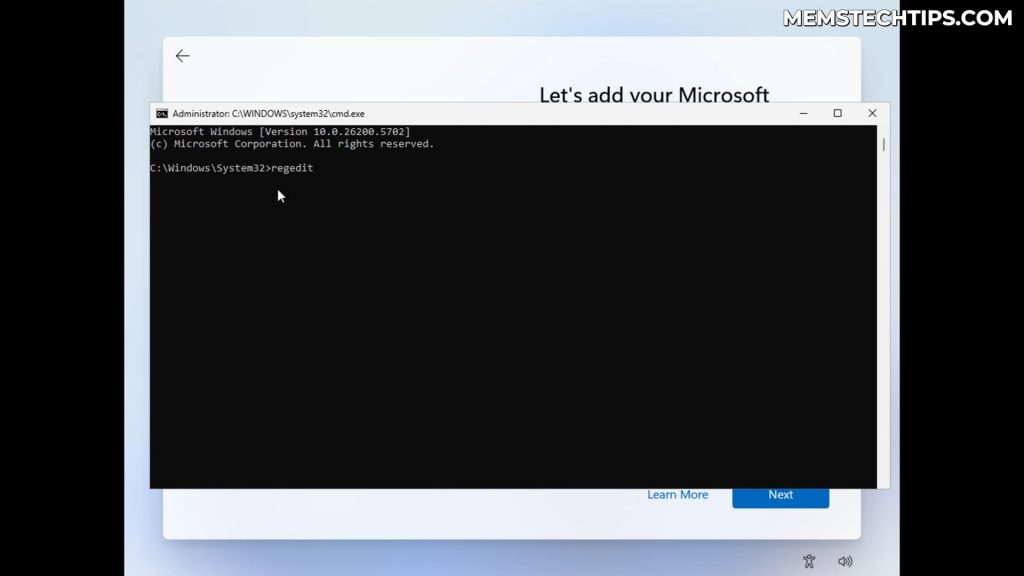
Note: Despite rumors that Microsoft blocked this shortcut in 25H2, Shift+F10 still works. I tested it myself on Windows 11 25H2 Home.
Create the BypassNRO registry key
In the Command Prompt window, type regedit and press Enter to open the Registry Editor. Navigate to the following path:
HKEY_LOCAL_MACHINE\SOFTWARE\Microsoft\Windows\CurrentVersion\OOBERight-click in the empty white space inside the OOBE folder, select New → DWORD (32-bit) Value, and name it exactly:
BypassNRODouble-click the new entry, change the Value data to 1, and click OK.

Optional: While you are in the same OOBE registry path, you can also create a second DWORD value called HideOnlineAccountScreens and set it to 1. This is not strictly necessary — BypassNRO alone is enough — but adding it provides an extra layer of bypass that hides the online account screens entirely.
Quick alternative: run the commands directly
If you prefer not to navigate the Registry Editor manually, you can add both values with a single set of commands. Copy and paste these into the Command Prompt window (these commands work in both Command Prompt and PowerShell):
reg add "HKLM\SOFTWARE\Microsoft\Windows\CurrentVersion\OOBE" /v BypassNRO /t REG_DWORD /d 1 /freg add "HKLM\SOFTWARE\Microsoft\Windows\CurrentVersion\OOBE" /v HideOnlineAccountScreens /t REG_DWORD /d 1 /fYou should see “The operation completed successfully” after each command. Then proceed to disconnect from the internet and restart.
Disconnect from the internet and restart
This step is critical. Disconnect your computer from the internet completely — unplug the ethernet cable, turn off Wi-Fi, or enable airplane mode on a laptop. Then go back to the Command Prompt and type:
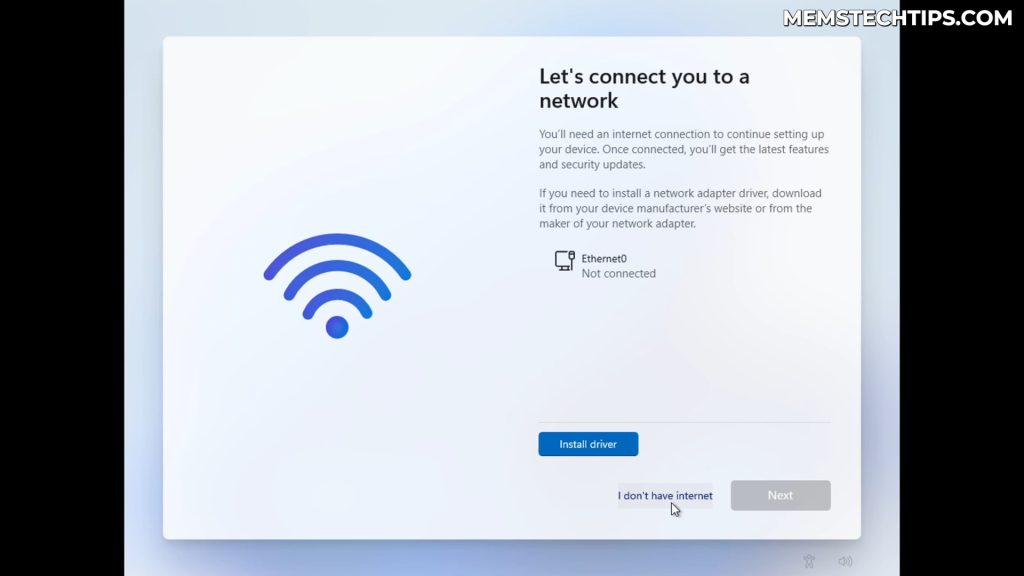
shutdown /r /t 0The computer will restart immediately. After it reboots and goes through the initial setup screens again, you will now see an “I don’t have internet” option. Click it, then click “Continue with limited setup.” Enter your desired username and password (the password can be left blank), and you are done — you now have a local account on Windows 11.
Method 2: ms-cxh:localonly Command (Patched in Newer Builds)
This method was discovered in early 2025 and was significantly easier than the registry method — it worked with the internet still connected and did not require a restart. However, Microsoft patched this in Windows 11 25H2 build 26220.6772. If you are on an older build (24H2 or earlier 25H2 builds), it may still work for you.
- At the Microsoft account sign-in screen, press Shift+F10 (or Shift+Fn+F10 on laptops).
- Type the following command and press Enter:
start ms-cxh:localonly- A local account creation screen will appear immediately — enter your username and password.
Important: This command was patched by Microsoft in Windows 11 25H2 build 26220.6772 and no longer works on newer builds. If it does not work for you, use Method 1 (BypassNRO) instead — that method still works on all builds.
Method 3: Domain Join Shortcut (Windows 11 Pro Only)
If you are setting up Windows 11 Pro (not Home), there is a much simpler shortcut that does not require Command Prompt or registry editing at all.
- At the Microsoft account sign-in screen, click Sign-in options.
- Click “Join a domain instead” (or “Set up for work or school” → “Sign-in options” → “Domain join” on some versions).
- You will be taken directly to the local account creation screen.
This option only appears on Windows 11 Pro. If you are on Windows 11 Home or Home Single Language, you will need to use Method 1 or Method 2 instead.
How to Avoid This Problem Entirely
If you are creating a bootable USB drive to install Windows 11, you can skip the Microsoft account hassle before you even start the installation:
- Rufus — When creating a bootable USB, Rufus has a built-in option called “Remove requirement for an online Microsoft account.” Enable it and the BypassNRO registry key is written to the USB automatically.
- UnattendedWinstall — A tool I built that lets you fully customize the Windows installation experience using answer files, including skipping the Microsoft account requirement.
After setting up Windows, I recommend running Winhance to debloat and optimize your installation.
Troubleshooting
- Shift+F10 does not open Command Prompt: Try Shift+Fn+F10 — most laptops require the Fn key. If that still does not work, try plugging in an external USB keyboard.
- “I don’t have internet” does not appear after restart: Make sure you are fully disconnected from the internet before restarting. On laptops, turning off Wi-Fi is not always enough — enable airplane mode to be sure.
- The BypassNRO key already exists: If the DWORD is already there, double-click it and make sure the value is set to
1, not0. - ms-cxh:localonly does nothing: This command was patched in 25H2 build 26220.6772. Use Method 1 (BypassNRO) instead.
Frequently Asked Questions
Which method should I use?
Use Method 1 (BypassNRO registry edit) — it works on every version and build of Windows 11, including the latest 25H2 updates. If you are on Windows 11 Pro, Method 3 (Domain join) is even simpler. Method 2 (ms-cxh:localonly) only works on builds before 25H2 26220.6772.
Will I miss out on features by using a local account?
You will not have access to Microsoft account-linked features like OneDrive sync, Microsoft Store purchases tied to your account, or cross-device syncing. However, you can always sign into a Microsoft account later through Settings if you change your mind.
Does this work on new laptops with pre-installed Windows?
Yes. When you unbox a new laptop and go through the initial setup, you will hit the Microsoft account screen. All three methods work at this point — you do not need to reinstall Windows from a USB drive.
Can I switch from a local account to a Microsoft account later?
Yes. Go to Settings > Accounts > Your info and click “Sign in with a Microsoft account instead.” This links your existing local account to a Microsoft account without losing any files or settings.
Will Microsoft eventually block all bypass methods?
They have already patched the ms-cxh:localonly method. The BypassNRO registry key has survived multiple Windows 11 updates because it is a core part of how Windows handles network requirements during setup. It is possible Microsoft could change this in future builds, but as of 25H2 build 26220.6772, it still works.