To fix the blue screen of death (BSOD) in Windows 10 or 11, start by identifying what changed recently — new hardware, software, or driver updates are the most common causes. Then work through driver rollbacks, RAM testing, disk health checks, and system file repair to resolve the issue.
Applies to: Windows 10 (22H2) and Windows 11 (23H2, 24H2, 25H2) | Last updated: March 31, 2026
Key Takeaways
- Drivers cause 70% of all blue screens — graphics and network drivers are the most common culprits
- Most BSODs are fixable without replacing hardware — driver rollbacks, system file repair, and Windows updates resolve the vast majority of cases
- Use BlueScreenView (free) to read your crash dump and identify the exact driver or process that caused the crash
- Work through fixes in order: undo recent changes, fix drivers, test RAM, check disk health, repair system files, Safe Mode, clean install
- If BSODs persist after a clean install, you are looking at faulty hardware — RAM, SSD/HDD, GPU, or motherboard
Quick Steps:
- Undo any recent hardware or software changes
- Roll back or update problematic drivers in Device Manager
- Test your RAM with Windows Memory Diagnostic or MemTest86
- Check disk health with Check Disk and manufacturer tools
- Run
DISM /Online /Cleanup-Image /RestoreHealththensfc /scannowto repair corrupt system files - Boot into Safe Mode or use System Restore if Windows won’t start normally
- Clean install Windows as a last resort
What Causes the Blue Screen of Death in Windows?
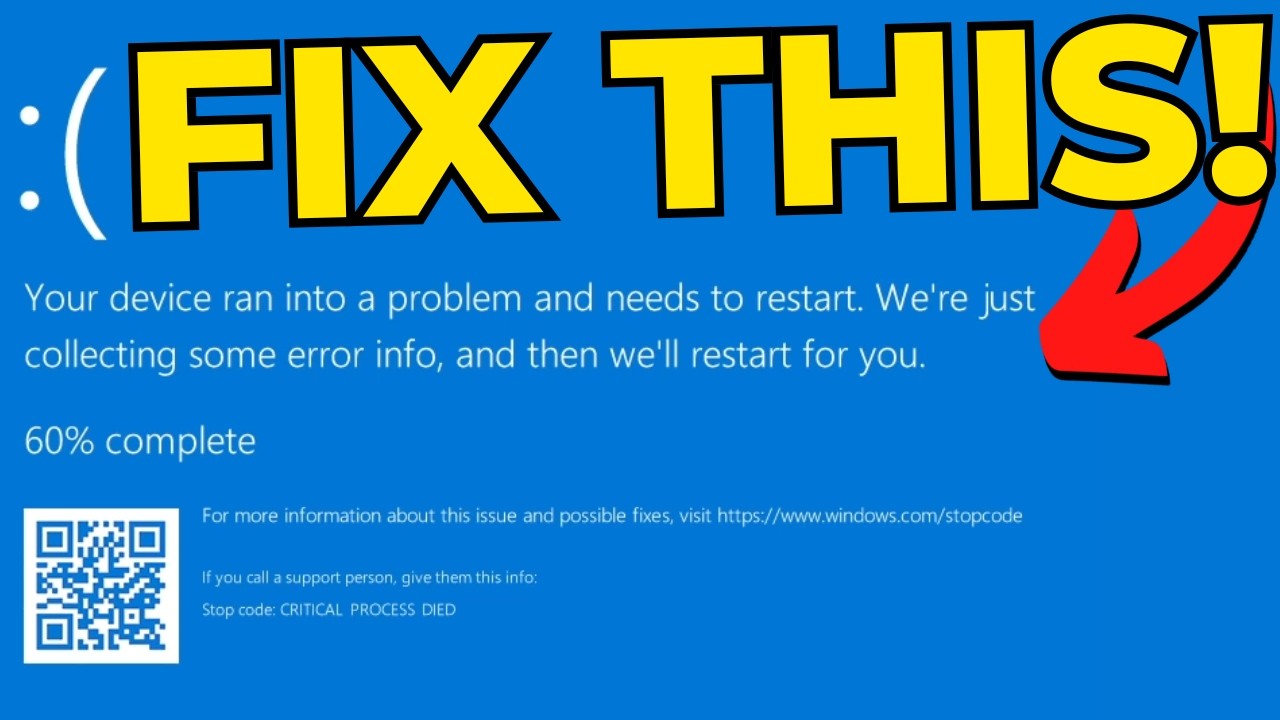
A blue screen of death (BSOD) means Windows encountered a critical error that prevents it from running safely. Rather than risk corrupting your files, Windows stops everything and displays an error screen with a stop code that identifies the problem. On newer versions of Windows 11 (24H2 and later), this screen appears black instead of blue, but the troubleshooting process is identical.
I spent over 10 years fixing blue screens in my computer repair shop, and the good news is that 90% of them are caused by the same few things. Here is the breakdown of the most common causes:
- Drivers (70% of all BSODs) — Bad, outdated, or recently updated drivers, especially graphics and network drivers. Common stop codes:
IRQL_NOT_LESS_OR_EQUAL,DRIVER_IRQL_NOT_LESS_OR_EQUAL - RAM/Memory (15%) — Faulty, failing, or incompatible RAM sticks you might not know about. Common stop codes:
PAGE_FAULT_IN_NONPAGED_AREA,KERNEL_SECURITY_CHECK_FAILURE - Disk/Storage (10%) — Failing hard drive or SSD with bad sectors or file system corruption. Common stop codes:
KERNEL_DATA_INPAGE_ERROR,CRITICAL_PROCESS_DIED - Software (5%) — Antivirus conflicts, bad Windows updates, unstable overclocks, or software that corrupts system files. Common stop codes:
SYSTEM_SERVICE_EXCEPTION,DPC_WATCHDOG_VIOLATION
Despite the name, a blue screen of death usually does not mean your computer is dying. In most cases, it is a software issue that is completely fixable.
How to Identify What Caused Your Blue Screen
Windows saves a crash dump file every time a blue screen occurs, and a free tool called BlueScreenView by NirSoft can read these dumps and tell you exactly what went wrong. Download the zip file from the official NirSoft page, extract it, and launch the application.
BlueScreenView displays a list of every blue screen your computer has experienced. The two most important columns are the Bug Check String (the stop code, like CRITICAL_PROCESS_DIED) and the Caused By Driver column, which identifies the exact driver or executable that failed critically.
With this information, you can search for the specific stop code or driver name online, or ask an AI assistant to help you troubleshoot. But if you would rather skip the crash dump analysis, the fixes below are organized from most common to least common cause and will work regardless of your specific stop code.
Fix 1: Undo Recent Hardware or Software Changes
In my computer repair shop, the first question I always asked customers was: what changed recently? This single question solved the majority of blue screen cases because the answer almost always points directly to the cause.
New hardware: If you recently installed a new graphics card, RAM, SSD, hard drive, or even a USB peripheral and the blue screens started right after, remove or disconnect what you added and boot up again. If the blue screens stop, the hardware is either faulty, incompatible with your system, or was not installed properly. Try reinstalling it once more — if the blue screens return, replace it or return it.
New software: If you recently installed a new program, antivirus, VPN, or overclocking utility and the blue screens began right after, uninstall that software and see if the problem goes away.
Windows Update: If the blue screens started after a Windows update, navigate to Settings > Windows Update > Update History > Uninstall Updates and remove the most recent update. This is more common than most people think — bad Windows updates have caused widespread blue screen issues multiple times, including as recently as January 2026.
This is usually the quickest and easiest fix, and it normally does not require any special tools.
Fix 2: Roll Back or Update Problematic Drivers
Drivers account for nearly 70% of all blue screens in Windows, making them the single most common cause. Graphics drivers and network drivers are the most frequent culprits, but any driver that was recently updated or corrupted can trigger a BSOD.
To troubleshoot drivers, right-click the Start button and open Device Manager. Here you can see every driver category — display adapters (GPU), network adapters, disk drives, and more.
If you know or suspect which driver is causing the issue (BlueScreenView can tell you this), navigate to that device in Device Manager, right-click it, select Properties, go to the Driver tab, and click Roll Back Driver. You will be prompted for a reason — select any option and click Yes. This reverts to the previous driver version, which is often more stable.
If the Roll Back Driver option is grayed out, use Update Driver > Search automatically for drivers instead. Windows will check for a newer, potentially more stable driver and install it if available.
Tip: Windows Update can install driver updates without your knowledge. Check Settings > Windows Update > Update History to see if any drivers were recently updated. If they were, you can roll them back in Device Manager using the steps above.
I have dedicated tutorials that show you exactly how to install or update drivers. Check them out if you need more help:
You can also read my written guides on how to install drivers on Windows 10/11 and how to install missing drivers using Snappy Driver Installer Origin.
Fix 3: Test Your RAM for Errors
Faulty RAM is the second most common cause of blue screens, and your computer could have a bad memory stick without showing any obvious symptoms other than occasional crashes. Windows includes a built-in tool called the Windows Memory Diagnostic that can test for memory errors.
Search for “Windows Memory Diagnostic” in the Start menu and open it. Select Restart now and check for problems. Your computer will restart and display a diagnostic screen that tests your RAM for errors. This process can take quite a while depending on how much memory you have — just be patient and let it complete.
If the diagnostic tool crashes during the test, that is a strong indicator that your RAM is faulty. If you have multiple RAM sticks, you will need to remove all but one and test each stick individually to identify which one is bad.
Once the test completes and the computer restarts, if you do not see results automatically, open Event Viewer (search for it in the Start menu), navigate to Windows Logs > System, click Find, and search for MemoryDiagnostics-Results (this is case sensitive — type it exactly). The results entry will tell you whether any errors were detected.
The built-in Windows Memory Diagnostic is a decent starting point, but it is not the most thorough test available. For a definitive RAM test, I always recommend MemTest86, which runs outside of Windows and catches errors the built-in tool can miss. I have an in-depth tutorial on how to use it:
Read the full written guide on how to test RAM for errors with MemTest86.
Fix 4: Check Your Hard Drive or SSD Health
If your RAM tests come back clean, the next thing to check is your storage drives. A failing hard drive or SSD with bad sectors or file system corruption can cause blue screens with stop codes like KERNEL_DATA_INPAGE_ERROR or CRITICAL_PROCESS_DIED.
To run a disk check, right-click the Start button and open Terminal or PowerShell as Admin. Run the following command:
chkdsk C: /f /rReplace C: with whatever drive letter you want to test. If you have multiple drives, test each one. When prompted, type Y and press Enter to schedule the check for the next restart. Restart your computer, and when you see the message about skipping disk checking — do not press any key. Let it run the full check.
If your computer crashes during the Check Disk process, that is a strong sign that the drive is failing and may need to be replaced.
Check Disk is a good start, but it can only detect certain types of errors — it cannot check for physical issues or predict drive failure. For a more thorough test, I recommend using your SSD manufacturer’s diagnostic software, or the SeaTools desktop edition which works with any hard drive or SSD brand:
Read the full guide on how to test your hard drive or SSD health.
Fix 5: Repair Corrupt Windows System Files
Corrupt Windows system files can cause blue screens even when your hardware is perfectly healthy. Windows includes two built-in repair tools — DISM and SFC — that can scan for and fix corrupted files automatically. Run these commands in order from an Admin Terminal or PowerShell (right-click the Start button to open it).
First, run the DISM command:
DISM /Online /Cleanup-Image /RestoreHealthThis scans the Windows component store for corruption and repairs it using Windows Update as a source for clean files. It can take 10-30 minutes depending on your system — be patient and let it finish completely.
Then, run the SFC command:
sfc /scannowThis performs a second verification pass on all protected system files. It is faster than DISM and will tell you if it found and repaired any corrupt files. After running both commands, restart your computer and check if the blue screens have stopped.
Fix 6: Boot into Safe Mode and Use System Restore
If you have reached this point, your system probably will not boot normally and you are stuck in a blue screen loop during startup. When this happens, Windows should automatically bring you to the Windows Recovery Environment after a few failed boot attempts.
To enter Safe Mode: From the Recovery screen, go to Troubleshoot > Advanced Options > Startup Settings, click Restart, then press 4 on your keyboard to enable Safe Mode. Safe Mode starts Windows with only the most essential drivers and services, which lets you troubleshoot without the problematic driver or software interfering.
Once in Safe Mode, you can perform all the fixes from earlier in this guide — uninstall recently added software, uninstall Windows updates, roll back drivers in Device Manager, and run the DISM and SFC commands. After making changes, restart and see if Windows boots normally.
To use System Restore: If Safe Mode does not help, go back to the Recovery screen and navigate to Troubleshoot > Advanced Options > System Restore. Click Next, and you will see a list of available restore points — previous snapshots of your system from when it was working properly. Click “Show more restore points” if needed, select one from before the blue screens started, and click Finish to begin the restore.
Note: System Restore only works if your computer had restore points enabled. If no restore points are available, you will need to move on to the next fix.
Fix 7: Clean Install Windows (Last Resort)
If nothing else has worked, your last software-based option is a fresh Windows installation. This wipes everything and gives you a clean slate, which eliminates any software-related cause of the blue screens. There are two ways to do this.
Option 1 — Reset this PC: From the Recovery screen, go to Troubleshoot > Reset this PC. Choose Keep my files (removes apps and settings but preserves personal files), then select Cloud download to get a fresh copy of the Windows system files directly from Microsoft.
Option 2 — Full clean install (recommended): For the most reliable result, do a complete clean install using a USB drive with a fresh Windows ISO. I have a full tutorial on how to use Winhance’s Windows Installation Media Utility to create a custom ISO that is already debloated and optimized from the moment you reach the desktop:
Important: Before doing a clean install, back up all of your important files to a separate drive. A clean install completely wipes the drive you are installing Windows to — everything on it will be permanently deleted.
What If Windows Still Blue Screens After a Clean Install?
If you are still getting blue screens after a completely fresh Windows installation, you are almost certainly dealing with faulty hardware. At this point, the problem is either failing RAM, a dying hard drive or SSD, a faulty graphics card, or in rare cases a failing motherboard or CPU.
If you have already tested your RAM and drives using the methods above and they passed, the next step is to stress test your graphics card for errors:
If the GPU also passes, I would recommend taking your computer to a professional repair shop or contacting your system manufacturer. Motherboard and CPU failures are difficult to diagnose without specialized equipment.
Secure Your Connection with ProtonVPN
While troubleshooting your PC, it is worth securing your internet connection too. I personally use ProtonVPN — they have a genuinely free tier with unlimited bandwidth and no logs, which is rare for a VPN provider. The free version auto-connects to the fastest available server, making it great for everyday private browsing.
If you need to pick a specific country (like for streaming), you will need their paid plan. This video is not sponsored by ProtonVPN, but the links below are affiliate links — if you decide to upgrade, I earn a small commission at no extra cost to you, and it helps support the channel.
Frequently Asked Questions
Does a blue screen of death mean my computer is broken?
Not usually. The majority of blue screens are caused by software issues — bad drivers, corrupt system files, or problematic Windows updates — all of which can be fixed without replacing any hardware. You should only suspect faulty hardware if blue screens continue after a clean install of Windows.
What is the most common cause of BSOD in Windows?
Drivers are responsible for approximately 70% of all blue screens in Windows 10 and 11. Graphics card drivers (NVIDIA, AMD, Intel) and network adapter drivers are the most frequent culprits. Rolling back a recently updated driver or installing the latest stable version from the manufacturer’s website usually resolves the issue.
How do I find out what caused my blue screen?
Download the free tool BlueScreenView by NirSoft. It reads the crash dump files that Windows automatically saves each time a blue screen occurs and displays the exact stop code and the specific driver or process that triggered the crash. You can then search for that stop code or driver name to find a targeted fix.
Can a Windows update cause a blue screen?
Yes, this happens more often than you would expect. Windows updates can install new drivers or change system components in ways that cause instability on certain hardware configurations. If your blue screens started right after an update, go to Settings > Windows Update > Update History > Uninstall Updates and remove the most recent update to see if that resolves it.
Will I lose my files if I get a blue screen?
In most cases, no. The blue screen is actually Windows protecting your data — it halts everything before file corruption can occur, and your files should be intact after a restart. However, if the blue screens are being caused by a failing hard drive or SSD, there is a real risk of data loss over time. This is why I always recommend having regular backups of your important files on a separate drive.