The January 2026 Windows 11 update KB5074109 caused remote desktop failures, Windows 11 23H2 shutdown problems, classic Control Panel crashes, and reports of random black screens. If you are still affected, install the follow-up out-of-band patch from the Microsoft Update Catalog that matches your Windows version, or uninstall KB5074109 entirely.
Applies to: Windows 11 (24H2, 25H2), Windows 11 23H2 Enterprise, Windows 10 22H2 with Extended Security Updates, and Windows Server 2023 and 2025 | Last updated: May 15, 2026
Key Takeaways
- KB5074109 (January 2026) shipped 114 CVE patches plus the prior month’s optional preview features — and the bundled feature payload caused most of the breakage, not the security fixes themselves.
- Microsoft has confirmed three bugs: Remote Desktop failures, Windows 11 23H2 Enterprise shutdown failures, and classic Control Panel crashes. Out-of-band fixes for the first two shipped in late January 2026; Control Panel was patched in the February 2026 cumulative.
- If you already installed KB5074109, install the matching follow-up update from the Microsoft Update Catalog (different KB per architecture and Windows build), or uninstall KB5074109 outright via Settings > Windows Update > Update history > Uninstall updates.
- If you have not installed it yet, pause updates for one to two weeks and let the dust settle. Microsoft now offers up to a 5-week pause from Settings > Windows Update.
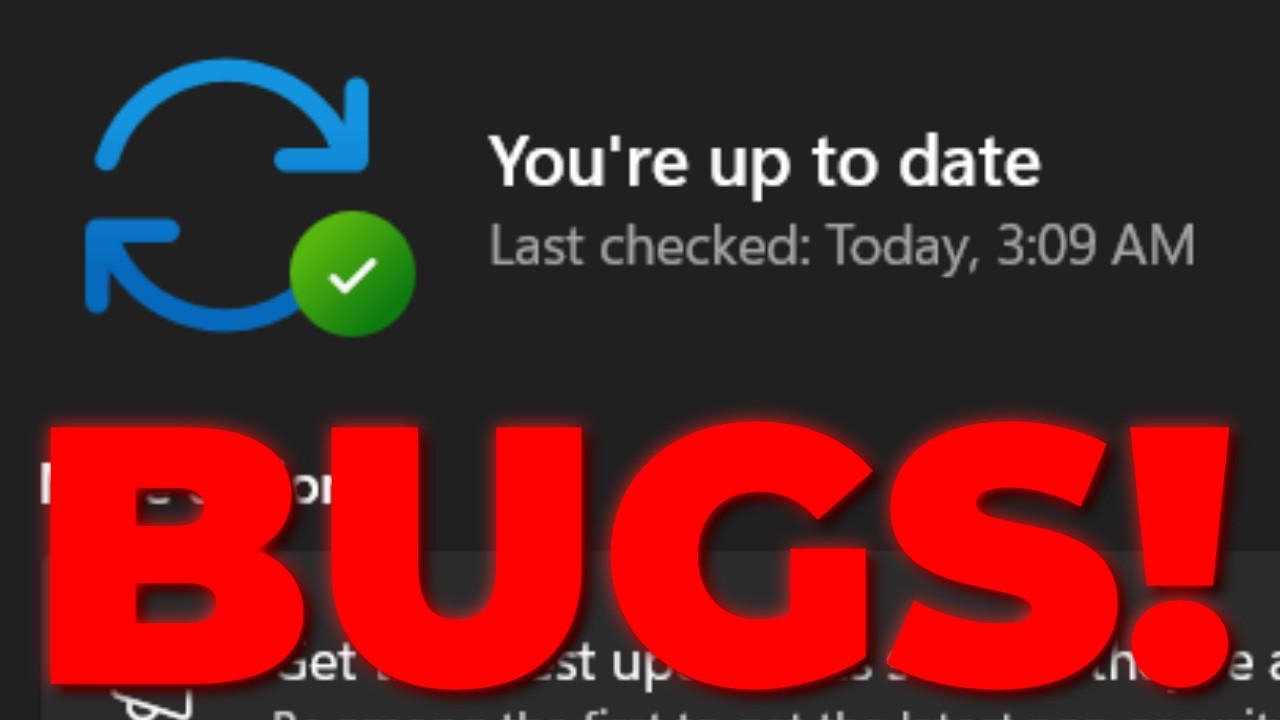
- Do not enable “Get the latest updates as soon as they’re available” on production PCs. That toggle opts you in to the optional preview pipeline that broke this update.
Quick Steps to Recover From KB5074109
- Identify your Windows version: press Windows + R, type
winver, and press Enter. - Open the Microsoft Update Catalog and download the matching out-of-band patch (24H2 x64, 25H2 x64, 24H2 ARM64, or 25H2 ARM64).
- Double-click the downloaded
.msufile and follow the installer. - If the patch does not resolve your issue, uninstall KB5074109 from Settings > Windows Update > Update history > Uninstall updates.
- Pause updates for at least a week: Settings > Windows Update > Pause for 1 week.
- Turn off Get the latest updates as soon as they’re available in Settings > Windows Update.
What KB5074109 Broke, and What Microsoft Has Since Fixed
The January 2026 cumulative update (KB5074109 on Windows 11 24H2 and 25H2, different KB numbers on 23H2 Enterprise, Windows 10 ESU, and Windows Server 2023/2025) shipped on January 14, 2026 with 114 CVE patches. Within 72 hours, Microsoft acknowledged three issues on the Windows release health dashboard.
- Remote Desktop connections failing — initiating an RDP session would time out or drop immediately. Patched in an out-of-band update on January 18, 2026.
- Windows 11 23H2 Enterprise will not shut down — the system hung on “Shutting down” indefinitely. Patched in the same out-of-band update.
- Classic Control Panel crashes on launch — opening any legacy Control Panel applet immediately closed the window. This one took longer and was resolved in the February 2026 monthly cumulative (KB5081xxx series).
Beyond Microsoft’s confirmed list, community reports flagged random black screens during normal use, broken USB peripherals in some configurations, and intermittent File Explorer freezes. If you ran into something unusual that lined up timing-wise with this update, you were almost certainly not imagining it.
Why Did This Update Break So Many Things?
According to Microsoft’s own Windows Monthly Updates Explained blog, the KB5074109 release notes specifically state that it “includes non-security updates from last month’s optional preview release.” That language is the smoking gun.
Optional non-security preview releases ship in the fourth week of each month and are intended as a beta channel for next month’s features. Microsoft then bundles those features into the following month’s mandatory cumulative security update. The result: you cannot patch CVEs without also accepting whatever features made it through the preview pipeline, however buggy. I think that is the wrong trade-off. Security updates and feature updates should be installable separately, the way they were on Windows 7.
The setting that opts you into the preview pipeline is Settings > Windows Update > Get the latest updates as soon as they’re available. Toggling this on signs you up to receive optional preview builds before they ship in the monthly cumulative. On a test machine or virtual machine, that is useful. On a production PC, it is a recipe for the exact situation KB5074109 caused.
Fix 1: Install the Out-of-Band Patch From Microsoft Update Catalog
Microsoft published rushed out-of-band patches for the Remote Desktop and 23H2 shutdown bugs on January 18, 2026. They are not delivered through normal Windows Update — you have to download them manually from the Microsoft Update Catalog.
The catalog lists separate downloads per architecture and per Windows version. You need the one that matches your system exactly:
- Windows 11 24H2 x64-based systems
- Windows 11 25H2 x64-based systems
- Windows 11 24H2 ARM64-based systems
- Windows 11 25H2 ARM64-based systems
To check which version you have, press Windows + R, type winver, and press Enter. Note the version (24H2 or 25H2) and confirm the architecture in Settings > System > About > System type. Then download the matching .msu file, double-click it, and the Windows Update Standalone Installer will apply the patch and prompt for a reboot.
Note: If you are on Windows 11 23H2 Enterprise, Windows 10 22H2 with Extended Security Updates, or Windows Server 2023/2025, the out-of-band patches use different KB numbers. Search the catalog for the KB referenced in the Windows release health dashboard entry for your build.
Fix 2: Uninstall KB5074109 Entirely
If the out-of-band patch did not resolve your issue, or you would rather just back out of the bad update, uninstall KB5074109 directly. This rolls your system back to where it was the day before the January 2026 cumulative installed.
- Open Settings > Windows Update > Update history.
- Scroll to the bottom and click Uninstall updates.
- Find 2026-01 Cumulative Update for Windows 11 (KB5074109) in the list and click Uninstall.
- Restart when prompted.
Once it is gone, immediately pause updates so Windows does not reinstall the same KB on its next check. For a deeper walkthrough that covers the update cache too, read my full guide on uninstalling Windows 11 updates and clearing the update cache.
Fix 3: If You Have Not Installed KB5074109 Yet, Pause Updates
If your PC has not pulled the January 2026 cumulative yet, do not let it. The cleanest way to defer it is the built-in pause feature:
- Open Settings > Windows Update.
- Next to Pause updates, click the dropdown and select one to five weeks.
- While you are there, confirm Get the latest updates as soon as they’re available is toggled off.
For finer-grained control — like blocking specific feature upgrades while still pulling security patches — see my guide on locking your Windows version with the registry. Winhance, my free Windows enhancement utility, exposes the same settings through a UI and includes additional update controls.
My Personal Approach to Windows Updates
I do not install Windows updates the moment they release, and I keep the Get the latest updates as soon as they’re available toggle off on every production machine. The only place I enable it is in a virtual machine, so I can test Winhance against the newest builds and record videos about new features.
For my main PCs I wait two to three weeks after a cumulative releases before installing. Microsoft almost always ships a follow-up out-of-band patch in that window for whatever the latest cumulative broke, and waiting lets me install both at once with the worst bugs already filtered out. It is not a perfect approach, but it has saved me from every major buggy update since I started doing it in 2024.
A Pattern of Buggy Windows Updates
The January 2026 mess is not an outlier. 2025 was full of similar incidents and each one followed the same arc: cumulative ships, breakage gets reported, Microsoft confirms a subset of the bugs, an out-of-band patch follows. Notable examples:
- July 2025 — Start menu, taskbar, File Explorer, and Settings broke after the monthly cumulative because core shell components stopped initializing correctly.
- October 2025 — Task Manager’s close button hid the window but left the process running. Memory usage climbed as ghost instances accumulated.
- USB devices in WinRE — A 2025 update broke USB keyboard and mouse input inside the Windows Recovery Environment, making it impossible to use the recovery tools to fix the very PC the update had broken.
- November 2025 — A bad Nvidia driver shipped through Windows Update caused widespread gaming stutter and crashes.
Buggy Windows updates are not new — Windows 7 and Windows 10 had their share. What is new is that there is no longer a way to opt out of a feature while still taking the security patch. On Windows 7 you could right-click an individual update and hide it. On Windows 11 you take the whole bundle or you take nothing.
Frequently Asked Questions
Is KB5074109 fixed now?
The two bugs Microsoft fixed first — Remote Desktop failures and the 23H2 Enterprise shutdown hang — were patched on January 18, 2026 via out-of-band updates on the Microsoft Update Catalog. The Classic Control Panel crash was rolled into the February 2026 monthly cumulative. If you install the February 2026 cumulative or later, you should not need to take any of the manual steps in this guide.
Is it safe to uninstall the January 2026 Windows update?
Yes, uninstalling KB5074109 is safe and reversible. You will temporarily lose 114 CVE patches, so it is worth pausing updates and reinstalling the next monthly cumulative when it ships — which by definition includes everything KB5074109 contained, plus the fixes. Do not leave an uninstalled cumulative state for longer than a couple of weeks if your PC is exposed to the internet.
Why does Microsoft bundle features with security updates?
Microsoft calls it “continuous innovation.” Features get tested in the optional non-security preview release in week four of each month, then ship to everyone via the next month’s mandatory cumulative. The trade-off is that you cannot patch CVEs without also accepting whatever feature changes rode along, which is exactly what burned everyone with KB5074109.
How do I keep buggy updates from installing automatically?
The easiest method is the built-in pause in Settings > Windows Update — up to five weeks at a time. For more durable control, you can lock your current Windows version via the registry to block feature upgrades while still receiving security patches. Winhance exposes the same registry-level controls through a UI.
What other Windows 11 updates caused problems in the past year?
2025 had several. The July 2025 cumulative broke the Start menu, taskbar, and File Explorer. October 2025 introduced the Task Manager ghost-process bug where closing the window left the process running and consuming RAM. A 2025 update also broke USB input inside the Windows Recovery Environment. November 2025 shipped a bad Nvidia driver through Windows Update. The January 2026 release fits the pattern.