|

Can’t Select Windows 11/10 Edition During Clean Installation? Here’s The Fix

Windows Edition Selection Cover Image

If you’ve ever tried to install Windows with an Autounattend file and found yourself scratching your head wondering why you can’t select the Windows edition you want, you’re not alone. The Windows 10 and Windows 11 setup process behaves completely differently when it comes to selecting the edition of Windows, and this becomes even more complicated when you start using an Autounattend file to automate the installations.

In this guide, I’m going to take you through the differences between installing Windows 10 or 11 with an Autounattend file and without one, specifically as it relates to selecting the edition of Windows that you want to install. I’ll also show you how you can force a specific edition of Windows to be installed automatically, which is perfect if you’re setting up multiple computers or just want to streamline your Windows installation process.

Key Takeaways

  • Windows 10 and 11 handle edition selection differently – Windows 11 shows the edition selection screen immediately with Autounattend files, while Windows 10 requires a workaround using the back button.
  • Generic Windows keys control edition selection – Microsoft provides generic RTM keys that allow you to force specific Windows editions during installation without activating Windows.
  • The WillShowUI command controls visibility – Setting this to “always” ensures you see the edition selection screen, while “never” completely hides it for fully automated installations.

Requirements

Before you get started with controlling Windows edition selection during installation, here’s what you’ll need:

  • A Windows 10 or Windows 11 ISO file
  • A USB flash drive or bootable installation media
  • An Autounattend XML file (you can generate one using Winhance or UnattendedWinstall)
  • A text editor or code editor (Notepad, Notepad++, or VS Code)
  • Basic knowledge of XML file structure
  • Access to Microsoft’s generic Windows keys (I’ll provide these in this guide)

Why Does Windows Edition Selection Matter?

You might be wondering why this is even an issue in the first place. Well, here’s the thing – many laptops and pre-built computers come with a Windows license key embedded directly into the UEFI or BIOS. This is called an OEM key, and when you install Windows on these computers, the Windows setup automatically pulls that key from the BIOS and installs the corresponding Windows edition.

This is great if you want to install the same edition that came with your computer. But what if you want to install Windows 10 or 11 Pro on a laptop that came with Windows Home? Or what if you’re using Autounattend files to automate your installations and you want to give yourself the option to choose which edition to install each time?

That’s where understanding how Windows edition selection works becomes crucial. Without the right configuration, you might find yourself stuck with only one option, or worse, no option at all.

How Windows Edition Selection Works Without Autounattend Files

Windows 10 Behavior

Let me walk you through what happens when you try to install Windows without an Autounattend file. I tested this on a laptop that has a Windows Home Single Language Edition key embedded into the UEFI or BIOS.

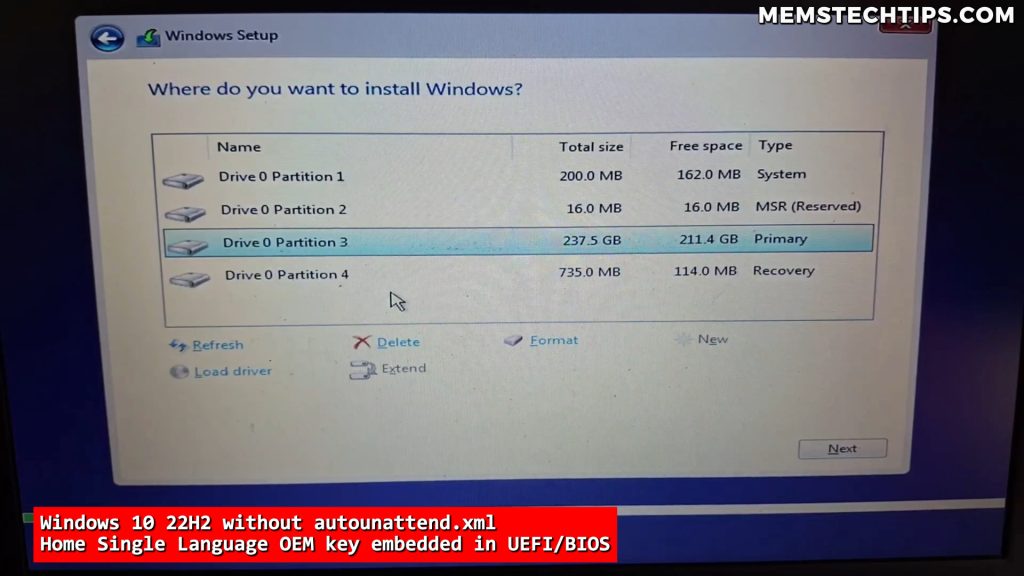
When I booted from a Windows 10 22H2 ISO and clicked on “Install now,” the setup started and I could accept the license terms and click next. Then I got the option to select where to install Windows, but here’s the problem – the Windows Edition screen was completely missing.

Windows 10 installation partition selection screen bypassing edition selection due to embedded OEM key

I wasn’t able to select what edition of Windows I wanted to install because the Windows setup just pulled the key from the UEFI BIOS and automatically decided to install Windows Home Single Language Edition. So if I wanted to install the Pro Edition of Windows on this computer, I was out of luck with this approach.

Windows 11 Behavior

The Windows 11 setup behaves exactly the same way in this scenario. After selecting language settings, keyboard layout, and accepting the license terms, I went straight to the drive selection screen. The setup pulled the Home Single Language Windows license key that’s embedded in the UEFI or BIOS and automatically started installing Windows 11 Home Single Language. It would also activate automatically because it’s an OEM key that’s embedded in the BIOS.

Note: Without any modifications, Windows setup will always use the OEM key embedded in your computer’s BIOS if one exists, giving you no choice in which edition to install.

Using Autounattend Files to Control Edition Selection

What Is an Autounattend File?

An Autounattend file is an XML configuration file that automates the Windows installation process. It’s designed to answer all those setup screens for you automatically so you don’t have to sit there clicking through each one. This is incredibly useful when you’re installing Windows on multiple computers or when you want to apply specific settings and optimizations during the installation.

The Product Key Configuration

The key to controlling Windows edition selection lies in the product key configuration within your Autounattend XML file. Let me show you how this works.

In Autounattend files generated by Winhance or UnattendedWinstall, you’ll find three sections related to different processor architectures:

  • x86 – for 32-bit processors
  • ARM64 – for ARM-based processors
  • AMD64 – for 64-bit processors (also labeled as x64)
Autounattend XML file structure displaying AMD64 processor architecture section with product key tags

Within each of these sections, there’s a product key section that contains a key tag. This is where you control which Windows edition gets installed.

Windows 10 Edition Selection with Autounattend

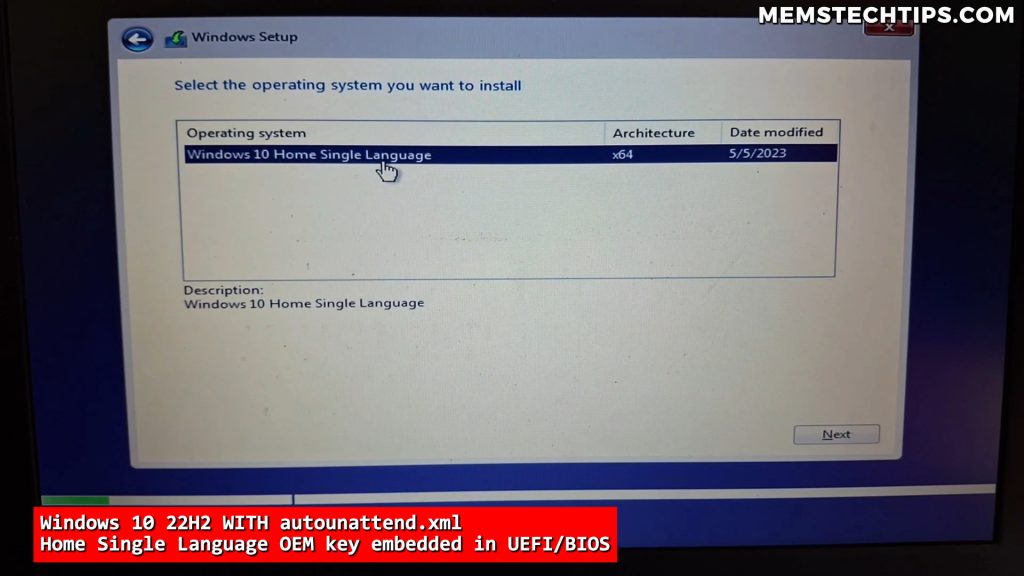
When I booted from the Windows 10 22H2 ISO with an Autounattend XML file that had a blank product key and the option to always show the Windows edition selection screen, something interesting happened.

I actually got the option to select the operating system I wanted to install – the user interface was displayed to me. But here’s the catch: I only had one option, which was Windows 10 Home Single Language. I still didn’t have the option to install Windows 10 Pro.

Windows 10 setup showing edition selection UI with only Home Single Language option visible

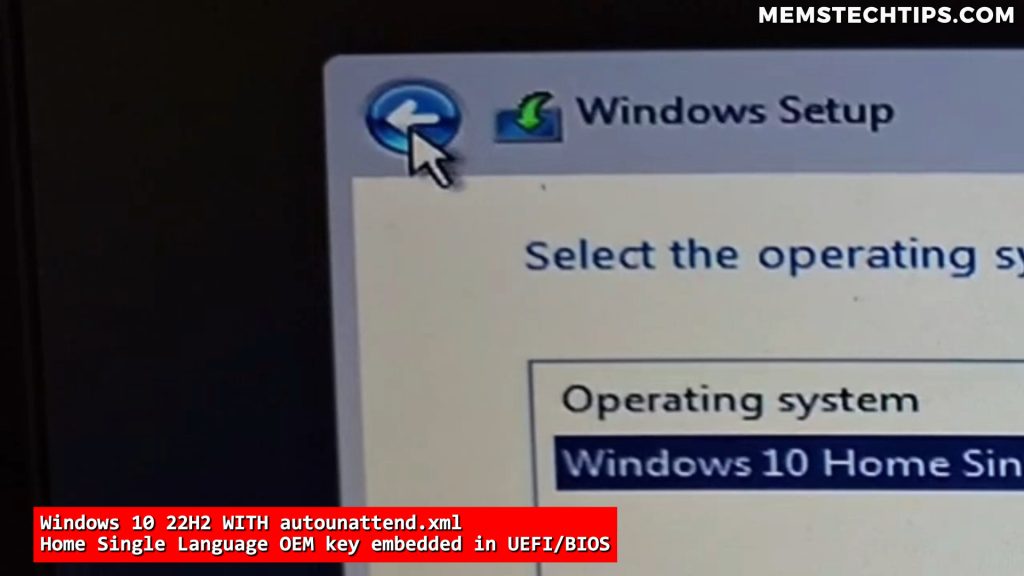
But remember, this is Windows 10, and there’s a simple workaround. The only thing you have to do on Windows 10 to fix this is click on the back button.

Screenshot of the back button in the Windows 10 setup

When you click back, it takes you to the previous screen. Then when you click on “Next” again, you’ll get the option to either enter a product key or click on the option that says “I don’t have a product key.” When you click on that option, then you’ll have all of the available editions and you can go ahead and select Windows 10 Pro, for example.

Windows 10 Tip: If you see the edition selection screen but it only shows one edition, click the back button and then proceed forward again. Select “I don’t have a product key” to see all available editions.

Windows 11 Edition Selection with Autounattend

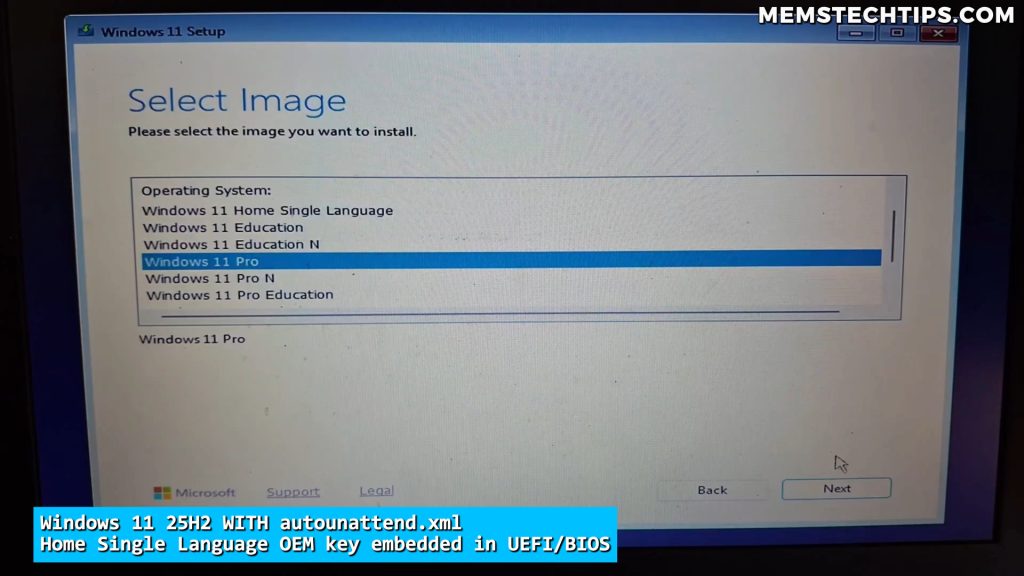
The Windows 11 setup behaves much better in this scenario. With the exact same Autounattend XML file that I used on Windows 10, the Windows 11 setup immediately shows you the product key screen where you can either enter a product key or select the option “I don’t have a product key.”

Then you can select the edition of Windows that you want to install – for example, Windows 11 Pro – click on Next, format your disk partitions the way you want to, and then install the edition of Windows that you want.

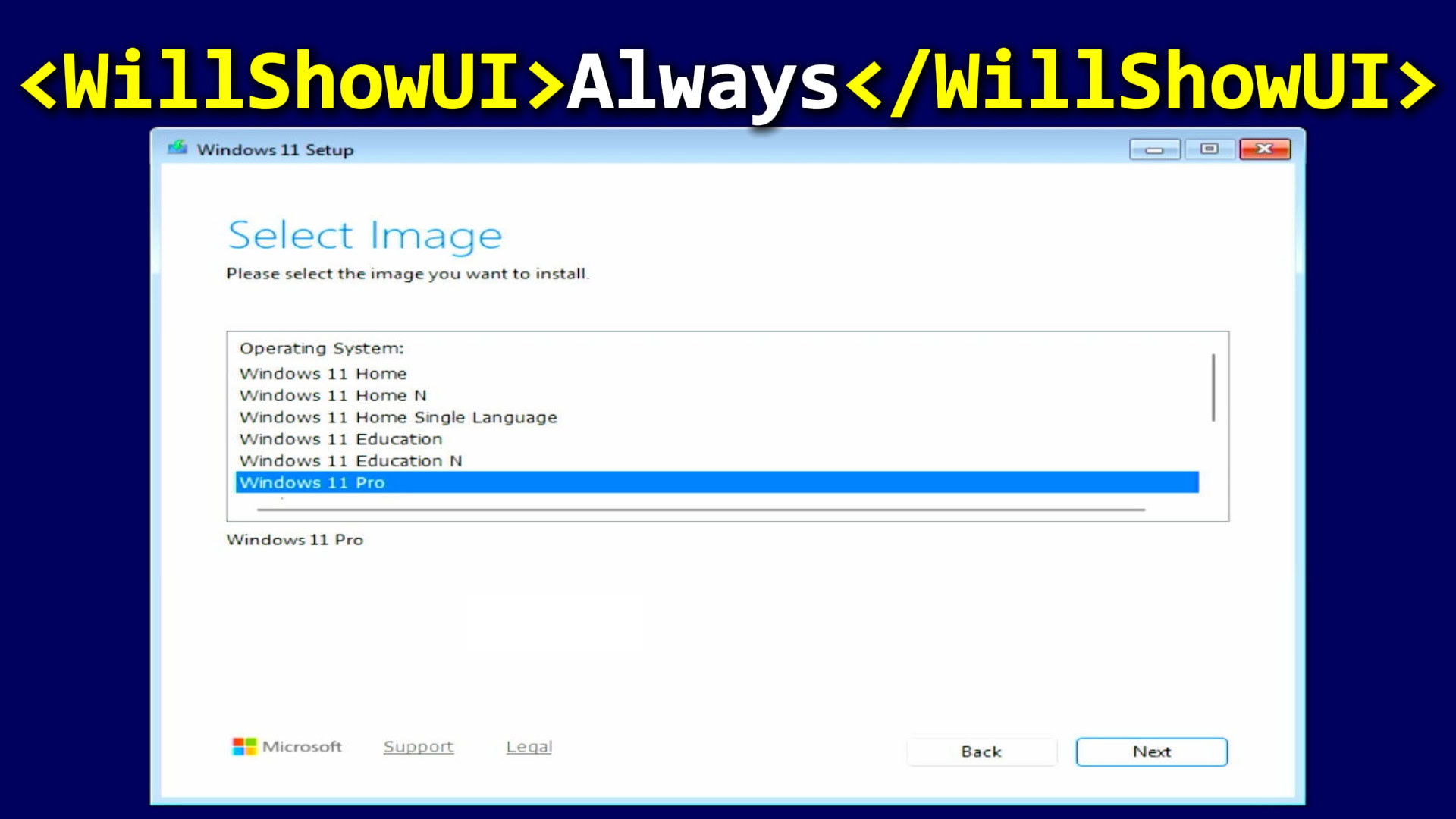
Windows 11 setup displaying edition selection screen with multiple Windows editions including Home, Pro, and Education

So the key difference between the Windows 10 and Windows 11 setup is that on Windows 11 it immediately shows you the screen where you can select the option that you don’t have a product key, and then you can see all of the available editions on that ISO file and select the one that you want to install.

Configuring the Autounattend File for Edition Selection

The Blank Product Key Method

To enable the Windows edition selection screen with an Autounattend file, you need to configure two things in your XML file:

  1. Set the product key to all zeros – This tells Windows setup that you’re using a blank key
  2. Add the WillShowUI command set to “always” – This forces Windows to always display the edition selection screen

Here’s what the product key section should look like in your Autounattend file:

<ProductKey>
    <Key>00000-00000-00000-00000-00000</Key>
    <WillShowUI>Always</WillShowUI>
</ProductKey>
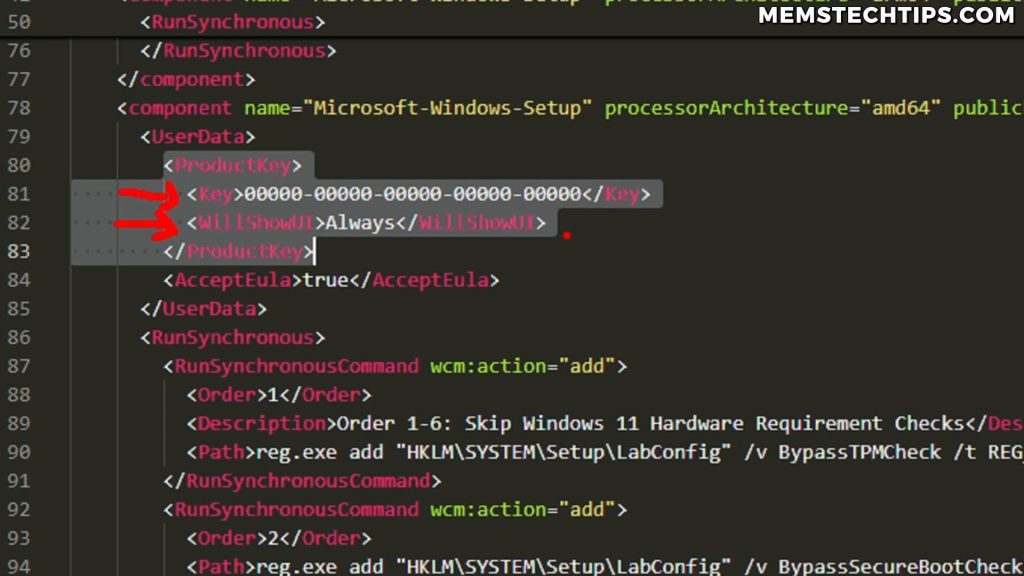
The product key that’s just a bunch of zeros is basically a blank product key, and this tells Windows that it must show the screen where the user can enter a product key during the installation.

XML editor showing Autounattend file with blank product key zeros and WillShowUI set to Always

Important: The WillShowUI command is crucial. Setting it to “Always” ensures that the Windows edition selection screen will be displayed, even if Windows finds an OEM key in your BIOS.

Understanding WillShowUI Values

The WillShowUI command can have different values depending on what you want to achieve:

  • Always – Always displays the edition selection UI
  • Never – Completely hides the edition selection UI
  • OnError – Only shows the UI if there’s an error

For most scenarios where you want control over which edition to install, you’ll want to use “Always.”

How to Force a Specific Windows Edition

Now let’s look at another scenario. What if you don’t want to see the Windows edition selection screen at all? What if you just want to force a specific edition of Windows to be installed automatically? This is exactly what Autounattend files are actually designed for – to automate the setup screens and the setup process so that everything is already set up when you start installing Windows.

Using Generic Windows Keys

Microsoft provides generic RTM keys specifically for selecting the edition of Windows you want to install. These are publicly available keys that Microsoft has made available for this exact purpose.

Critical Information: These keys are NOT product or license keys that are valid for Windows activation. These keys only select the edition of Windows to install during setup, but they don’t activate or license the installation. Once Windows is installed, you’ll still need to enter a valid Windows license key to activate Windows.

Here are some of the most commonly used generic Windows keys:

  • Windows 10/11 Pro: VK7JG-NPHTM-C97JM-9MPGT-3V66T
  • Windows 10/11 Home: YTMG3-N6DKC-DKB77-7M9GH-8HVX7
  • Windows 10/11 Education: YNMGQ-8RYV3-4PGQ3-C8XTP-7CFBY
  • Windows 10/11 Enterprise: XGVPP-NMH47-7TTHJ-W3FW7-8HV2C

Step-by-Step: Forcing Windows Pro Edition

Let me walk you through the exact process I use to force the Pro edition of Windows to be installed on a laptop that has a Windows Home Single Language key embedded in the BIOS.

Step 1: Copy the Generic Pro Key

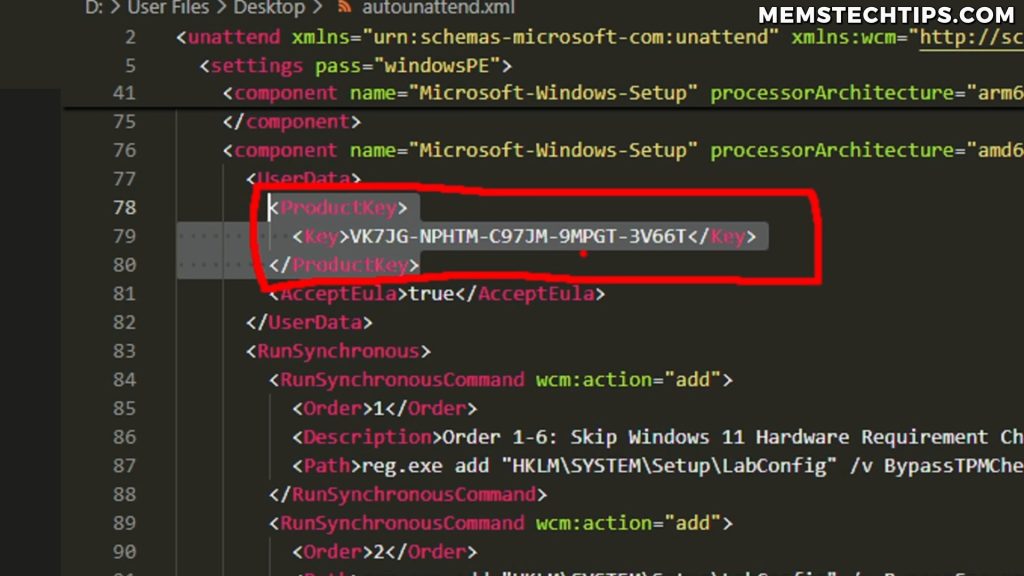
First, I copy the generic Windows Pro key: VK7JG-NPHTM-C97JM-9MPGT-3V66T

Step 2: Open the Autounattend File

I open the Autounattend XML file in a text editor or code editor. I’m using VS Code in my example, but you can use Notepad, Notepad++, or any text editor you prefer.

Step 3: Find the Product Key Sections

In the Winhance or UnattendedWinstall Autounattend files, you’ll have three sections with the key tag related to different processor architectures. Just to be safe, I paste the generic Pro key into all three of these sections.

If you’re using an Autounattend file generated by another service, you might not have all three of these sections – you might have only one. The important thing is that you need to find the key tag, which is under the product key section.

Step 4: Replace the Keys

I select the blank key (the one with all zeros) and paste the generic Windows Pro key in its place. I do this for all three processor architecture sections:

  • x86 (32-bit) section
  • ARM64 section
  • AMD64 (64-bit) section

Step 5: Remove WillShowUI (Optional)

At this point, you can also remove the WillShowUI command because you already know which edition of Windows you want to install, and showing the UI is going to be redundant in this case.

Autounattend XML file displaying generic Windows Pro key replacing blank key in product key section

However, if you want to always hide the edition selection screen, you can keep the WillShowUI command but change it from “Always” to “Never.” The complete product key section would then look like this:

<ProductKey>
    <Key>VK7JG-NPHTM-C97JM-9MPGT-3V66T</Key>
    <WillShowUI>Never</WillShowUI>
</ProductKey>
Step 6: Save and Test

I save the changes to the Autounattend XML file (Ctrl+S), and then I copy the modified file to my Windows installation USB drive, replacing the old Autounattend file.

Tip: If you’re using the Ventoy plugin for Autounattend files, you can create a templates folder for your Autounattend XML files, making it easy to swap between different configurations.

Testing the Forced Edition Installation

Windows 10 Behavior

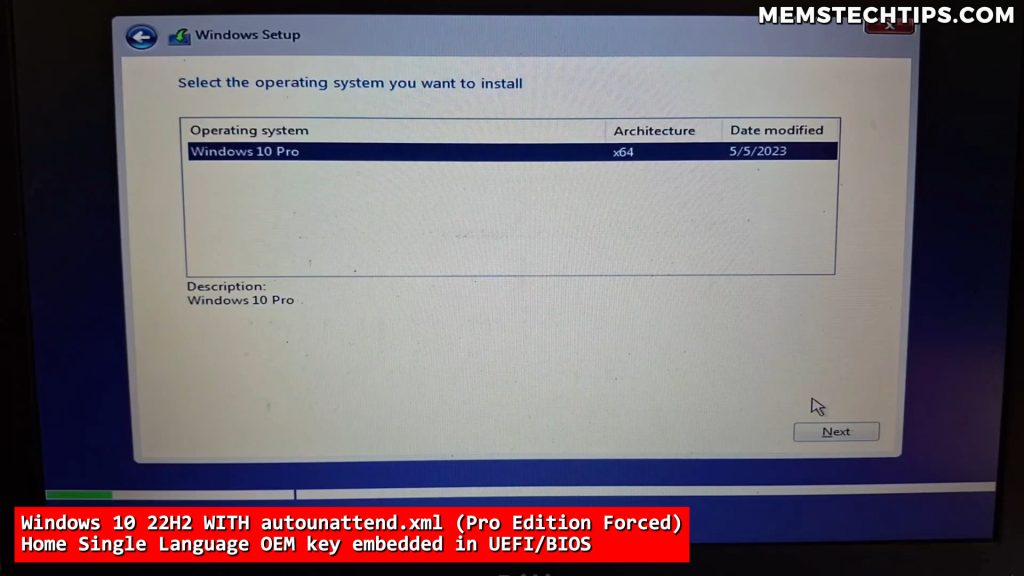
When I booted from the Windows 10 ISO with the new Autounattend file that forces the Pro edition, the setup still showed me the UI screen, even though I removed the WillShowUI tag. This is just the way the Windows 10 setup behaves.

But the important thing is that it now shows Windows 10 Pro as the edition that will be installed. This confirms that it’s going to install Windows 10 Pro on this laptop, which has a Windows Home Single Language license embedded in the BIOS.

Windows 10 installation screen displaying Windows 10 Pro as the selected edition for installation

Windows 11 Behavior

The Windows 11 setup behaves a little bit differently again. When I completely removed the WillShowUI command from the Autounattend file, Windows 11 didn’t show the UI at all. It just read the key that I put in the Autounattend file (the Pro edition generic key) and automatically started installing the Pro edition.

If you wanted to see the UI on Windows 11 like on Windows 10, you would just keep the WillShowUI command and set it to “Always.”

Windows 11 Tip: If you want a completely automated installation with no edition selection screen, simply use the generic key and either remove the WillShowUI command or set it to “Never.”

Using Your Own Valid License Key

Now, if you already have a valid Windows license key – like a Windows 11 Pro license key that you bought from Microsoft or a reseller – you can enter your actual license key in the Autounattend key field instead of the generic key.

In that case, once Windows is installed, it’ll already be configured with your specific Windows license key. Once it contacts the Windows activation servers, it should then activate your copy of Windows automatically with your valid license key.

This is perfect if you’re setting up multiple computers with the same license type and you want to completely automate the process, including activation.

Alternative Methods: EI.cfg and PID Files

Using an Autounattend file is not the only way that you can force a specific edition of Windows or prevent Windows from automatically using the OEM key that’s embedded into the UEFI or BIOS.

The EI.cfg File Method

You can also use an EI.cfg file (Edition Configuration file), which you place inside of the sources folder of the Windows installation USB. This file can force a specific edition ID and channel.

For example, to force a specific edition, your EI.cfg file would look like this:

[EditionID]
Professional
[Channel]
Retail

Or if you want to create a default configuration that shows the Windows edition selection screen, you can use:

[Channel]
Retail

The PID.txt File

There’s also a PID.txt file that you can include along with the EI.cfg file, where you can specify a product ID.

Important Limitation

Critical Note: If you include an Autounattend XML file on the Windows installation media, it completely ignores the EI.cfg file and the PID.txt file because the Autounattend file takes precedence.

So if you’re not using an Autounattend file, then you can go the route of using an EI.cfg file and a PID.txt file. But since this guide is specifically about Autounattend files, I just wanted to mention that there is another method available if you’re interested in exploring different approaches.

Practical Applications and Use Cases

Understanding how to control Windows edition selection is incredibly useful in several scenarios:

1. IT Professionals and System Administrators

If you’re deploying Windows across multiple computers in an organization, you might need to install Windows Pro on devices that originally came with Windows Home. Using the generic keys in your Autounattend file lets you standardize installations across different hardware.

2. Computer Repair and Refurbishment

When you’re refurbishing computers or performing clean installations for clients, you might need to install a different edition than what’s embedded in the BIOS. This method gives you the flexibility to do that without any hassle.

3. Personal Use and Testing

If you’re someone who likes to test different Windows editions or you want to upgrade from Home to Pro without buying a new computer, understanding these methods gives you complete control over your installation process.

4. Automation Enthusiasts

If you’re using tools like Winhance or UnattendedWinstall to create optimized Windows installations with debloating and tweaks applied automatically, controlling the edition selection is the final piece of the puzzle for a truly automated setup experience.

Troubleshooting Common Issues

Edition Selection Screen Still Not Appearing

If you’ve added the blank product key and set WillShowUI to “Always” but the edition selection screen still isn’t appearing, check these things:

  • Make sure you’re editing the correct processor architecture section (usually AMD64 for most modern computers)
  • Verify that the Autounattend file is properly placed in the root of your installation media
  • Check that your XML syntax is correct – even a small typo can cause the entire Autounattend file to be ignored
  • If using Windows 10, remember to use the back button workaround I mentioned earlier

Wrong Edition Being Installed

If Windows is installing a different edition than expected:

  • Double-check that you’ve replaced the key in ALL processor architecture sections (x86, ARM64, and AMD64)
  • Verify you’re using the correct generic key for your desired edition
  • Make sure there are no other Autounattend files on your installation media that might be conflicting

Windows Not Activating After Installation

Remember, generic keys don’t activate Windows – they only select the edition. You’ll need to:

  • Enter a valid license key after installation through Settings > Activation
  • Or use a valid license key directly in the Autounattend file instead of the generic key
  • If your computer has an OEM key for a different edition, it won’t automatically activate the edition you installed

Best Practices and Recommendations

Based on my experience working with Autounattend files and Windows installations, here are my recommendations:

For Flexibility

If you want maximum flexibility and the ability to choose different editions each time you install, use the blank product key method with WillShowUI set to “Always.” This gives you full control at installation time.

For Automation

If you’re doing repeated installations of the same edition, use the generic key for that specific edition and set WillShowUI to “Never” (or remove it entirely). This creates a completely hands-off installation experience.

For Organization Deployments

If you’re deploying across an organization with valid license keys, embed your actual license keys in the Autounattend file for automatic activation after installation.

Testing Your Configuration

Always test your Autounattend file in a virtual machine first before deploying it to physical hardware. This lets you quickly verify that the edition selection is working as expected without wasting time on physical installations.

Conclusion

Understanding how Windows edition selection works with Autounattend files is crucial if you want to take full control of your Windows installations. The key takeaways are simple: use a blank product key with WillShowUI set to “Always” if you want to see the selection screen, or use a generic Windows key to force a specific edition.

Remember that Windows 10 and Windows 11 behave differently – Windows 10 requires that back button workaround when using the blank key method, while Windows 11 handles it more gracefully. And always keep in mind that generic keys are just for selecting editions during installation; they don’t activate Windows.

If you’re using Winhance or UnattendedWinstall to generate your Autounattend files, you now know exactly how to modify the product key sections to get the behavior you want. Whether you’re an IT professional deploying Windows across multiple machines, a computer enthusiast who likes to optimize installations, or someone who just wants to install Windows Pro on a computer that came with Home, these methods give you complete control.

I’ve created detailed documentation and video tutorials on the UnattendedWinstall GitHub page if you need more help with using Autounattend files. And if you have any questions or run into issues, feel free to reach out in the comments or create an issue on the Winhance or UnattendedWinstall GitHub pages.


Frequently Asked Questions (FAQ)

Can I use the generic Windows keys to activate Windows permanently?

No, the generic Windows keys provided by Microsoft are only used to select which edition of Windows to install during the setup process. They don’t activate or license your Windows installation. After Windows is installed, you’ll still need to enter a valid Windows license key to activate Windows. These generic keys are publicly available from Microsoft specifically for edition selection purposes during automated installations.

Why does Windows 10 only show one edition even with a blank product key in my Autounattend file?

This is normal behavior for Windows 10 when you have an OEM key embedded in your computer’s BIOS. Even with a blank product key and WillShowUI set to “Always,” Windows 10 initially shows only the edition that matches your OEM key. The workaround is simple – just click the back button during setup, then proceed forward again and select “I don’t have a product key.” This will display all available editions on your ISO file.

Will forcing a different Windows edition void my OEM license?

Installing a different edition (like Pro instead of Home) won’t void your OEM license, but your OEM license will only activate the specific edition it was issued for. So if your laptop came with Windows Home and you install Windows Pro using a generic key, your OEM Home license won’t activate the Pro installation. You’ll need to purchase a separate Pro license to activate that installation. Your original OEM license remains valid if you ever want to reinstall the original edition.

Can I use the same Autounattend file for both Windows 10 and Windows 11?

Yes, the same Autounattend file will work for both Windows 10 and Windows 11, but be aware that they behave slightly differently. Windows 11 handles edition selection more smoothly – it immediately shows the product key entry screen where you can select “I don’t have a product key” and see all editions. Windows 10 may require the back button workaround I mentioned. The actual XML configuration is the same for both versions, so you can use one Autounattend file for both.

What’s the difference between the EI.cfg file method and using Autounattend files?

Both methods can control Windows edition selection, but they work differently and have different use cases. The EI.cfg file is simpler – you just place it in the sources folder of your installation media to control edition selection. However, if you include an Autounattend XML file on your installation media, it takes complete precedence and the EI.cfg file is completely ignored. Autounattend files are more powerful because they can automate the entire Windows setup process, not just edition selection. If you’re already using Autounattend files for automation, debloating, or optimization, you should use the product key method I’ve described rather than EI.cfg files.

Similar Posts

2 Comments

  1. Great breakdown of how Autounattend files override OEM keys and why generic keys are purely for edition selection, not activation. The reminder that Autounattend takes precedence over EI.cfg and PID.txt will save a lot of people from unnecessary troubleshooting. This kind of detail is exactly what’s missing in most unattended install tutorials.

Leave a Reply

Your email address will not be published. Required fields are marked *