Roo Code is a free VS Code extension that lets Claude (or another AI model) control a real Chrome browser from plain-language prompts — no Selenium, Playwright, or Python required. You install the extension, point it at a Chrome instance running in remote-debugging mode, and describe the task. The AI takes screenshots, identifies buttons and text fields, and performs the clicks and keystrokes itself.
Applies to: Windows 10 (22H2) and Windows 11 (23H2, 24H2, 25H2) | Last updated: April 20, 2026
Key Takeaways
- Roo Code pairs VS Code with a browser-capable AI model (Claude Sonnet works best) to click, type, and navigate inside a real Chrome window.
- You need four things: VS Code, the Roo Code extension, an OpenRouter API key with credits, and Chrome launched with the
--remote-debugging-port=9222flag. - Prompt quality controls cost — giving the AI a direct URL and explicit element hints cut my API bill by roughly 70% compared to vague instructions.
Quick Steps
- Install Visual Studio Code and add the Roo Code extension from the Extensions marketplace.
- Create an API key at OpenRouter.ai and add at least a few dollars of credit.
- In Roo Code settings, set the provider to OpenRouter, paste the key, and pick a Claude Sonnet model with computer-use support.
- Launch Chrome in debug mode with a dedicated profile (command provided below) and sign into any sites you want the AI to access.
- Enable Use a remote browser connection in Roo Code and point it at
http://localhost:9222. - Give the agent a task in plain English, prefer direct URLs and explicit instructions, and let it run.
What You Need Before Starting
- Visual Studio Code — free download from Microsoft.
- Roo Code VS Code extension (installed from the Extensions marketplace).
- Google Chrome (any recent version).
- API access to a Claude Sonnet model via OpenRouter or directly from Anthropic. Both are paid per token — OpenRouter makes sense here because the same key also unlocks other models you can experiment with.
If VS Code is new to you, my vibe coding guide walks through the editor basics before you add Roo Code on top.
Why AI Browser Automation Beats Traditional Scripting
Tools like Selenium and Playwright are fast and cheap once they work, but they rely on exact selectors — a class name change or a redesigned button breaks them. Writing and maintaining those scripts is a job in itself.
Roo Code flips that model. Instead of telling it which CSS selector to click, you tell it what outcome you want. The AI takes a screenshot, visually identifies the right button based on its label and position, and clicks it. If the site redesigns tomorrow and the button moves, the AI still finds it. That makes it a good fit for:
- Low-volume, one-off tasks that aren’t worth writing a script for.
- Sites you don’t control, where selectors shift without warning.
- Workflows that need a judgement call — for example, skipping a post if a similar one already exists.
The tradeoff is cost. Every action requires a screenshot sent to the model, and screenshots are expensive tokens. For a task you’ll run thousands of times a day, stick with traditional scripting. For tasks you’d otherwise do manually in a browser, Roo Code can pay for itself after one or two runs.
Install VS Code and the Roo Code Extension
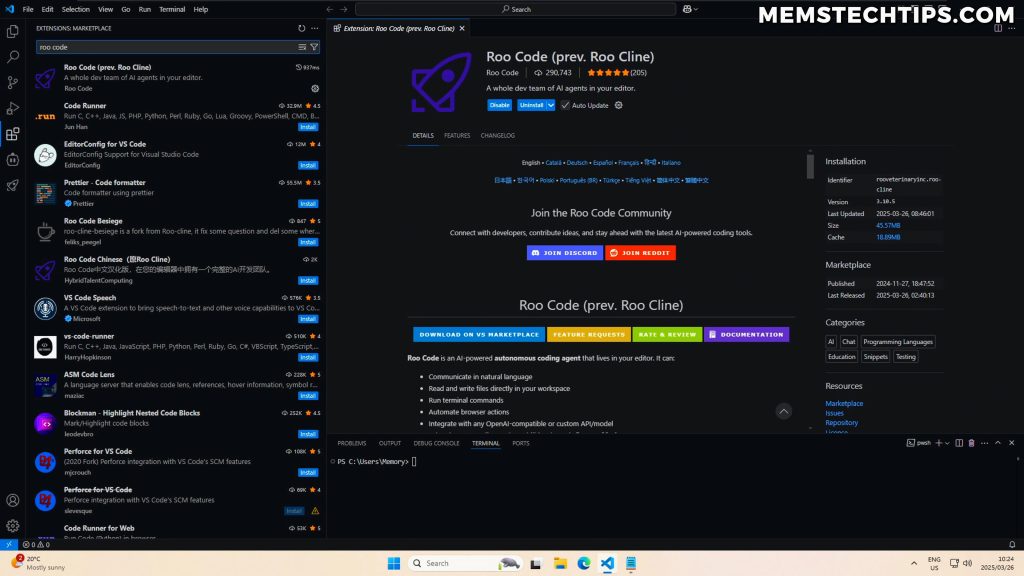
Download and install Visual Studio Code from the official site if you don’t already have it. Open VS Code, click the Extensions icon in the left sidebar (or press Ctrl+Shift+X), search for Roo Code, and click Install. The extension adds a Roo Code icon to the Activity Bar.
Configure the OpenRouter API Connection
Roo Code’s browser features need a model that supports vision and computer use. Claude Sonnet is the reference choice — you can use it directly through Anthropic’s API, or through OpenRouter, which is what I use because the same key also gives me access to every other model on their platform.
- Create an account at OpenRouter.ai and add credit to your balance (a few dollars is plenty to get started).
- Open the Keys section and create a new API key. Copy it.
- In VS Code, open Roo Code settings and set API Provider to OpenRouter.
- Paste your API key into the OpenRouter field.
- Pick a Claude Sonnet model from the model dropdown (the latest Sonnet version that supports computer use — this changes as Anthropic releases newer models).

Launch Chrome in Remote Debugging Mode
Roo Code drives the browser by connecting to Chrome’s remote debugging protocol — the same protocol Chrome DevTools uses. You need to launch Chrome with two flags: a port for the protocol, and a separate user-data directory so it doesn’t interfere with your everyday Chrome profile.
Open the Run dialog with Win + R and paste the following command:
"C:\Program Files\Google\Chrome\Application\chrome.exe" --remote-debugging-port=9222 --user-data-dir="C:\chrome-debug"Chrome will open a fresh profile in C:\chrome-debug. Sign into any sites you want the AI to access — YouTube, Gmail, wherever. That login state persists because the user-data directory is reused on every launch.
To confirm remote debugging is active, open a new tab and visit:
http://localhost:9222/jsonYou should see a JSON list of open tabs. If the page fails to load, Chrome wasn’t launched with the debug flag — close all Chrome windows and run the command again.
Why a separate profile: Chrome refuses to enable remote debugging on a profile that’s already open. Using a dedicated
C:\chrome-debugdirectory keeps your daily browsing session untouched and avoids conflicts with extensions or sync.
Connect Roo Code to Your Chrome Instance
- In VS Code, open Roo Code settings and scroll to the Browser / Computer Use section.
- Enable Use a remote browser connection.
- Set the custom URL to
http://localhost:9222. - Click Test Connection. A green success message confirms Roo Code can see your debug Chrome.
- Save the settings.

Write Your First Automation Prompt
Open the Roo Code panel in VS Code and type what you want to happen. Here’s a deliberately simple first task — posting a YouTube community post — written the way most people start:
You have access to my Chrome profile.

Go to YouTube and create a new community post that says
"If you're seeing this post, it was entirely created by Roo Code
and Claude Sonnet - video coming soon" and then click Post.
When you run it, Roo Code launches the controlled Chrome tab, takes a screenshot, identifies the YouTube logo, navigates to youtube.com, finds the Create button, selects Create Post, types the message, and clicks Post. The whole run is streamed in the Roo Code panel so you can see every screenshot and every action.

Cut Your API Costs With Better Prompts
Every screenshot the AI processes costs tokens, and the number of screenshots depends on how much navigation it has to do. The vague prompt above took me around 430,000 tokens and roughly $0.26 to complete a single post. With a few prompt changes, I got the same task down to 90,000 tokens and about $0.08 — over 70% cheaper for identical output. Here are the three techniques that did the work.
1. Give Direct URLs Instead of Navigation Steps
Every click the AI has to make is another round-trip with another screenshot. If you already know the URL of the page the task starts on, say so:
Use this URL directly:
https://www.youtube.com/channel/YOUR_CHANNEL_ID/community?show_create_dialog=1

Once you're there, you can start typing immediately.
That single change skipped four screenshots in my run — the home page, the Create menu, the post-type picker, and the confirmation that the editor had opened.
2. Describe Where Interactive Elements Live
If the AI struggles to find a text field or button, a one-line hint saves it from clicking around blind:
If you're having trouble finding the text input field, just start typing.
The text input field is directly above the icons like Image, Image Poll, etc.
3. Use Defaults for the Viewport and Screenshot Quality
In Roo Code’s browser settings, the default Large Desktop viewport (1280×800) captures enough of most pages to avoid scroll-and-rescreenshot loops. Only bump the viewport or screenshot quality if the AI is repeatedly failing to see an element — both settings increase token usage.
Tip: Watch the Roo Code panel during the first run. Every time the AI takes a screenshot it didn’t need, you’ve got a prompt-optimisation opportunity.
A Final Optimised Prompt
Combining all three techniques gives you a prompt like this, which is what I ended up running:
You have access to my Chrome profile.

Go to YouTube and create a new community post that says:
"If you're seeing this post, it was entirely created by Roo Code
and Claude Sonnet - Video Coming Soon" and then click Post.

Fastest way to create a post:
Use this URL directly:
https://www.youtube.com/channel/YOUR_CHANNEL_ID/community?show_create_dialog=1
Once you are there, you can start typing immediately.

If you're having trouble finding the text input field on the community
post, just start typing the message. The text input field is directly
above the icons like Image, Image Poll, etc.

Once you're done typing, remember to click Post.
Troubleshooting Common Issues
- Test connection fails. Chrome wasn’t started with
--remote-debugging-port=9222. Close every Chrome window (check the taskbar), then re-run the launch command. - AI can’t find a button. Increase the viewport in Roo Code settings one step at a time, or add a sentence describing where the element is on the page.
- Automation times out on a login page. You’re not signed in on the debug profile. Sign in manually in the debug Chrome window, then retry — the session sticks because the user-data directory is persistent.
- Costs are spiking. Check how many screenshots a single run is producing. If it’s more than 10–15 for a simple task, your prompt needs a direct URL or clearer element hints.
What Else Can You Automate This Way
The YouTube example is the simplest one I could demo, but the same pattern works for any logged-in browser task:
- Cross-posting the same update to multiple platforms (X, LinkedIn, Bluesky) in one run.
- Pulling data off sites without a public API — price comparisons, stock levels, public government records.
- Filling out tedious web forms that don’t import from a CSV.
- Moderating comment queues or triaging support emails based on content.
If you want the AI to also read and write code files alongside the browser work, my vibe coding guide covers Roo Code’s file-editing side. And if you’re coming from zero on VS Code itself, the VS Code install guide gets you to a working editor before you layer anything else on top.
Conclusion
Roo Code browser automation isn’t a replacement for Selenium on high-volume, mission-critical pipelines — the per-run cost is too high and the latency too unpredictable. But for the grey zone between “I’ll do it manually every time” and “I’ll hire a developer to automate it,” it’s genuinely useful. A twenty-cent run that saves ten minutes of clicking through a clunky admin panel pays for itself immediately.
The skill worth developing is prompt optimisation — the difference between a careless prompt and a tight one can be 5× on cost and 3× on speed. Treat the first run as a draft, watch where the AI wasted screenshots, and fold those fixes back into the prompt for run two.
Frequently Asked Questions
Is Roo Code browser automation free to use?
VS Code and the Roo Code extension are free. The AI model isn’t — you pay per token through OpenRouter or Anthropic. A typical browser task runs anywhere from a few cents to a dollar depending on prompt quality and how much navigation is involved.
Can Roo Code log into sites that require two-factor authentication?
You log in once manually in the debug Chrome profile, complete 2FA yourself, and the session cookie persists. The AI never sees your credentials or the 2FA code — it just reuses the already-authenticated browser session.
How does Roo Code compare to Selenium or Playwright?
Selenium and Playwright are deterministic and cheap to run but brittle — a redesigned page breaks the script. Roo Code adapts to UI changes because it reads the page visually, but each run costs real money and takes longer. Pick traditional scripting for repeatable high-volume work; pick Roo Code for ad-hoc tasks or sites you don’t control.
Will a website redesign break my Roo Code automation?
Small changes — a button colour, a relabelled link, an added menu item — usually don’t. The AI finds elements based on context and meaning, not exact DOM positions. A complete rebuild of the page may still require a prompt update, but the maintenance burden is far lower than with selector-based tools.
Can I schedule Roo Code automations to run overnight?
Roo Code itself doesn’t schedule jobs, but because it runs inside VS Code, you can trigger it with any Windows scheduler — Task Scheduler, a scheduled PowerShell script, or a GitHub Actions runner that launches a VS Code session. For recurring tasks that are critical, a headless scripted approach with Playwright is still more reliable.