You can install WhatsApp on Windows 10 or Windows 11 without the Microsoft Store by using Winhance, UniGetUI, or the WinGet command line. WhatsApp’s official website at whatsapp.com/download no longer offers a standalone installer — it redirects you to the Microsoft Store page, so you need an alternative if the Store is unavailable on your system.
Applies to: Windows 10 (22H2) and Windows 11 (23H2, 24H2, 25H2) | Last updated: April 1, 2026
Key Takeaways
- WhatsApp’s website redirects to the Microsoft Store — there is no longer a direct download option on whatsapp.com, so you need an alternative installation method if the Store is missing or broken.
- Winhance and UniGetUI both use WinGet — these free tools give you a graphical interface to install WhatsApp (and hundreds of other apps) without ever opening the Microsoft Store.
- WinGet works from the command line — run
winget install 9NKSQGP7F2NHin PowerShell or Command Prompt to install WhatsApp in seconds, no Store app required. - WhatsApp Web requires zero installation — visit web.whatsapp.com in any browser to access your messages instantly.
Quick Steps
- Download and install Winhance or UniGetUI (or use
winget install 9NKSQGP7F2NHfrom the command line). - Search for WhatsApp and install it through the app.
- Open WhatsApp on your PC and click Get Started.
- On your phone, open WhatsApp > Settings > Linked Devices > Link a Device.
- Scan the QR code on your computer screen with your phone’s camera.
In This Guide
This guide covers three methods to install WhatsApp on Windows without the Microsoft Store:
- Method 1: Install with Winhance — All-in-one Windows utility with a built-in app installer. (Recommended)
- Method 2: Install with UniGetUI — Dedicated graphical package manager for installing and updating apps.
- Method 3: Install with WinGet Command — One-line command in PowerShell or Command Prompt.
Method 1: Install WhatsApp Using Winhance
Winhance is a free Windows utility I built that handles debloating, optimization, and app installation all in one place. It uses WinGet under the hood, so you get the same reliable package management but with a clean GUI — no command line needed.
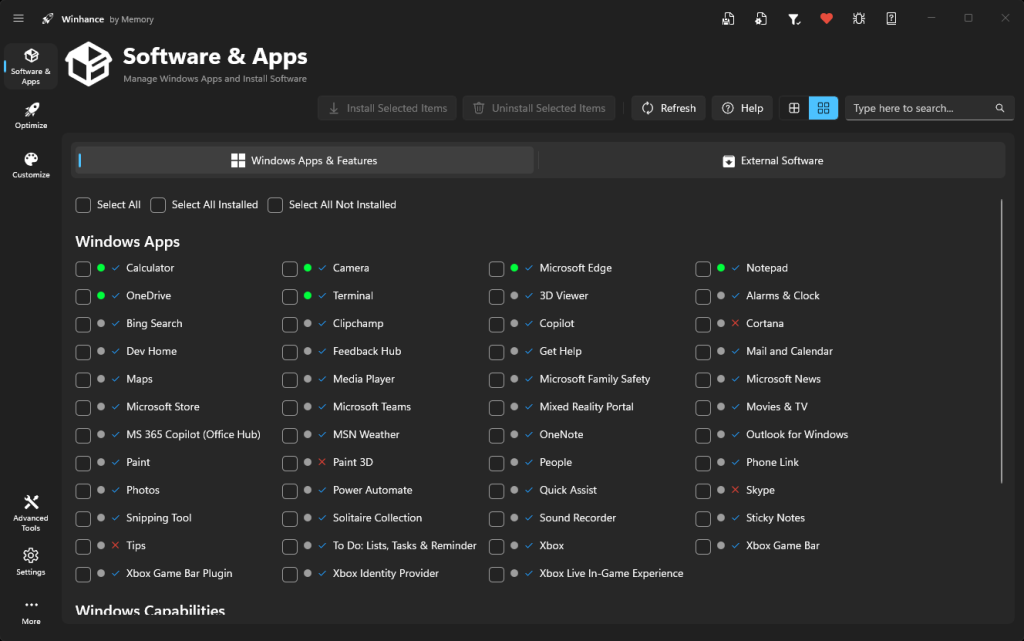
- Download Winhance from winhance.net and run it.
- In the Software & Apps section, click on the External Apps tab.
- Search for WhatsApp, check the box next to it, and click Install.
- Winhance will download and install WhatsApp automatically using WinGet.
Beyond installing apps, Winhance can also remove Windows bloatware, disable telemetry, and tweak dozens of system settings. If you have already removed the Microsoft Store as part of debloating your system, Winhance is the easiest way to install apps like WhatsApp without it. I have a full guide on Winhance if you want to see everything it can do.
Method 2: Install WhatsApp Using UniGetUI
UniGetUI is a free graphical package manager that also uses WinGet (along with Scoop and Chocolatey) behind the scenes. It is a dedicated app management tool — great if you want a single place to install, update, and manage all your software without the Microsoft Store.
- Download UniGetUI from marticliment.com/unigetui and install it.
- Open UniGetUI and make sure Discover Packages is selected.
- Type WhatsApp in the search bar.
- Check the box next to WhatsApp and click Install Selected Packages.
- UniGetUI will download and install WhatsApp automatically.

The advantage of UniGetUI is that it also handles updates. You can check for app updates across all your installed software from one place. I have a full guide on UniGetUI if you want to learn more about what it can do.
Method 3: Install WhatsApp Using WinGet (Command Line)
Both Winhance and UniGetUI use WinGet behind the scenes, so if you are comfortable with the command line, you can skip the GUI entirely. WinGet is Microsoft’s built-in package manager that comes pre-installed on Windows 10 (version 1809+) and Windows 11.
Open PowerShell or Command Prompt and run:
winget install 9NKSQGP7F2NHThis installs WhatsApp using its Microsoft Store package ID, but does not require the Microsoft Store app to be installed on your system. WinGet handles the download and installation directly.
Note: If WinGet is not recognized, make sure your Windows is up to date. WinGet is bundled with the App Installer package — you can also reinstall the Microsoft Store which includes it, or download the App Installer from GitHub.
How to Set Up WhatsApp on Your PC
Regardless of which installation method you used, the setup process is the same. You need to link your phone’s WhatsApp account to the desktop app using a QR code.
- Open WhatsApp on your PC and click Get Started.
- On your phone, open WhatsApp and go to Settings (or tap the three dots on Android).
- Tap Linked Devices, then tap Link a Device.
- Point your phone’s camera at the QR code displayed on your computer screen.
- Once the scan completes, your messages will sync and WhatsApp is ready to use on your PC.

Tip: WhatsApp’s multi-device feature means your PC app works independently after the initial link. Your phone does not need to stay online for WhatsApp to work on your computer.
If you do have the Microsoft Store available and prefer to use it, I have a separate guide for installing WhatsApp via the Microsoft Store that walks through that process step by step.
Can You Use WhatsApp Without Installing Anything?
Yes. WhatsApp Web lets you use WhatsApp directly in your browser — no installation required. Open the link, scan the QR code with your phone, and you can send and receive messages right from Chrome, Edge, Firefox, or any other browser.
WhatsApp Web is a good option if you need quick access on a shared or temporary computer. For daily use, the desktop app is more reliable and supports features like notifications and keyboard shortcuts that the web version handles less consistently.
Frequently Asked Questions
Why can’t I download WhatsApp directly from the WhatsApp website anymore?
WhatsApp’s official download page at whatsapp.com/download no longer provides a standalone Windows installer. When you click the download button, it redirects you to the Microsoft Store listing instead. If you have removed the Store or it is not working, use one of the three methods in this guide to install WhatsApp without it.
What are the system requirements for WhatsApp on Windows?
WhatsApp Desktop requires Windows 10 version 1809 or newer, and at least 4 GB of RAM. It runs on both 64-bit and ARM versions of Windows. If your system meets these requirements, any of the three installation methods in this guide will work.
Does my phone need to stay connected for WhatsApp to work on my PC?
No. WhatsApp uses multi-device technology that keeps your PC app working independently after the initial QR code link. Your phone can be turned off or disconnected from the internet, and you will still be able to send and receive messages on your computer.
How do I update WhatsApp if I did not install it from the Microsoft Store?
If you installed WhatsApp via Winhance or UniGetUI, open the app and check for available updates — both tools show pending updates for all your installed software. For WinGet, run winget upgrade WhatsApp in PowerShell. WhatsApp also checks for updates on its own in the background.
Can I use multiple WhatsApp accounts on one computer?
Yes. WhatsApp added multi-account support in 2024. You can add a second account from the WhatsApp desktop app settings without needing to log out of your first account. Both accounts work simultaneously.