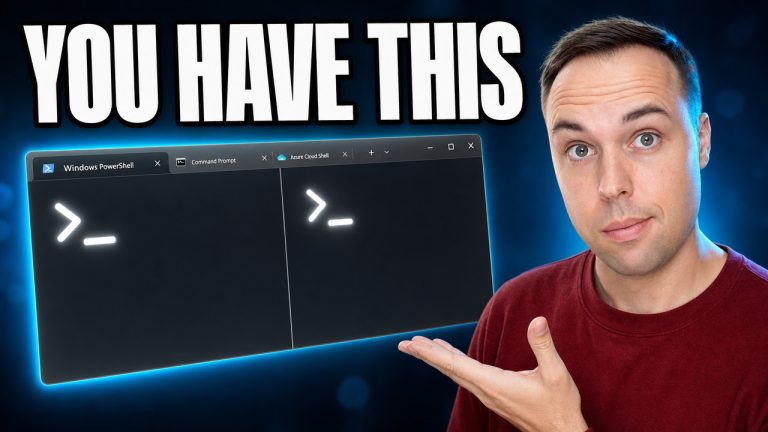
Microsoft PowerToys ships a feature called the Command Palette Dock — a fully customizable second taskbar you can place on any edge of your screen, with built-in transparency, live CPU, RAM, GPU and network monitors, and free extensions from the Microsoft Store. Introduced in PowerToys 0.98 as a preview, the dock can replace most of what the Windows 11 taskbar does and pairs with auto-hiding the standard taskbar for a cleaner desktop.
Applies to: Windows 10 (22H2) and Windows 11 (23H2, 24H2, 25H2) | Last updated: May 18, 2026
Key Takeaways
- The Command Palette Dock is a free, built-in PowerToys feature — no third-party taskbar replacement needed. It was added in PowerToys 0.98 and lives under Command Palette > Settings > Dock.
- It works as a full second taskbar — position it on the top, bottom, left, or right edge of the screen, with live CPU, memory, GPU, and network monitors, plus a date and time widget that copies to your clipboard.
- Transparency is built in — you do not need TranslucentTB or any other third-party transparency tool to see your wallpaper through the bar.
- Free extensions extend what the dock can do — install media controls, clipboard tools, and more from the Microsoft Store by searching for “Command Palette.”
- The feature is still in preview, so occasional crashes are expected. End the PowerToys processes in Task Manager and relaunch — the dock comes back instantly.
Quick Steps
- Install or update Microsoft PowerToys to version 0.98 or later from the Microsoft Store.
- Open PowerToys and click Command Palette in the left menu, then click Settings.
- Open the Dock tab and toggle Enable Dock on.
- Set the dock position (top, bottom, left, right) and switch the theme mode to Transparent.
- Optionally hide the Windows 11 taskbar so the dock takes over.
- Open the Microsoft Store, search for “Command Palette”, and install any extensions you want.
- Right-click the dock, choose Edit Dock, click the + sign, pick the extension, and click Save.
In This Guide
This guide walks through everything from installing PowerToys to building out a personalized dock:
- Why use the Command Palette Dock — what it actually replaces on the standard taskbar.
- How to set up the dock — install PowerToys 0.98+ and enable the dock in three clicks.
- What is on the dock by default — the built-in buttons, monitors, and widgets.
- Customize the dock — position, transparency, and hiding the Windows taskbar.
- Using the Command Palette itself — launching apps, calculator, clipboard history, and search.
- Adding extensions from the Microsoft Store — example walkthrough with Media Controls.
- Troubleshooting crashes — the one-minute fix when the dock disappears.
Why Use the PowerToys Command Palette Dock?
The default Windows 11 taskbar gets the job done, but it has always been limited when it comes to real customization. You cannot easily add system monitors to it, freely move it to different sides of the screen, or make it properly transparent without reaching for a third-party app. I have covered how to get a transparent taskbar and translucent Start menu on Windows 11 using a tool called TranslucentTB, and while that works great, the new Command Palette Dock has transparency built right in — no extra app needed.
On top of that, the dock doubles as a launcher, a calculator, a clipboard manager, a file searcher, and a live system monitor all rolled into one bar. If you have ever wanted a cleaner and more powerful alternative to the standard taskbar — or you have tried other replacements like RetroBar, ExplorerPatcher, or StartAllBack — this is worth trying. You can auto-hide the regular Windows taskbar completely and just run the dock instead.
How to Set Up the Command Palette Dock in PowerToys
Step 1: Download and Install PowerToys 0.98 or Later
You will need PowerToys version 0.98 or later installed on your PC. If you do not have it yet, open the Microsoft Store and search for Microsoft PowerToys. It is a normal download and installation. If you already have PowerToys, just make sure it is updated to the latest version — the Dock tab does not appear in versions older than 0.98.
Step 2: Open the Command Palette in PowerToys
Once PowerToys is open, find and click on the Command Palette option in the left-hand menu. This opens the Command Palette interface. From there, click on Settings to get into the configuration options.
Step 3: Enable the Dock
Inside Command Palette Settings, click the Dock tab on the left side. You will see a note that this feature is still in preview — meaning bugs are to be expected. Flip the Enable Dock toggle to turn it on.
The dock appears on your screen right away. By default mine was positioned at the top, which is where I kept it. When you first enable it you might notice a white line at the bottom of the bar — just click on it and it disappears once the dock repositions itself.
Note: Because the dock is in preview, crashes can happen. If it crashes, open Task Manager with Ctrl + Shift + Esc, end all PowerToys-related tasks, then relaunch PowerToys. The dock comes back up automatically.
What Is on the Command Palette Dock by Default
Right out of the box, the dock already comes with some useful tools on it. Here is what you get straight away:
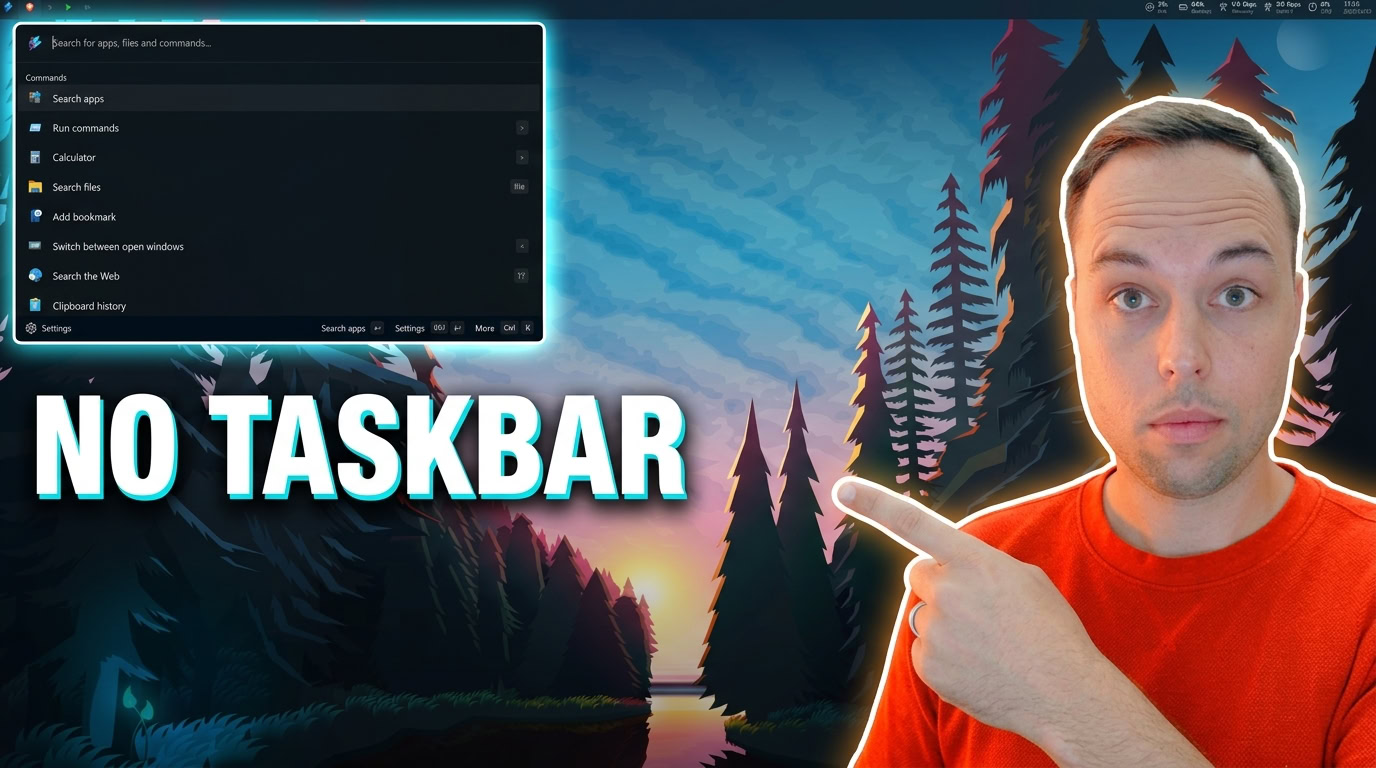
- Command Palette button — opens the full Command Palette, which works almost like a replacement for the Start menu.
- WinGet search — lets you search for apps using WinGet, Microsoft’s built-in package manager.
- System resource monitors on the right — showing live CPU usage, memory usage, GPU usage, and your network upload and download speeds.
- Date and time — clicking on it lets you copy the current time or date directly from the dock.
Customizing the Command Palette Dock
Change the Dock Position
You can position the dock on any edge of your screen — top, bottom, left, or right. Go into the dock settings and pick wherever suits your workflow best. I keep mine at the top of the screen.
Make the Dock Transparent
One of my favorite things about the new dock is the built-in transparency option. I have used third-party apps in the past to get a transparent taskbar on Windows 11, but with the Command Palette Dock you do not need anything extra. In the dock settings, switch the theme mode to Transparent and you will see your full desktop wallpaper through the bar. It looks clean.
You can also set a custom background color or even use an image as the dock background. Keep in mind though — if the dock is set to transparent, a background image will not show through anyway, so I would just stick with transparent.
Auto-Hide the Windows Taskbar
Since the dock handles most of what the standard taskbar does — and then some — you might want to hide the Windows 11 taskbar to free up screen space and let the dock take center stage. This gives you a noticeably cleaner desktop.
Using the Command Palette
The Command Palette itself is where a lot of the power is. You can set a keyboard shortcut to open it quickly — I changed mine to Ctrl + Enter because it just felt more natural. Here is what you can do with it:
- Search for and launch installed apps
- Run commands (works like the Run dialog box)
- Use it as a calculator — type an equal sign (=) to enter calculator mode, do math on the fly, then copy the result to your clipboard
- Search for files on your computer
- Search the web
- Add and open bookmarks
- View and paste from your clipboard history
Each function in the Command Palette shows its shortcut key on the right side. Once you learn these shortcuts, it becomes a very fast way to get things done. The Extensions tab in the settings shows you everything that is enabled by default.
Tip: For the Command Palette’s own appearance, set it to the Mica Alt option. This lets your wallpaper colors bleed through the Command Palette window, which looks a lot better than a plain opaque background.
Adding Command Palette Extensions from the Microsoft Store
This is where it gets really interesting. You can expand what the Command Palette and the dock can do by downloading free extensions from the Microsoft Store. There are already quite a few available, and more are being added over time. You can even build your own — Microsoft has a page on Microsoft Learn explaining exactly how to register a custom extension — but for most people, the Store has everything you will need.
Note: I tried searching for Command Palette extensions using the WinGet search function on the dock itself and did not get useful results. Go straight to the Microsoft Store and search for “Command Palette” — that is the easiest and most reliable way to find and install extensions.
Example: Installing the Media Controls Extension
As an example, I downloaded the Media Controls for Command Palette extension from the Microsoft Store. Here is how to install it and get it on the dock:
- Open the Microsoft Store and search for “Command Palette.”
- Find the Media Controls for Command Palette extension and download it. It installs just like a normal app.
- Once installed, open the Command Palette with your keyboard shortcut. The media controls extension will already be active, showing you the currently playing song and giving you controls to pause, play, or skip tracks.
Pinning the Extension to the Dock
Installing the extension makes it available in the Command Palette, but to pin it permanently on the dock itself you need one extra step:
- Right-click on the dock and select Edit Dock.
- Click the plus (+) sign to see everything you can add to the dock.
- Select the extension you want — in this case, the Media Player — from the list.
- Click Save and it will now appear permanently on your dock.
To reorder items on the dock, right-click the dock again, choose Edit Dock, click and drag the item to the position you want, then click Save.
Troubleshooting Command Palette Dock Crashes
I experienced a crash myself when I right-clicked the dock to edit it — the whole Command Palette just quit. This kind of thing is to be expected since it is still in preview. Here is exactly what to do if it crashes on you:
- Open Task Manager with Ctrl + Shift + Esc.
- Find and end all PowerToys-related tasks that are still running.
- Relaunch PowerToys from the Start menu or your desktop shortcut.
As soon as PowerToys starts back up, the dock reappears automatically and everything is back to normal. It is a minor inconvenience, not a dealbreaker — and it will only get more stable as Microsoft continues to develop the feature.
Take Your Windows Customization Further with Winhance
If tweaking and improving your Windows setup is something you enjoy, check out Winhance — the free, open-source Windows Enhancement Utility I created. It gives you hands-on control over Windows privacy settings, taskbar customization, bloatware removal, startup optimization, and more, all from one clean interface. It pairs really well with PowerToys if your goal is a fully optimized Windows experience. And if you want a debloated, optimized Windows install from the very first boot, my UnattendedWinstall answer files automate the whole installation.
Is the PowerToys Dock Worth Using Right Now?
The PowerToys Command Palette Dock is one of those features that, once you use it for a few days, you do not want to go back. Yes, it is in preview and yes, there are some rough edges — but the core of it is genuinely useful. Having a transparent dock at the top of my screen with live system monitors, a quick launcher, and media controls all in one place has changed how I interact with Windows on a daily basis.
If you are after more PowerToys ideas while you are setting this up, take a look at 5 PowerToys every Windows user should know about — a few of those pair really well with the new dock.
Frequently Asked Questions
What version of PowerToys do I need for the Command Palette Dock?
You need at least Microsoft PowerToys version 0.98. You can download or update PowerToys for free from the Microsoft Store. The Dock tab does not appear in earlier versions, so older installs will not see the option until they update.
Is the Command Palette Dock stable enough to use every day?
It is usable daily, but since it is still in preview you should expect the occasional crash. The fix is quick — end the PowerToys processes in Task Manager and relaunch. Everything comes back right away, so it is more of a minor annoyance than anything serious.
Can the Command Palette Dock fully replace the Windows 11 taskbar?
For most workflows, yes. Once the dock is set up the way you want, you can auto-hide the standard Windows taskbar and use the dock as your main bar. It covers app launching, file searching, system monitoring, and more — everything the taskbar does, plus extra functionality the taskbar never had.
Does the Command Palette Dock work on Windows 10?
PowerToys supports Windows 10 (22H2) and Windows 11, so the dock will run on either. Windows 11 gives you the best experience, especially with the transparency features that take advantage of Mica and acrylic styling. On Windows 10 the dock still works — it just looks a bit flatter.
Where do I find extensions for the Command Palette Dock?
The best place is the Microsoft Store. Search for “Command Palette” and you will find a growing list of free extensions you can install. I would avoid using the WinGet search on the dock itself to find extensions — the Microsoft Store search gives much better results.
Can I create my own extension for the Command Palette?
Yes. Microsoft has a dedicated page on Microsoft Learn that walks through how to register and build your own Command Palette extension. It is an advanced option aimed at developers, but it is a great option if you want to build something fully custom for your workflow.