With all of the problematic and buggy updates that Microsoft has been releasing to Windows 11 lately, I thought it’d be a good idea to show you how you can uninstall updates and how you can clear your update cache to prevent those updates from reinstalling again automatically. If you’ve been dealing with issues after a recent Windows update, this guide will walk you through the complete process of removing those updates and clearing the cache so they don’t come back.
In this tutorial, I’ll show you the exact steps to uninstall Windows 11 updates through the Settings app, how to delete the Software Distribution folder to clear the update cache, and even how to pause or disable Windows updates if you need to. Let’s get started.
Key Takeaways
- Not all Windows updates can be uninstalled – Security updates and some driver updates are protected by Windows and cannot be removed to keep your PC safe from vulnerabilities.
- Clearing the Windows update cache prevents automatic reinstallation – By deleting the Software Distribution folder, you remove the cached update files that Windows uses to reinstall updates automatically.
- You must stop the Windows Update service first – Before you can delete the Software Distribution folder, you need to stop the Windows Update service through the Services panel to release the file locks.
Requirements
To follow this tutorial and uninstall Windows 11 updates, you’ll need:
- A computer running Windows 11 (these steps also work on Windows 10)
- Administrator access to your Windows account
- Access to Windows Settings and the Services panel
- File Explorer access to navigate to system folders
Why Do You Need to Uninstall Windows 11 Updates?
Sometimes Microsoft releases Windows updates that cause more problems than they solve. You might experience system crashes, application compatibility issues, performance slowdowns, or other bugs after installing certain updates. In these cases, uninstalling the problematic update can restore your system to normal functionality.
But here’s the thing – just uninstalling the update isn’t enough. Windows will often try to reinstall that same update automatically during the next update check. That’s why clearing the Windows update cache is so important. By removing the cached update files from the Software Distribution folder, you prevent Windows from automatically reinstalling the update you just removed.
This gives you control over when and which updates get installed on your system, which can be crucial when you’re dealing with buggy or problematic updates.
How to Uninstall Windows 11 Updates
The first step in this process is to uninstall the problematic Windows update. Here’s how to do it through the Windows Settings app.
Step 1: Access Windows Update History
Start by opening the Windows Settings app. You can do this by pressing Windows key + I or by searching for “Settings” in the Start menu. Once you’re in Settings, navigate to the Windows Update section in the left sidebar.
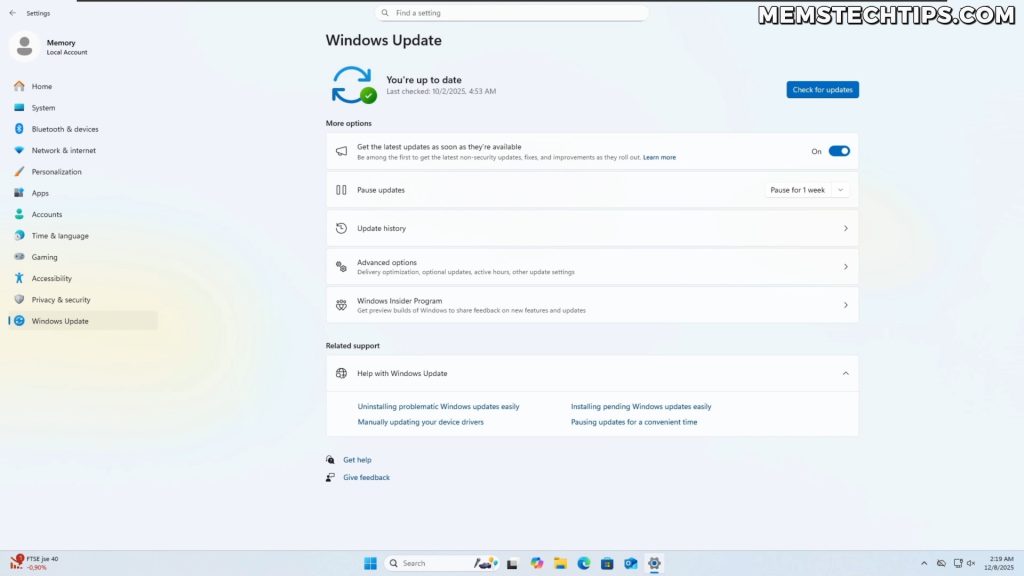
On the Windows Update screen, you’ll see the current update status of your system. To view which updates are installed and which ones you can uninstall, click on Update history.
Step 2: Understanding Which Updates Can Be Uninstalled
When you click on Update history, you’ll see a list of all the installed updates on your system. You’ll notice there are different types of updates listed here, including feature updates, quality updates, driver updates, and security updates.
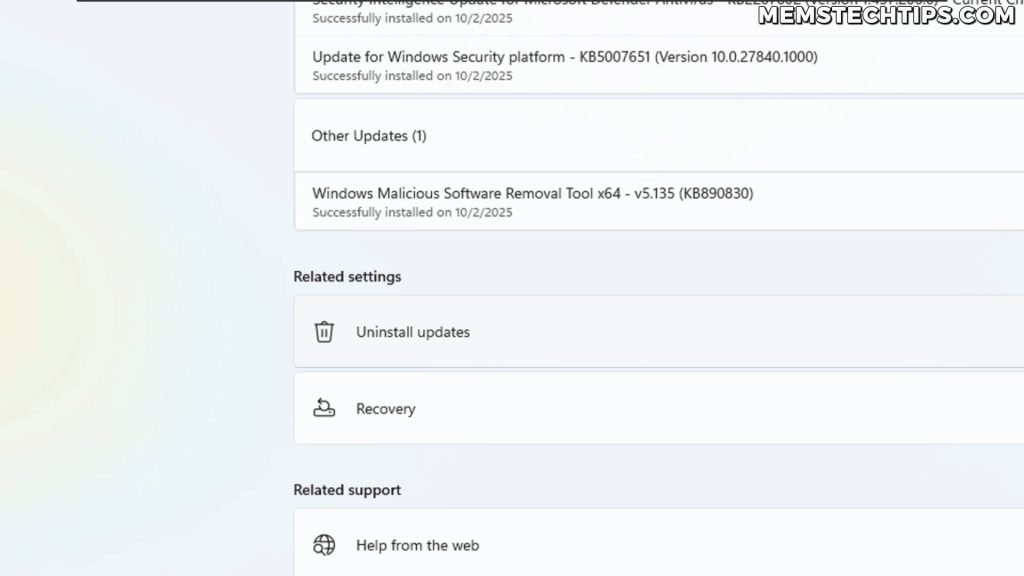
Now, here’s something that’s very important to understand: under the Related Settings section, you’ll see an option called Uninstall updates. When you click on that, you might notice that Windows says it found fewer updates that can be uninstalled compared to what you see in the Update history list.
Important: Windows won’t let you uninstall some updates because uninstalling them may put your PC at risk. This mainly applies to security updates and sometimes driver updates. Microsoft restricts the ability to remove these updates to protect your system from security vulnerabilities.
That’s why there’s a discrepancy between the total number of updates shown in Update history and the number of updates available to uninstall. For example, you won’t be able to uninstall security updates, but you can uninstall feature updates and other non-security related updates.
Step 3: Uninstalling Windows Updates
Once you’re on the Uninstall updates screen (which opens in the old Control Panel style), you’ll see a list of updates that can be removed from your system. To uninstall an update, simply click on the update you want to remove, then click the Uninstall button at the top of the list.
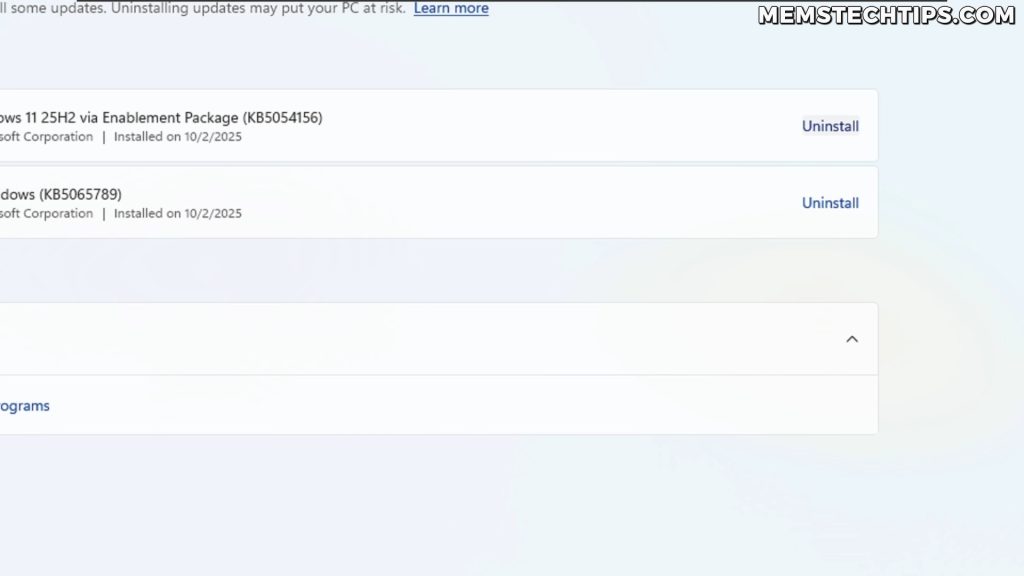
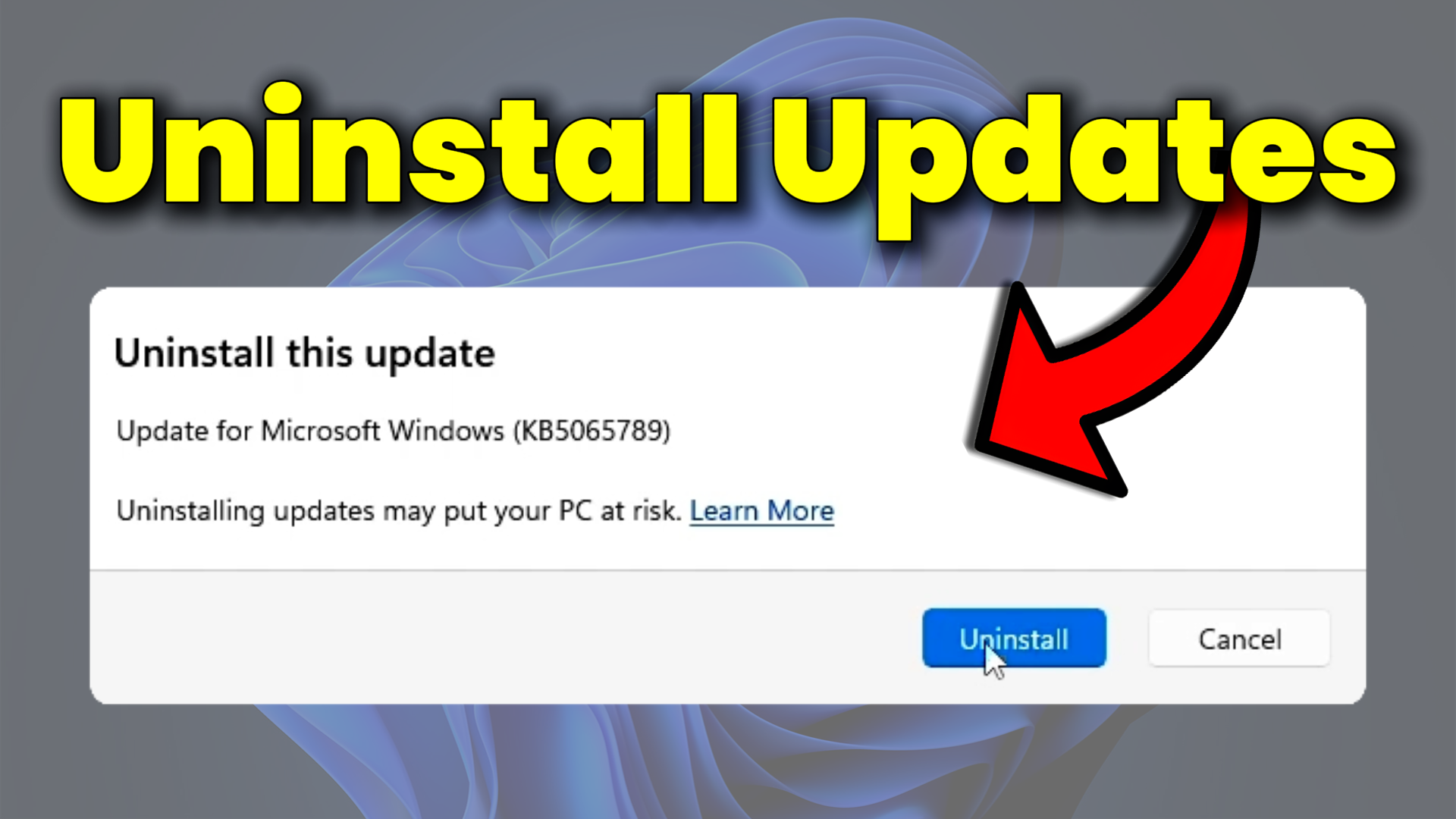
You’ll get a confirmation dialog asking if you’re sure you want to uninstall the update. Click Uninstall again to confirm. Windows will then begin the uninstallation process. This usually takes a few moments.
Once the uninstallation is complete, Windows will typically require a restart to finish removing the update. If you have multiple updates to uninstall, you can choose to Restart later and uninstall all the updates you want to remove before restarting. This saves time since you only need to restart once.
Tip: If you’re uninstalling multiple updates, it’s more efficient to uninstall all of them first, then restart your computer once rather than restarting after each individual update removal.
After uninstalling all the updates you want to remove, click Restart now to complete the uninstallation process. Your computer will restart, and during the restart, Windows will finish removing the updates from your system.
How to Clear Windows Update Cache
Now that you’ve uninstalled the problematic updates, the next critical step is to clear the Windows update cache. This prevents those updates from being automatically downloaded and reinstalled again.
What is the Software Distribution Folder?
The Software Distribution folder is where Windows stores all the downloaded update files before installing them. When you clear this folder, you’re essentially removing the cached files that Windows uses to install and reinstall updates. This is why clearing this folder prevents automatic reinstallation of updates you’ve just removed.
Step 1: Navigate to the Software Distribution Folder
After your computer restarts, open File Explorer. You can do this by pressing Windows key + E or by clicking on the File Explorer icon in your taskbar.
Navigate to This PC, then open your Local Disk (C:), and then open the Windows folder. Inside the Windows folder, you’ll find a folder called SoftwareDistribution.

Step 2: Attempting to Delete the Software Distribution Folder
To delete the Windows update cache, select the SoftwareDistribution folder. Now, here’s a tip: if you hold down the Left Shift key on your keyboard and then click the Delete icon (or press Delete), it will permanently delete the folder instead of moving it to the Recycle Bin. This is what we want to do.
Click Yes when prompted to confirm the deletion. You’ll likely need to click Continue to provide administrator permission to delete the folder.
However, at this point, you’ll probably encounter an error message that says “The action can’t be completed because the file is open in Windows Update.”
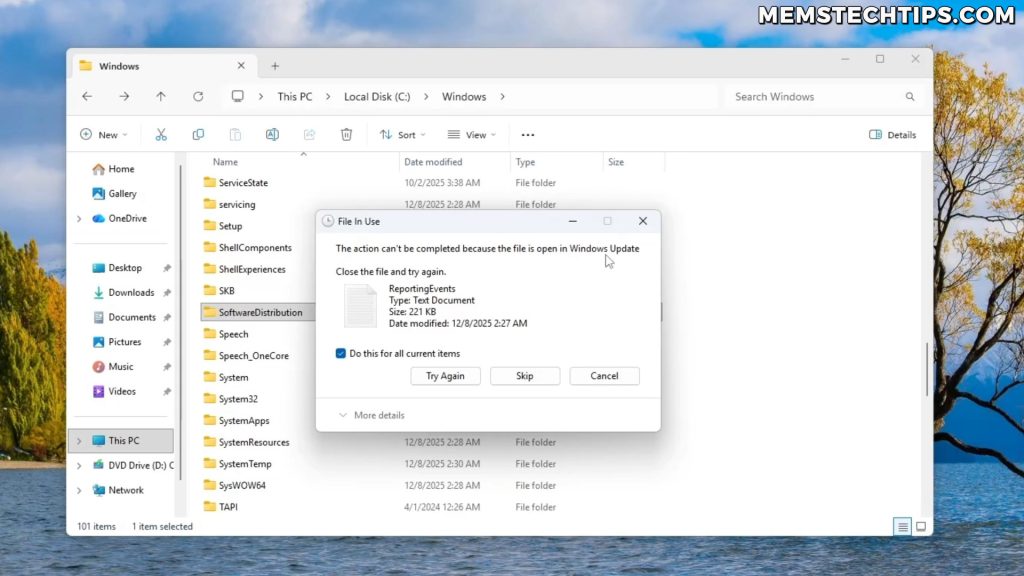
Note: This error occurs because the Windows Update service is actively using files in the Software Distribution folder. You need to stop the service before you can delete the folder.
Step 3: Stop the Windows Update Service
To resolve this issue, you need to stop the Windows Update service. Click on the Search icon in your taskbar and type Services. Open the Services app from the search results.
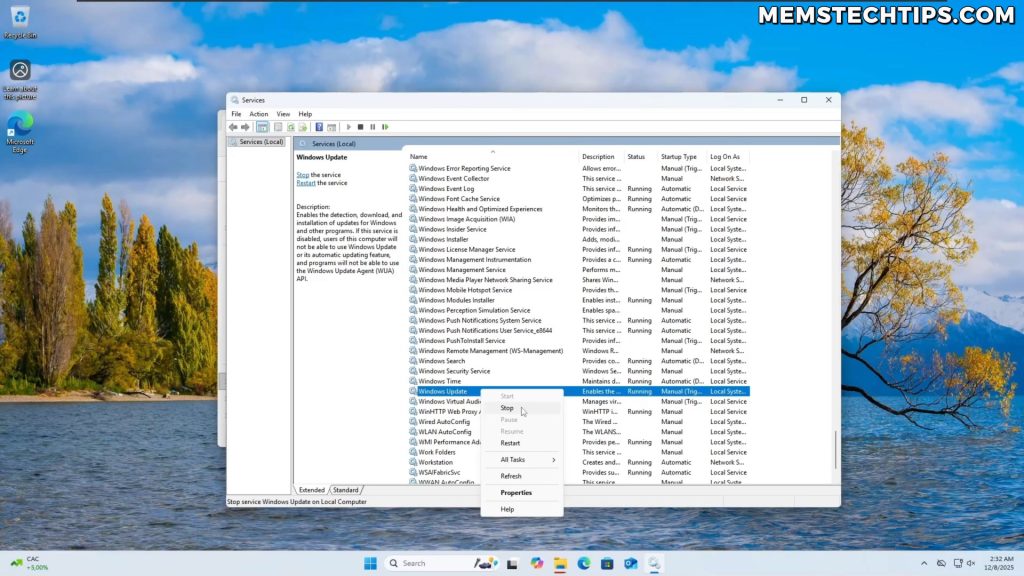
In the Services panel, scroll all the way down to the services that start with “W”. Look for Windows Update in the list. You’ll notice that it shows as “Running” in the Status column.
Right-click on Windows Update and select Stop. This will stop the Windows Update service and release the file locks on the Software Distribution folder.
Step 4: Delete the Software Distribution Folder
Now that the Windows Update service is stopped, go back to File Explorer and try to delete the SoftwareDistribution folder again. This time, it should work without any errors.
If you navigate into the SoftwareDistribution folder after stopping the service, you might notice it only contains logs and doesn’t have the actual Windows update files anymore. The important cached update files have been cleared.
This effectively clears your Windows update cache and prevents the updates you just uninstalled from being automatically reinstalled.
How to Pause Windows Updates
The last thing you can do if you want to prevent updates from being installed automatically is to pause Windows updates. This gives you more control over when updates get installed on your system.
Go back to Settings > Windows Update. On the Windows Update screen, you’ll see an option to Pause updates. By default, you can pause updates for up to four weeks.
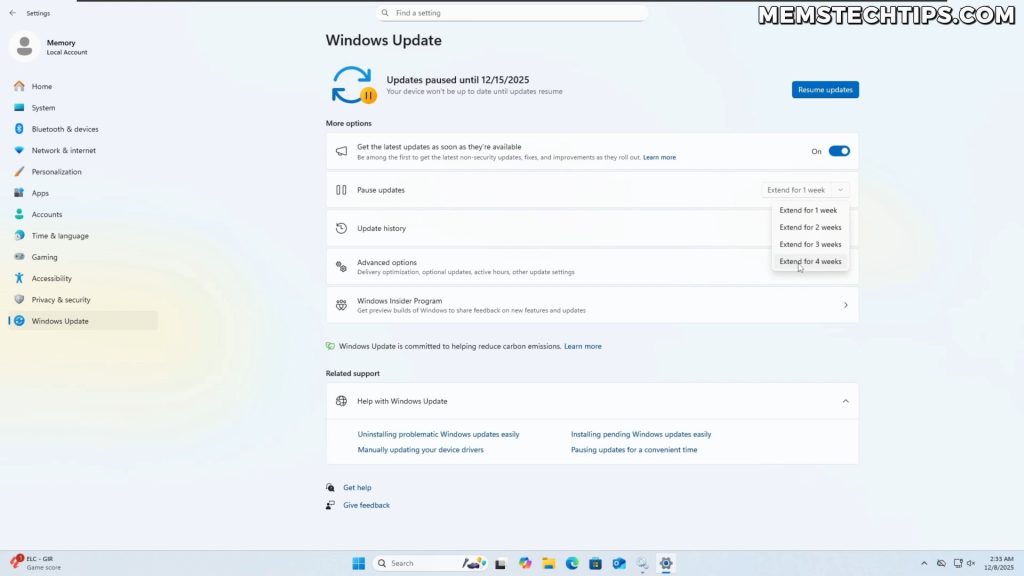
When you pause updates, Windows won’t check for or install any updates automatically during the pause period. However, once you reach the expiry date of when the updates were paused, Windows will automatically download and install all of the available updates again.
Important: Pausing updates is temporary. After the pause period expires (maximum 4 weeks), Windows will automatically resume checking for and installing updates.
How to Disable Windows Updates with Winhance
If just pausing the updates isn’t enough for you and you actually want to disable updates completely, you can do that through my tool called Winhance, which is the Windows enhancement utility.
In Winhance, navigate to the Optimizations tab, then go to Windows Update Settings. Here you’ll find the Windows Update Policy options. Currently, Winhance might detect that Windows updates are paused, but you also have the option of completely disabling Windows updates.
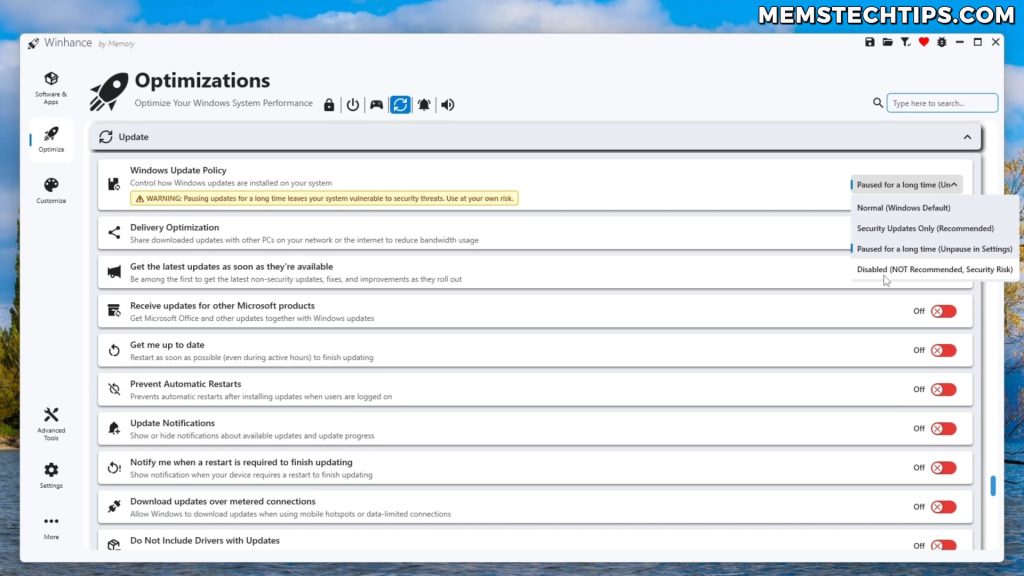
Warning: Disabling Windows updates completely is not recommended for extended periods of time. Your system will miss important security updates and patches that protect your computer from vulnerabilities. Only use this option if you have a specific reason and plan to re-enable updates soon.
If you select the disable option and apply it, Windows Update will be completely disabled. When you navigate to Windows Settings and try to check for updates, it won’t work as expected because the Windows update functionality is disabled.
However, this should only be used temporarily when you’re dealing with a particularly problematic update and need to prevent it from installing while Microsoft works on a fix.
Conclusion
And there you have it – the complete process for uninstalling Windows 11 updates and clearing the Windows update cache. By following these steps, you can remove problematic updates from your system and prevent them from automatically reinstalling.
Remember, the key steps are: first, uninstall the problematic updates through Windows Settings, then stop the Windows Update service, delete the SoftwareDistribution folder to clear the cache, and optionally pause or disable updates temporarily if needed. This combination ensures that the updates you removed stay removed until you’re ready to install them again.
Just keep in mind that staying on top of Windows updates is generally important for security and system stability. Only skip or disable updates when you’re experiencing specific issues, and try to re-enable them once Microsoft releases a fix for the problematic update.
Frequently Asked Questions (FAQ)
Can I uninstall all Windows updates?
No, you cannot uninstall all Windows updates. Windows prevents you from uninstalling certain updates, particularly security updates and some driver updates, because removing them could put your PC at risk. Only feature updates and non-security quality updates can typically be uninstalled through the Windows Settings interface.
Will clearing the Software Distribution folder cause problems?
No, clearing the SoftwareDistribution folder is safe and won’t cause problems with your Windows installation. This folder only contains cached update files that Windows has downloaded. When you delete it, Windows will simply recreate the folder the next time it checks for updates. The only thing you’re removing is the cached update files that would cause previously uninstalled updates to reinstall automatically.
Why can’t I delete the Software Distribution folder?
If you can’t delete the SoftwareDistribution folder, it’s because the Windows Update service is currently running and has files in that folder locked. You need to open the Services panel, find the Windows Update service, right-click it, and select Stop. Once the service is stopped, you’ll be able to delete the folder without any errors.
How long can I pause Windows updates for?
In Windows 11, you can pause updates for up to 4 weeks (28 days) by default. After the pause period expires, Windows will automatically resume checking for and installing updates. If you need to prevent updates for longer than 4 weeks, you’ll need to either pause them again after they resume, or use a third-party tool like Winhance to disable updates completely (though this is not recommended for security reasons).
Is it safe to disable Windows updates permanently?
No, it’s not recommended to disable Windows updates permanently. While you can disable them temporarily to avoid a problematic update, keeping them disabled for extended periods means you’ll miss important security patches and bug fixes that protect your computer from vulnerabilities and malware. Only disable Windows updates when you have a specific reason, and re-enable them as soon as possible, or at least once Microsoft releases a fix for the issue you were experiencing.