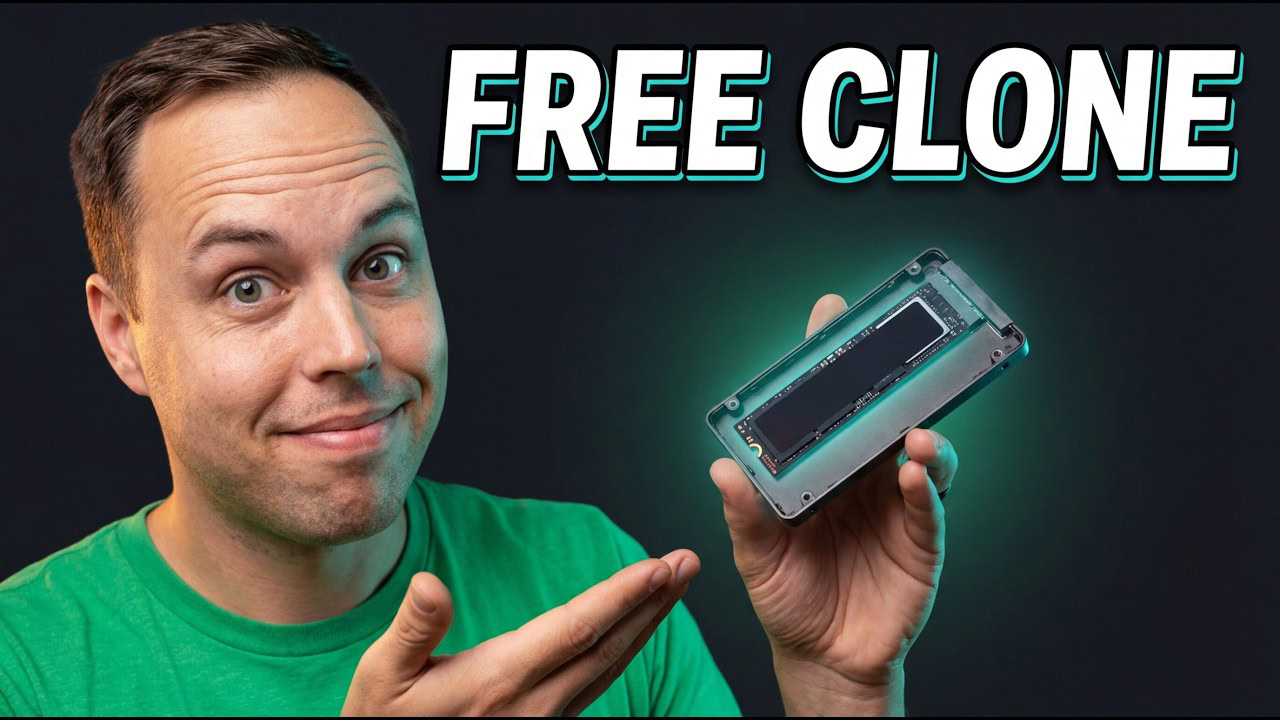
Back when I was running my computer repair business, the number one thing people came in for was a slow PC. And nine times out of ten, the fix was the same — clone the old hard drive to an SSD. I used to charge for this service, but in this guide I’m going to show you exactly how to do it yourself for completely free. The method I’m going to show you works for any kind of disk cloning, whether you’re going from a hard drive to an SSD or from a smaller SSD to a bigger one. Whatever your situation is, the process is the same.
This post contains affiliate links. If you purchase through these links, I may earn a small commission at no extra cost to you.
Key Takeaways
- DiskGenius Free Edition is all you need to clone any disk to any other disk — no paid version required for this process.
- Your target disk does not need to be the same size as your source disk — it just needs to be large enough to hold all the used data on the source disk.
- After the clone is done, there are a few important steps to take — like creating a system restore point and enabling TRIM — that will keep your new drive healthy and your system stable long-term.
What You’ll Need to Clone a Disk
Before getting started with the disk cloning process, make sure you have the following:
- DiskGenius Free Edition — available for free download from the DiskGenius website
- Your source disk — the drive that currently has Windows and your files on it
- Your target disk — the new SSD or larger drive you want to clone to
- A USB to SATA converter or USB to NVMe/M.2 converter — needed to connect both drives to your computer at the same time (for laptops)
- Desktop users can skip the converter entirely and use the extra SATA ports or M.2 slots already available on the motherboard
Why Clone a Disk Instead of Reinstalling Windows?
The biggest reason I always recommended cloning over a fresh Windows install is simple — you keep everything. All your programs, settings, and files move over to the new drive exactly as they were. A fresh install means reinstalling all your software and reconfiguring everything from scratch, which takes a lot of time most people don’t have. Cloning removes all of that hassle. You get a massive speed boost — especially going from a hard drive to an SSD — and everything just works when you boot up on the new drive. That’s why disk cloning was my go-to fix at the repair shop for slow PCs.
Download and Install DiskGenius
The software I use for disk cloning is DiskGenius Free Edition. It’s completely free and available to download directly from the DiskGenius website. Once you’ve downloaded it, run the installer and go through the setup wizard — it’s a simple next, next, next kind of install with nothing complicated. Once DiskGenius launches for the first time, the interface might look a bit overwhelming, but don’t worry about that. We’re only going to use one specific feature and I’ll walk you through each step.
Connect Both Drives to Your Computer
For the cloning process to work, you need both drives connected to your computer at the same time. This is where the USB converter comes in for laptop users.
In my example, I’ve got a laptop with an old hard drive inside and a 120GB SATA SSD that I want to clone to. Since I can’t connect the SSD internally while the hard drive is still installed, I use a USB to SATA converter. I plug the SSD into the converter and then plug the USB end into the laptop. That way, the internal hard drive and the new SSD are both connected at the same time.
Note: If your new drive is an NVMe or M.2 drive, you’ll need a USB to NVMe or USB to M.2 converter instead. The process is the same — just make sure you pick up the correct converter for the type of drive you’re working with. Desktop users can simply plug both drives directly into the motherboard and skip the converter entirely.
Once both drives are connected, open DiskGenius. You should now see two disks listed on the left side of the interface — the internal drive (HD0) and the new drive you just connected (HD1).
How to Clone a Disk Using DiskGenius
There are two main ways to go about disk cloning in DiskGenius, and it’s worth understanding the difference before you start so you use the right one.
Clone Disk vs OS Migration — Which One Should You Use?
In the Tools menu, you’ll find a Clone Disk option as well as a Clone Partition option. At the top of the interface, there’s also a separate OS Migration button. Here’s the difference:
- Clone Disk — Use this for a straightforward disk-to-disk clone when there is no operating system on the source disk. It copies everything across without any special handling.
- OS Migration — Use this when the source disk has Windows installed on it. This feature ensures the target disk will be bootable after the clone, which is exactly what you need when you’re upgrading your Windows drive.
If you try to use Clone Disk and select a drive that has Windows on it, DiskGenius will actually prompt you and recommend switching to the OS Migration feature to make sure the target disk ends up bootable. Just click Yes when it asks and it will take you straight to OS Migration. I created a similiar guide before – if you want to look at how OS migration works specifically, check out my guide on migrating Windows to another drive with DiskGenius.
Using the OS Migration Feature
Once you’re in the OS Migration screen, DiskGenius already knows that your C drive is the source disk. All you need to do is select your target disk — the new drive you want to clone to.
Important: You will see a warning telling you that all files and partitions on the target disk will be deleted during the cloning process. Make sure the target disk is empty or doesn’t have any files you need to keep before continuing. If you’re using a brand new SSD out of the box, there’s nothing to worry about.
Adjusting the Partition Layout on the Target Disk
On the migration settings screen, you’ll see a preview of how the partitions will be laid out on the target disk after the clone. Pay close attention here — you might notice that the C drive partition only takes up part of the available space, with a large block of free space sitting next to it.
If that’s the case, hover your cursor over the right edge of the C drive partition in the preview. You’ll see a resize handle appear. Click and drag it all the way to the right so the C partition fills all the available space on the target disk. This makes sure you’re actually using the full storage capacity of your new drive after the clone.
Does the Target Disk Have to Be the Same Size as the Source Disk?
No — and this is something a lot of people get confused about. In my example, I’m cloning from a 1TB hard drive to a 120GB SSD. That sounds like it shouldn’t work, but it does because the actual amount of data on the 1TB drive is less than 120GB. The total size of the disks doesn’t have to match. What matters is whether the used space on the source disk fits inside the target disk. Always check the used space on your source drive first before deciding on the size of the target drive you need.
Hot Migration vs Reboot to WinPE
After clicking OK to confirm the settings and acknowledging the warning about the target disk being wiped, you’ll see a window asking you to choose between Hot Migration and Reboot to WinPE.
- Hot Migration — This runs the clone while Windows is still running in the background. If this option is available and clickable, use it. It’s the easier option and works for most people in most situations.
- Reboot to WinPE — This restarts your computer into a lightweight Windows environment to perform the clone. If Hot Migration is greyed out or unavailable, you’ll need to use this option instead.
For most people, Hot Migration will be available. Just click it and DiskGenius will start creating a snapshot and begin the cloning process right away.
Completing the Clone and Verifying It Worked
The time it takes to finish depends on how much data needs to be copied over. In my case it took around seven minutes, but yours may take more or less time depending on your data. Just leave it running and wait for it to complete.
Once it’s done, you’ll see a message saying the system migration completed successfully. Click OK and then Complete. Before you do anything else, open File Explorer, navigate to the new drive, and do a quick check. Make sure the Windows folder and the Users folder are both there. If you can see those, the clone worked and everything is in good shape.
Tip: Before starting the clone, make sure the “Prevent system from sleeping during execution” option is checked in the migration settings. It’s enabled by default, but it’s worth double-checking so the process doesn’t get interrupted halfway through.
Install the New Drive in Your Computer
Once the clone is finished and verified, it’s time to physically swap out the drives.
For Laptops
Shut your laptop down completely, remove the back panel, take out the old hard drive, and install the cloned SSD in its place. Put the back panel back on and power it up. If everything went correctly, your laptop will boot straight into Windows on the new SSD with all your files and programs still exactly as they were.
For Desktops
For a desktop, you have two options. You can go into the BIOS and change the boot order so the machine boots from the new SSD first, or you can just disconnect the old drive so it only has the new one connected. Either way works fine — just make sure it’s booting from the new cloned drive and not the old one.
Important Steps to Take After the Disk Clone
Once you’re booted into Windows on the new drive, there are a few things I always do after a disk clone and I strongly suggest you do them too.
Create a System Restore Point
The first thing to do is set up a system restore point. Search for “create a restore point” in the Windows search bar and open the System Properties window. You’ll likely see that system protection for the C drive is turned off — this is common after a migration. Select the C drive from the list, click Configure, and turn on system protection. Allocating around 9–10% of the disk space for restore is perfectly fine. Click Apply and then OK.
Now click Create, give the restore point a name — I use something like “After Disk Clone” — and let Windows create it. Once done, you’ll have a restore point to fall back on if anything goes sideways. In rare cases, the first boot after a clone is fine but subsequent restarts can run into issues. Having that restore point there means you always have a safety net to go back to.
Enable TRIM on Your SSD
Windows should enable TRIM automatically, but it’s always worth running the command just to be sure. Open PowerShell as an administrator and run the following command:
fsutil behavior set DisableDeleteNotify 0TRIM is a background process that helps your SSD manage and clear unused data blocks efficiently. Without it, your SSD’s performance can degrade over time as it fills up. Running this command makes sure TRIM is active and your drive stays healthy long-term.
Optimize Your Windows Installation with Winhance
While you still have PowerShell open, this is also a great time to grab Winhance — the free, open-source Windows Enhancement Utility I developed. You can use it to uninstall bloatware apps, tweak privacy settings, apply performance optimizations, and customize Windows exactly how you want it. The command to download and install Winhance is available in the video description and in the written guide linked below. If you’ve never used it before, I’m a little biased of course, but I do think it’s worth trying.
What to Do with the Old Drive
Don’t format or wipe the old drive right away. Leave it alone for at least a week after the clone. If anything goes wrong with the new drive in the first few days, you’ll be grateful you still have the original as a backup. Think of it as a frozen snapshot in time of everything that was on your computer before the upgrade.
If you’re on a laptop, consider putting the old drive into a 2.5-inch SATA external enclosure — the same type used during the cloning process. That turns it into a portable external drive you can use for backup storage or to transfer files. It’s a much better use for it than leaving it sitting in a drawer collecting dust.
Once the first week has passed and everything is running smoothly on the new drive, you can decide whether to keep the old one as a long-term backup or wipe it and repurpose it. Either way, there’s no rush.
Conclusion
Cloning a disk with DiskGenius is one of the most practical upgrades you can do for a slow computer — and it’s completely free to do yourself. Whether you’re moving from an old hard drive to an SSD or upgrading to a larger drive, the process is the same every time. I’ve done this hundreds of times in my repair business and the difference in speed going from a hard drive to an SSD is genuinely one of the biggest improvements you can make to an older machine.
Just keep the key things in mind: both drives need to be connected at the same time, use OS Migration when cloning a Windows drive, make sure the used data fits on the target disk, and don’t skip those post-clone steps. They only take a few minutes and they can save you a lot of trouble later. If you’re setting up your fresh drive and want to know what software to put on it, my guide on must-know free software for a new Windows PC is a great next read.
Frequently Asked Questions (FAQ)
Can I clone a 1TB hard drive to a smaller SSD using DiskGenius?
Yes, as long as the actual amount of data stored on the source disk fits inside the target disk. DiskGenius copies used data, not empty space. So if your 1TB drive only has 60GB of files on it, cloning it to a 120GB SSD works perfectly fine. Always check the used space on your source drive before choosing what size target drive to buy.
What is the difference between Clone Disk and OS Migration in DiskGenius?
Clone Disk performs a straightforward copy of one disk to another without any special handling. OS Migration is specifically designed for cloning a disk that has Windows installed on it — it ensures the target disk will be properly bootable after the process completes. If you’re cloning your Windows drive, always use OS Migration. DiskGenius will even prompt you to switch to it if you accidentally start with Clone Disk.
How long does disk cloning take with DiskGenius?
It depends on how much data needs to be cloned. For a system with around 60GB of data, expect somewhere around 7 to 10 minutes. Larger amounts of data will take longer. The speed of your USB connection also plays a role — using a USB 3.0 converter and port will be noticeably faster than USB 2.0.
What should I do if my computer doesn’t boot after the disk clone?
First, make sure the computer is actually trying to boot from the new drive and not the old one. On a desktop, check the boot order in the BIOS and confirm the new drive is set as the first boot device. If it’s still not booting correctly, you can try booting into the Windows Recovery Environment and running a Startup Repair. If Hot Migration caused the issue, repeating the OS Migration using the Reboot to WinPE option instead can sometimes resolve it.
Do I need a USB to SATA converter to clone a disk on a desktop?
No. Desktop motherboards have multiple SATA connectors, so you can connect both your old drive and your new drive directly to the motherboard at the same time without any adapter. Just plug the new drive in, power on the computer, open DiskGenius, and follow the same steps outlined in this guide. The USB converter is mainly needed for laptops that can only hold one internal drive at a time.