Windows Terminal is the app that PowerShell, Command Prompt, and WSL all run inside on Windows 11 — and it hides features most people never find. You can split one window into multiple panes, broadcast a single command to every pane at once, open a searchable command palette with Ctrl+Shift+P, make the window transparent, set a background image, and even summon the terminal from anywhere with a global hotkey.
Applies to: Windows 11 (23H2, 24H2, 25H2) and Windows 10 (22H2, with Windows Terminal from the Microsoft Store) | Last updated: July 11, 2026
Key Takeaways
- You already have Windows Terminal on Windows 11 — it hosts PowerShell, Command Prompt, and WSL in one window, and Windows 10 users can install it free from the Microsoft Store
- Split one window into multiple panes with
Alt+Shift++andAlt+Shift+-, and run a different shell in each pane - Broadcast input sends your keystrokes to every open pane at once — type a command once and it runs everywhere
- The command palette (
Ctrl+Shift+P) is a searchable list of every action and its shortcut, so it is the only shortcut you actually need to memorize - A one-line settings tweak (global summon) drops the terminal down from the top of the screen from anywhere with
Win + `
Windows Terminal Keyboard Shortcuts (Quick Reference)
| Action | Shortcut |
|---|---|
| Split pane side by side | Alt+Shift++ |
| Split pane top and bottom | Alt+Shift+- |
| Move between panes | Alt + Arrow keys |
| Resize a pane | Alt+Shift + Arrow keys |
| Close the current pane | Ctrl+Shift+W |
| New tab | Ctrl+Shift+T |
| Jump to profile 1, 2, 3… | Ctrl+Shift+1 / 2 / 3 |
| Switch between tabs | Ctrl+Tab |
| Open the command palette | Ctrl+Shift+P |
| Search the scrollback | Ctrl+Shift+F |
| Open a link in the browser | Ctrl + Click |
| Zoom text in / out | Ctrl + mouse wheel |
| Toggle transparency | Ctrl+Shift + mouse wheel |
| Open Settings (UI) | Ctrl+, |
| Open settings.json (file) | Ctrl+Shift+, |
What Is Windows Terminal (and Do You Already Have It)?
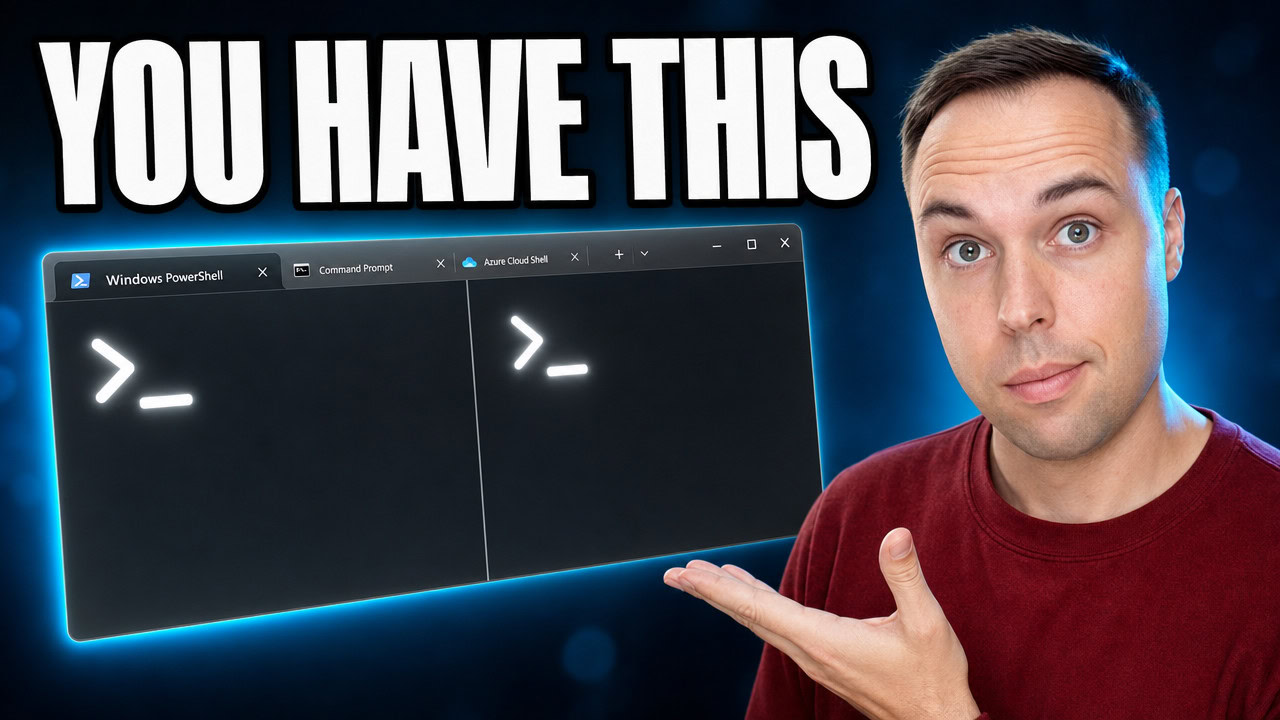
Windows Terminal is the modern window that your shells run inside on Windows 11. When you open PowerShell or Command Prompt, most of the time it is actually running inside this app — you did not install it or choose it, and most people have no idea it is even there. It does not matter which shell you use: PowerShell, Command Prompt, or a Linux distribution through Windows Subsystem for Linux (WSL) all live inside the same Terminal window.
This guide is not about commands to memorize, and it is not about the newer AI-powered terminal features — it is about the plain Terminal app already sitting on your Windows 11 PC and what it can genuinely do for you. If you are still on Windows 10, you are not left out: you can install Windows Terminal free from the Microsoft Store, as long as you are on a reasonably recent build. Microsoft also has a short guide on installing it and setting it as your default terminal.
1. Split the Window into Multiple Panes
Most people, when they need a second shell, open a second window — then a third — and end up alt-tabbing between four separate windows. You do not have to. You can split the one window you already have into panes, side by side or stacked. Hold Alt+Shift and press the plus key to split side by side, or the minus key to split top and bottom.
Once you have panes, hold Alt and use the arrow keys to jump between them, hold Alt+Shift with the arrows to resize one, and press Ctrl+Shift+W to close the pane you are in. Here is the part people miss: the panes do not all have to be the same shell. Open the little drop-down next to the tabs, hold Alt, and click a different profile — it opens that shell as a split pane instead of a new tab.
Tip: This is genuinely useful when you want to watch a log scroll in one pane while you work in another, or when you are running multiple AI agents like Claude Code at the same time. Microsoft’s documentation on panes lists every pane action.
2. Use Tabs and Profiles to Run Every Shell in One Window
Tabs are the same idea as panes, just stacked instead of side by side. Press Ctrl+Shift+T for a new tab, and open the drop-down to see every shell you have set up — PowerShell, Command Prompt, and, if you have installed WSL, your Linux distribution shows up here too. Each of these is a “profile.”
You can jump straight to a specific profile with Ctrl+Shift+1 for the first one, Ctrl+Shift+2 for the second, and so on. To flip between tabs you already have open, use Ctrl+Tab. You can also right-click any tab and rename it, which makes it much easier to keep track of what you are working on in each one.
3. Broadcast Input — Type Once, Run It in Every Pane
This is one of the best tricks in the whole app, and almost nobody finds it because it has no default keyboard shortcut. Split your window into a few panes, open the command palette with Ctrl+Shift+P, type Broadcast, and choose Toggle broadcast input to all panes. Now whatever you type into one pane is sent to every other pane at exactly the same moment.
Think about where that helps: if you are connected into a few different machines at once, or running the same command across a couple of servers, you type it a single time and it runs everywhere together. You toggle it back off the same way you turned it on. Broadcast input is one of the actions you can configure in Windows Terminal — you can even assign it a custom shortcut so it is easier to reach.
4. The Command Palette — Your Cheat Sheet for Every Command
If you point a beginner to one feature first, make it this one. Press Ctrl+Shift+P and the command palette shows every single thing the terminal can do, listed in one place — and when a feature has a keyboard shortcut, it displays that shortcut right next to it. That is why Ctrl+Shift+P is the only shortcut on this page you actually need to remember: if you forget any other one, open the palette, type what you want in plain English, and press Enter.
There is a hidden extra here too. With the palette open, press Backspace to delete the little > arrow at the start of the line, and it flips into command-line mode, where you can type an actual terminal command and run it directly from the palette. Microsoft documents the full behavior in its command palette guide.
5. Make the Terminal Transparent
Hold Ctrl+Shift and scroll the mouse wheel down, and the whole window turns transparent so you can see the desktop — or whatever is sitting behind it. On Windows 11 this works the moment you scroll. On Windows 10 you switch on a setting called Use acrylic first, which gives you a slightly blurred version instead of a clean see-through one.
Where this actually earns its place is when you have instructions open in a browser, or a note sitting behind the terminal. You make the window transparent enough to read what is behind it, instead of alt-tabbing back and forth while you follow along.
6. Customize It with Color Schemes and Background Images
Open the settings with Ctrl+,, go into a profile, and then into Appearance. There is a whole list of built-in color schemes you can switch between live until you find one you like. But the setting worth knowing about is background images: you can browse for an image file on your PC and set it as the terminal background, then adjust the image opacity so your text stays readable.
You are not even limited to a still image — you can drop in an animated GIF and it plays behind your text. That is a bit much for daily use for my taste (I keep mine on a still image), but it is there if it is your thing. All of these live under the profile appearance settings. If you enjoy this kind of thing, it pairs well with my full Windows 11 desktop customization guide.
7. Search, Clickable Links, Font Zoom, and Two More Quick Wins
These are the fast ones you will use every single day:
- Search the scrollback — press
Ctrl+Shift+Fto search back through everything in the current window when output has already scrolled past - Open links without copying — hold
Ctrland click any web link in your output and it opens straight in your browser - Zoom the text — hold
Ctrland scroll the mouse wheel to make the text bigger or smaller, which is handy when you are recording or screen-sharing
Two more that people ask about all the time. First, if you need a shell running as administrator from a window that is not currently elevated, hold Ctrl and click the profile in the drop-down and it opens as admin (you can also set a profile to always run elevated in its general settings). Second, to make every terminal window on your PC open in this app, go to Settings > Startup and set Default terminal application to Windows Terminal. From then on, every terminal window lands here.
Bonus: Quake Mode — Drop the Terminal Down Like a Game Console
You know how in some games you tap a key and a console drops down from the top of the screen? Windows Terminal can do exactly that — it is just switched off by default. The feature is called global summon, and turning it on takes one line in the settings file. Open settings.json with Ctrl+Shift+, and add a global summon action to the actions array:
{ "command": { "action": "globalSummon", "name": "_quake", "dropdownDuration": 200, "toggleVisibility": true, "monitor": "toMouse" }, "keys": "win+`" },Save the file, and from anywhere in Windows you can tap Win + ` (the backtick key) and the terminal drops down from the top of the screen. It lands on whichever screen your mouse is on, stays out of the way, and is one key from anywhere. The only catch: the terminal has to already be running in the background for that hotkey to work. You can fine-tune the behavior — which monitor it uses, whether it drops or centers — in Microsoft’s actions documentation.
Note: Since everything here runs inside PowerShell or Command Prompt, it pairs nicely with my guides on PowerShell commands every Windows user should know and how to use WinGet to install and update apps from that same terminal.
Frequently Asked Questions
Is Windows Terminal the same as PowerShell or Command Prompt?
No. Windows Terminal is the window that hosts your shells, while PowerShell, Command Prompt, and WSL are the shells that run inside it. Think of Terminal as the container and the shells as what runs within it. That is why one Terminal window can show PowerShell in one pane and Command Prompt in another at the same time.
Do I need to install Windows Terminal on Windows 11?
No. Windows Terminal ships built into Windows 11 and is already the default terminal. On Windows 10, it does not come preinstalled, but you can install it free from the Microsoft Store on any reasonably recent build.
How do I split Windows Terminal into multiple panes?
Press Alt+Shift++ to split the current pane side by side, or Alt+Shift+- to split it top and bottom. Move between panes with Alt and the arrow keys, resize with Alt+Shift and the arrows, and close a pane with Ctrl+Shift+W. Alt-click a profile in the drop-down to open a different shell as a pane.
What is the one shortcut I should actually remember?
Ctrl+Shift+P opens the command palette, a searchable list of every action in Windows Terminal with its keyboard shortcut shown next to it. If you forget any other shortcut, open the palette, type what you want in plain English, and press Enter. It is the only shortcut you truly need to memorize.
How do I make Windows Terminal drop down from the top of the screen?
Add a global summon action to the actions array in your settings.json file (open it with Ctrl+Shift+,) and bind it to a key such as Win + `. After saving, that hotkey drops the terminal down from the top of the screen from anywhere in Windows, as long as Terminal is already running in the background.