If you’ve tried to uninstall Microsoft Edge from Windows 10 or Windows 11, you probably noticed something frustrating—the uninstall button is grayed out (if you live outside the EU). Microsoft doesn’t make it easy to remove their browser, even if you prefer using something else.
I’m going to show you a quick and easy way to completely uninstall Microsoft Edge from your system. And the best part? It’ll stay off for good, even after Windows updates try to sneak it back in.
Key Takeaways
- You can completely remove Microsoft Edge from Windows 10 and Windows 11 using Winhance
- Winhance automatically prevents Microsoft Edge from reinstalling after Windows updates
- Removing Edge will break the Windows 11 Widgets feature, so keep that in mind
Requirements
To uninstall Microsoft Edge completely from your system, you’ll need:
- A Windows 10 or Windows 11 computer
- Winhance (my Windows enhancement utility)
- An alternative browser installed (or you can install one through Winhance)
- Administrator access to your computer
Why Uninstall Microsoft Edge from Windows 11?
There are plenty of reasons why you might want to remove Microsoft Edge from your system. Maybe you prefer a different browser like Chrome, Firefox, or Brave. Maybe you’re tired of Microsoft pushing Edge as the default browser every chance they get.
Whatever your reason, you should have the freedom to choose what software runs on your computer. The problem is that Microsoft makes it nearly impossible to uninstall Edge through normal methods—the uninstall button is grayed out in Windows Settings.
That’s where Winhance comes in. It gives you back control over your system.
How to Remove Microsoft Edge Using Winhance
I created Winhance specifically to help people optimize and customize their Windows installations. One of its most popular features is the ability to completely remove Microsoft Edge and keep it off your system permanently.
Step 1: Download and Install Winhance
First, you’ll need to download Winhance from the official downloads page. You have two options:
- Use the PowerShell command (quick installation)
irm "https://get.winhance.net" | iex
- Download the installer directly from the Winhance downloads page
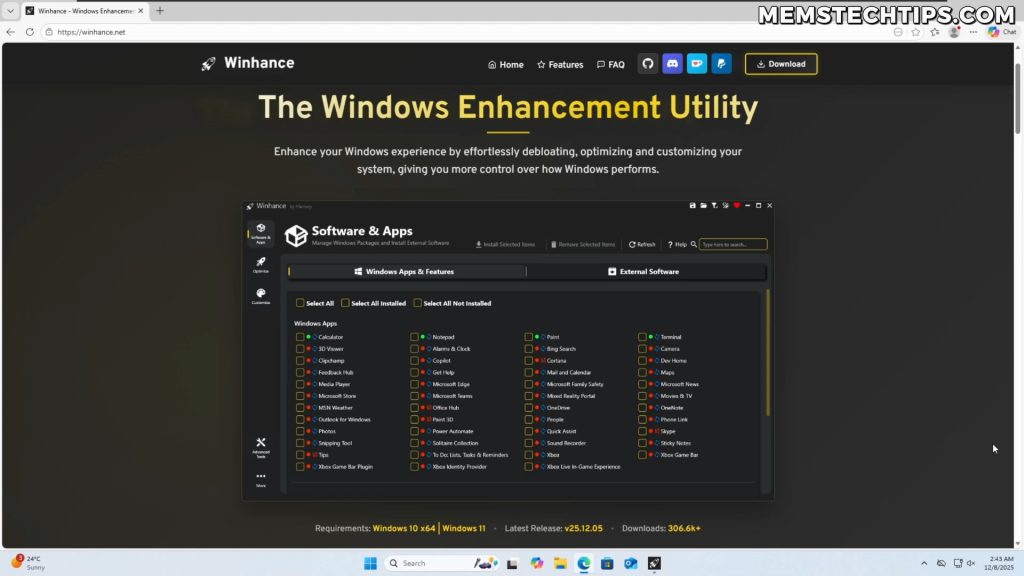
Once you’ve downloaded and installed Winhance, launch the application.
Step 2: Navigate to the Software and App Section
When you open Winhance, you’ll be presented with the software and app section right away. This is where you can remove various Windows apps that Microsoft doesn’t normally let you uninstall.
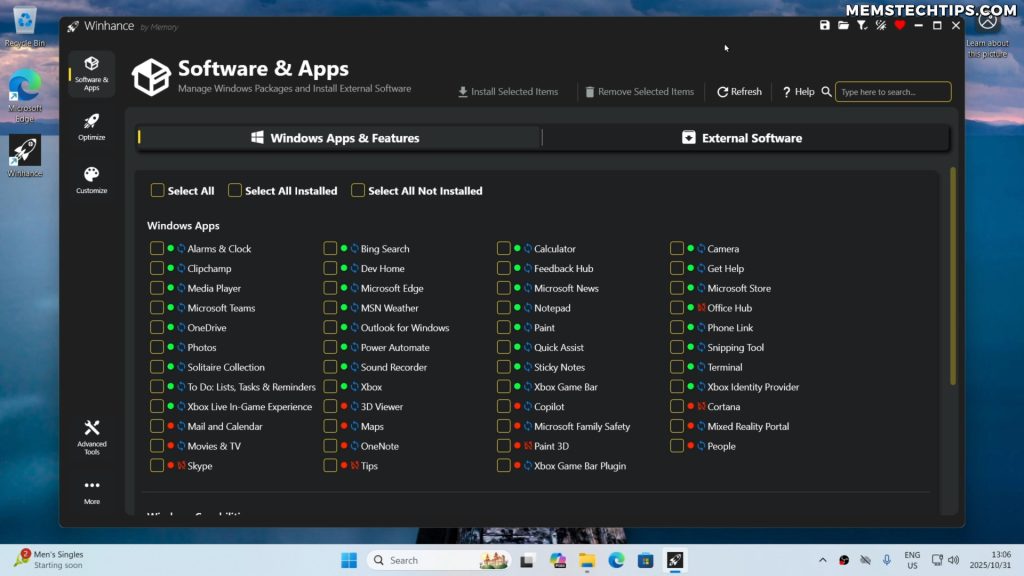
You’ll see that you can remove more than just Microsoft Edge with Winhance. But for this guide, I’m going to focus specifically on removing Edge.
Step 3: Select Microsoft Edge for Removal
In the software and app section, find Microsoft Edge in the list and select it. You can select multiple apps if you want to remove other bloatware too, but I’m just selecting Edge for now.

Step 4: Remove Microsoft Edge
After selecting Microsoft Edge, click on the “Remove Selected Items” button. Winhance will ask you to confirm the removal—go ahead and confirm it.
The uninstallation process will begin. It usually takes just a few seconds, maybe half a minute at most.
Step 5: Verify Microsoft Edge Has Been Uninstalled
Once the process completes, you’ll see a confirmation that Microsoft Edge has been successfully uninstalled from your system.
Let’s verify that it’s actually gone. If you open the Start menu and go to All Apps, you’ll see that Microsoft Edge is no longer listed there.

You can also check the installed apps list in Windows Settings. Go to Settings > Apps > Installed apps, and you’ll see that Microsoft Edge has been completely removed from the list. In my case, it also removed Game Assist along with Edge.
Important Note: When you uninstall Microsoft Edge, the Windows 11 Widgets feature will stop working. If you use the Widgets panel regularly, you’ll need to keep Microsoft Edge installed for it to function properly.
Installing an Alternative Browser
If you uninstalled Edge without having another browser installed first, don’t worry. You can use Winhance to install a replacement browser.
Using Winhance to Install a Browser
Open Winhance and navigate to the External Software section. Here you’ll find a list of popular applications you can install, including several browsers.
I personally use Brave browser at the time of this recording, so I’m going to select that. But you can choose Chrome, Firefox, Opera, or whatever browser you prefer.
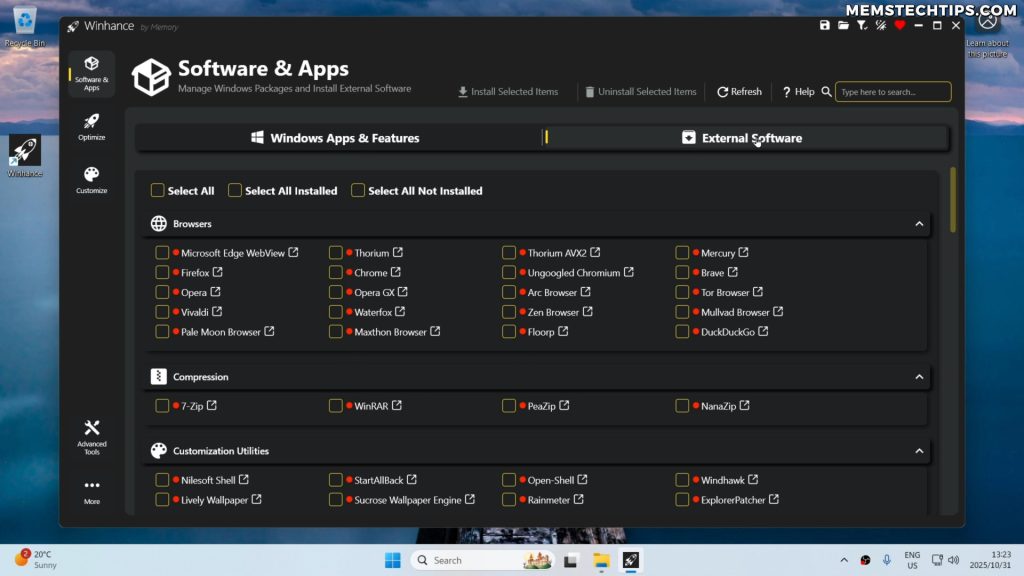
Select your preferred browser and click the install button. Winhance will download and install it for you automatically.
How Winhance Keeps Microsoft Edge Off Your System
Here’s where Winhance really shines. It doesn’t just do a one-time uninstallation of Microsoft Edge—it keeps it off your system permanently.
Automatic Reinstallation Prevention
Let me show you what happens if you try to manually reinstall Microsoft Edge after removing it with Winhance.
If I go to the Microsoft Edge download page and download the installer, then run it, Edge will install normally. You’ll see it appear in your installed apps and you can launch it.

But here’s the thing—Microsoft Edge also gets reinstalled sometimes during Windows updates. So what happens then?
How the Auto-Removal Works
When you uninstall Microsoft Edge (or any other Windows app) using Winhance, it sets up scheduled tasks in Windows that run automatically. These tasks check for the presence of removed apps and uninstall them again if they’re detected.
The uninstallation script runs when you log in to your user profile. So if Edge gets reinstalled manually or through a Windows update, and you restart your computer, here’s what happens:
- You boot up and log into Windows
- Microsoft Edge is still there initially
- But if you wait a few seconds, Winhance’s scheduled task kicks in
- The uninstallation script runs automatically in the background
- Microsoft Edge gets removed again without you having to do anything
It happens completely automatically. You don’t need to open Winhance or click anything. The app just removes itself.
If you open the Start menu and search for Microsoft Edge, it won’t be found. Same thing if you check the installed apps list in Settings—Edge will be gone again.
Technical Note: Winhance uses the Windows Task Scheduler to create automated removal tasks. These tasks run continuously, checking for and removing specified applications whenever they’re detected on the system.
How to Disable Automatic Microsoft Edge Removal
Maybe you change your mind later and decide you actually want to use Microsoft Edge again. Or maybe you just want to disable the automatic removal feature. Winhance makes this easy too.
Method 1: Reinstall the App Through Winhance
The easiest way is to simply reinstall Microsoft Edge through Winhance. Open Winhance, go to the software section, select Microsoft Edge, and install it. When you do this, Winhance will automatically remove all the scheduled tasks related to Edge removal.
Method 2: Use the Winhance Status Screen
Alternatively, you can manually manage the removal tasks. Here’s how:
- Open Winhance
- Go to the Software and App screen
- Click on the Help button
- You’ll see the “Winhance status for the removals”
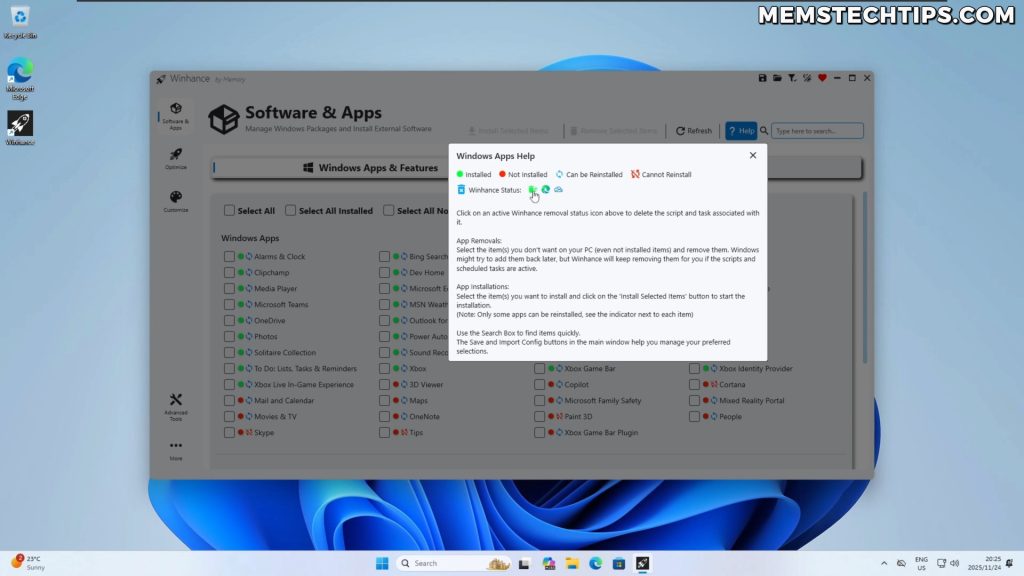
In this screen, you’ll see three types of automated removals:
- General bloat removal – Removes all bloatware from Windows
- Dedicated Microsoft Edge removal – Specifically targets Edge
- Dedicated OneDrive removal – Specifically targets OneDrive
The colored icons indicate which removals are currently active on your system. In my case, the Microsoft Edge icon is colored, which means there’s an active Edge removal task, but the other two aren’t active.
Disabling the Automatic Removal
To disable the automatic Microsoft Edge removal, simply click on the Microsoft Edge icon in the status screen. Winhance will remove the scheduled task and the uninstallation script from your computer.
Confirm by clicking “Yes” when prompted.
Once you’ve done this, the status screen will show that there are no active removals anymore. Now if you manually reinstall Microsoft Edge, it’ll stay on your system and you’ll be able to use it normally without it being automatically uninstalled again.
Conclusion
Uninstalling Microsoft Edge from Windows 11 or Windows 10 doesn’t have to be complicated. With Winhance, you can remove Edge completely in just a few clicks, and more importantly, keep it off your system permanently.
The automatic removal feature ensures that even if Windows updates try to reinstall Edge, it gets removed again automatically. And if you ever change your mind, disabling the auto-removal is just as easy.
This is exactly why I created Winhance—to give you back control over your Windows installation. You should be able to decide what software runs on your computer, not Microsoft.
Frequently Asked Questions (FAQ)
Will uninstalling Microsoft Edge break Windows 11?
No, uninstalling Microsoft Edge won’t break Windows 11. Your system will continue to function normally. However, the Windows 11 Widgets feature does depend on Edge, so if you use Widgets regularly, they’ll stop working after you remove Edge. Everything else works fine.
Can I reinstall Microsoft Edge after removing it with Winhance?
Yes, you can reinstall Microsoft Edge at any time. However, if you still have the automatic removal tasks active in Winhance, Edge will be uninstalled again automatically when you restart your computer. You’ll need to disable the auto-removal feature first if you want to keep Edge installed.
Is Winhance safe to use?
Yes, Winhance is completely safe. I developed it myself as a Windows optimization utility. It’s designed to give you more control over your Windows installation by removing bloatware and applying optimizations. The app is transparent about what it does, and you can always reverse any changes.
Will Windows updates reinstall Microsoft Edge?
Sometimes, yes. Windows updates can reinstall Microsoft Edge as part of their update process. But if you’ve used Winhance to remove Edge, the automatic removal tasks will uninstall it again the next time you log in. You won’t have to manually remove it every time.
What happens if I remove Microsoft Edge but don’t have another browser installed?
If you accidentally remove Edge without having another browser installed first, you can use Winhance’s External Software section to install a replacement browser like Chrome, Firefox, Brave, or Opera. Winhance can download and install browsers for you even without Edge being present on the system.